sparrowdesk-logo-transparent-1.png
Go to sparrowdesk.com
Home
SparrowDesk Overview
  • Overview of SparrowDesk
  • Feature Overview in SparrowDesk
  • SparrowDesk Glossary
Getting Started
  • Setting Up Account Details
  • Default Business Hours
  • Understanding and Creating Teams
  • Inviting Team Members to the Platform
  • Roles and Permissions
  • Single Sign-On
  • Brands in SparrowDesk
  • Getting Started FAQs
  • Use a custom domain for your support portal
Inbox
  • Understanding the Inbox in SparrowDesk
  • Managing Custom Views in Inbox
  • Live Chats in Inbox
  • Staying on Top of New Messages from Customers
  • Conversation Fields in SparrowDesk
  • Merging Conversations in SparrowDesk
  • Adding Watchers to a conversation
  • Round Robin assignment explained
  • Export Conversations as CSV
  • Bulk update fields
  • Forward a Conversation to an External Contact
  • Common Email Delivery Errors
Channels
  • Setting Up Email as a Support ChannelConnect your custom email address How do I send and receive emails via SMTP and IMAP ? How do I find my SMTP/IMAP server address and port number? Common Errors while Connecting through SMTP/IMAPHow to Prevent Emails From Going to Spam Email Signatures
  • Installing Chat Widget Chat Widget Installation on WordPressInstall the Chat Widget on ShopifyCustomising Chat WidgetEmbedding and Configuring the SparrowDesk Chat WidgetChat Widget SettingsWhy End Users Don’t Always See Their Chat HistoryTrack page visits in SparrowDesk
Contacts
  • Contacts in SparrowDesk
  • How to manage contact segments
  • Deleting and Blocking Contacts in SparrowDesk
  • Contact Fields in SparrowDesk
Reports
  • Conversation Report
  • Team Performance Report
  • Understanding the AI Agent Report in SparrowDesk
  • Viewing CSAT reports in SparrowDesk
  • Reports FAQ
  • Exporting Reports as PDF
Automation
  • Macros
  • Business Hours
  • Service-Level Agreements (SLAs)
  • Setting up CSAT (Customer Satisfaction) in SparrowDesk
Zoona AI
  • AI Suggested replies in your Inbox
  • AI-Generated Chat Subjects
  • Zoona AI Knowledge Improvements
  • Introduction to AI AgentAI Agent - Configure PersonaTraining your AI AgentZoona AI Agent CommandsAI Agent - Deploying on chatAI Agent - Deploying on EmailHow to Create a Command Zoona AI Agent - FAQUnderstanding AI resolutions in SparrowDesk
Workflows
  • Automate repetitive tasks through Workflows
  • How to Create a Workflow
  • Workflow Blocks Library
Help Centre
  • Write Knowledge Articles for your Help Centre and AI Agents
  • Setting Up and Customizing Your Help Center
  • Use a Custom Domain for Your Help Center
  • Make Your Help Centre Discoverable in Search results
  • Adding Google Tag Manager to your Help Center
  • Creating a Ticket Form Setting up Customer Portal
Billing
  • How does SparrowDesk pricing work?
  • What is Seat ?
  • Manage your Billing and Invoices
  • About Sales Tax
  • How to cancel your subscription
  • Frequently Asked Questions
  • AI Co-pilot and AI Resolution billing
  • SparrowDesk Startup Program
Apps and Integrations
  • Okta Single Sign on setup for SparrowDesk
  • Integrating HubSpot with SparrowDesk
  • Integrating SurveySparrow with SparrowDesk
  • Integrating SparrowDesk with Zapier
  • Connecting SparrowDesk with Attio
  • Connecting SparrowDesk with Linear
  • Integrating SparrowDesk with Jira
  • Connecting SparrowDesk for Gmail
  • Integrating SparrowDesk with Notion
  • Integrating SparrowDesk with Slack
  • Integrating SparrowDesk with Shopify
  • Connect WhatsApp to SparrowDesk

Use a Custom Domain for Your Help Center

Timer1 min read
SebinSebin

Make your Help Center look more professional by hosting it on your own domain , instead of the default SparrowDesk domain.This helps customers trust your brand and keeps your support pages aligned with your main website.

If you're not familiar with DNS or domain management, share the CNAME values with your IT team or domain provider support.


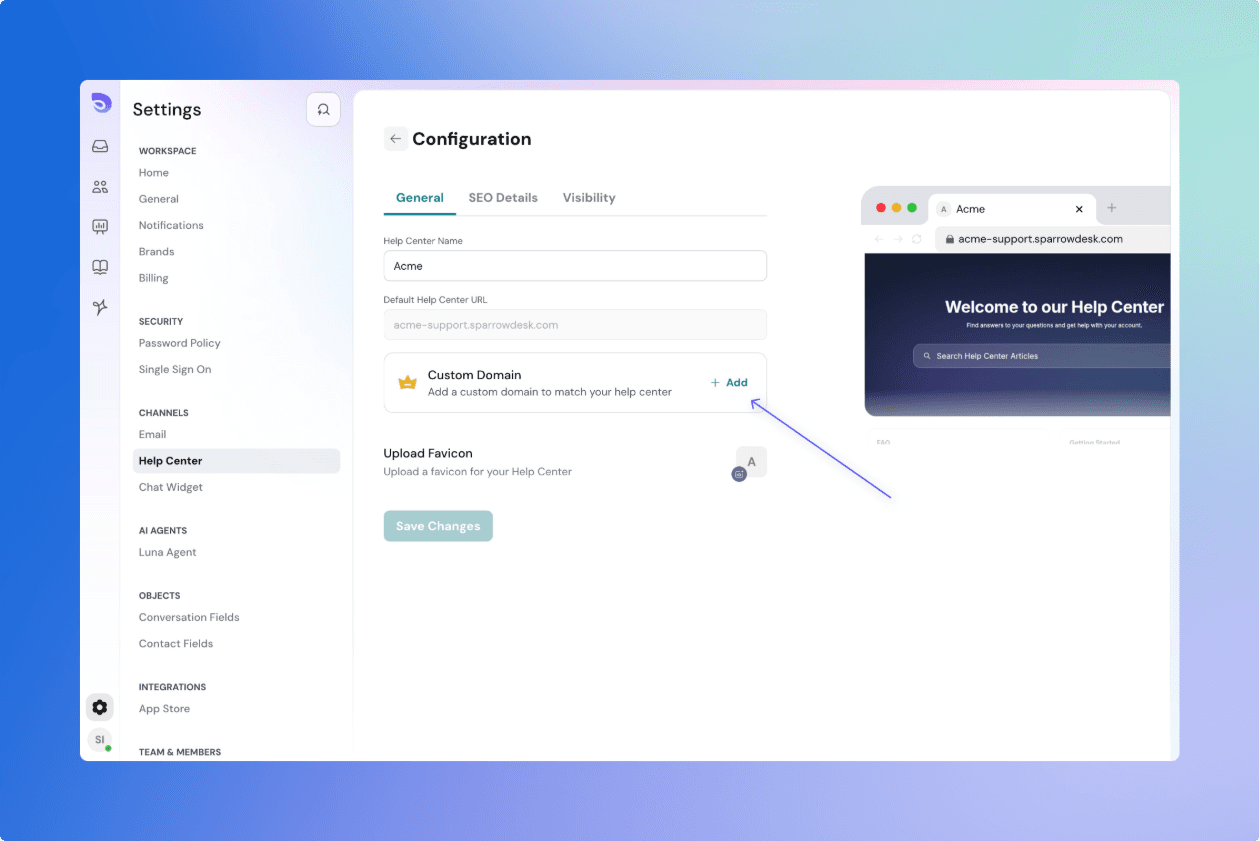
Add Your Custom Domain

  1. Go to Settings → Help Center → Custom Domain.
  2. Click on “Add Custom Domain”.
  3. Enter the full domain name where you'd like your Help Center to appear
  4. Click Next.

Sparrowdesk Help Center configuration screen.png


Update DNS Records

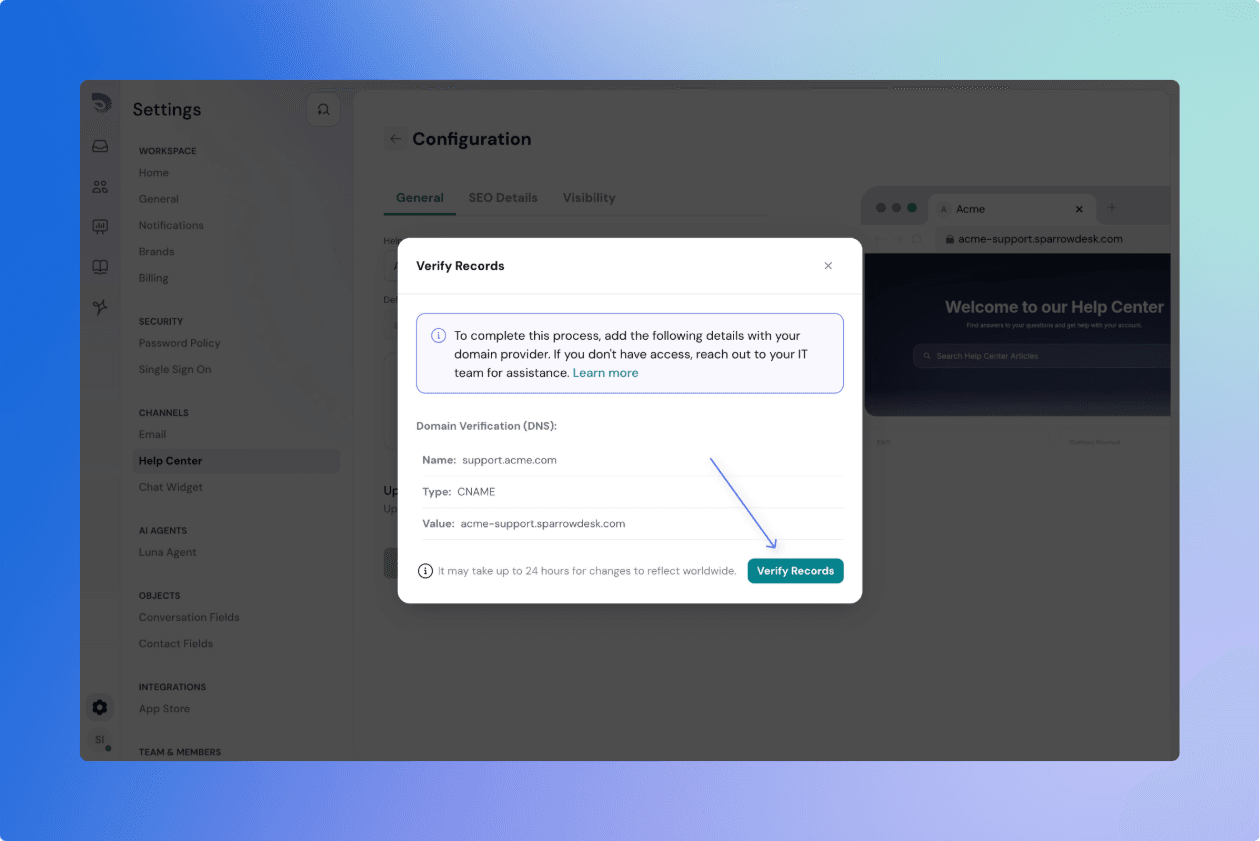
You’ll now see the DNS instructions. To complete verification:

  1. Copy the DNS records and log in to your domain provider (like GoDaddy, Namecheap, Cloudflare).
  2. Update the CNAME record

Software Settings Configuration Screen (1).png

It may take up to 24 hours for DNS changes to reflect worldwide, though it's often much faster.


Verify and Go Live

Once your DNS record is set:

  1. Return to the Verify Records step inside SparrowDesk.
  2. Click “Verify Records”.

If everything is correct, your Help Center will now be available at your custom domain.


SSL Certificate Setup (Automatic)

SparrowDesk will automatically generate an SSL certificate to secure your Help Center with https://.

  • This usually happens as soon as the domain is verified.
  • It may take a few seconds to a couple of minutes the first time someone visits your site.

Powered By SparrowDesk