
AI Agent - Configure Persona

The Persona Configuration in SparrowDesk lets you define how your Zoona AI agent appears, speaks, and introduces itself to your customers. It helps you create a consistent and branded experience — ensuring your AI feels like a natural extension of your team.
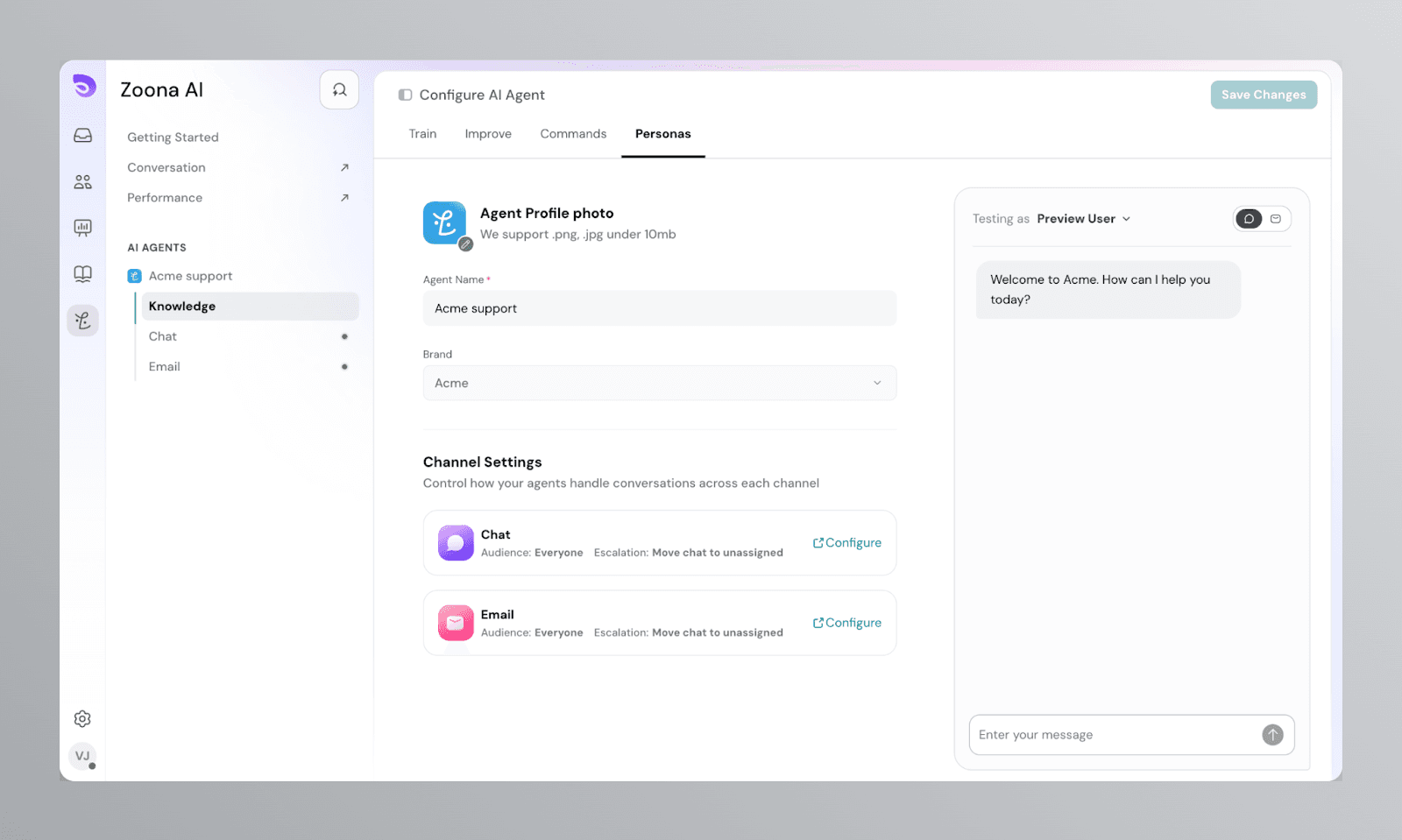
Agent Profile Photo
Upload a custom image that represents your Zoona AI agent in conversations.
- Supported formats: .png and .jpg
- Maximum file size: 10 MB
The avatar appears in both the Chat widget and the Inbox when your AI agent is handling a conversation. Use a logo or a friendly illustration that matches your brand.
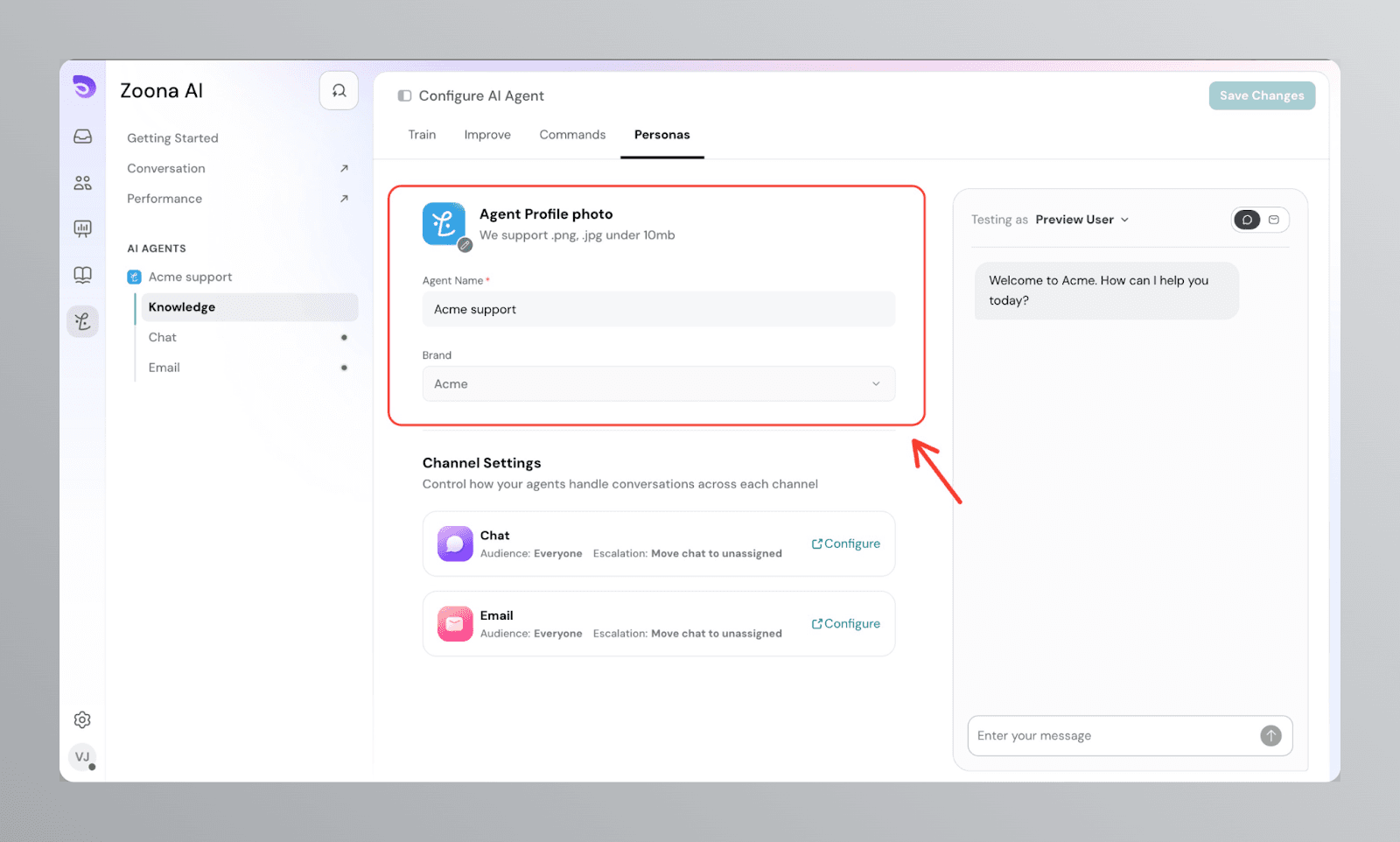
Agent Name
Enter a name for your Zoona AI agent.
- This name will be visible in the Inbox and Chat Widget when your AI interacts with customers.
- Choose a name that's friendly and fits your company's personality.
Brand
The brand is automatically selected based on your account and cannot be modified. This ensures the right name, tone, and greeting appear for each brand's chat widget.
Use these names as variables
Instead of retyping your AI Agent's name and brand name in the messages and greetings you configure, you can insert them as variables. They fill in automatically wherever you use them, so you set each name once and don't have to update every mention if it changes.
Two variables are available: the AI Agent name (from the Agent Name field above) and the Brand name.
Channel Settings
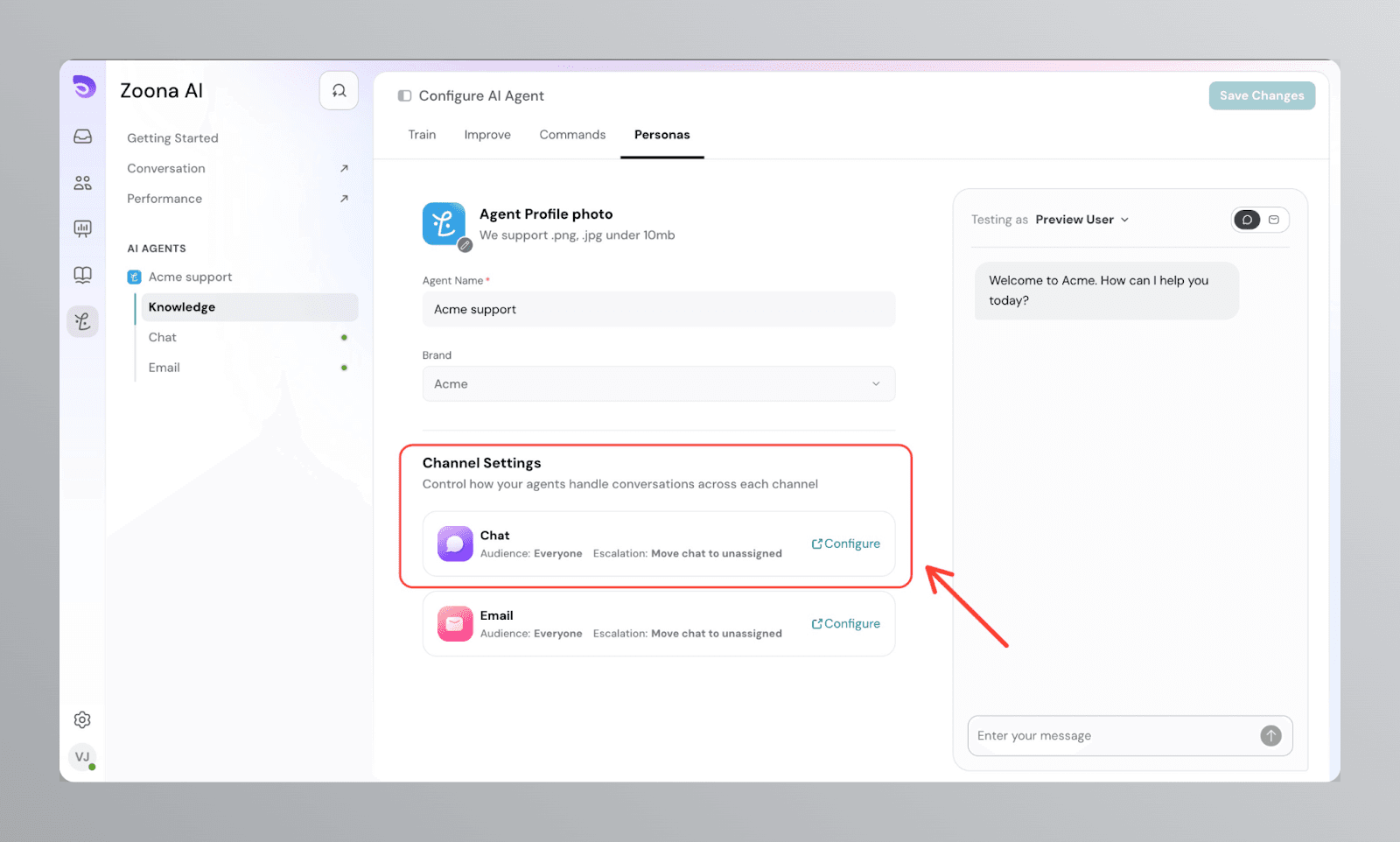
The Channel Settings section gives you a summary of how your Zoona AI agent is configured across each channel. You can see the current Audience and Escalation settings for Chat and Email at a glance, and click Configure to adjust them individually.
Chat
Clicking Configure on the Chat card takes you to the Chat configuration screen, where you can control:
- Who the AI agent can reply to
- What happens when a contact starts a conversation
- What happens when the AI agent can't resolve an issue
- Contact resolution buttons
- Auto-close after customer inactivity
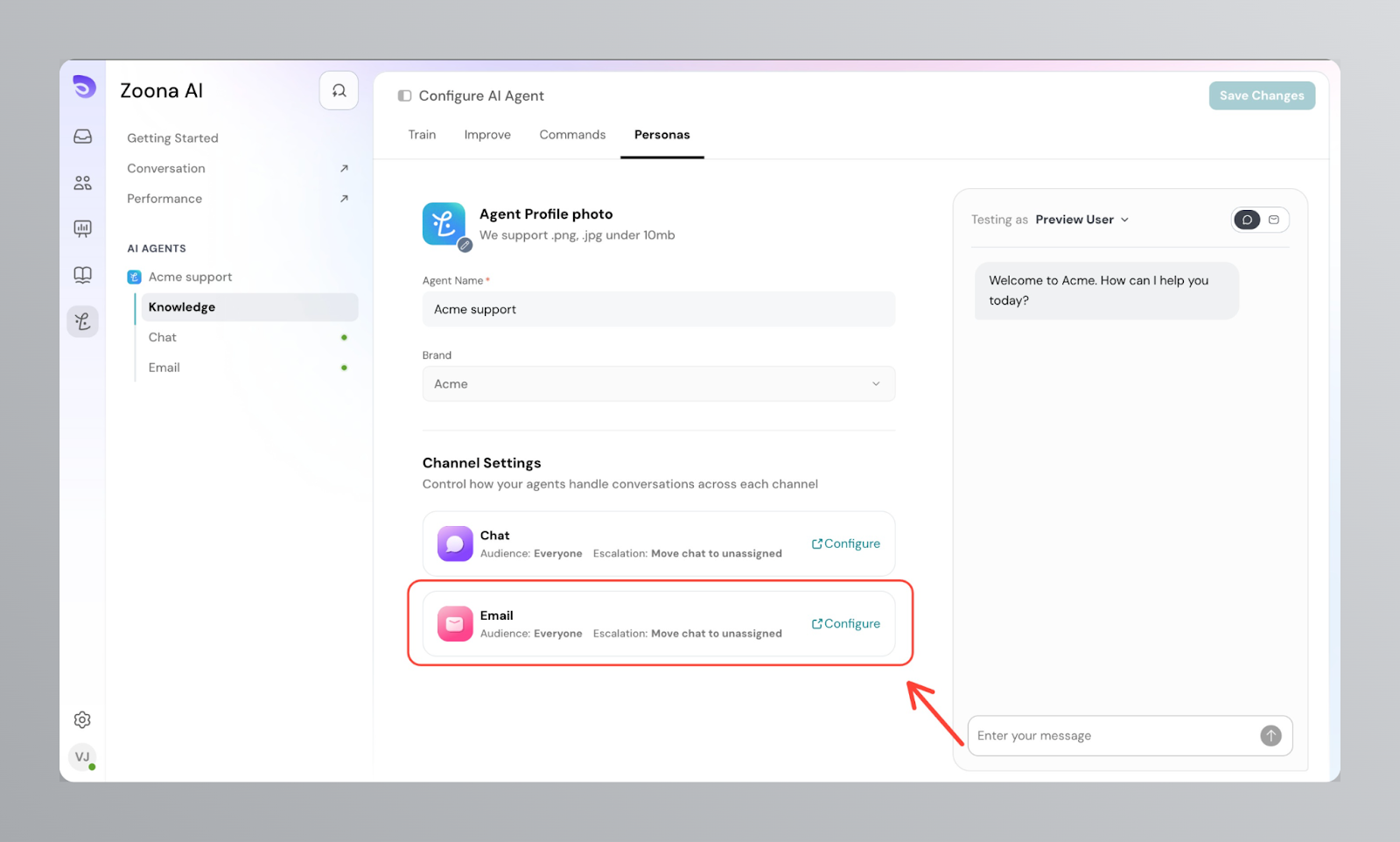
Clicking Configure on the Email card takes you to the Email configuration screen, where you can control:
- Who the AI agent can reply to
- When the AI agent replies
- What happens when the AI agent can't resolve an issue
- Auto-close after customer inactivity
Answer Length
Answer Length controls how much detail your AI Agent includes in a reply. Set it per channel, so Chat, Email, and API can each answer at their own length.
- Concise- short, direct answers that get to the point.
- Standard- balanced answers with enough context to be clear.
- Detailed- fuller answers that explain steps and background.
Defaults:
- Chat: Concise
- Email and API: Standard
New replies use the updated length. Replies already sent are not affected.
Tone of Voice
Tone of Voice sets the style your AI Agent writes in. Friendly keeps replies warm and approachable without overdoing it, so they sound close to how your team writes.
Best Practices
- Use a short, memorable name that feels approachable to your customers.
- Upload a professional or brand-themed avatar to create familiarity and trust.
- Review your Channel Settings regularly to ensure audience and escalation rules reflect your current support workflow.
- Configure Chat and Email separately — each channel can have its own audience and escalation behavior depending on your team's needs.
Example
In the screenshot above, the Zoona AI agent is set up for Acme:
- Agent Name: Acme support
- Brand: Acme
- Chat: Audience set to Everyone, Escalation set to Move chat to unassigned
- Email: Audience set to Everyone, Escalation set to Move chat to unassigned
You can revisit and update these settings at any time as your support workflow evolves.