
Customising Chat Widget

The chat widget is the first point of contact between your customers and your support team. SparrowDesk allows you to personalize this experience to match your brand, set expectations, and provide a seamless conversation flow.
Greeting Message
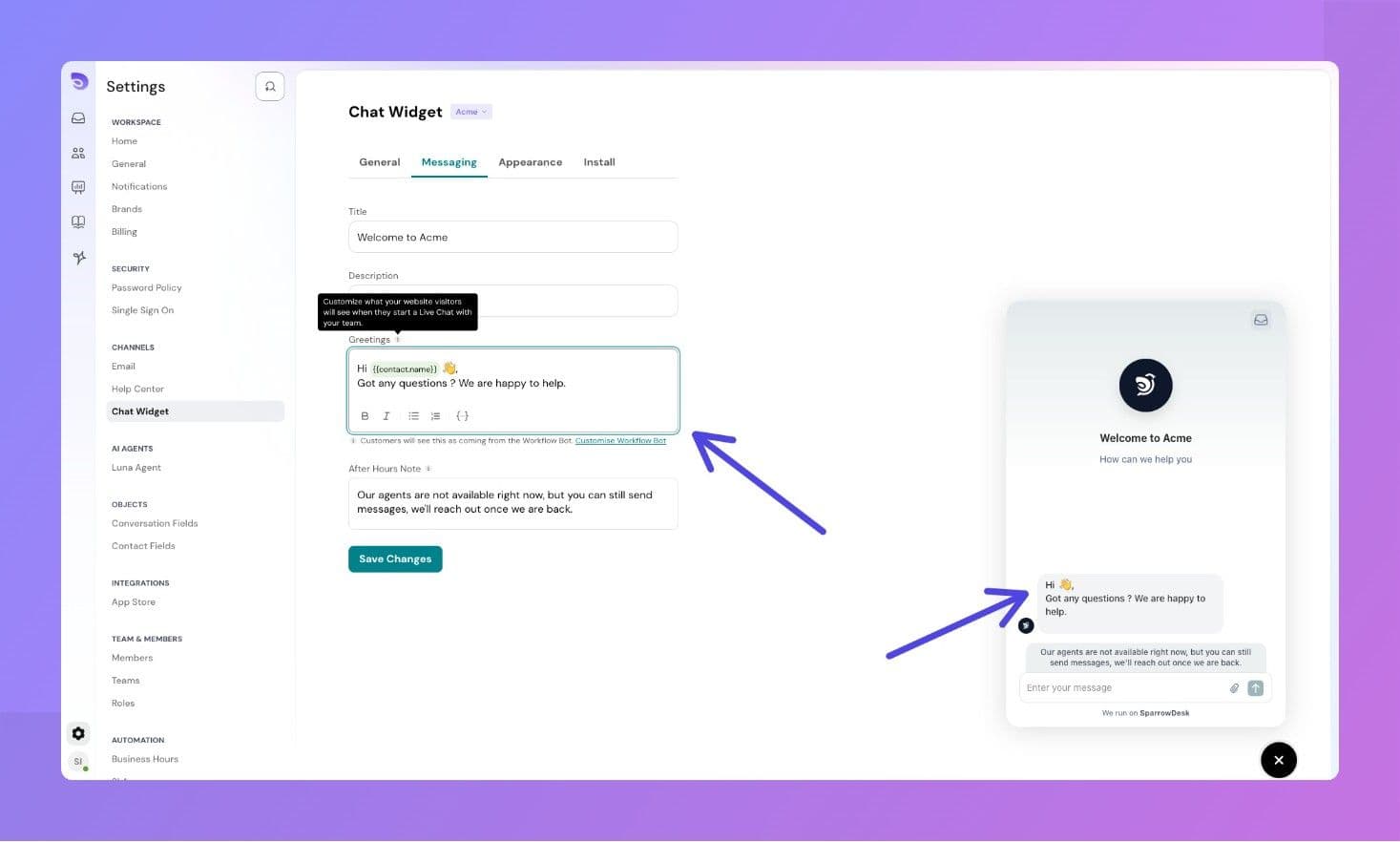
The greeting message is the very first message your customer sees when they open the chat.
How it works:
- It is triggered when a visitor opens the chat widget (not when they send a message).
- This message is sent automatically before any workflow-based message begins.
- Use it to welcome visitors and create a friendly first impression.
Personalization with Variables:
You can personalize the greeting message using contact information:
{{contact.name}}{{contact.first_name}}{{contact.last_name}}
Always include a fallback to handle missing values.
Example:
Hi {{contact.first_name | fallback: there}}, how can we help you today?
If you've set up workflows (e.g., to collect customer details when a conversation starts) or AI Agents , those messages will be sent instead the greeting.
After Hours Note
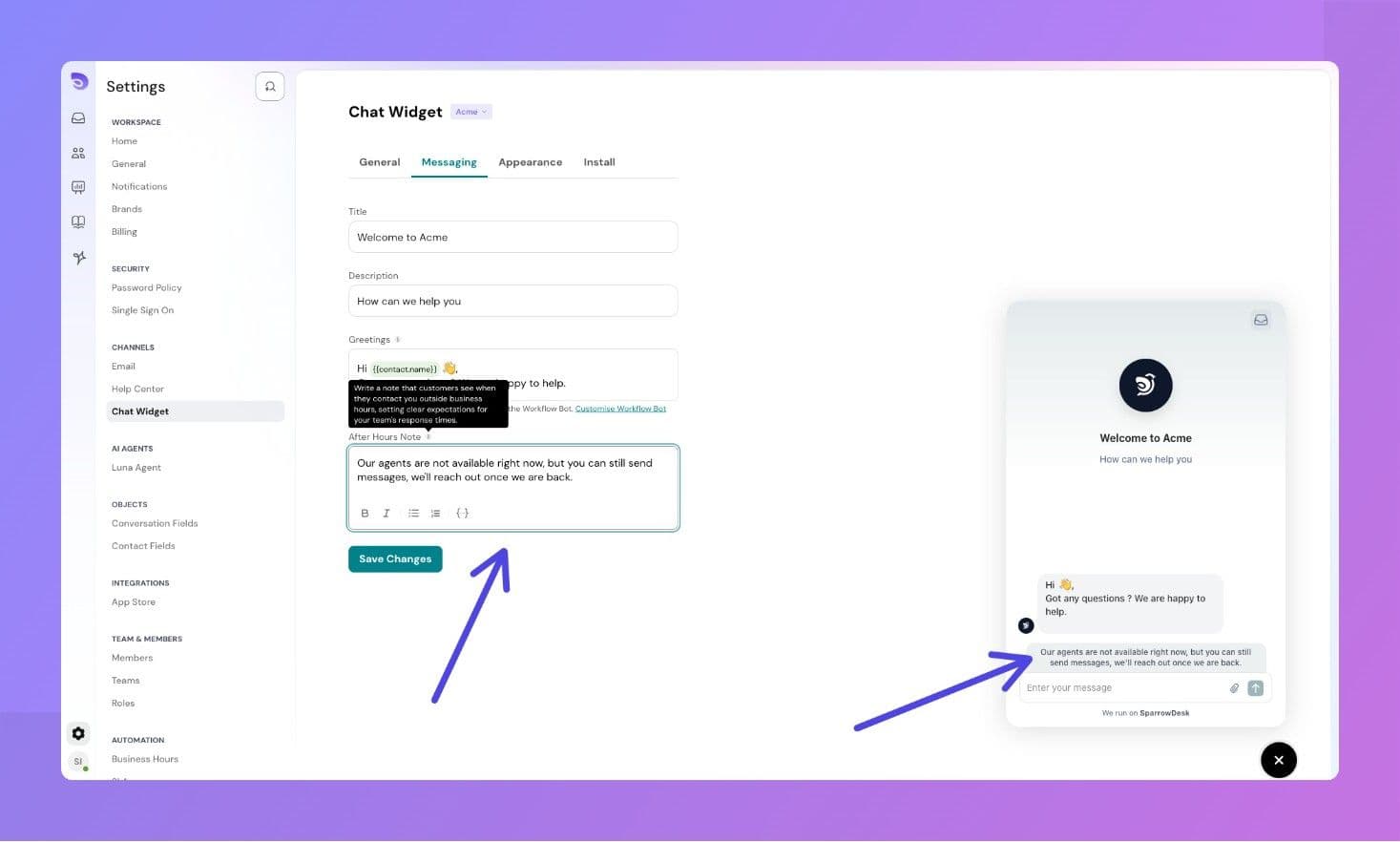
This message is shown when a customer contacts you outside of business hours.
Purpose:
- Set expectations clearly about response time.
- Avoid customer frustration during off-hours.
Example Message:
Thanks for reaching out! Our team is currently offline, but we’ll get back to you as soon as we’re back during business hours. We appreciate your patience.
You can configure your business hours under your chat settings. The system will automatically detect whether the customer is reaching out during or outside those hours.
What You Can Customize
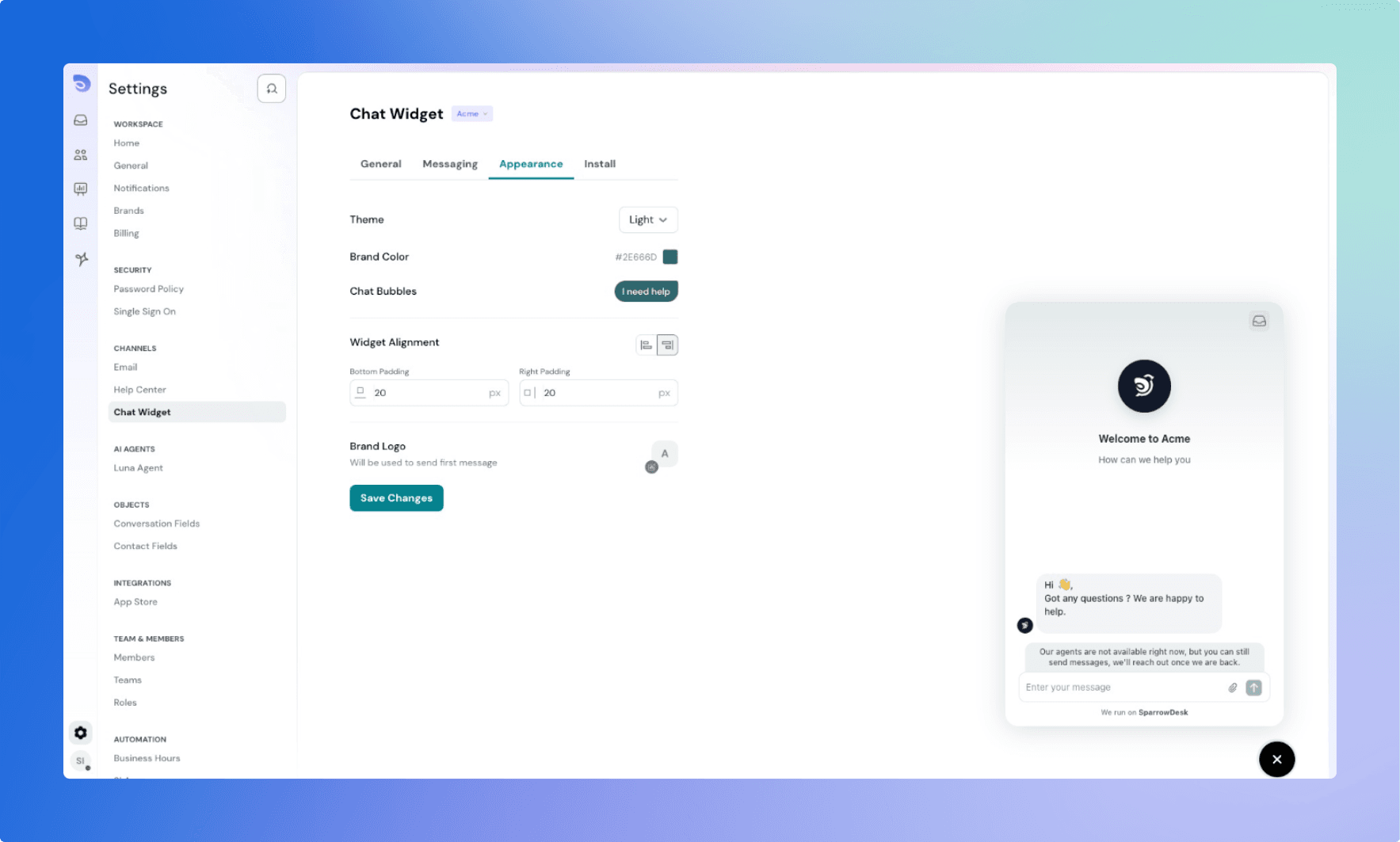
The chat widget supports full visual customization to help it blend naturally with your website and brand.
1. Theme
Choose between:
- Light Mode (default): Best for light-background websites.
- Dark Mode: Ideal for dark-themed sites.
This affects:
- The conversation view
- The conversation list
2. Brand Color and Logo
- Set your brand color using a color picker or HEX code. It applies to:
- Conversation bubble accents
- Header and list items
- Choose the shade of the customer chat bubbles to ensure good text readability.
- Upload your brand logo, which:
- Appears when the chat begins
- Stays visible until an agent joins the conversation
- Defaults to the SparrowDesk logo if none is uploaded
3. Chat Launcher Icon
- Default Icon: SparrowDesk icon (auto-adapts to light/dark themes).
- Launcher background color follows your brand color.
- When open, the launcher becomes a close button in a dark tone.
- Custom icons will be available in higher pricing plans.
Tip: If uploading a custom icon, ensure good contrast with your site’s background.
4. Alignment
Choose the position of your widget:
- Left
- Right
Use this to avoid overlapping with other fixed elements on your site.
5. Spacing
Set custom padding between the widget and the edges of the screen.
Great for aligning with floating buttons, navigation bars, or footers.
Live Preview
As you tweak your theme, brand elements, and layout, a live preview shows you exactly how your widget will appear to customers in real-time.