
Shortcut integration

Shortcut is a project management tool engineering teams use to track bugs and feature work as stories. When you connect Shortcut to SparrowDesk, agents can create a Shortcut story from a conversation, link existing stories to it, and see each story's state and owners in the conversation sidebar, all without leaving the Inbox.
What You Need First
- The App Store privilege in SparrowDesk. Admins have it by default. Managers and agents need it to see and use the Shortcut section.
- A Shortcut API token that can read and create stories. See Create a Shortcut API Token below.
- Plan: Shortcut follows Apps & Integrations availability, with no separate plan requirement.
Create a Shortcut API Token
Shortcut connects with an API token, not a sign-in. Everything SparrowDesk does in Shortcut runs as the person who created the token, so that person's Shortcut permissions decide what agents can read and create.
- In Shortcut, go to Settings → Your Account → API Tokens.
- Create a token with Custom permissions set to Read and Create Stories.
- Copy the token. Keep it private, treat it like a password.
Note: The token stops working if the person who created it leaves your Shortcut workspace. Create it from a shared or bot account so the connection doesn't break when someone leaves.
Connect Shortcut to SparrowDesk
- Go to Settings → Apps & Integrations → Native.
- Under Project Management, find the Shortcut card and click Connect.
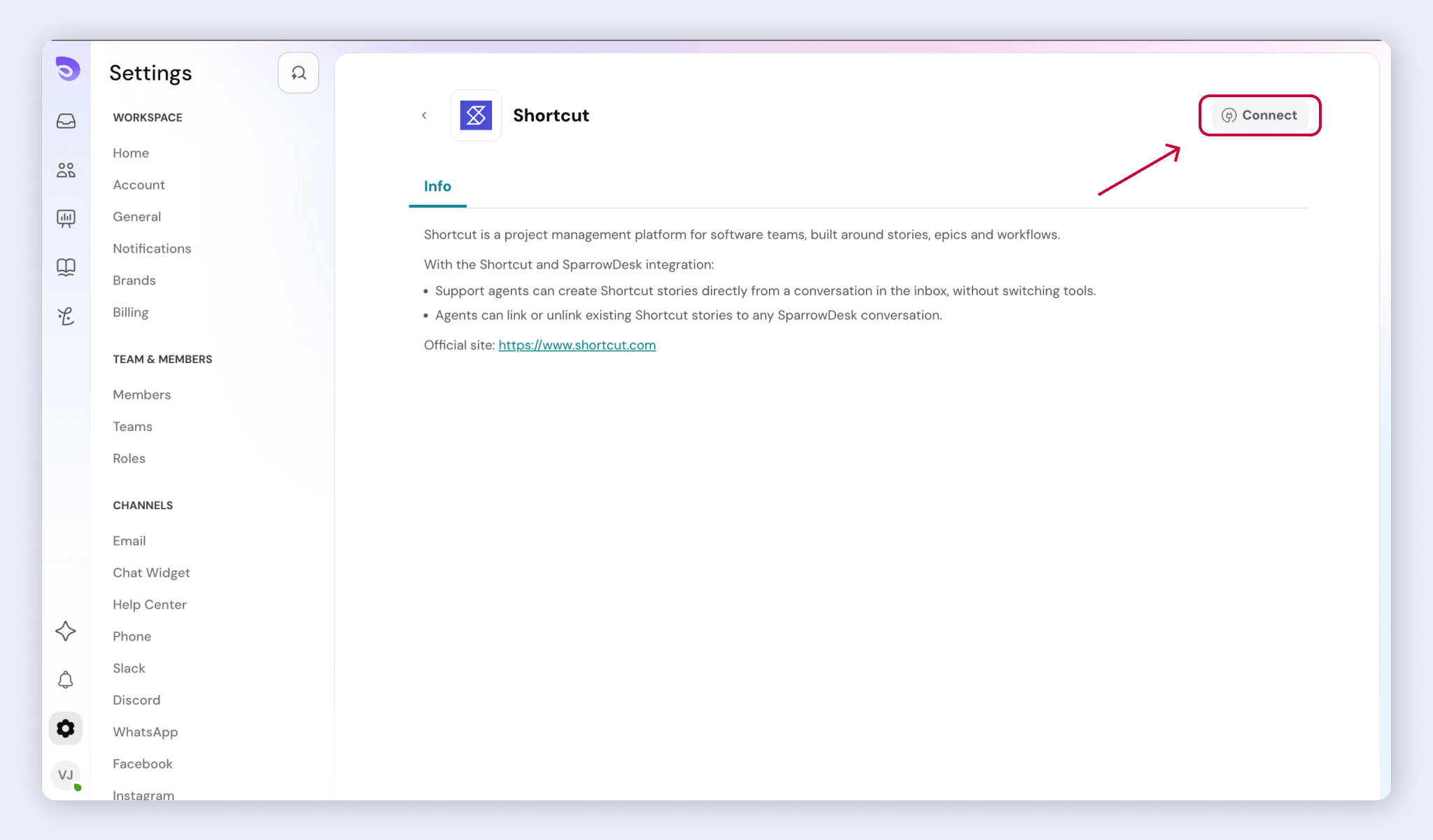
- Paste your API token into the dialog.
- Click Connect.
SparrowDesk checks the token with Shortcut before saving it. If Shortcut rejects it, the dialog shows The API token is invalid or has been revoked and nothing is saved. Spaces before or after the token are trimmed for you.
Once the token is accepted, you land on the Shortcut page. The Setup tab shows your Shortcut workspace name, Connected as with the token owner's name, and an Update API token button.
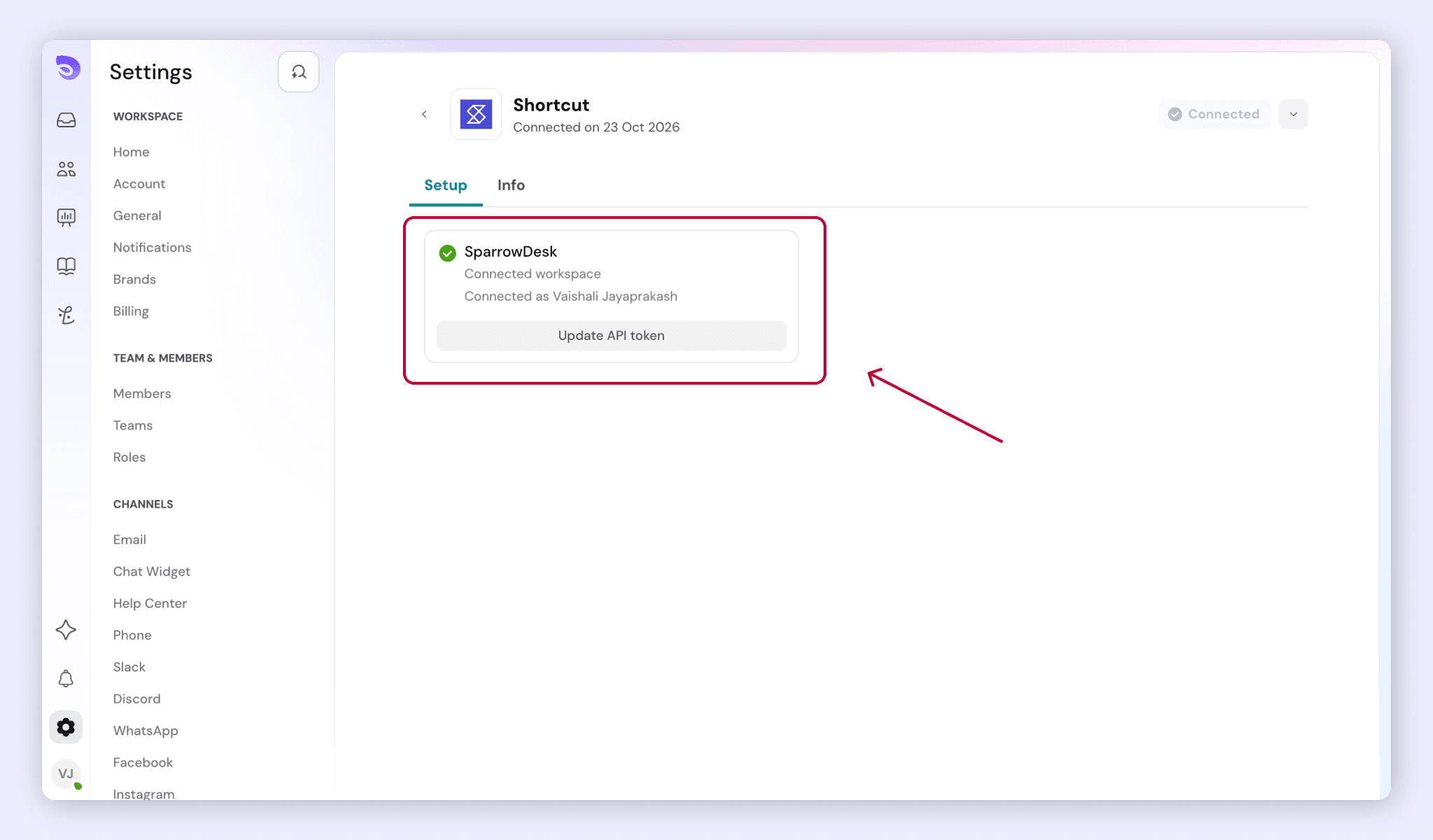
You can connect one Shortcut workspace per SparrowDesk account. If you run more than one brand, stories created from any brand's conversations go to the same workspace.
Create a Shortcut Story from a Conversation
- Open the conversation in the Inbox.
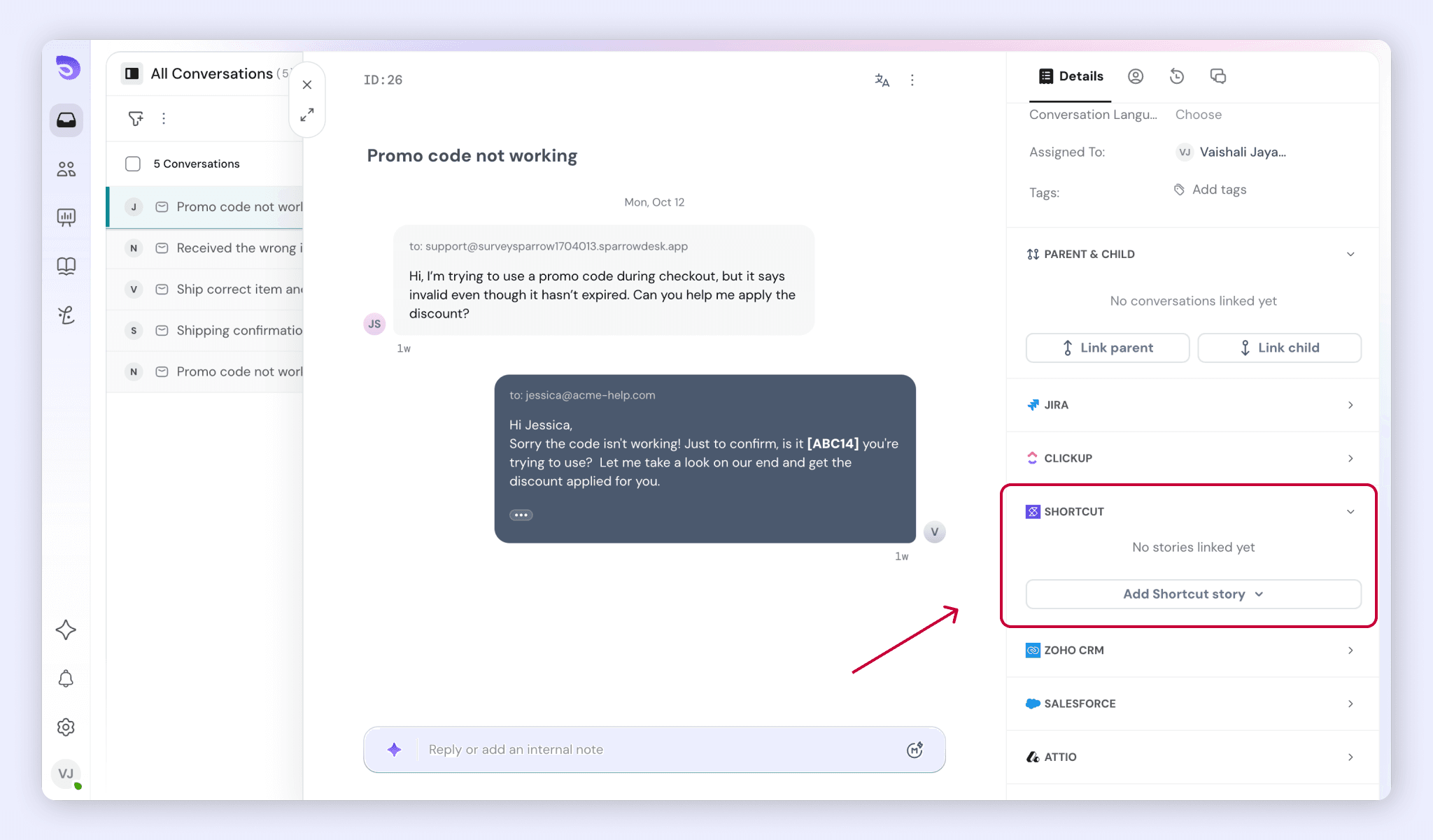
- In the conversation sidebar, expand the Shortcut section.
- Click Add Shortcut story → Create new story.
- Choose a Team, or select No team to skip. Archived teams aren't listed.
- Choose a Workflow. The team's default workflow is pre-selected. With no team, every workflow is listed.
- Choose a State. The workflow's default state is pre-selected. State is required.
- Enter a Title. Title is required.
- Add a Description (optional).
- Choose a Type: Feature, Bug or Chore. Bug is selected by default.
- Choose one or more Owners (optional). Only active Shortcut members are listed.
- Add Attachments (optional): up to 10 files, 100 MB each. A file over 100 MB is rejected before the story is created.
- Click Create. It stays disabled until a state and title are set and every attachment has finished uploading. If an upload fails, remove that file to continue.
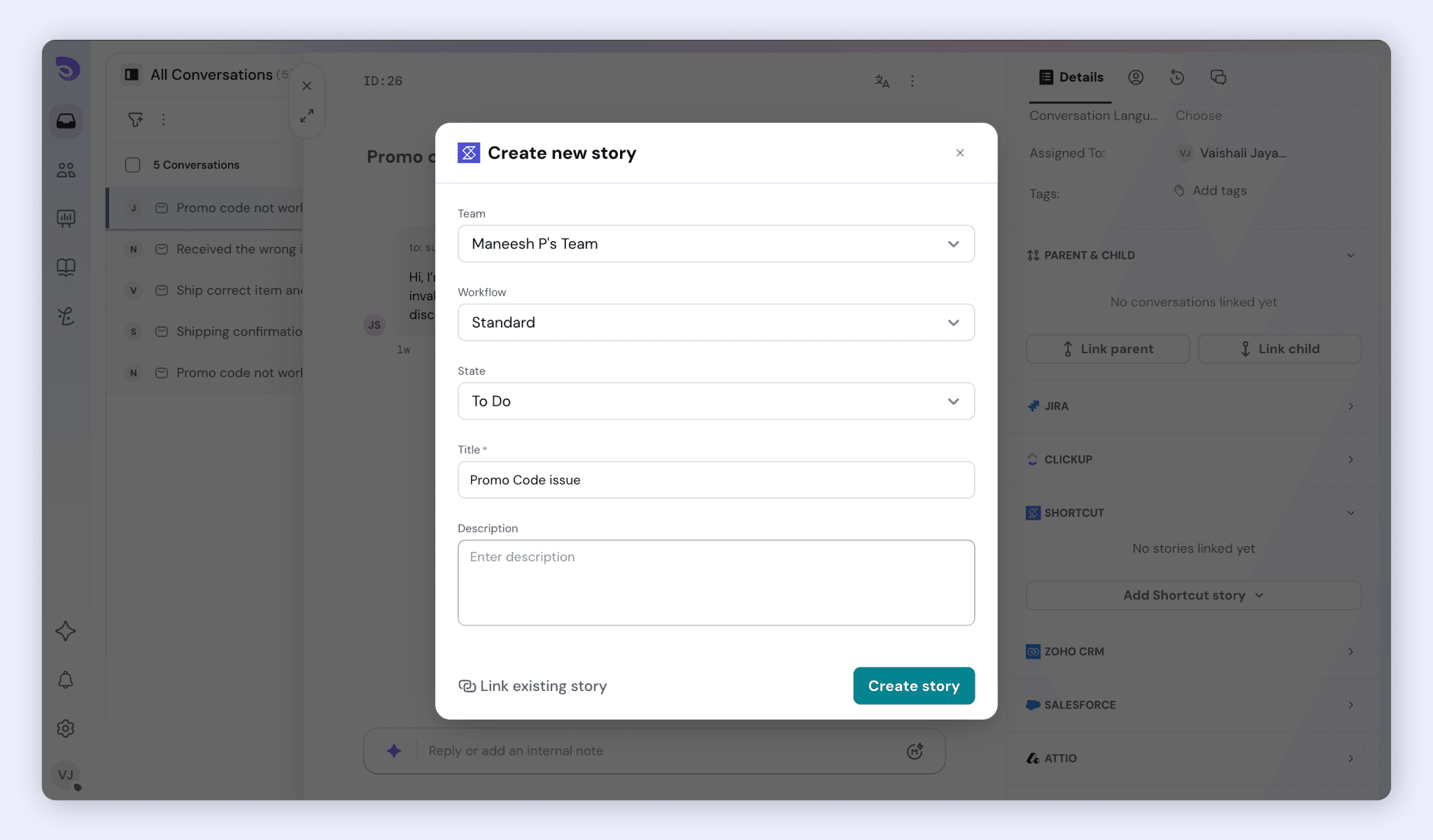
The story is created in Shortcut and linked to the conversation automatically. Attachments are added to the story in the background, so they can take a moment to appear in the Shortcut.
Note: If a new story doesn't appear in the sidebar, it was still created in Shortcut. Link it by its story number instead of creating it again.
Link an Existing Story
Use this when a customer reports something your engineering team is already tracking.
- In the conversation sidebar, click Add Shortcut story → Link existing story.
- Search by story number, such as 4521 or #4521, or by title. Title searches return up to 20 results. Archived stories aren't included.
- Select one or more stories. Stories already linked to this conversation don't appear in the results.
- Click Link.
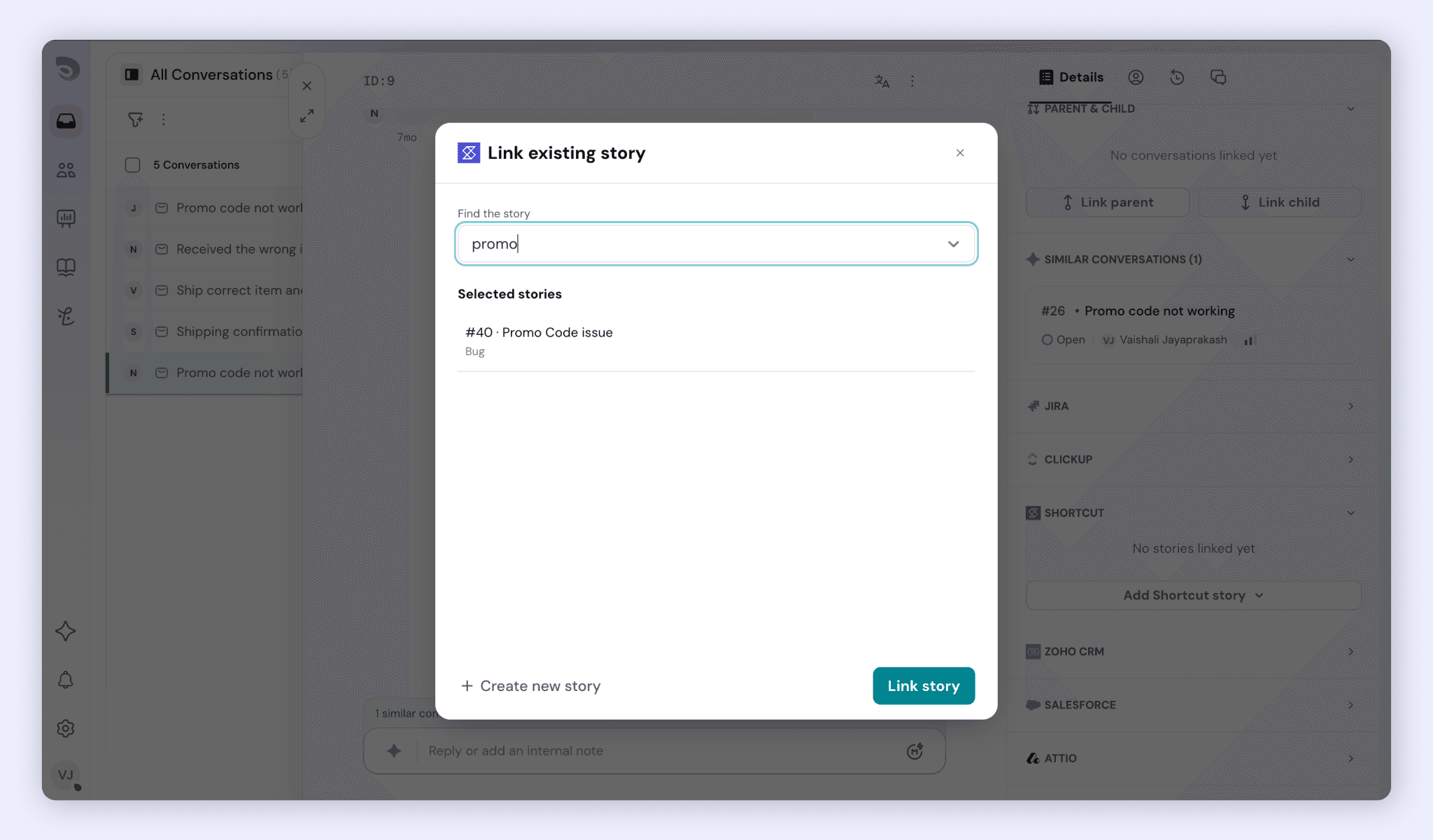
If every story you selected is already linked, you see All stories are already linked to this conversation.
What the Shortcut Section Shows
The Shortcut section sits in the conversation sidebar, below ClickUp. It appears only when Shortcut is connected and you have the App Store privilege.
Linked stories are listed newest first. Each one shows:
- The story name- Click it to open the story in Shortcut in a new tab.
- The workflow state, such as Ready for Deploy.
- The owners, or Unassigned if nobody owns the story.
Details are read from Shortcut each time you open the conversation, so state and owner changes made in Shortcut show up without any sync.
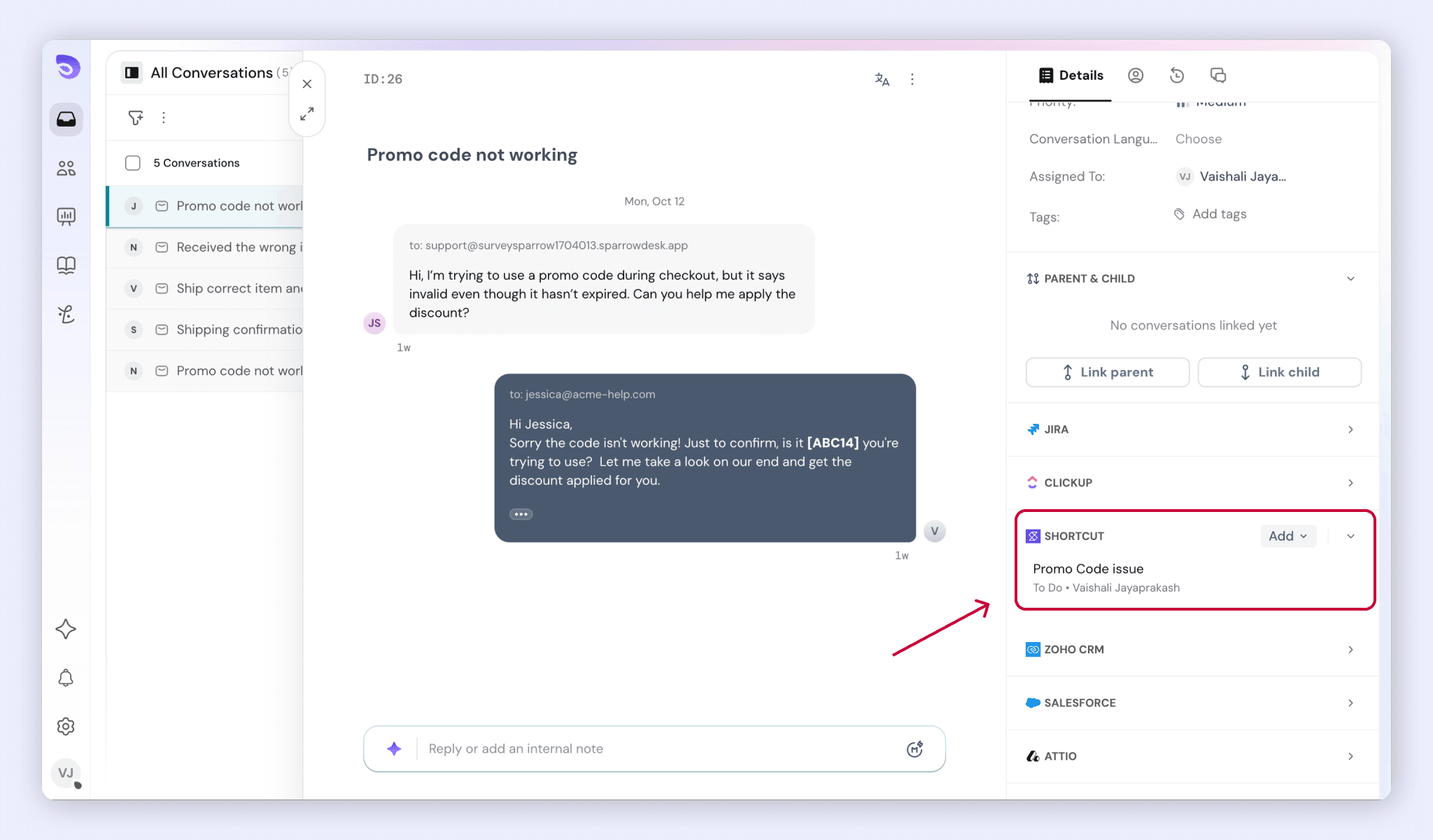
A story that has been deleted or archived in Shortcut, or that the token owner can no longer read, drops out of the list. The other linked stories still show.
Unlink a Story
- In the Shortcut section, hover over the story.
- Click Unlink.
Unlinking removes the link from the conversation only. The story in Shortcut isn't changed or deleted.
Update the API Token
Update the token when the person who created it is leaving, or when you want to rotate it.
- Go to Settings → Apps & Integrations → Shortcut.
- On the Setup tab, click Update API token.
- Paste the new token and confirm.
SparrowDesk checks the new token before replacing the old one. Stories already linked to conversations stay linked.
Note: To move to a different Shortcut workspace, disconnect and connect again instead of updating the token. Linked stories are looked up by story number, so a token from another workspace can hide them or show the wrong story.
Disconnect Shortcut
- Go to Settings → Apps & Integrations → Shortcut.
- Click Disconnect.
Disconnecting removes the API token and every link between conversations and Shortcut stories in your account. The Shortcut section disappears from the sidebar. Nothing in Shortcut is deleted.
What SparrowDesk Sends to Shortcut
Nothing goes to Shortcut automatically. Only the title, description and files an agent adds when creating a story are sent. These can include customer details, so Shortcut becomes a sub-processor for that data under your own agreement with Shortcut.
FAQ
- What happens if the person who created the API token leaves?
Shortcut stops accepting the token. Every Shortcut action in SparrowDesk then shows Shortcut is disconnected. An admin can reconnect it in Settings → Integrations.. Agents stay signed in to SparrowDesk and linked stories are kept. An admin can fix it with Update API token. Using a shared or bot account avoids this. - What happens to linked stories when I disconnect Shortcut?
Every link is removed from SparrowDesk. The stories stay in Shortcut, unchanged. - Who can create and link stories?
Anyone with the App Store privilege in SparrowDesk. Inside Shortcut, every action uses the token owner's permissions. If that person has read-only access, agents can link stories but can't create them. - What does "Shortcut rate limit reached" mean?
Shortcut allows 200 requests per minute per token. When that's reached, you see Shortcut rate limit reached. Please try again in a minute. SparrowDesk doesn't retry automatically, so wait a minute and try again. - Do Zoona or AI Copilot use Shortcut?
No. Zoona doesn't create or link stories, and AI Copilot doesn't read Shortcut data.