
Training your AI Agent

AI agent in SparrowDesk can be trained to provide more accurate and helpful answers by feeding it with trusted content from your workspace. Training ensures that your AI agent (customer-facing) and AI Copilot (agent-facing) have access to the right knowledge sources when responding.
Where to access this:
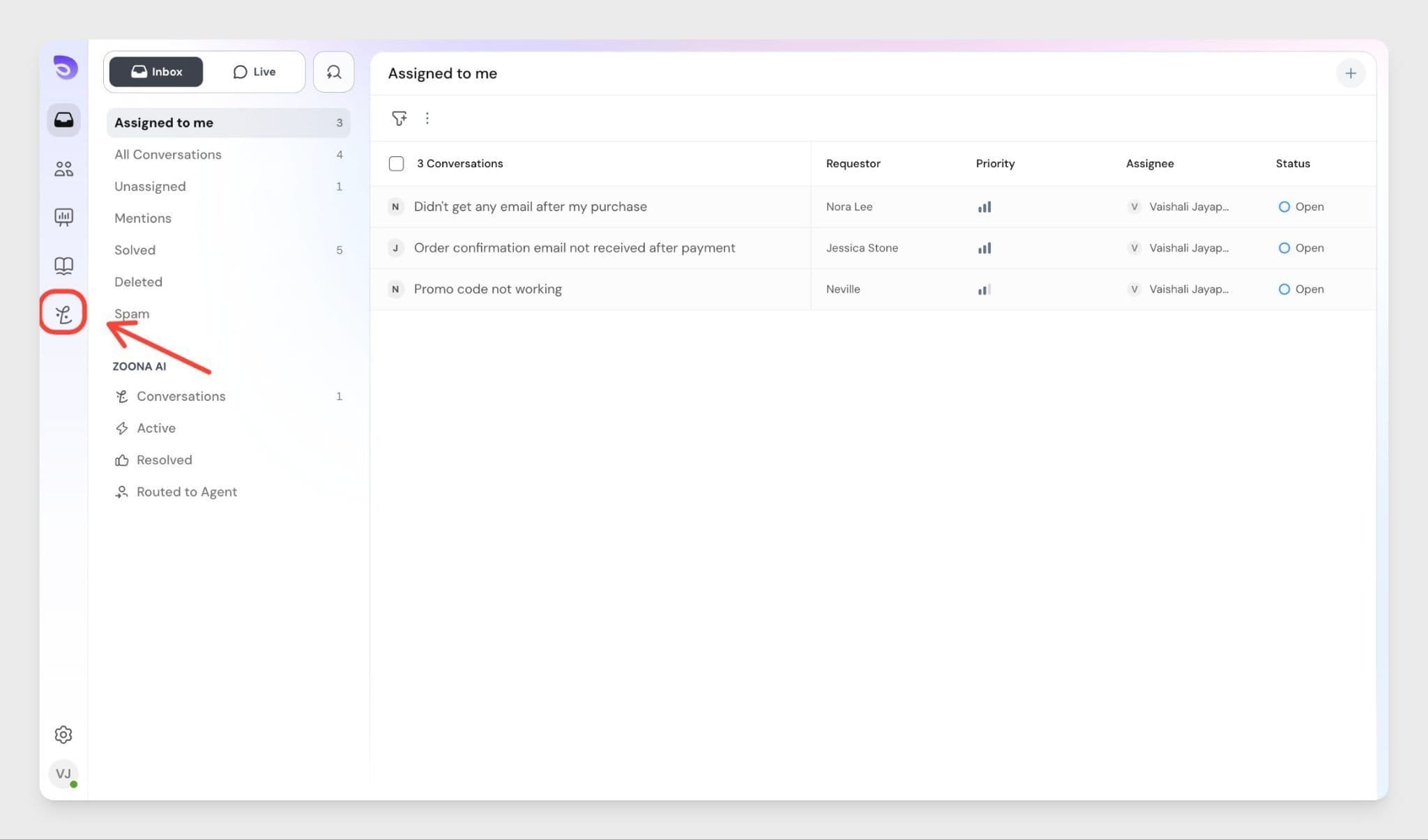
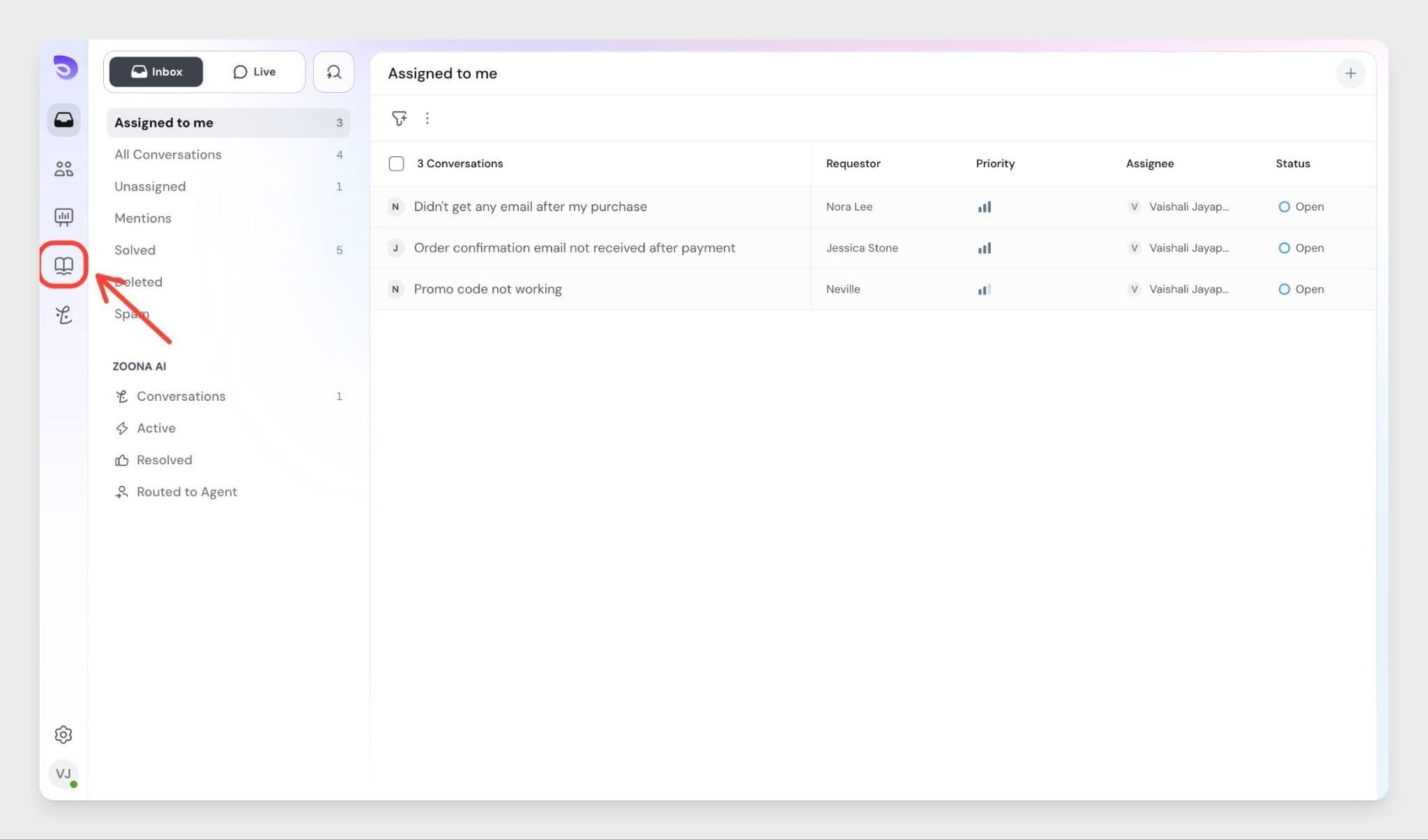
You can train your AI agent from two places:
- AI Agents → Knowledge section — manage all training sources including documents, URLs, and Q&A
- Knowledge base — access and manage your knowledge base directly
Who can do this:
- Account Owner and Admin — can access and manage all AI training sources from AI Agents → Knowledge, including documents, URLs, Help Center articles, and Q&A
- Knowledge Manager — can contribute to Help Center articles that are used for AI training, but cannot access AI Agent settings directly
- Agent — can write and contribute to Help Center articles, but cannot configure AI training settings
To configure AI training from AI Agents → Knowledge, you need the Zoona AI permission, which is available to Account Owners and Admins by default. If you need access, contact your Admin.
Currently, there are four main ways to train the Zoona AI agent:
- Uploading Documents
- Importing from URLs
- Your Help Center Articles
- Adding Q&A
1. Uploading Documents
You can upload documents directly into the Knowledge section. These documents will be parsed and used privately to train the AI.
- Supported file types: PDF (.pdf) and Word (.docx)
- Maximum file size: 30 MB per file
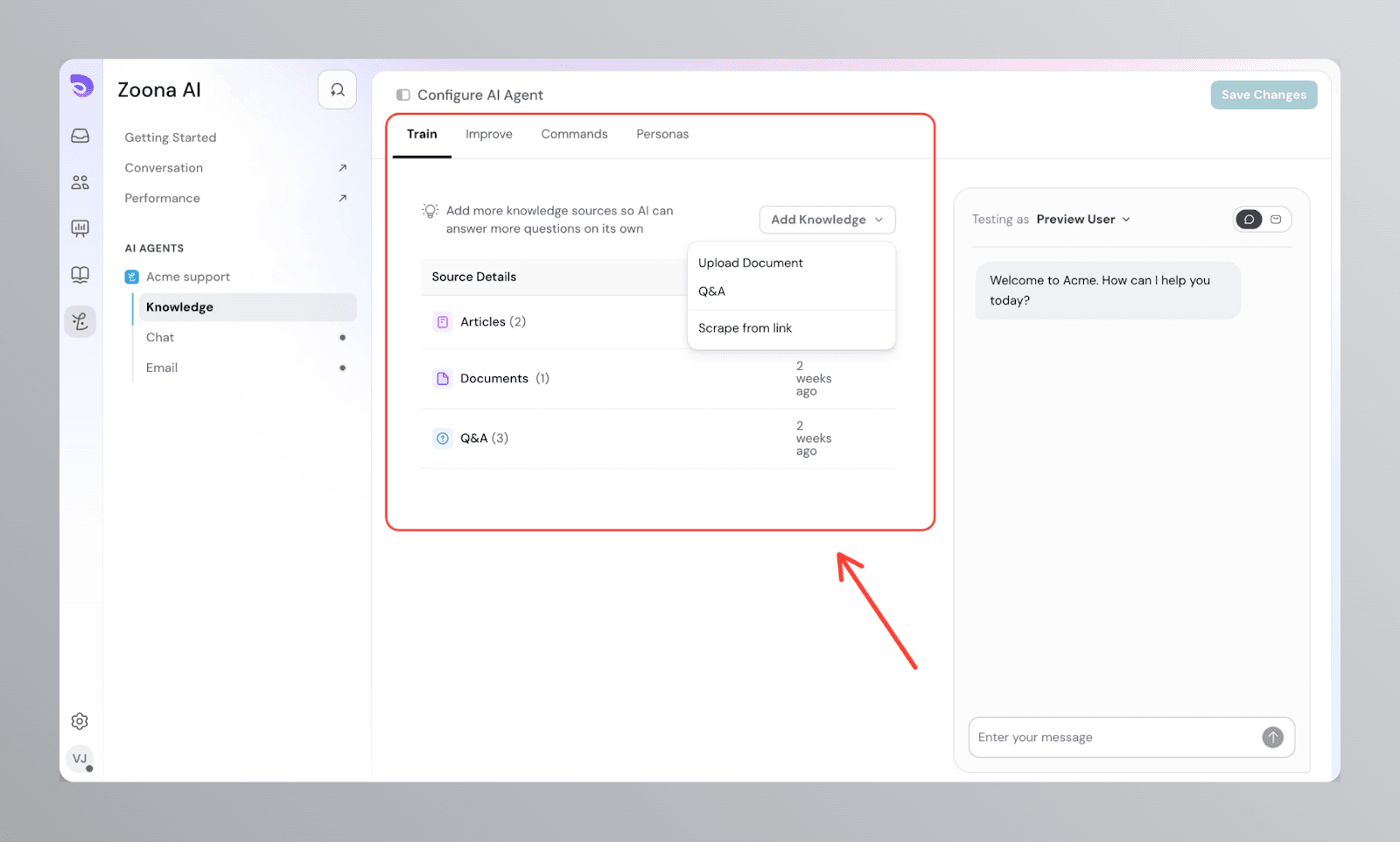
To upload a document:
- Go to AI Agents → Knowledge
- Click Add Knowledge
- Select Upload Document
- Choose a PDF or Word (.docx) file from your device (max 30 MB)
- Click Upload — the file will begin parsing and will be available for training in a few minutes
For best results, the files you upload should be text-based (not scanned images), formatted in a single-column layout, and free of any encryption or password protection. This ensures that the system can parse the content quickly and accurately.
Once uploaded, the content is available instantly for the Zoona AI agent and AI Copilot.
2. Importing from URLs
Instead of uploading files, you can provide a URL and SparrowDesk will sync content from that site. This is useful for websites, documentation pages, or blogs.
Add steps:
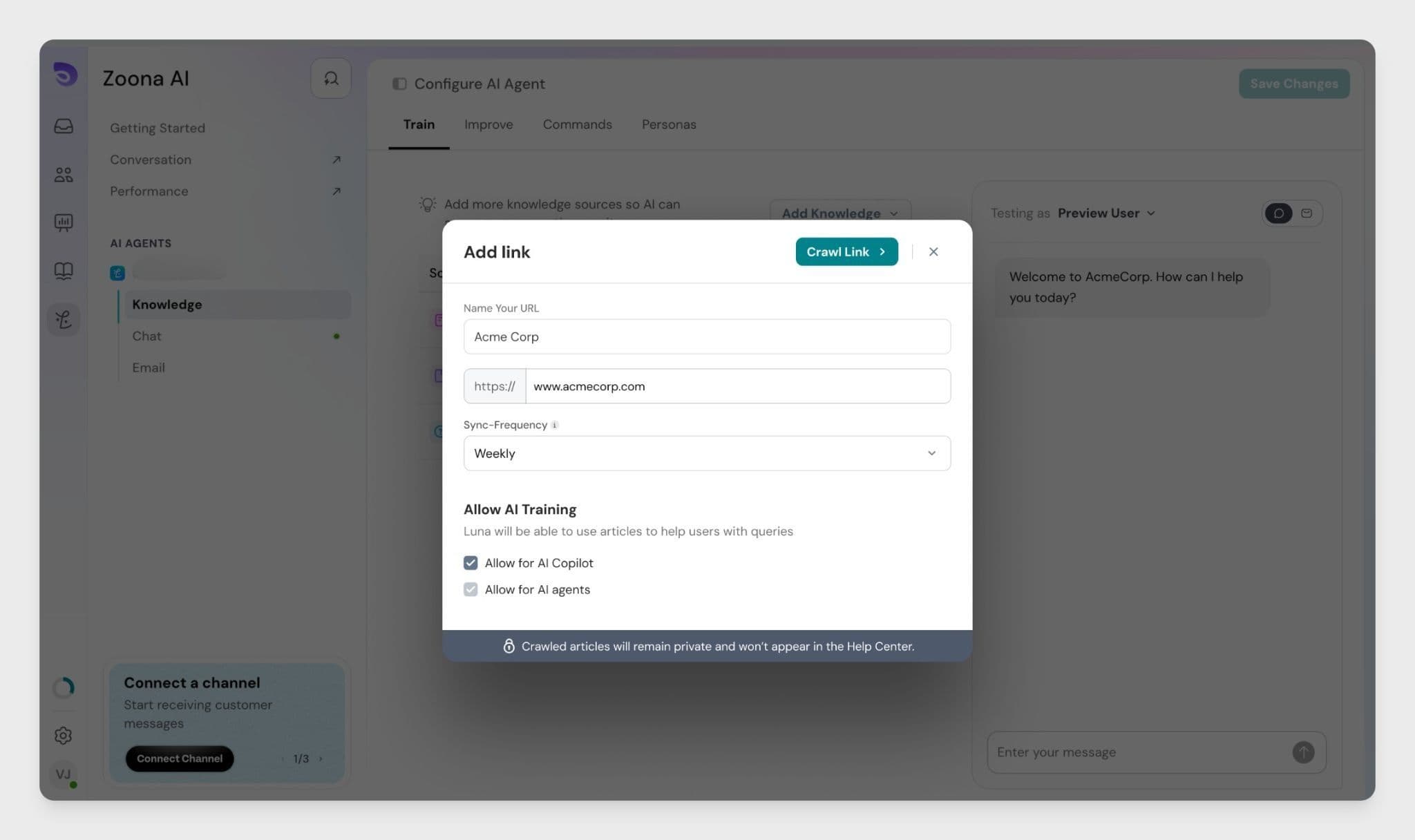
To add a URL:
- Go to AI Agents → Knowledge
- Click Add Knowledge
- Select Add Link
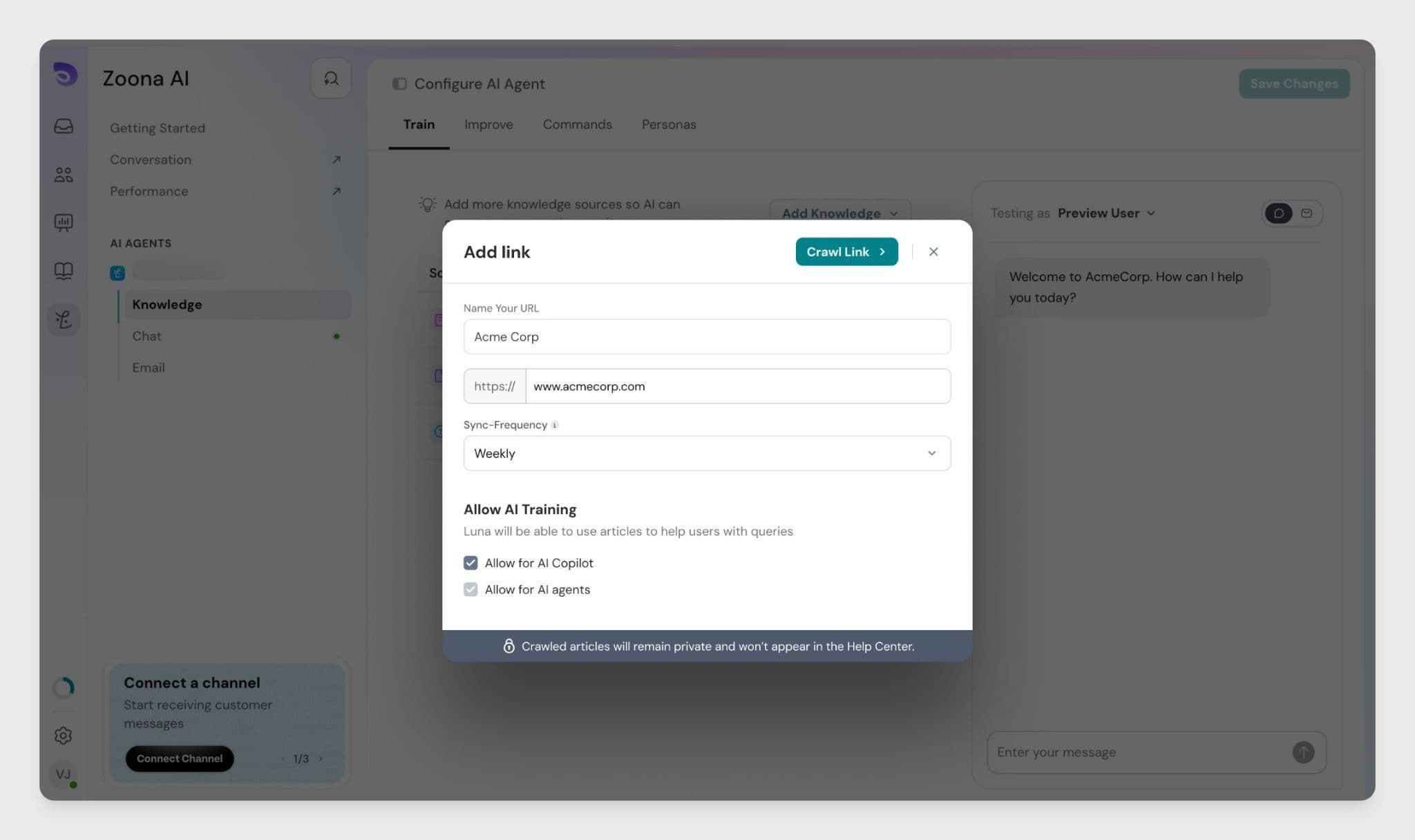
- Enter a name for the URL and paste the link
- Set the Sync Frequency — Never, Weekly, or Monthly
- Under Allow AI Training, choose whether to enable it for AI Copilot, AI agents, or both
- Click Crawl Link
- In the Choose pages screen, select the pages you want to include in training
- Click Crawl Link to confirm
Crawling process:
- Enter a URL to begin Sync
- The system will list discovered links
- You can choose which pages should be included in training
Crawler Capabilities
- Handles dynamic content (JavaScript-rendered sites, PDFs, images)
- Manages proxies, caching, and rate limits automatically
- Outputs clean structured data
- Caching: Pages are cached for 2 days. If a cached copy is fresh, it will be reused.
- Sync options: Sync options: You can set the content to sync- Never, Weekly, or Monthly.
- Training speed: Depending on the number of URLs, training may take a few seconds to a couple of minutes.
You can also remove URLs later if you no longer want them to be part of AI training.
3. Using Help Center Articles
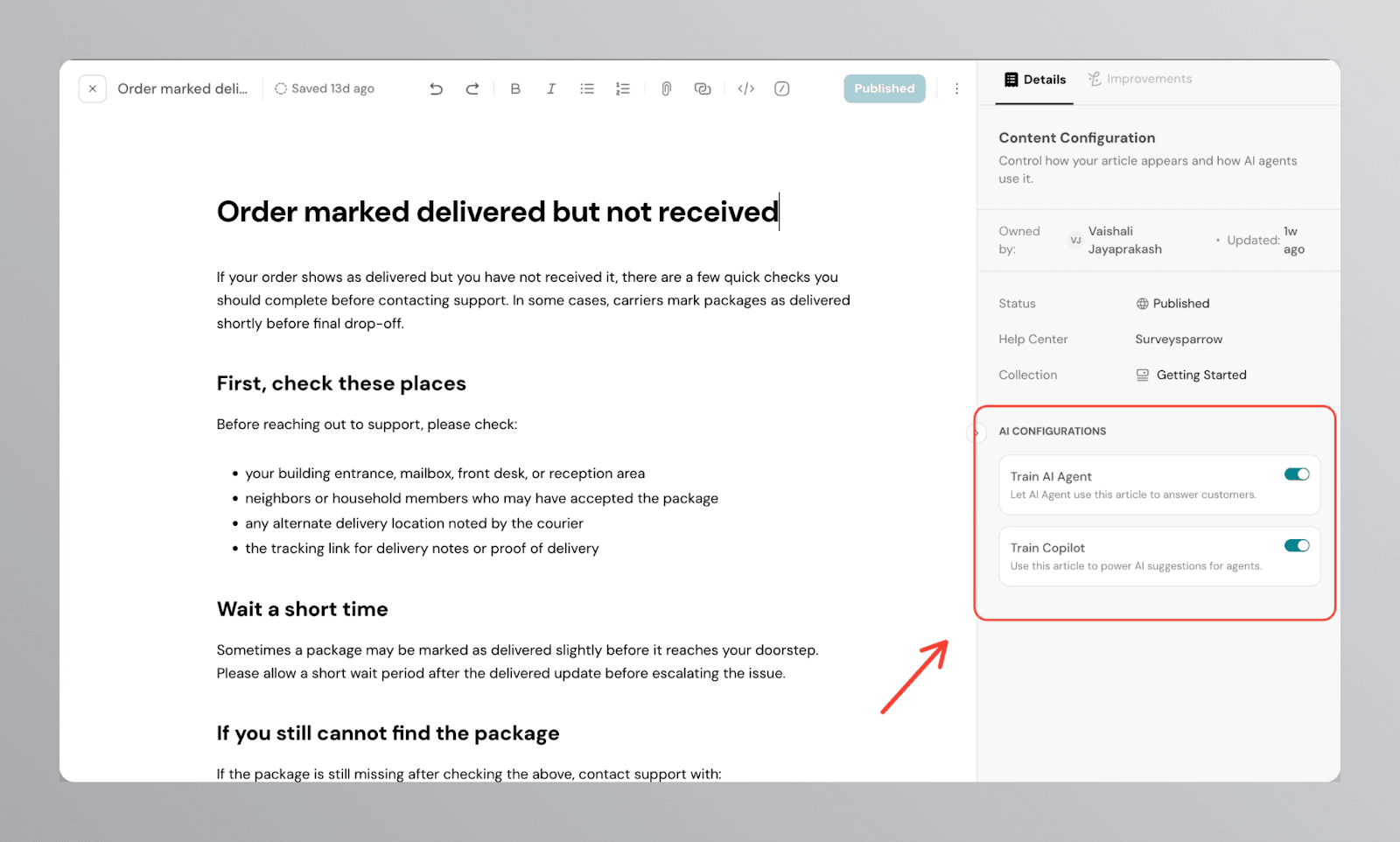
Your Help Center content can also serve as a knowledge base for the Zoona AI agent. While creating or editing an article, you can choose whether to include it in AI training.
On the right panel, you will see an option to enable or disable the article for AI training.
4. Adding Q&A
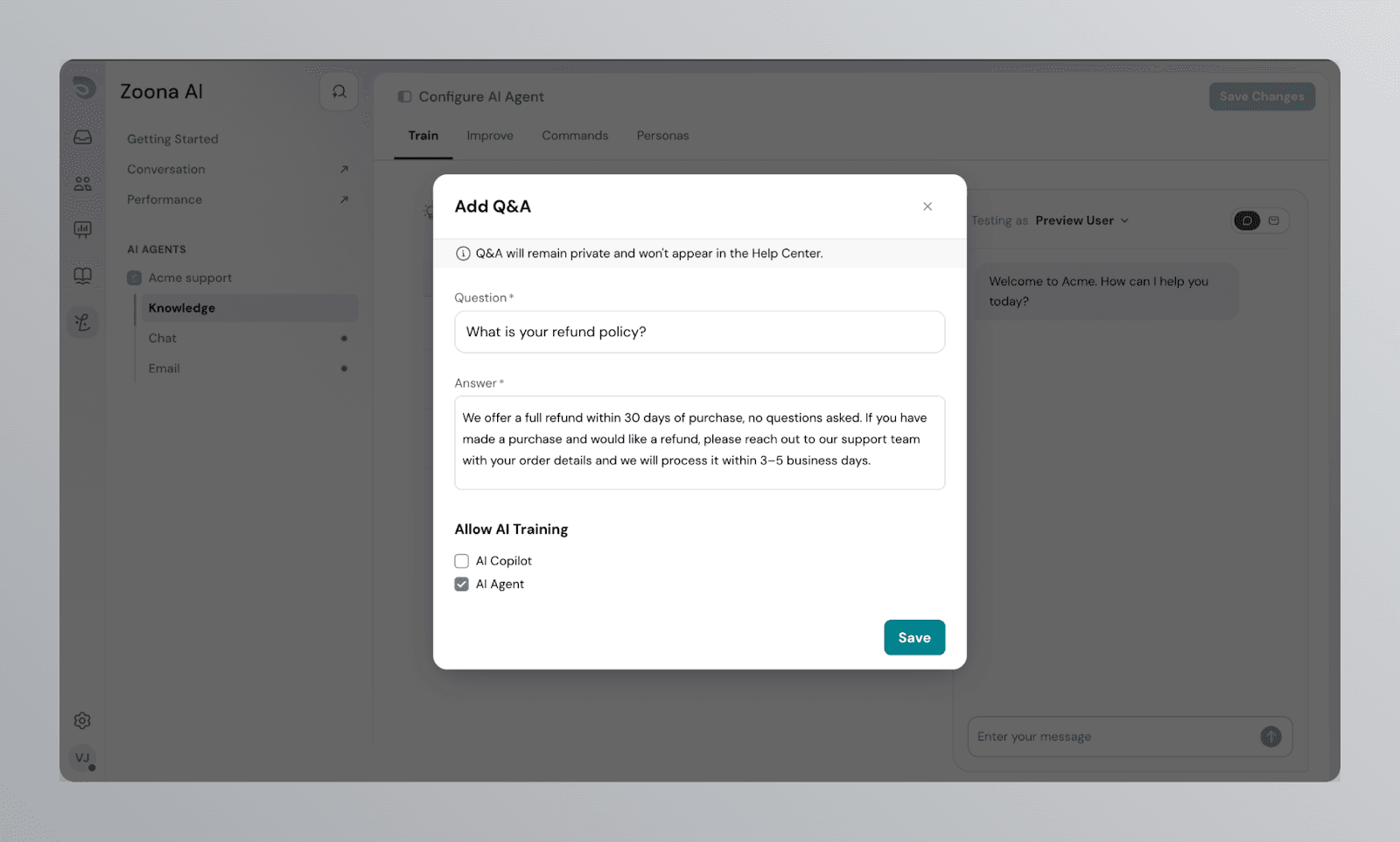
You can manually add question and answer pairs to train your Zoona AI agent on specific topics. This is useful for common customer questions where you want the AI agent to respond in a precise and controlled way.
Q&A entries remain private and will not appear in your Help Center.
When adding a Q&A, you can choose whether to make it available to the AI Copilot, the AI Agent, or both, using the Allow AI Training checkboxes.
Frequently Asked Questions
Are Q&A entries visible in the public help center?
No. Q&As that you add will be visible only within the product and not in your help center.