
Common Email Delivery Errors

Why did a message delivery fail from the Inbox?
Troubleshoot common email delivery errors when a reply fails to send from the SparrowDesk Inbox.
When you send an email reply from the SparrowDesk Inbox, the message may occasionally fail to deliver. This usually happens because the recipient’s email address, mailbox, or email provider rejected the message.
When this happens, SparrowDesk shows a delivery failure note inside the conversation. The note helps your team understand which email address could not receive the reply and why the delivery failed.
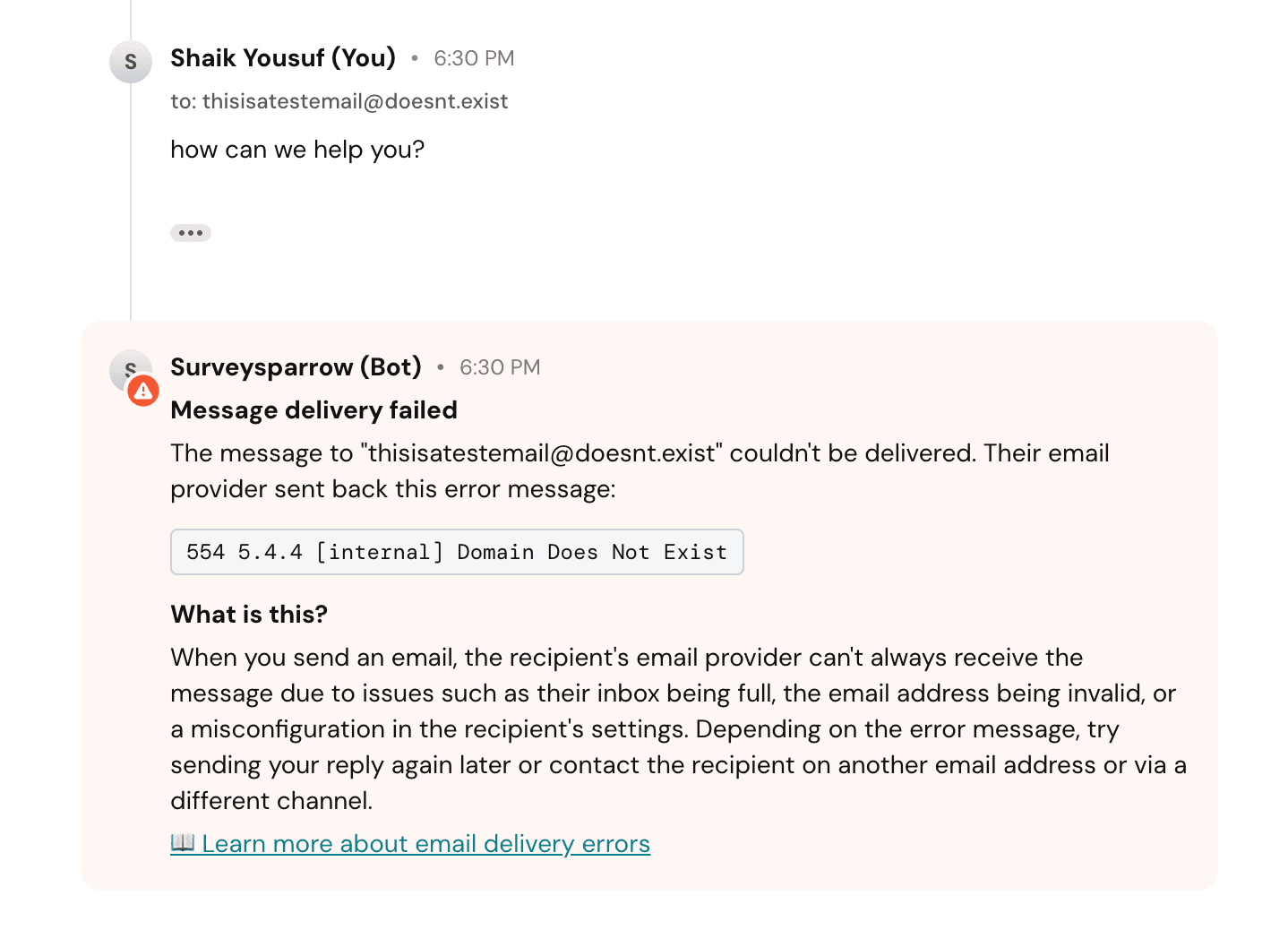
You can try sending the reply again later, contact the customer through another email address, or use another available channel.
Delivery failure notes do not reopen closed conversations automatically.
In-product delivery alerts
When email delivery breaks across your account — not just on a single message — SparrowDesk shows an alert banner at the top of the Inbox. It surfaces the problem so your team can fix it before more replies fail.
Common delivery errors
Here are some common email delivery errors and what they usually mean.
Error code | What it means | What you can do |
|---|---|---|
421-4.7.28 | The recipient’s provider temporarily deferred the email. This can happen when the provider detects unusual sending activity or rate limits messages from a domain. | Try sending again later. Make sure your sending domain is properly authenticated with SPF and DKIM. |
550 | A general delivery failure. This can mean the email address does not exist, the message was blocked, the mailbox is full, or the recipient’s provider rejected the email. | Check the full error message for more details. Verify the customer’s email address and try another contact method if available. |
550-5.1.1 | The email address is invalid or no longer exists. It may also happen if there is a typo in the customer’s email address. | Confirm the customer’s email address and update the contact before sending again. |
550-5.7.1 | The message was rejected because of a security, spam, authentication, or policy rule on the recipient’s side. | Check that your sending domain is authenticated. Ask the customer to check whether their email provider or IT team is blocking your messages. |
552-5.2.2 | The recipient’s mailbox is full and cannot receive new messages. | Try again later or contact the customer through another channel. |
554-5.4.4 | The recipient’s mail server could not route or deliver the email. This may be caused by DNS issues, server configuration, or network restrictions. |
Email address is on a bounce list
If an email address repeatedly fails with a permanent delivery error, it may be added to a bounce or suppression list. This prevents future emails from being sent to that address and helps protect your email sending reputation.
Before requesting removal from a bounce list, make sure the original issue has been fixed. For example:
- The email address is valid.
- The mailbox is no longer full.
- The customer’s mail server is accepting messages.
- Your sending domain is authenticated correctly.
If you believe the address is valid and the issue has been resolved, contact SparrowDesk support for help.
Troubleshooting message delivery failures
If you see a message failed error inside the Inbox, first try sending the message again.
If the error continues:
- Check whether the contact email address is correct.
- Confirm that the conversation is still active.
- Make sure your support email is connected and verified.
- Check whether your sending domain authentication is set up correctly.
- Try contacting the customer through another available channel.
If the issue still isn’t resolved, contact SparrowDesk support with the conversation link and the error message shown in the Inbox.
Best practices to reduce delivery failures
To improve email deliverability from SparrowDesk:
- Use a verified support email address.
- Set up SPF and DKIM for your sending domain.
- Avoid sending repeated replies to invalid email addresses.
- Keep customer email addresses updated.
- Use another channel when an email repeatedly fails.
- Ask customers to whitelist your support email if messages are being blocked.
Need more help?
If delivery failures continue, reach out to [email protected] with:
- The conversation link
- The customer email address
- The error code or failure message
- The time the message was sent
This helps the support team investigate the issue faster.