
WhatsApp as a Channel

WhatsApp is a channel in SparrowDesk that lets your team receive, manage, and reply to customer messages from WhatsApp- all inside the same inbox your team already uses.
Before you start
Make sure you have:
- Admin access in SparrowDesk
- The Configure WhatsApp Channel permission (Account owners and admins have this by default)
- A WhatsApp Business number- either through Meta directly, or via Gupshup or CM.com
Note: WhatsApp is available on the Starter plan and above. No add-on is required.
Connect a WhatsApp number
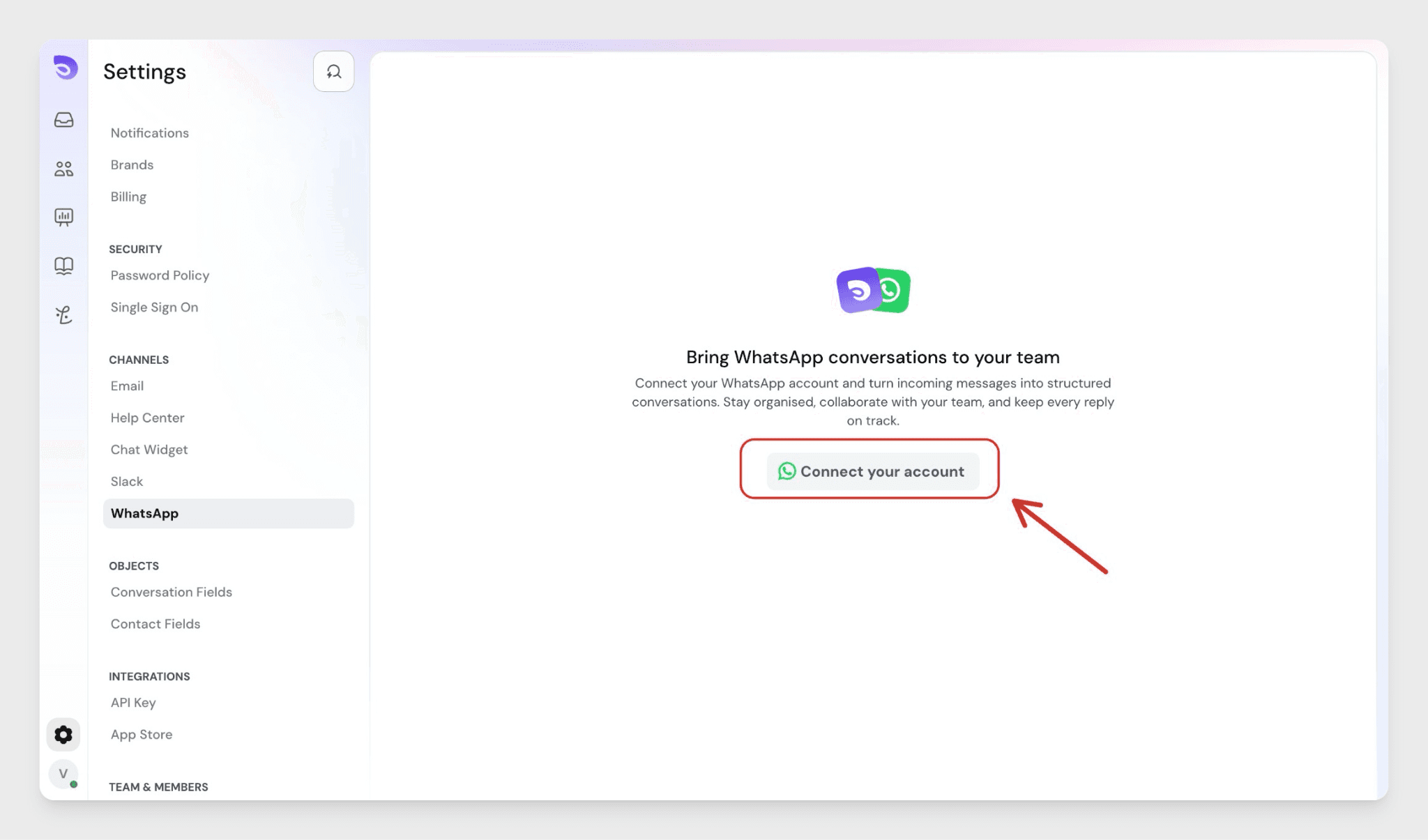
- Go to Settings in SparrowDesk.
- Under Channels, select WhatsApp.
- Click Connect your account.
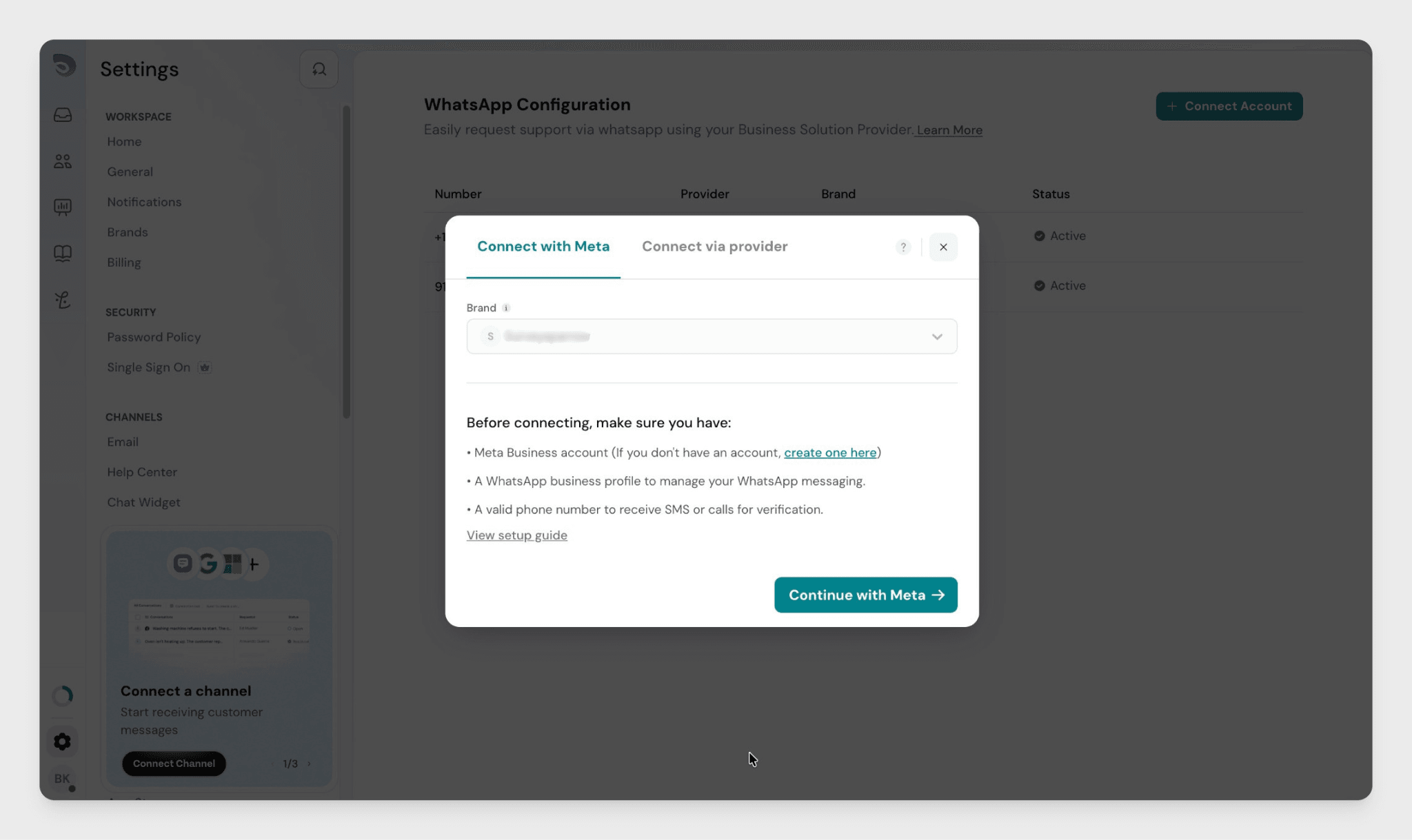
- In the modal, choose how you want to connect:
- Connect with Meta — connect directly through your Meta Business account
- Connect via provider — use Gupshup or CM.com as your provider
Option A: Connect with Meta
- In the modal, select the Connect with Meta tab.
- Click Continue with Meta.
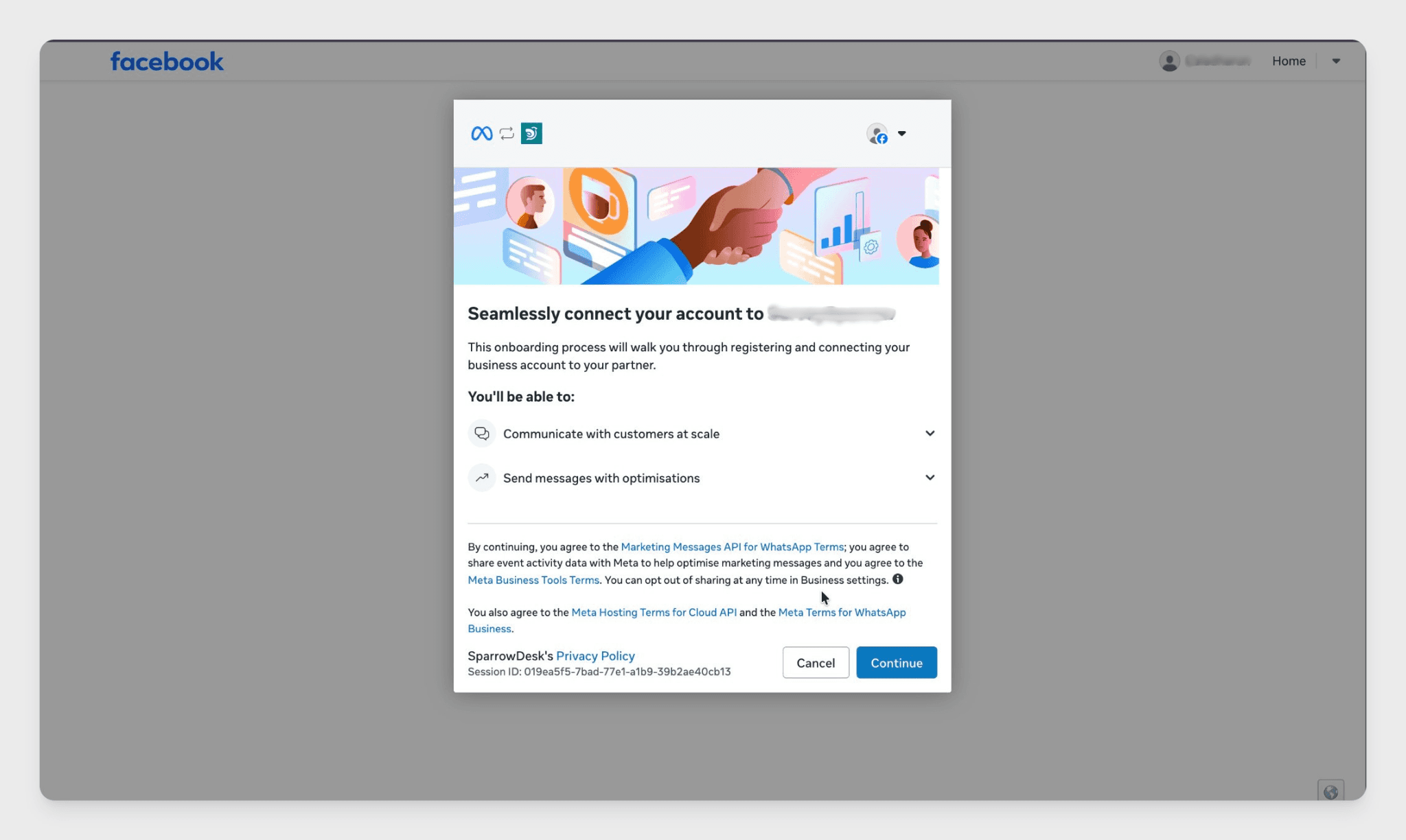
- Log in to your Facebook account when prompted.
- Select your Meta Business account.
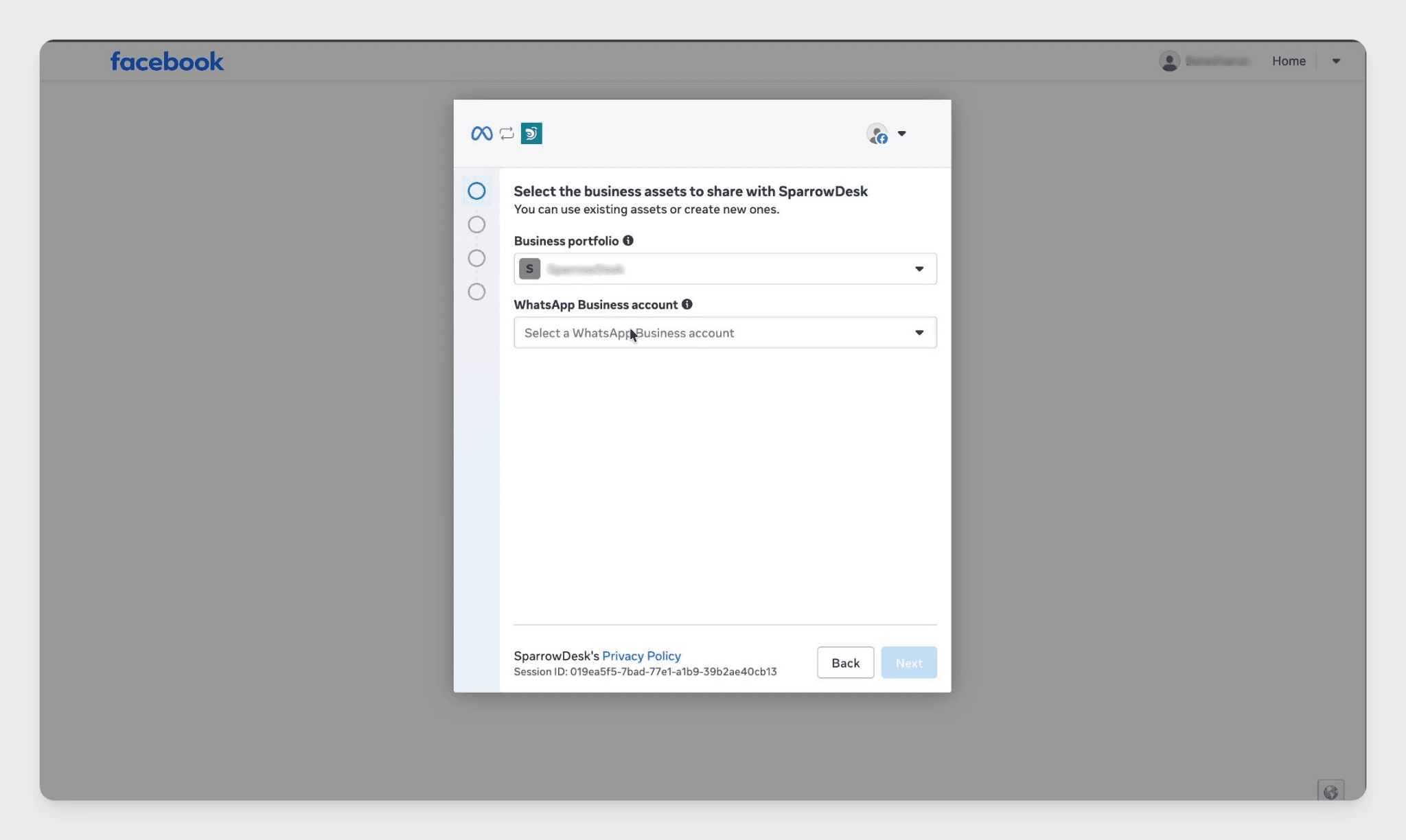
- Select your business portfolio and Whatsapp Business Account.
- Complete the setup steps on Meta's side and return to SparrowDesk.
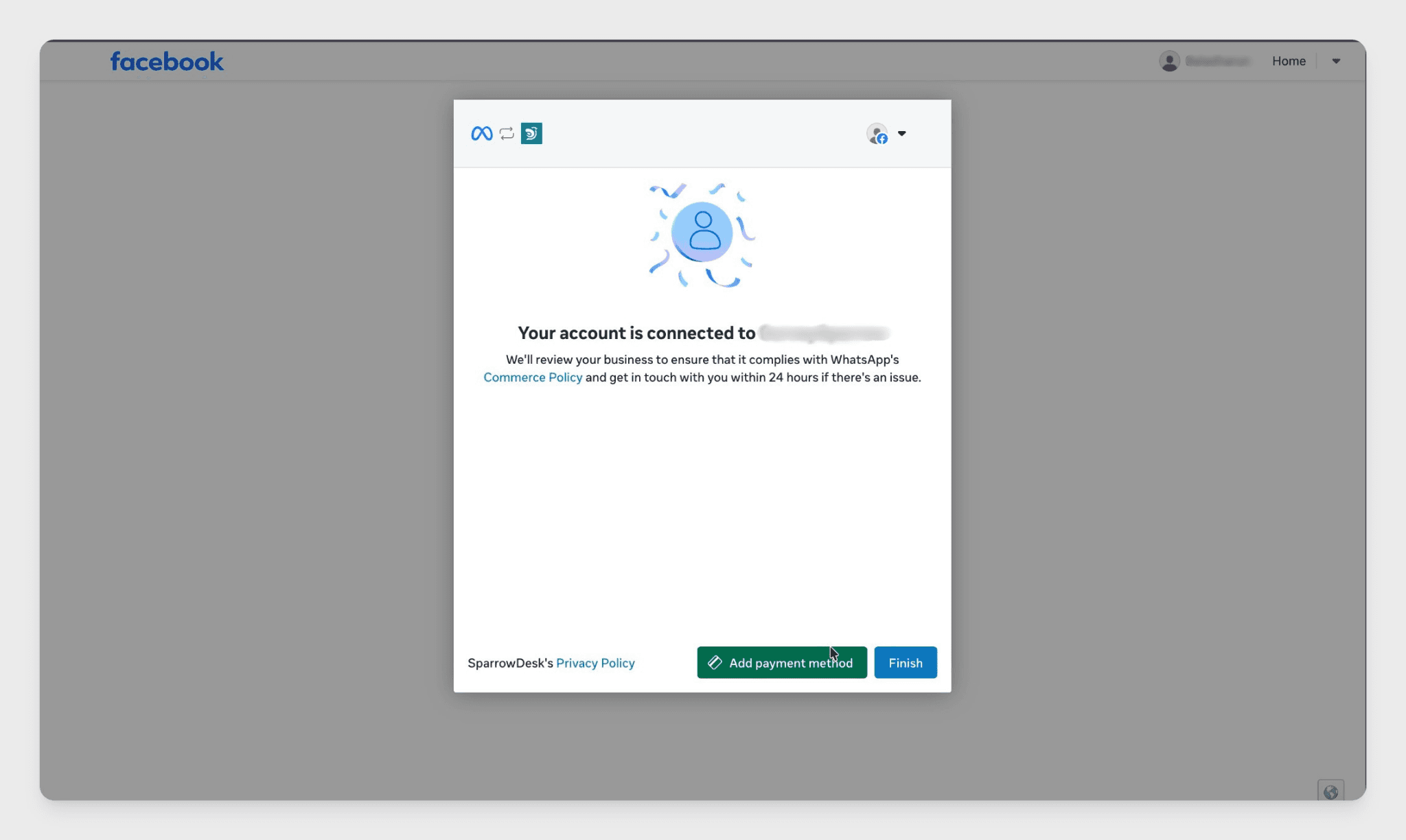
Once Meta confirms the connection, your number appears in SparrowDesk with its status set to Active.
Option B: Connect with Gupshup
- In the modal, select the Connect via provider tab.
- Select Gupshup as your provider.
- Click Continue.
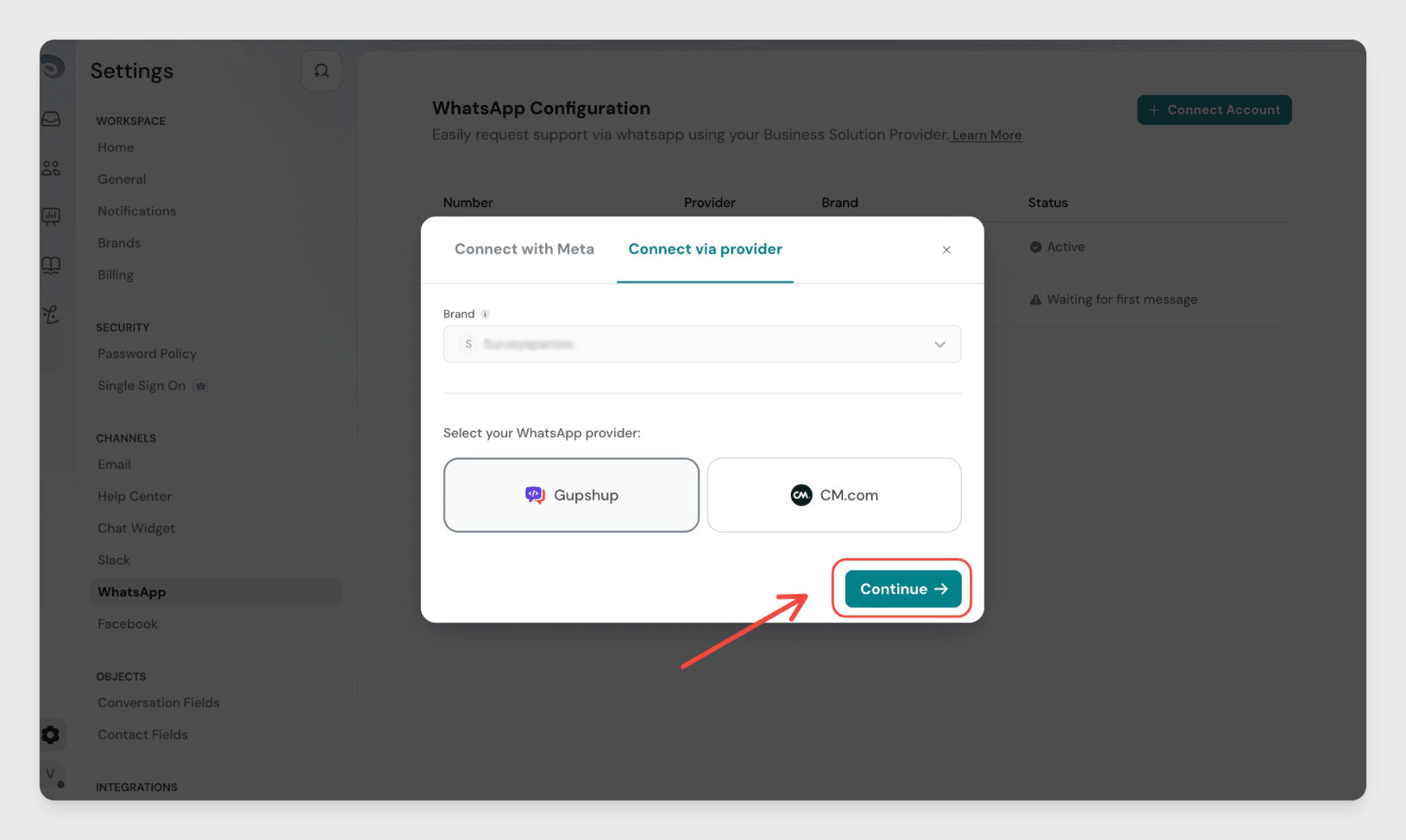
- In the Connect your Gupshup account screen, enter your Gupshup credentials.
- Click Connect WhatsApp Account.
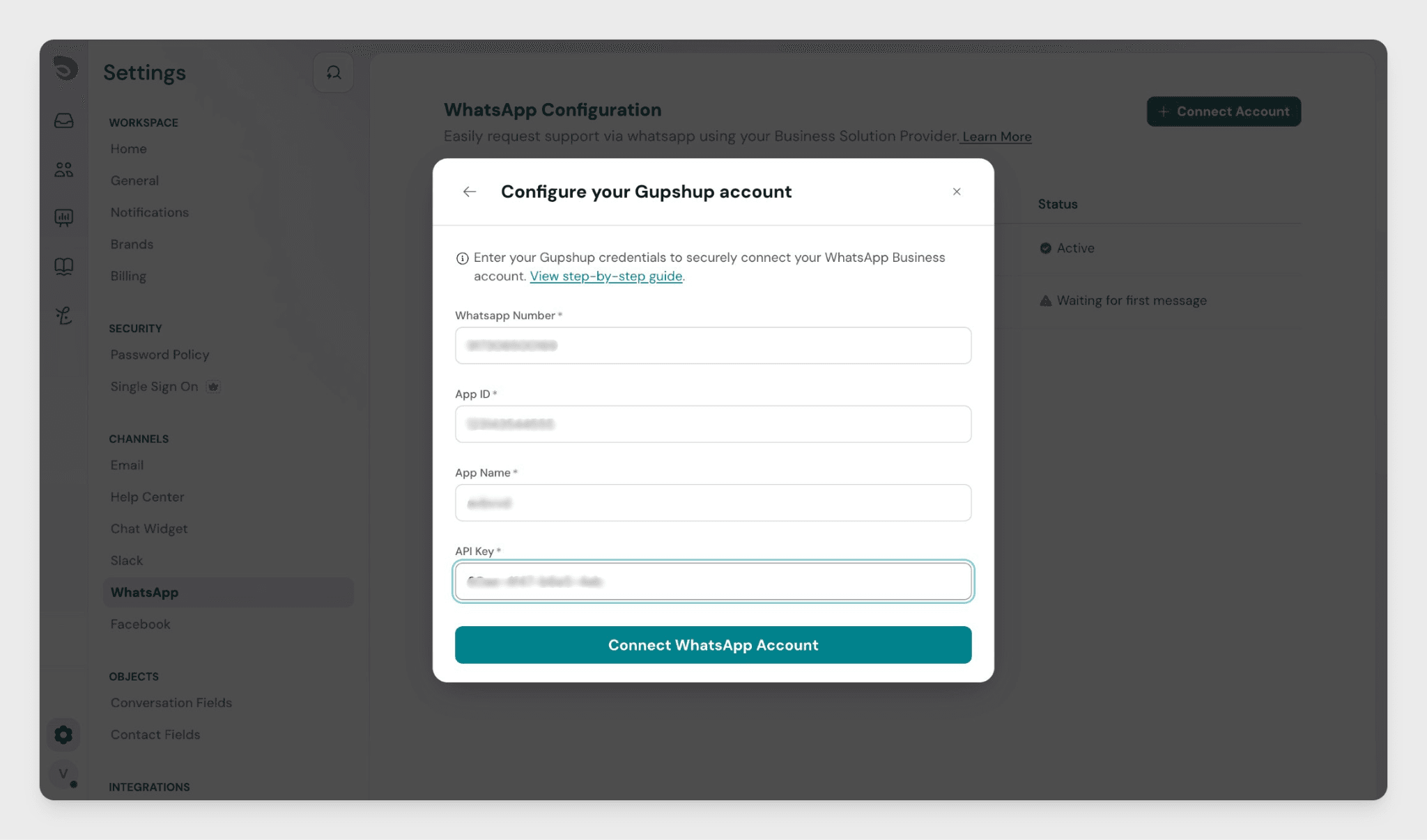
- On the next screen, copy the webhook URL shown.
- Configure this webhook URL in your Gupshup dashboard.
- Click I've configured the webhook.
A confirmation toast appears: "WhatsApp account connected." Your number is now listed in settings.
Option C: Connect with CM.com
- In the modal, select the Connect via provider tab.
- Select CM.com as your provider.
- Click Continue.
- In the Connect your CM.com account screen, enter your CM.com credentials.
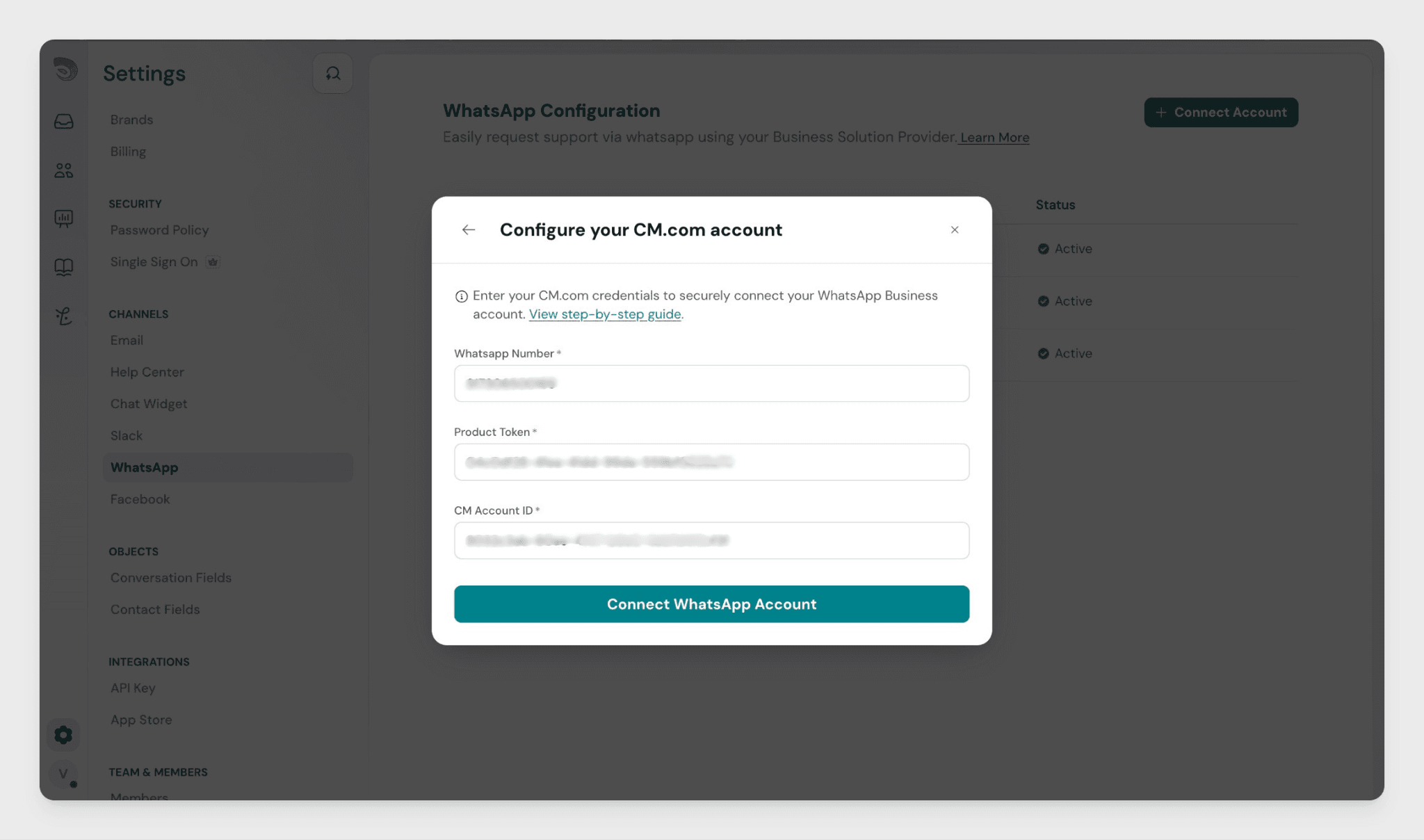
- Click Connect WhatsApp Account.
- Copy the webhook URL on the next screen and configure it in your CM.com dashboard.
- Click I've configured the webhook.
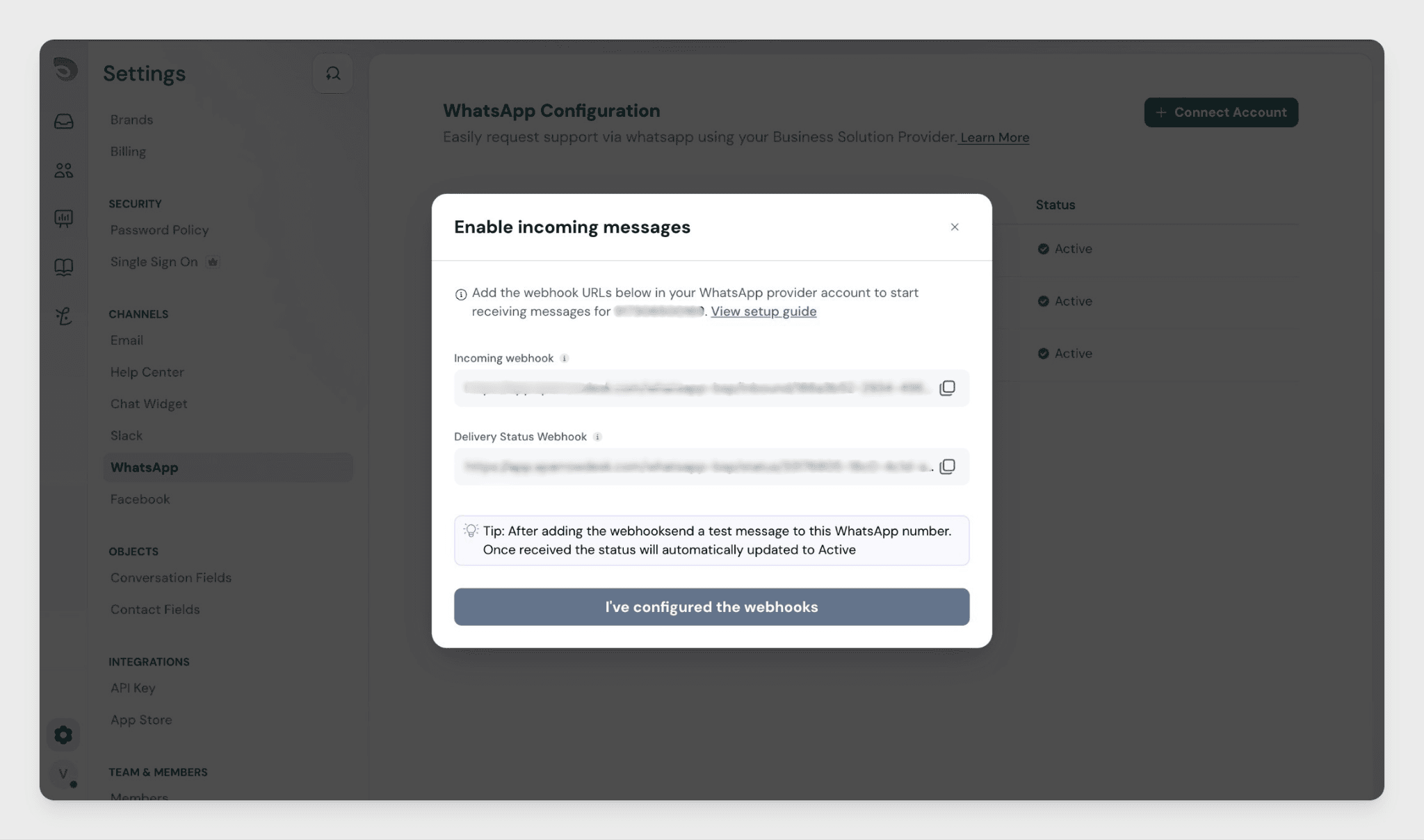
Your number is now listed in settings.
Important: Settings cannot be changed after setup is complete. To update credentials or switch providers, disconnect the number and reconnect.
Connection status
Each connected number shows one of three statuses:
Status | What it means |
Pending Setup | Setup was started but the webhook has not been configured yet. |
Waiting for First Message | Connection is validated, but no message has been received yet. |
Active | A customer has sent the first message. The channel is fully operational. |
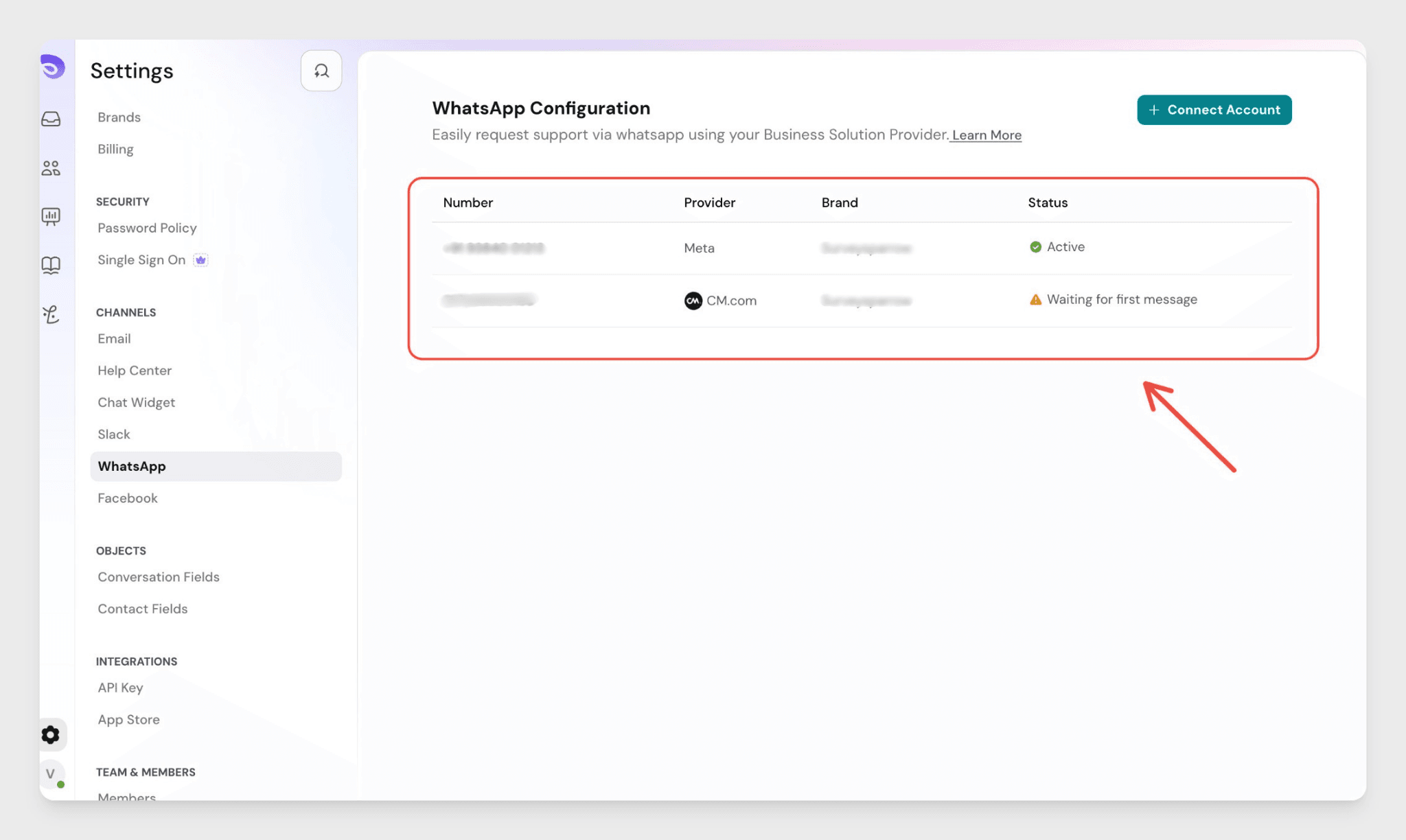
You can send outbound template messages while the status is Waiting for First Message, but the channel only becomes Active after a customer messages you first.
How tickets work
Scenario | What happens |
No existing ticket | A new ticket is created with status Open |
Existing ticket is Open or Pending | The message is added to that ticket |
Existing ticket is Resolved | The ticket reopens with status Open |
Existing ticket is Closed | A new ticket is created |
Same customer, different number | A new ticket is created — no cross-number linking |
Sending messages: sessions and templates
WhatsApp's 24-hour session window controls what your agents can send.
Session state | What agents can send |
Active (within 24 hrs) | Free text, media, emojis |
Expired (more than 24 hrs) | Template messages only |
When a session expires, the free-text composer is disabled and a template selector appears instead.
Session expiry does not change the ticket status or trigger any automations.
Note: WhatsApp conversation charges are billed directly by your provider and Meta. SparrowDesk does not charge for WhatsApp usage.
Supported message formats
Agents can send and receive:
- Text with bold and italics
- Images and PDFs
- Common file attachments
- Emojis (when session is active)
- Hyperlinks
File size limits depend on your provider. Check your provider's documentation for the exact limits.
Message delivery states
Each message shows one of two delivery states:
- Seen
- Not seen
Workflows and automation
WhatsApp tickets work with SparrowDesk's existing workflow engine. You can trigger workflows on ticket creation, new inbound messages, and assignment rules. WhatsApp session state (Active / Expired) is available as a workflow condition.
Auto-replies work only when a session is active. Workflow-triggered template messages are not supported in this version.
FAQs
- Can one WhatsApp number be connected to multiple brands?
No. Each number maps to exactly one brand. One brand can have multiple numbers connected to it. - Can I switch providers after setup?
No. Settings cannot be changed once setup is complete. Disconnect the number and reconnect to switch providers. - What happens if I disconnect a WhatsApp number?
All in-flight tickets stay open and agents can view the full conversation history. No new messages can be sent or received on that number. - Can agents start a conversation without customer messaging first?
No. A customer must send the first message to open a WhatsApp conversation. Once a customer messages you, agents can reply and manage the conversation from SparrowDesk. - Who can configure the WhatsApp channel?
Account owners and admins can configure WhatsApp by default. Custom roles can be granted the Configure WhatsApp Channel permission manually. Agents without this permission can still send and receive WhatsApp messages inside tickets.