sparrowdesk-logo-transparent-1.png
Go to sparrowdesk.com
Home
SparrowDesk Overview
  • Overview of SparrowDesk
  • Feature Overview in SparrowDesk
  • SparrowDesk Glossary
Getting Started
  • Setting Up Account Details
  • Default Business Hours
  • Understanding and Creating Teams
  • Inviting Team Members to the Platform
  • Roles and Permissions
  • Single Sign-On
  • Brands in SparrowDesk
  • Getting Started FAQs
  • Use a custom domain for your support portal
  • Customize Customer Email Notifications
  • View the Audit Log
Inbox
  • Understanding the Inbox in SparrowDesk
  • Managing Custom Views in Inbox
  • Live Chats in Inbox
  • Staying on Top of New Messages from Customers
  • Conversation Fields in SparrowDesk
  • Merging Conversations in SparrowDesk
  • Round Robin assignment explained
  • Export Conversations as CSV
  • Bulk update fields
  • Forward a Conversation to an External Contact
  • Common Email Delivery Errors
  • Add Watchers to a Conversation
  • Set Up Parent-Child Ticketing
Channels
  • Slack as a Channel
  • WhatsApp as a Channel
  • Facebook Messenger as a Channel
  • Instagram Channel
  • Setting Up Email as a Support ChannelConnect your custom email address How do I send and receive emails via SMTP and IMAP ? How do I find my SMTP/IMAP server address and port number? Common Errors while Connecting through SMTP/IMAPHow to Prevent Emails From Going to Spam Email Signatures
  • Installing Chat Widget Chat Widget Installation on WordPressInstall the Chat Widget on ShopifyCustomising Chat WidgetEmbedding and Configuring the SparrowDesk Chat WidgetChat Widget SettingsWhy End Users Don’t Always See Their Chat HistoryTrack page visits in SparrowDesk
Contacts
  • Contacts in SparrowDesk
  • How to manage contact segments
  • Deleting and Blocking Contacts in SparrowDesk
  • Contact Fields in SparrowDesk
Reports
  • Conversation Report
  • Team Performance Report
  • Understanding the AI Agent Report in SparrowDesk
  • Viewing CSAT reports in SparrowDesk
  • Reports FAQ
  • Exporting Reports as PDF
  • Help Center Reports
  • Build a Custom Report
Automation
  • Macros
  • Business Hours
  • Service-Level Agreements (SLAs)
  • Setting up CSAT (Customer Satisfaction) in SparrowDesk
Zoona AI
  • AI Suggested replies in your Inbox
  • AI-Generated Chat Subjects
  • Zoona AI Knowledge Improvements
  • Introduction to AI Copilot
  • Introduction to AI AgentAI Agent - Configure PersonaTraining your AI AgentZoona AI Agent CommandsAI Agent - Deploying on chatAI Agent - Deploying on EmailHow to Create a Command Zoona AI Agent - FAQUnderstanding AI resolutions in SparrowDesk
Workflows
  • Automate repetitive tasks through Workflows
  • How to Create a Workflow
  • Workflow Blocks Library
  • Notify a Slack Channel from a Workflow
  • Classify Conversations with a Custom Prompt
Help Centre
  • Write Knowledge Articles for your Help Centre and AI Agents
  • Setting Up and Customizing Your Help Center
  • Use a Custom Domain for Your Help Center
  • Make Your Help Centre Discoverable in Search results
  • Adding Google Tag Manager to your Help Center
  • Creating a Ticket Form Setting up Customer Portal
Billing
  • How does SparrowDesk pricing work?
  • What is Seat ?
  • Manage your Billing and Invoices
  • About Sales Tax
  • How to cancel your subscription
  • Frequently Asked Questions
  • AI Co-pilot and AI Resolution billing
  • SparrowDesk Startup Program
Apps and Integrations
  • Okta Integration
  • HubSpot Integration
  • SurveySparrow Integration
  • Zapier Integration
  • Attio Integration
  • Linear Integration
  • Jira Integration
  • Gmail Integration
  • Notion Integration
  • Shopify Integration
  • Migrating from Freshdesk
  • Zoho CRM integration
  • Set Up a Webhook

Set Up a Webhook

Timer3 min read
VaishaliVaishali

A webhook tells SparrowDesk to send information to another system the moment something happens in your workspace- a new conversation, a reply, a status change. Instead of your systems asking SparrowDesk for updates, SparrowDesk sends them as they happen.

What You Need First

  • The Manage Webhooks permission. Admins have it by default.
  • A Professional or Enterprise plan.
  • A web address (starting with https://) where the information should be sent. Your development team will usually set this up.

Create a Webhook

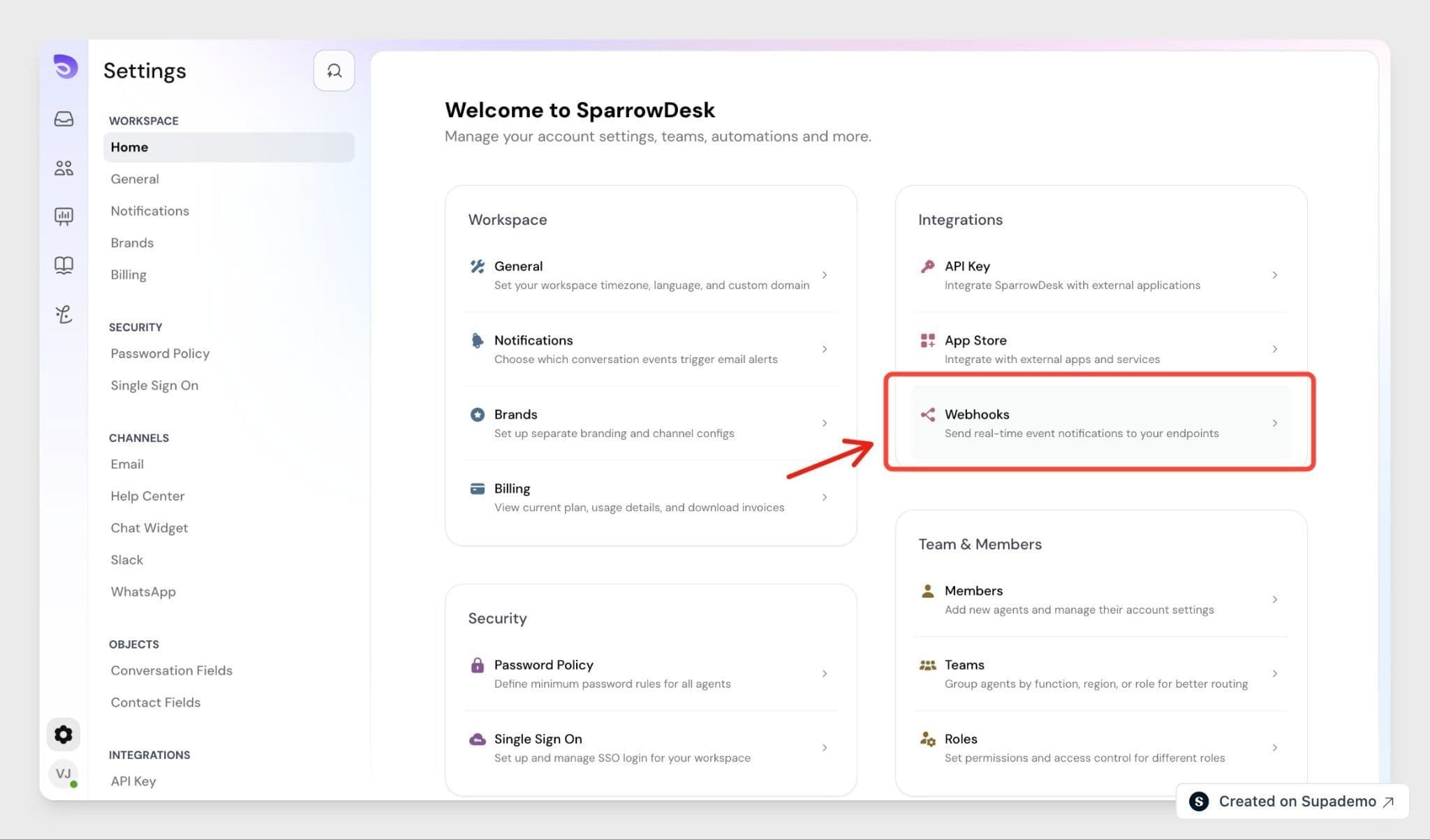
  1. Go to Settings → Webhooks.

Image

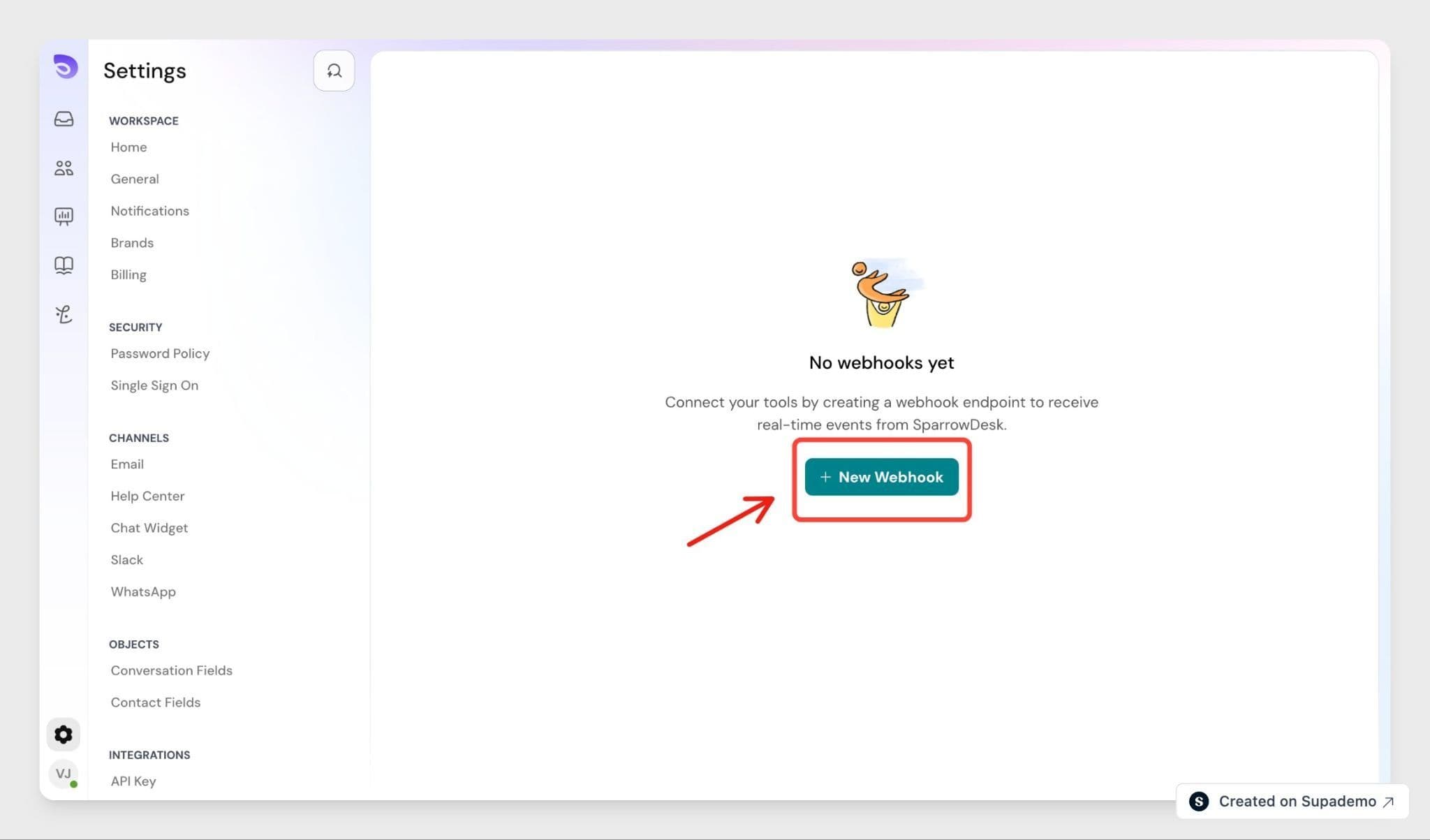
  1. Click Create Webhook.

Image

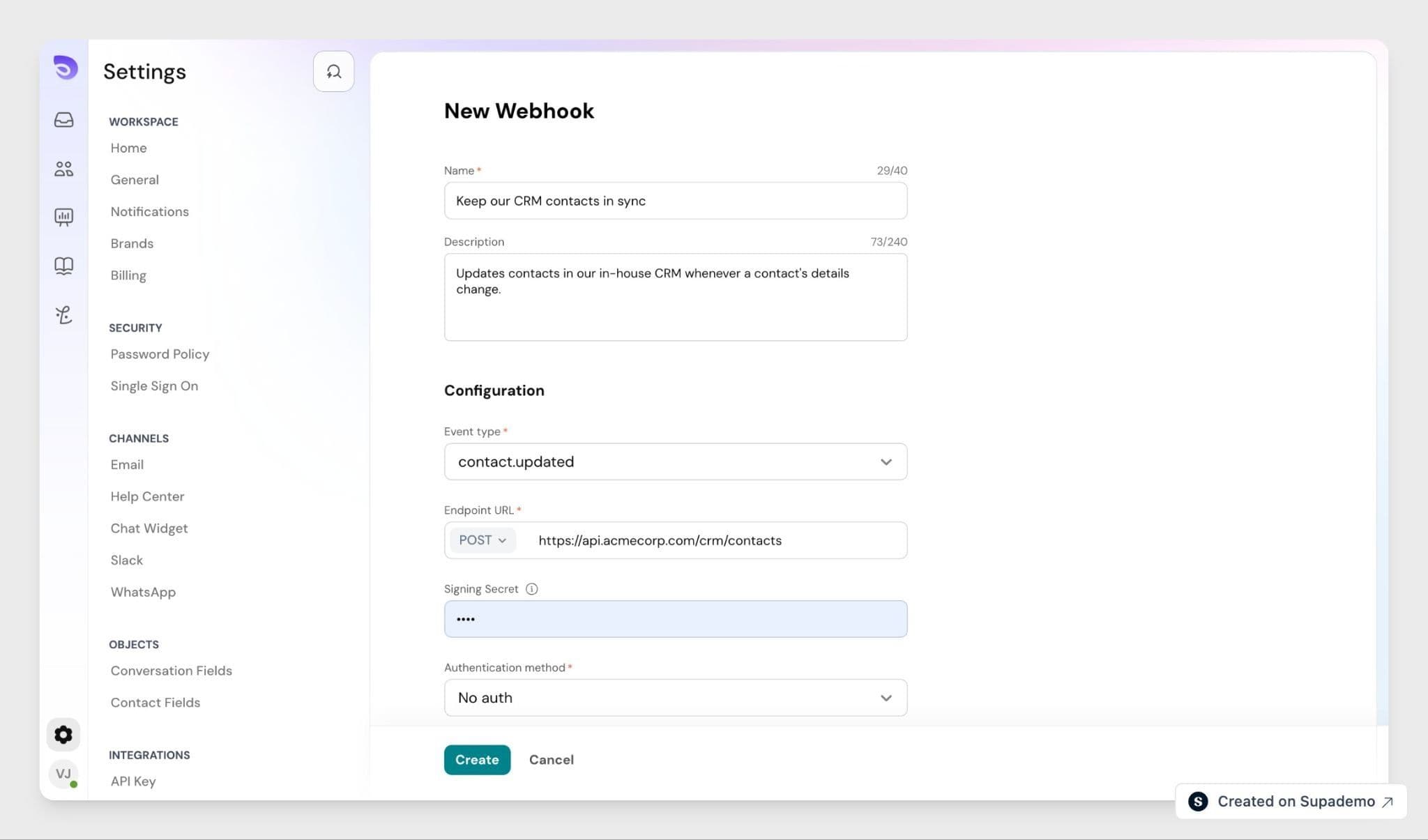
  1. Give it a Name so your team knows what it's for. Add a Description if you want.
  2. Enter the URL where SparrowDesk should send the information. It has to start with https://.
  3. Choose the event you want to be notified about — for example, when a conversation is created or a contact is updated. Each webhook listens for one event; to react to more than one, create a separate webhook for each
  4. Turn the webhook On.
  5. Click Save.

Image

Save Your Secret Key

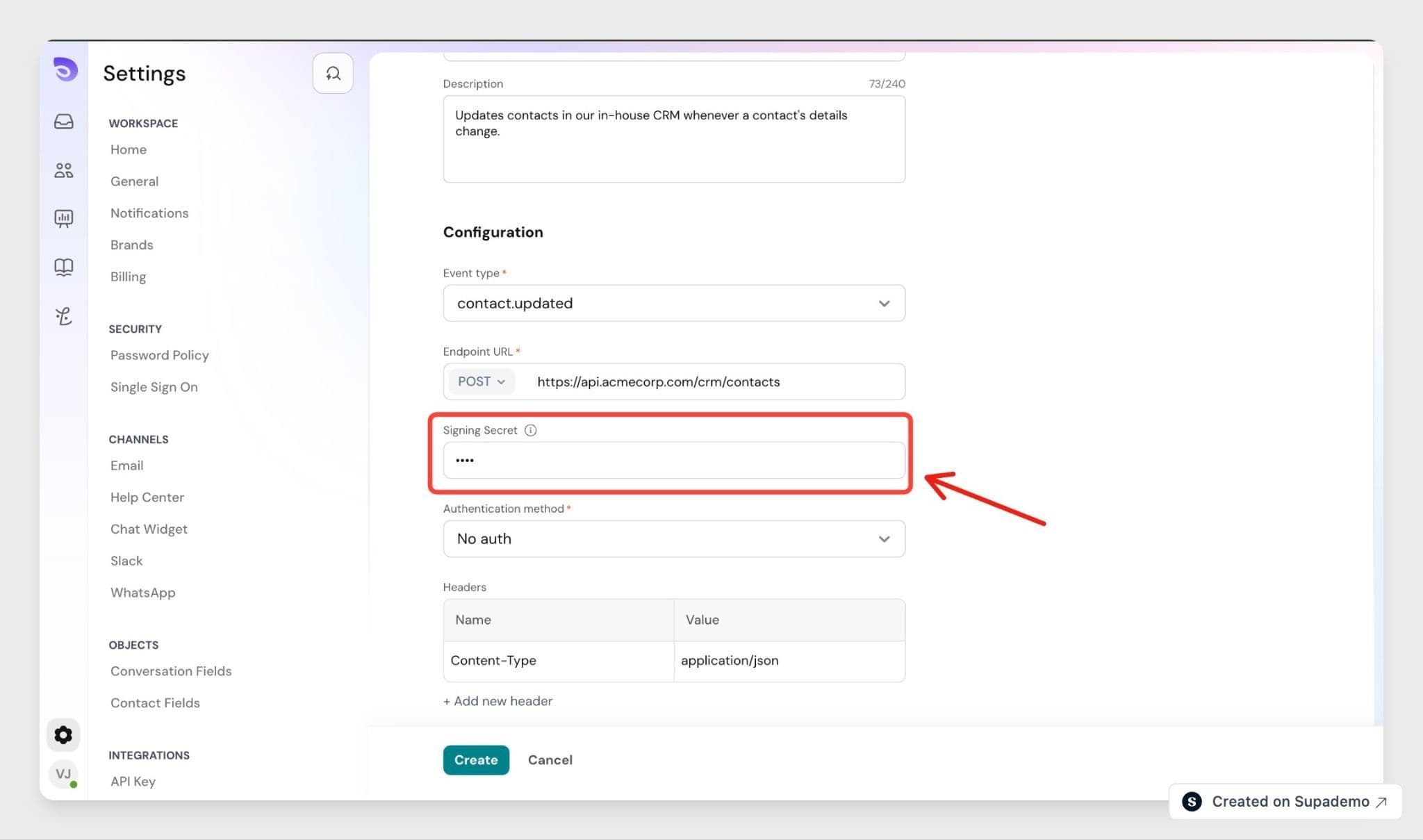
Each webhook uses a secret key so the system receiving your messages can confirm they genuinely came from SparrowDesk. Enter your own secret in the Signing Secret field, and use that same value in the system that receives the messages. Keep it private- treat it like a password.
Image

Add Custom Headers

If the system receiving your messages needs a specific piece of information sent with every message like a login token add it under Custom Headers as a name and a value. SparrowDesk includes it with every message to this webhook.

Custom headers are kept private. They're hidden after you save and never appear in your logs.

Edit, Pause, or Remove a Webhook

From the Webhooks list you can:

  • Turn a webhook off to stop messages without losing its setup. Turn it back on any time.
  • Edit its description, URL, headers, and other settings. The event a webhook listens for can't be changed, to use a different event, create a new webhook.
  • Delete it to remove it completely.

You can have up to 25 webhooks in a workspace. If you need more, contact the sales team.

Note: Webhooks are set up here in Settings. There's no way to create or manage them through the API in this version.

Check Your Delivery Logs

Each webhook keeps a record of what it has sent. Open a webhook to see its recent deliveries- each message SparrowDesk sent, when it was sent, and how your URL responded. Logs are kept for 14 days.


FAQ

  1. What happens if my URL is down when an event fires?
    If a webhook fails to deliver 5 different events, SparrowDesk turns it off automatically and notifies you. Fix the problem at your URL, then switch the webhook back on.
  2. Can I change a webhook after creating it?
    You can update its description, URL, headers, and other settings at any time. The event it listens for can't be changed — to react to a different event, create a new webhook.
  3. Can I change the secret key later?
    Yes. Open the webhook, enter a new value in the Signing Secret field, and save. Update the same value in the system that receives your messages, so the two still match.
  4. Can I choose what information each message contains?
    No. You choose which event a webhook is notified about, but the details in each message are set by SparrowDesk.
  5. Who on my team can set up webhooks?
    Anyone with the Manage Webhooks permission. Admins have it by default, and on Enterprise plans you can give it to a custom role.


Powered By SparrowDesk

Table of ContentsOn this page