
Managing Custom Views in Inbox

Custom views help you organize and access filtered conversations quickly. Instead of applying filters every time, you can save them as views and decide who gets access.
Using Filters
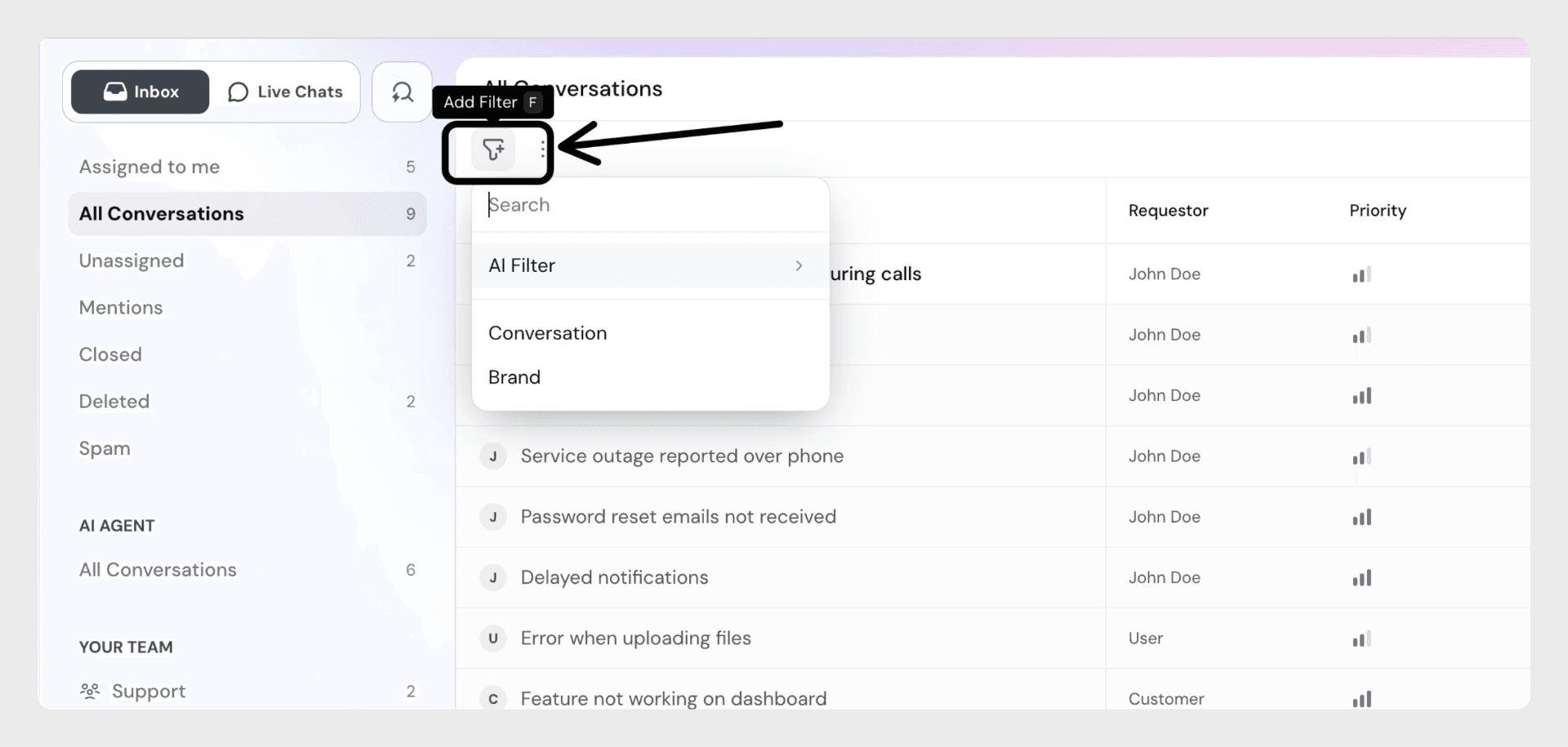
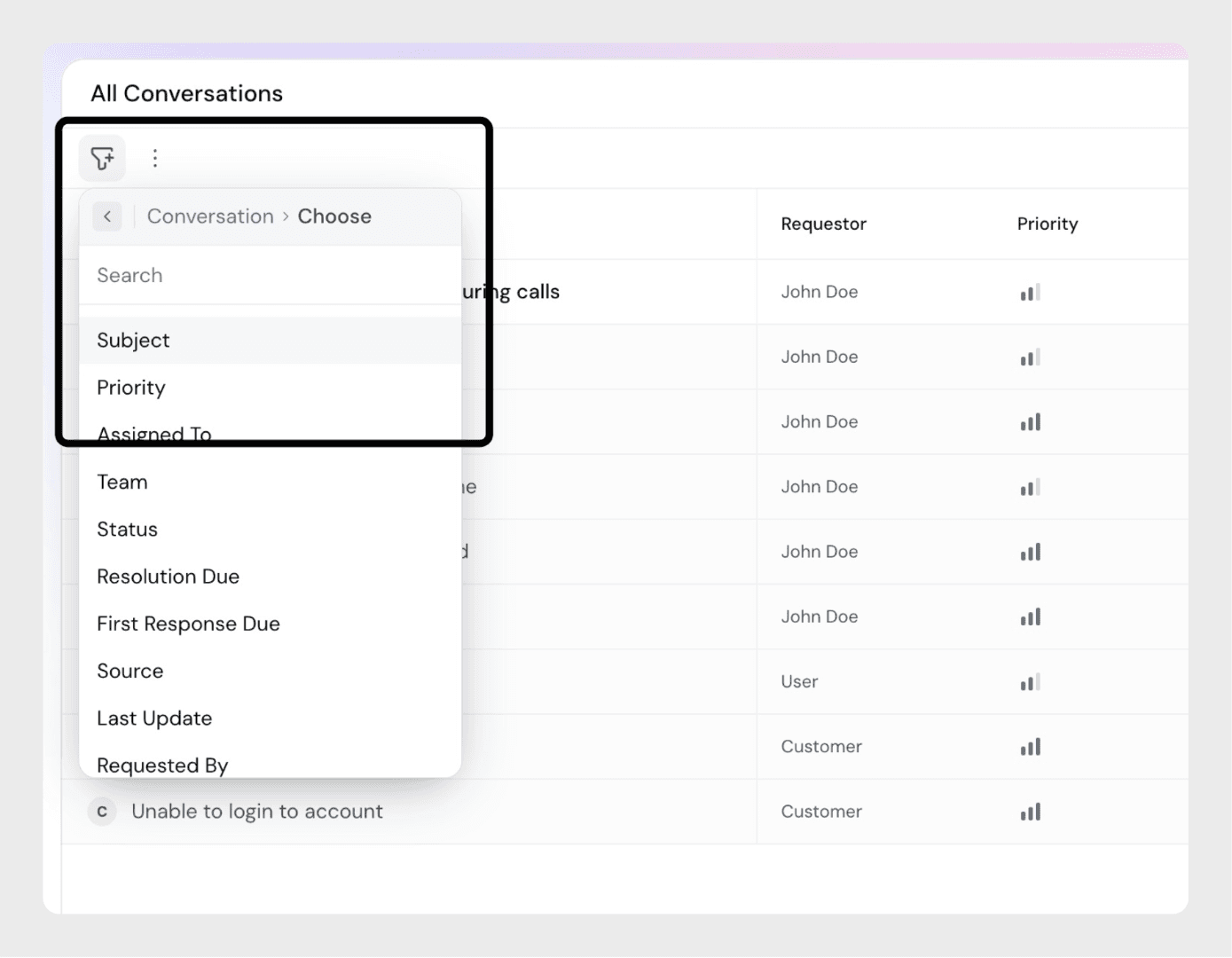
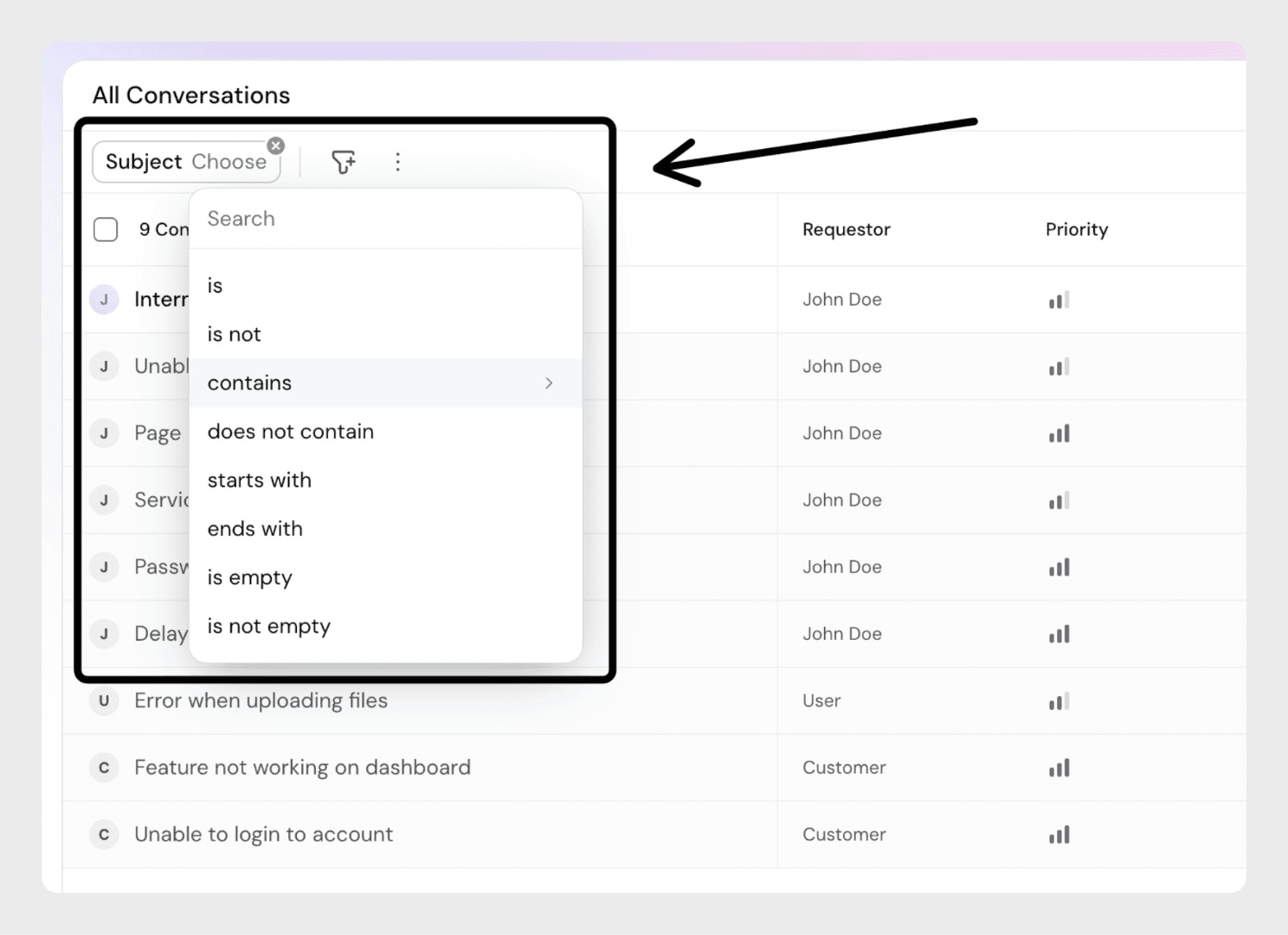
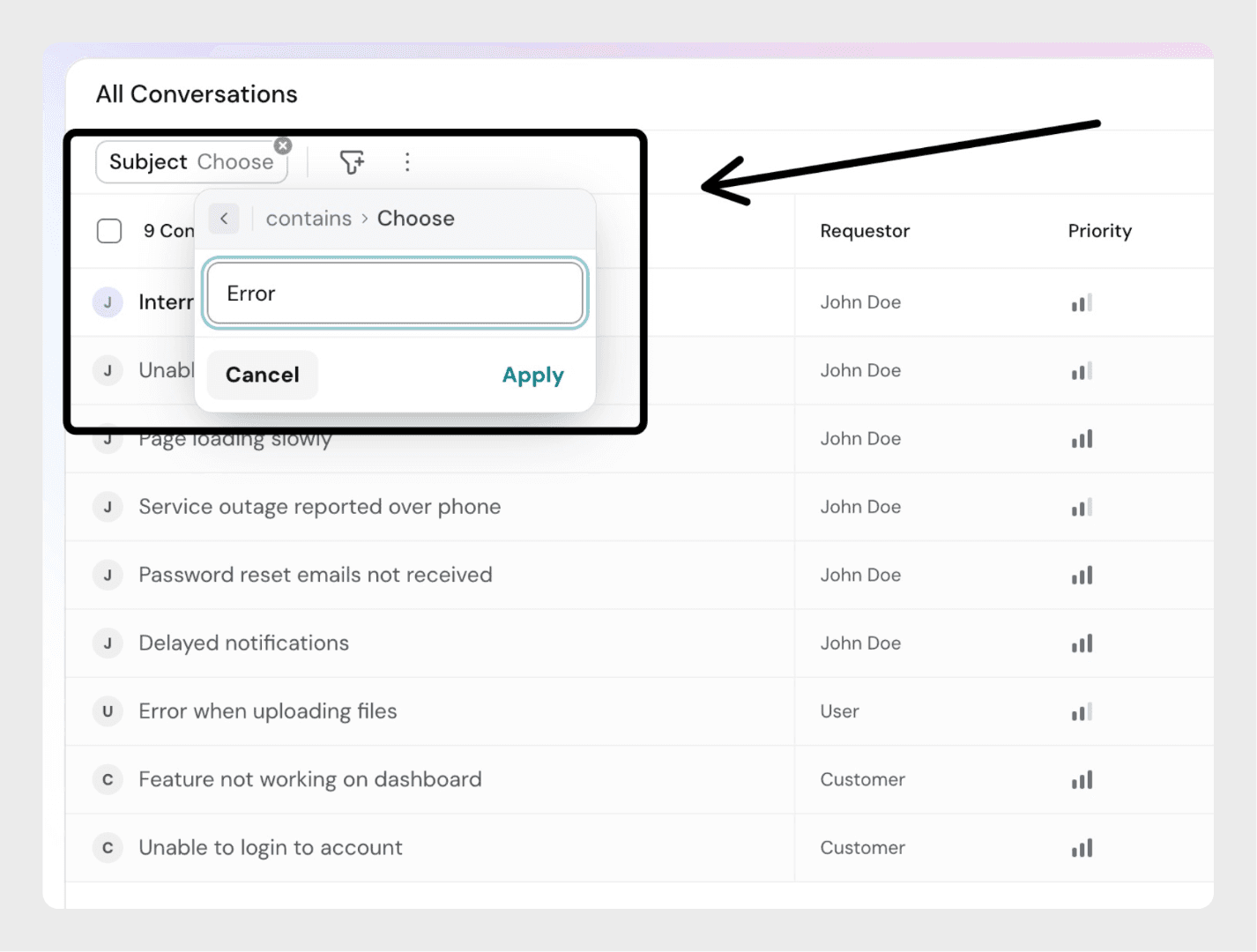
You can create custom views by applying filters to your inbox. There are two ways to filter conversations:
Standard Filters
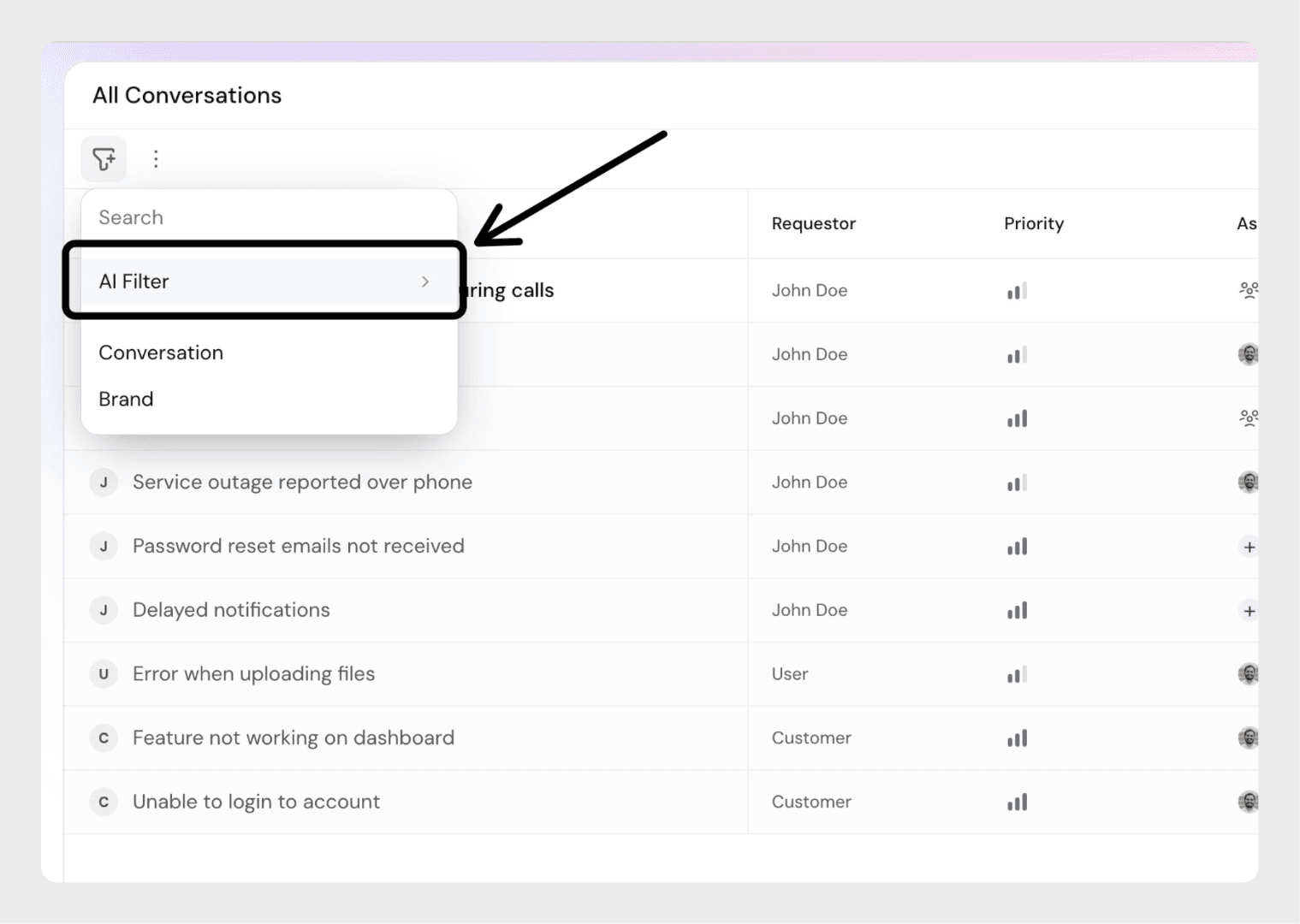
Step 1: Click on the Filter button at the top of your inbox.
AI Filter (Beta)
The AI Filter lets you filter conversations using natural language instead of manually selecting fields and operators.
- Subject contains Error
- Submitted through the Contact Sales form
- Requested by John
- Assigned to David
The AI will interpret your request, match it to the correct column, and apply the filter.
Creating a Custom View
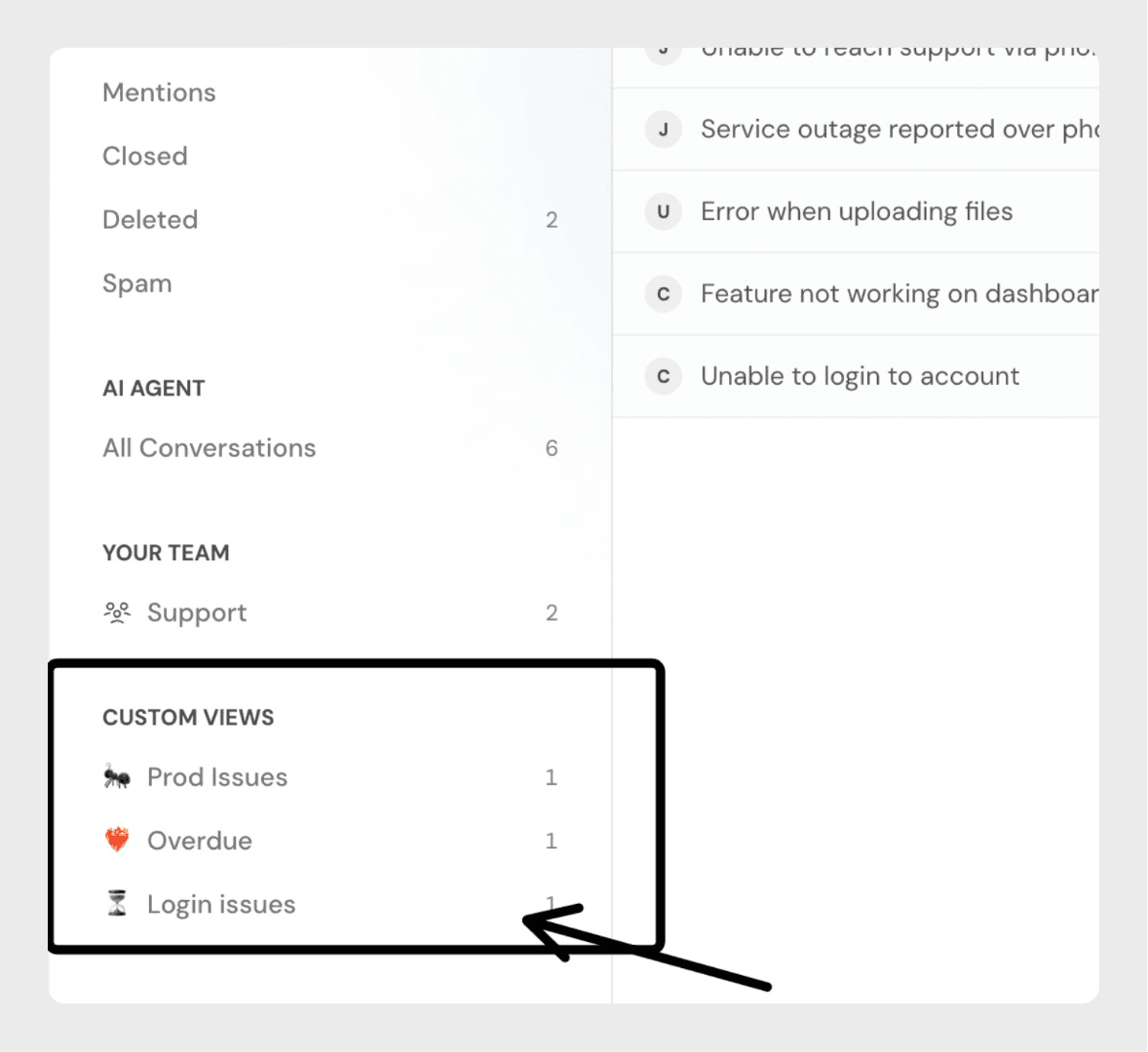
Custom views are saved sets of filters with a custom name that you define. This name, along with an optional emoji, helps you quickly recognize and access the view in the sidebar.
Step 1: Apply the filters you want in your inbox (using either Standard Filters or the AI Filter).
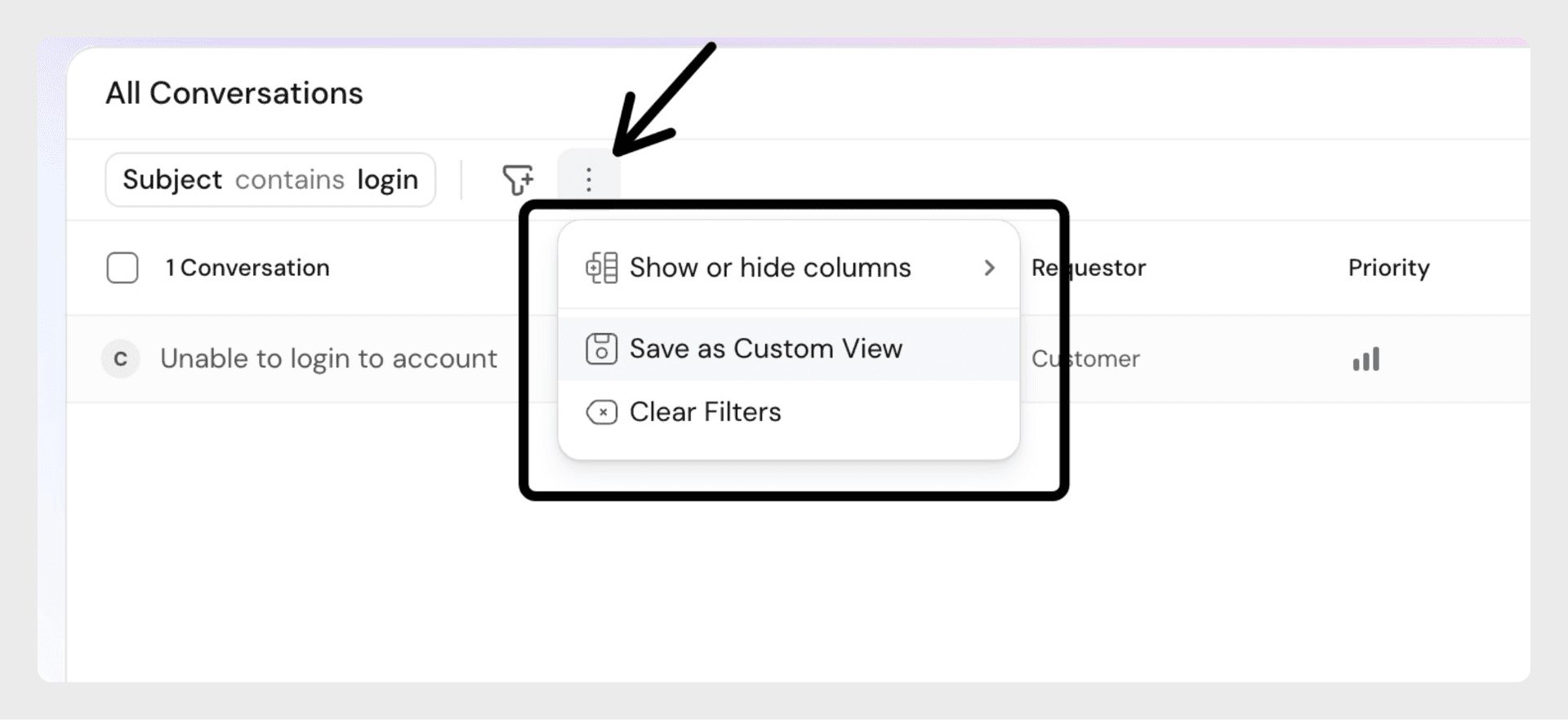
Step 2: From the dropdown, click Save as Custom View
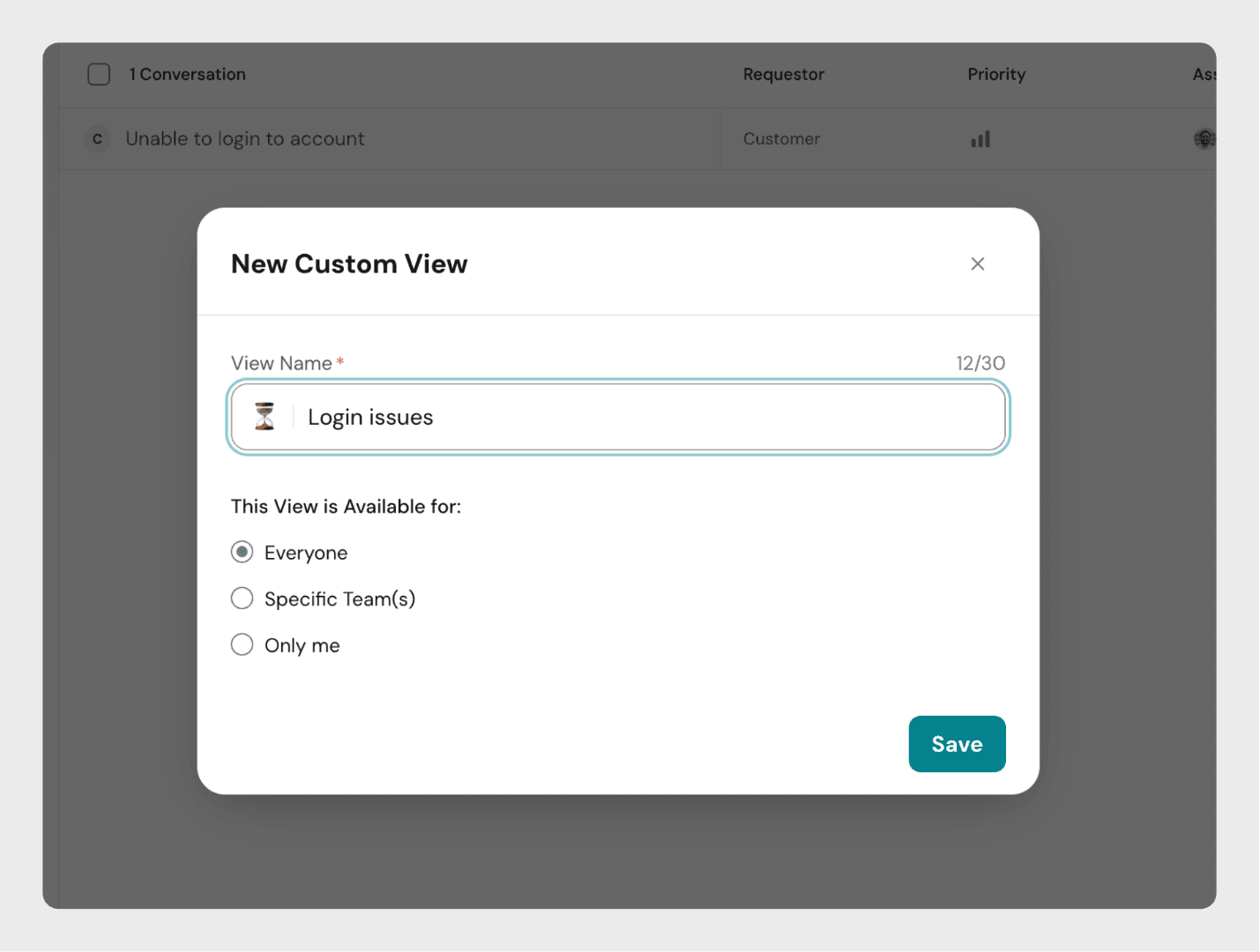
Visibility: Decide who should have access to this view:
- Everyone – All members in your workspace can see and use this view.
- Specific Team(s) – Choose one or more teams that can access the view.
- Only me – The view will remain private to you.
Step 4: Click Save.
Editing or Deleting a Custom View
- To edit a saved view, hover over it in the sidebar and click the options menu. You can rename it or change its visibility.
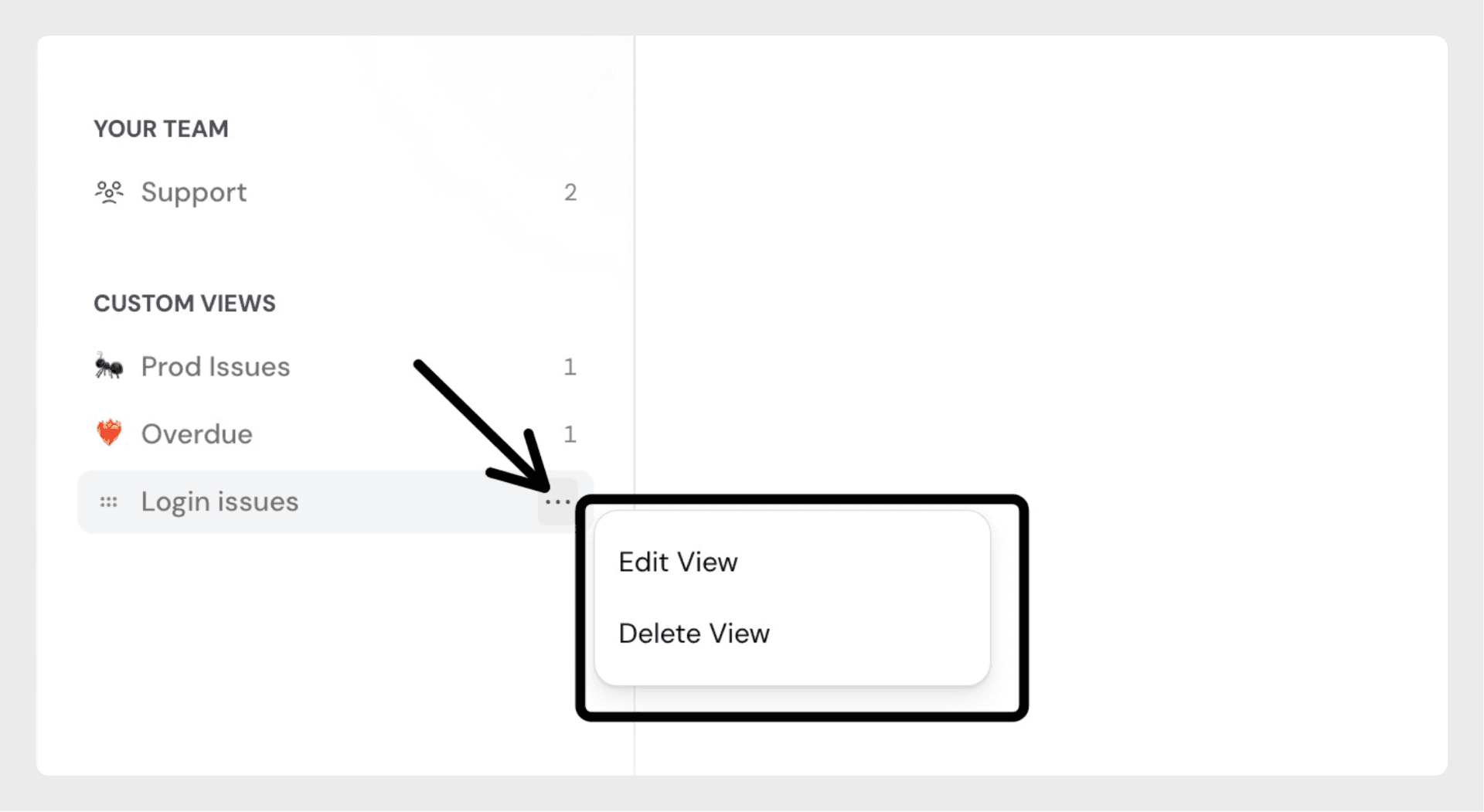
- To delete a view, select Delete from the options menu. Deleted views cannot be recovered, but you can always create a new one using filters.
FAQ
Who can create views for everyone or for specific teams?
Only users with the right permissions can create views that are visible to everyone or to specific teams. Without these permissions, you can only create private views for yourself.
Who can manage a saved view?
A saved view can be managed (edited or deleted) only by the author who created it or by an admin. Other users cannot modify or delete views they did not create.