
Viewing CSAT reports in SparrowDesk

CSAT Reports help you track customer satisfaction performance across agents, teams, and channels. You can monitor CSAT scores, response trends, and detailed breakdowns from a single dashboard.
This article explains how to access and understand the CSAT Reports page.
What CSAT reports help you understand
CSAT Reports help you:
- Track overall customer satisfaction trends
- Compare AI and human agent performance
- Identify areas needing improvement
- Monitor response participation levels
- Measure team-level performance
Who can view CSAT reports?
Users with access to Reports can view CSAT analytics.
Permissions may vary based on your role configuration.
Navigate to CSAT reports
To access CSAT Reports:
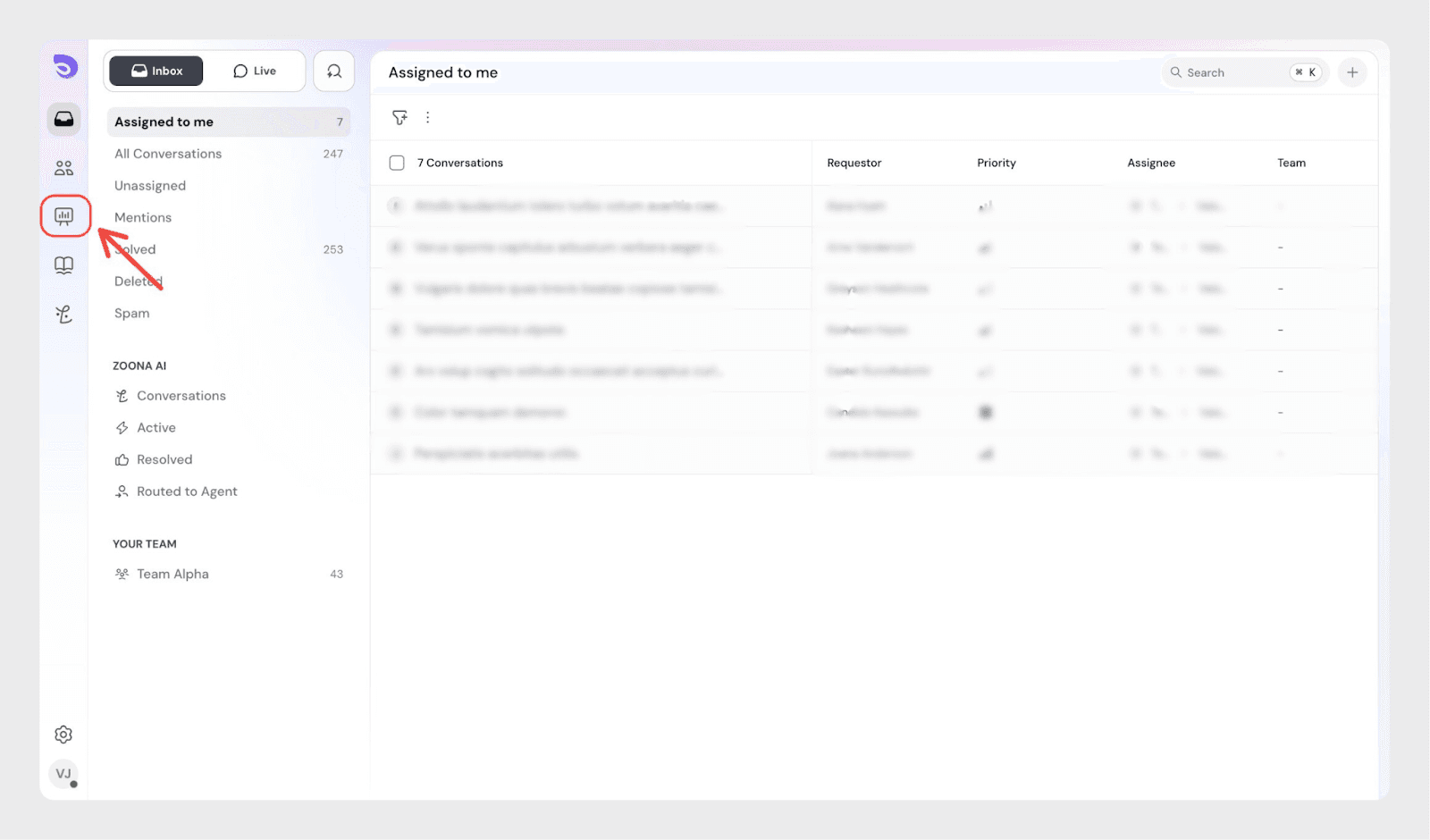
- Go to Reports
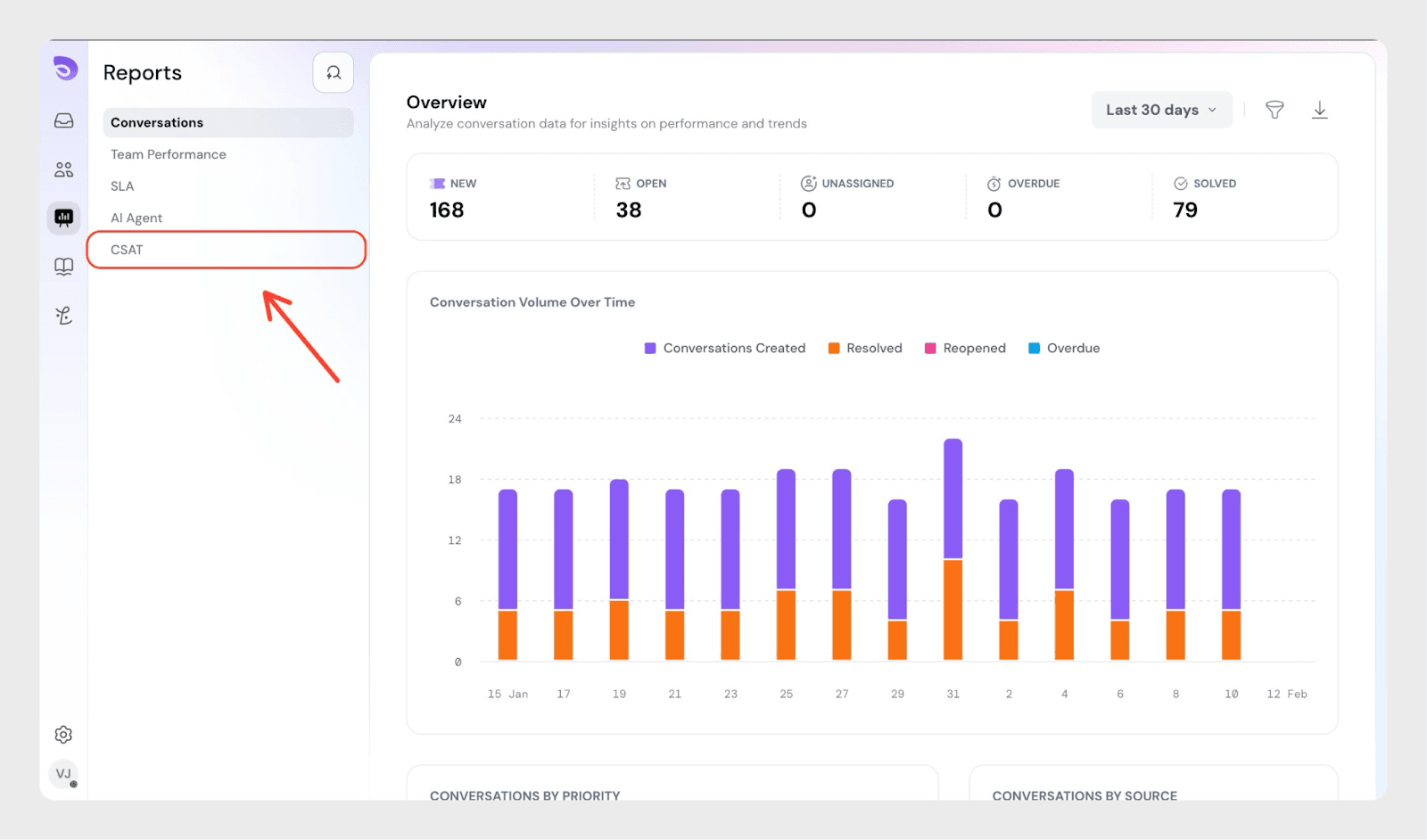
- Click CSAT from the left panel
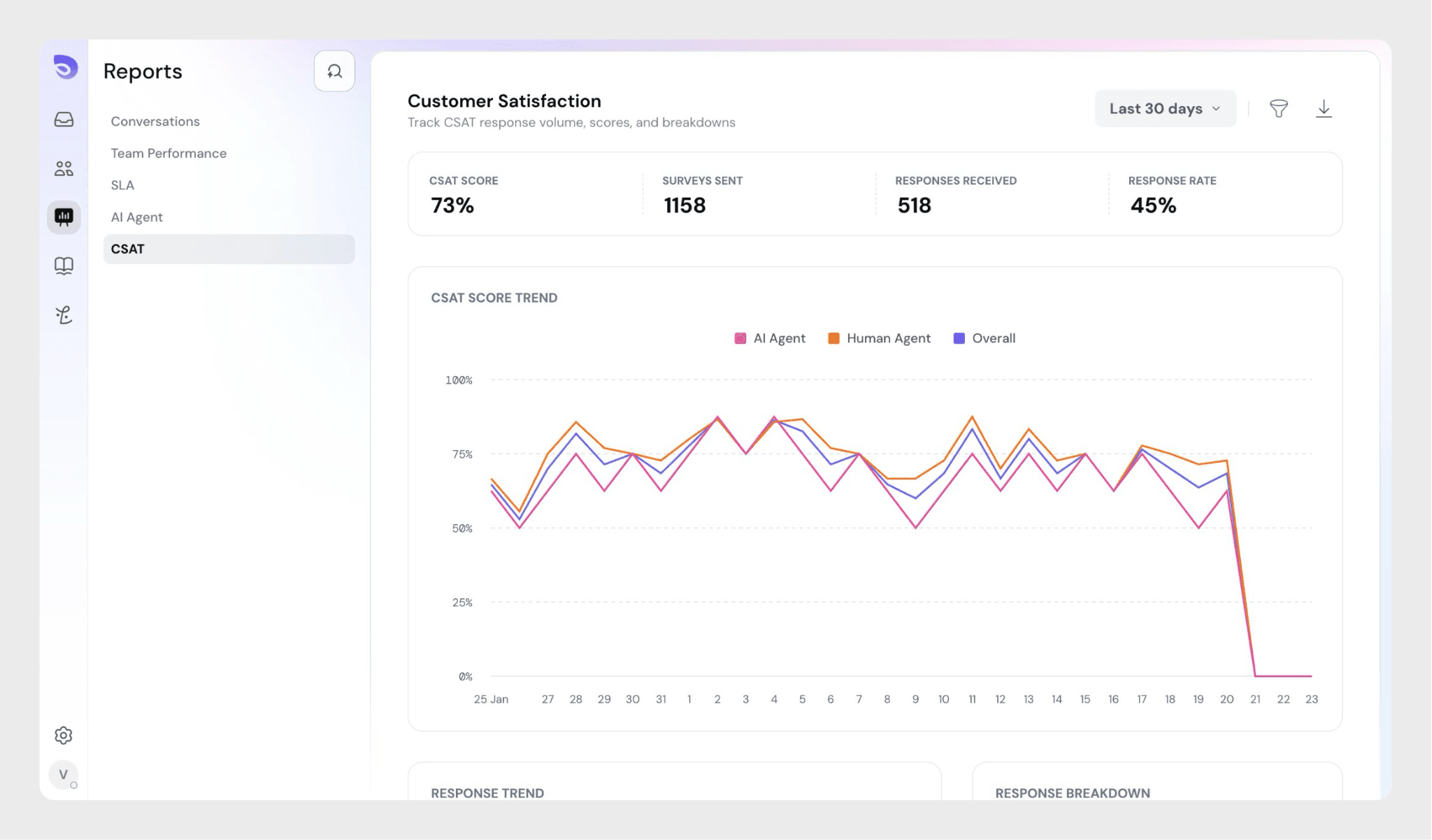
This opens the Customer Satisfaction dashboard.
Overview metrics
At the top of the page, you’ll see key CSAT metrics for the selected time period:
- CSAT Score – Overall satisfaction percentage
- Surveys Sent – Total number of CSAT surveys sent
- Responses Received – Number of completed CSAT responses
- Response Rate – Percentage of responses compared to surveys sent
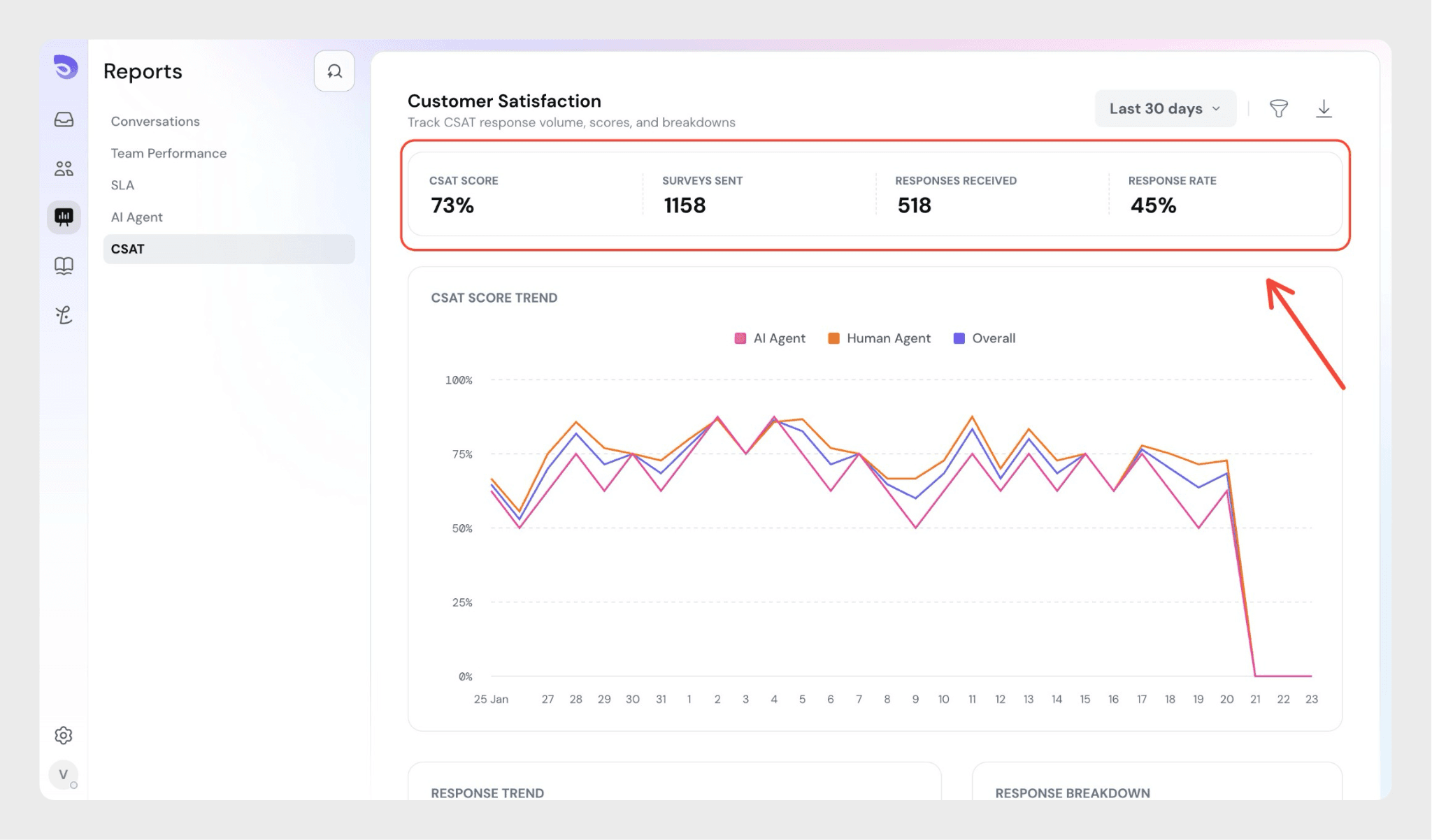
Use the date filter in the top right (for example, Last 30 days) to adjust the reporting period.
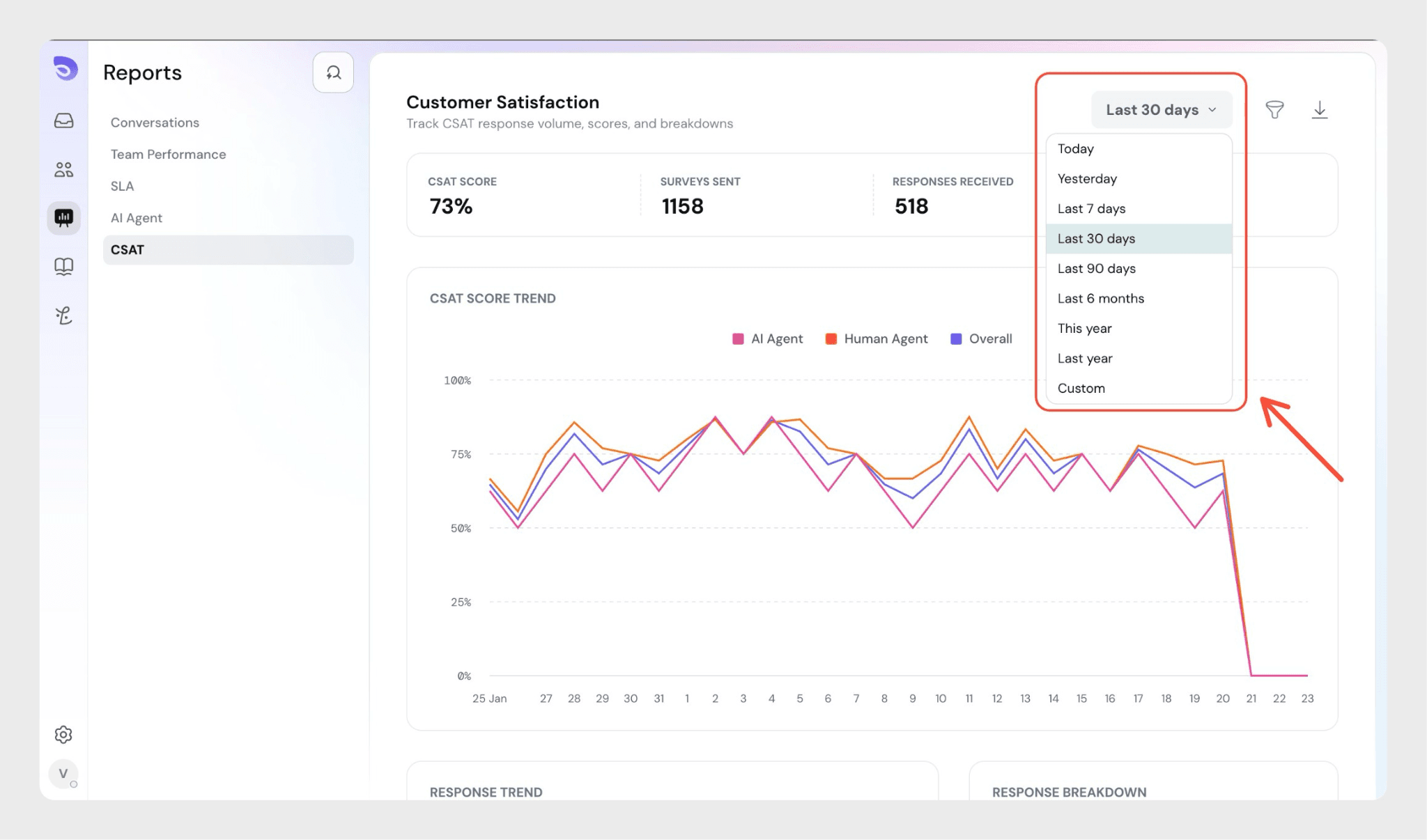
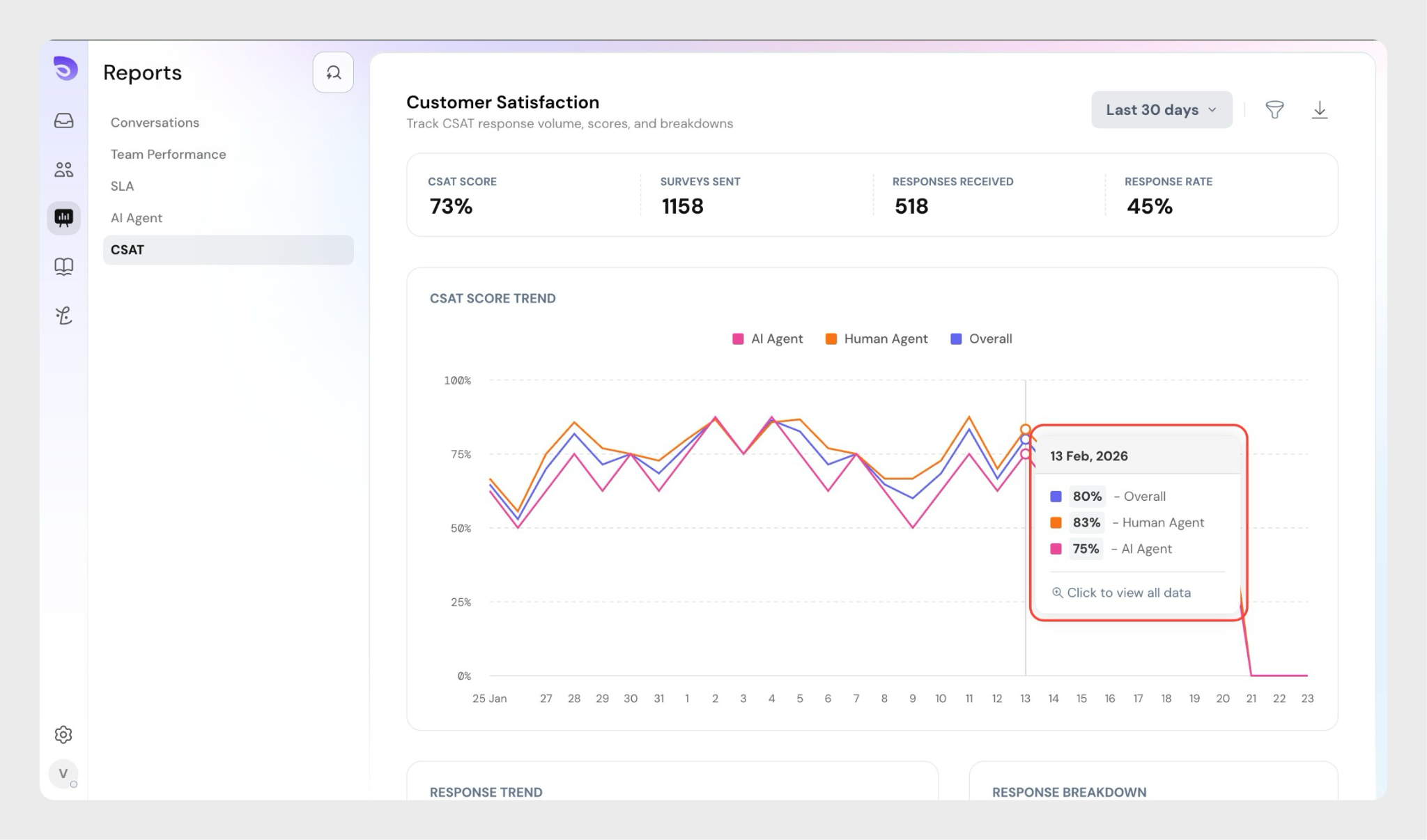
CSAT score trend
The CSAT Score Trend graph shows how satisfaction scores change over time.
You can compare:
- AI Agent
- Human Agent
- Overall performance
This helps you identify patterns and measure improvements across different support types.
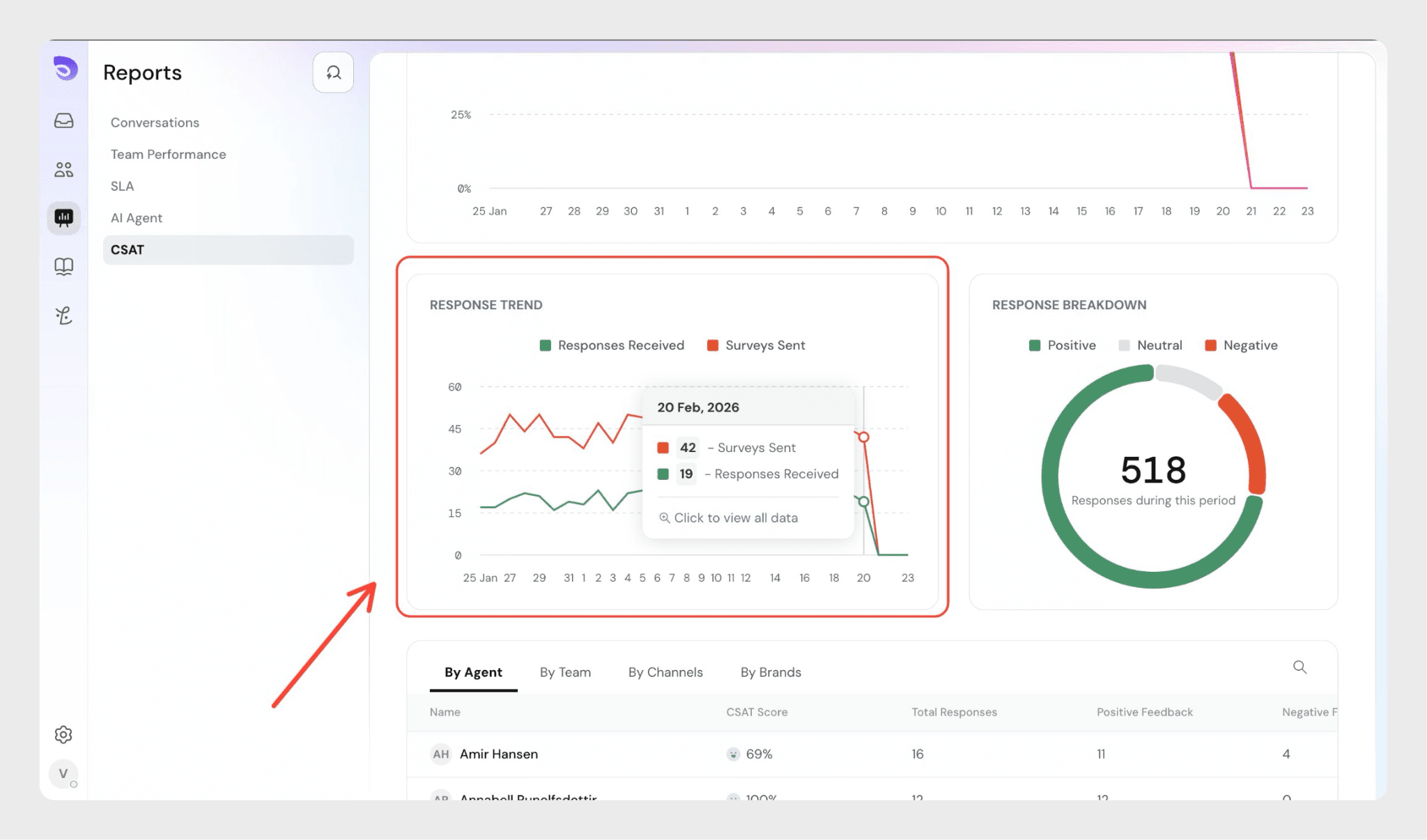
Response trend
The Response Trend chart shows:
- Surveys Sent
- Responses Received
This helps you understand engagement levels and track participation over time.
Response breakdown
The Response Breakdown visual shows how feedback is distributed:
- Positive
- Neutral
- Negative
This gives a quick snapshot of overall customer sentiment during the selected period.
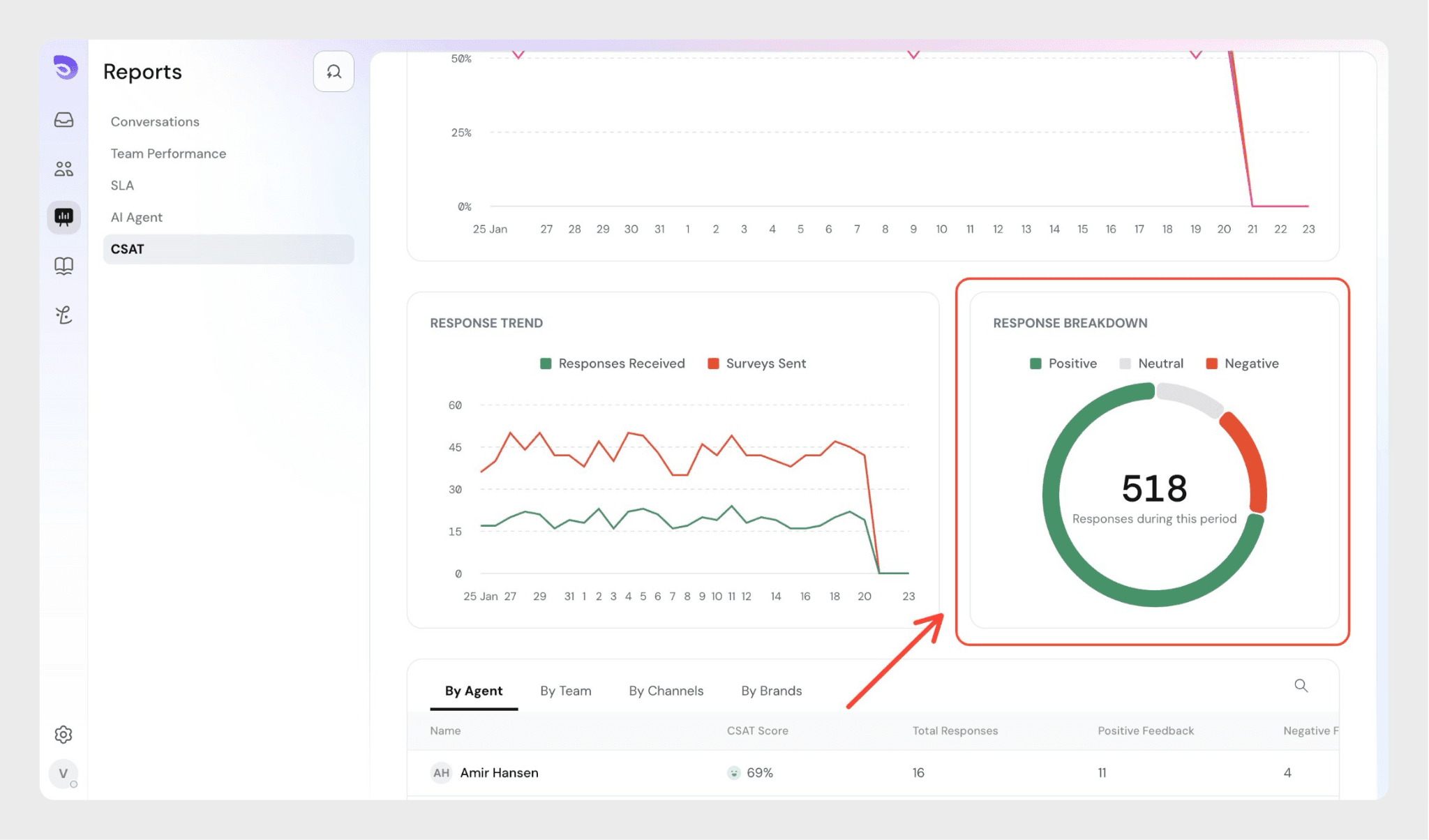
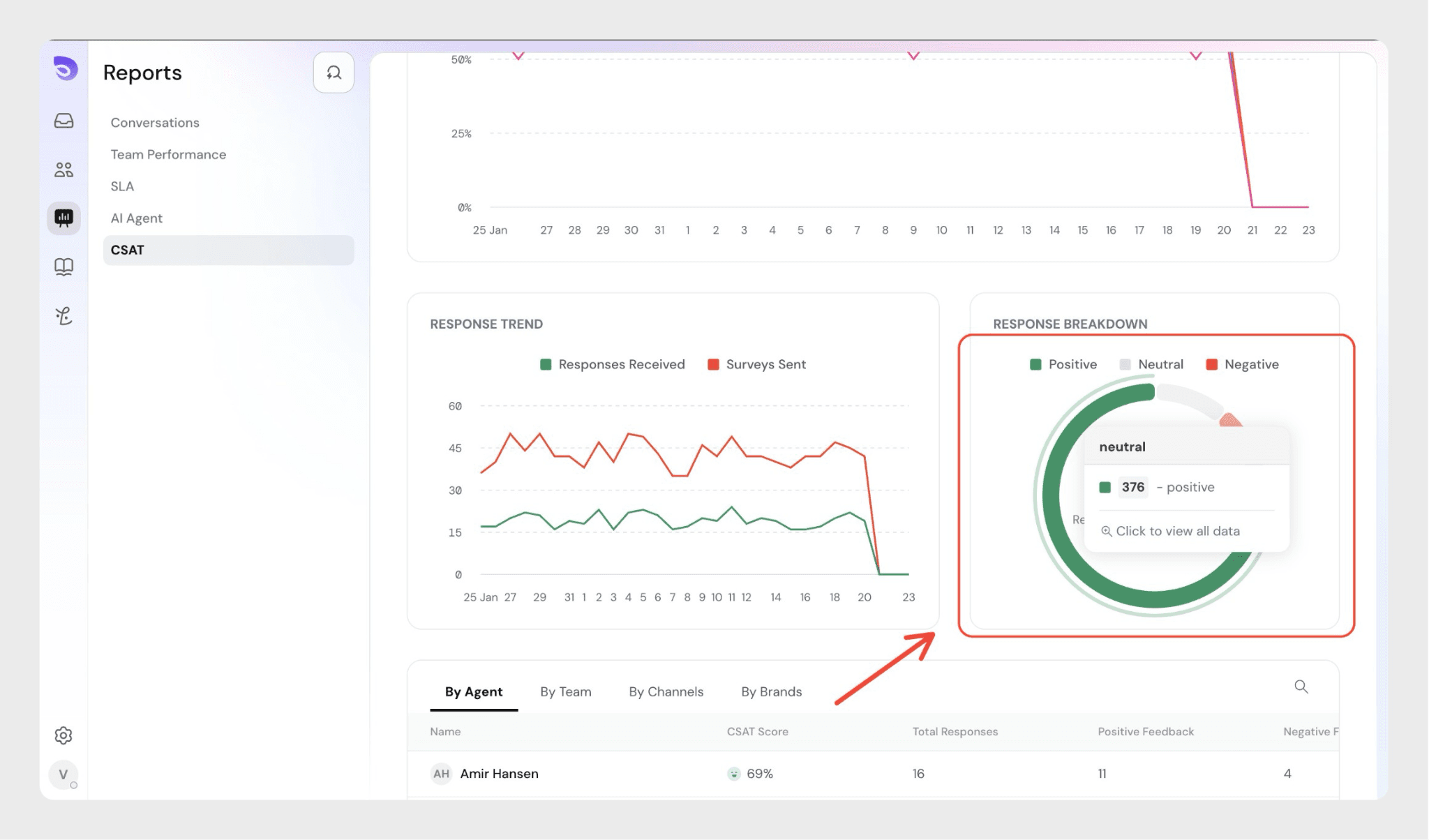
You can also click to view the positive and negative data.
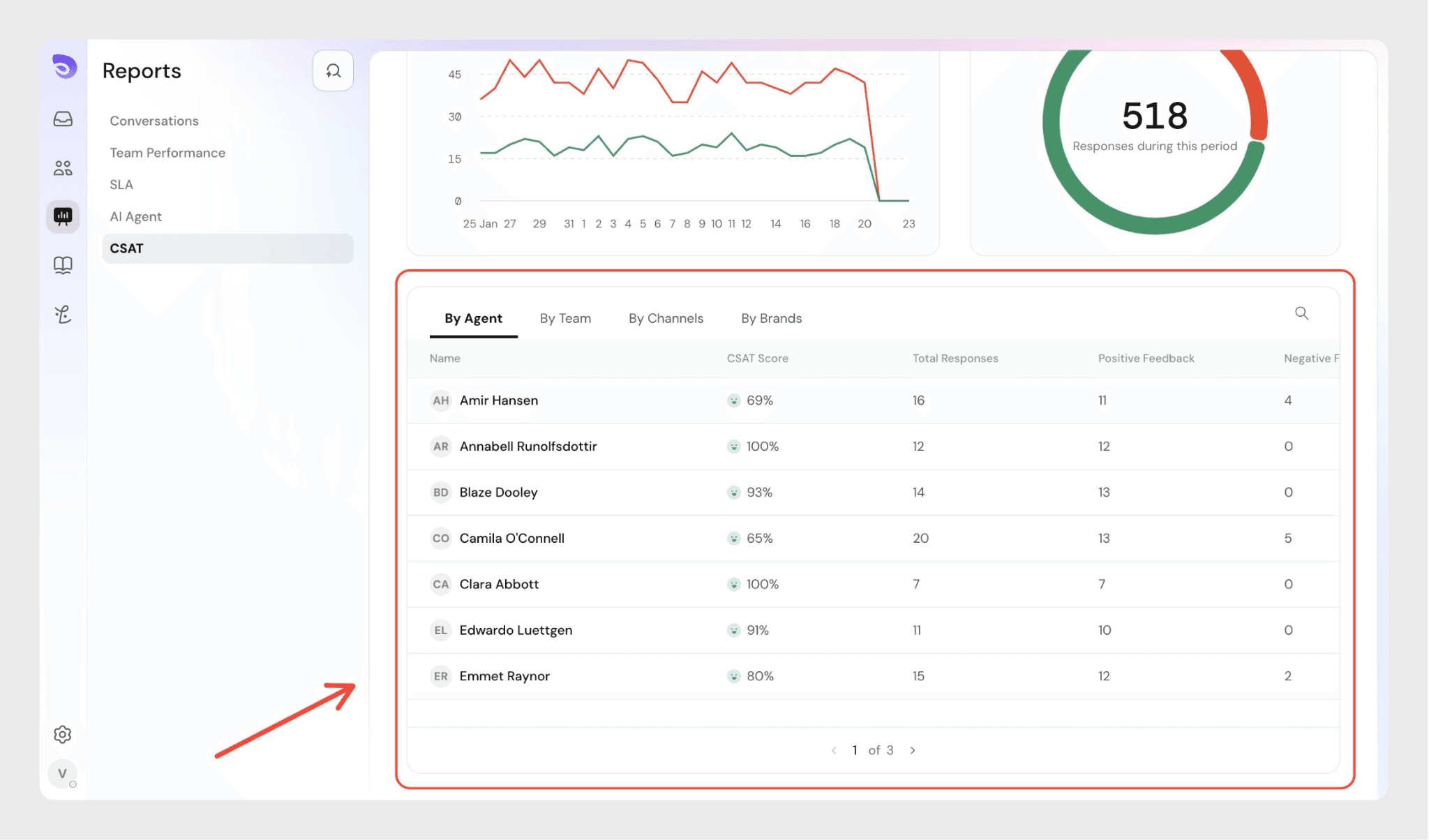
Detailed breakdown by agent, team, channel, or brand
Below the charts, you can view detailed CSAT performance breakdowns:
- By Agent
- By Team
- By Channels
- By Brands
Each table displays:
- CSAT Score
- Total Responses
- Positive Feedback
- Negative Feedback
This allows you to evaluate individual and group performance.
Filtering and exporting data
You can:
- Use the date filter to change the reporting period
- Apply filters to narrow down results
- Export data using the download option in the top right
Conclusion
CSAT Reports provide a clear view of customer sentiment and support performance. By regularly reviewing these insights, teams can make informed decisions to improve service quality and customer experience.