
HubSpot Integration

This integration connects HubSpot with SparrowDesk, so agents can see CRM context without leaving a conversation, and contact and conversation data can stay in sync between both tools.
Once connected, agents see a contact's HubSpot details right inside the SparrowDesk inbox. If a contact doesn't exist in HubSpot yet, agents can create one without switching tools. From the same settings screen, you can also turn on contact sync and conversation sync to keep both tools updated automatically.
What this integration is used for
After connecting HubSpot to SparrowDesk, your team can:
- View a contact's HubSpot details inline- name, company, lifecycle stage, and owner, shown in the conversation and on the contact profile
- Create a HubSpot contact directly from SparrowDesk if no match exists yet
- Sync new and updated SparrowDesk contacts to HubSpot automatically
- Sync closed conversations to HubSpot as notes so sales and CS teams see support history on the contact record
SparrowDesk continues to manage support conversations. HubSpot continues to manage the contact record and CRM data.
Before you start
Make sure you have the following before connecting HubSpot:
- Admin access in SparrowDesk
- A HubSpot account with permission to connect integrations
- Access to the contacts you want synced in HubSpot
Connecting HubSpot to SparrowDesk
The integration setup begins inside SparrowDesk Settings.
From your SparrowDesk account:
- Open Settings
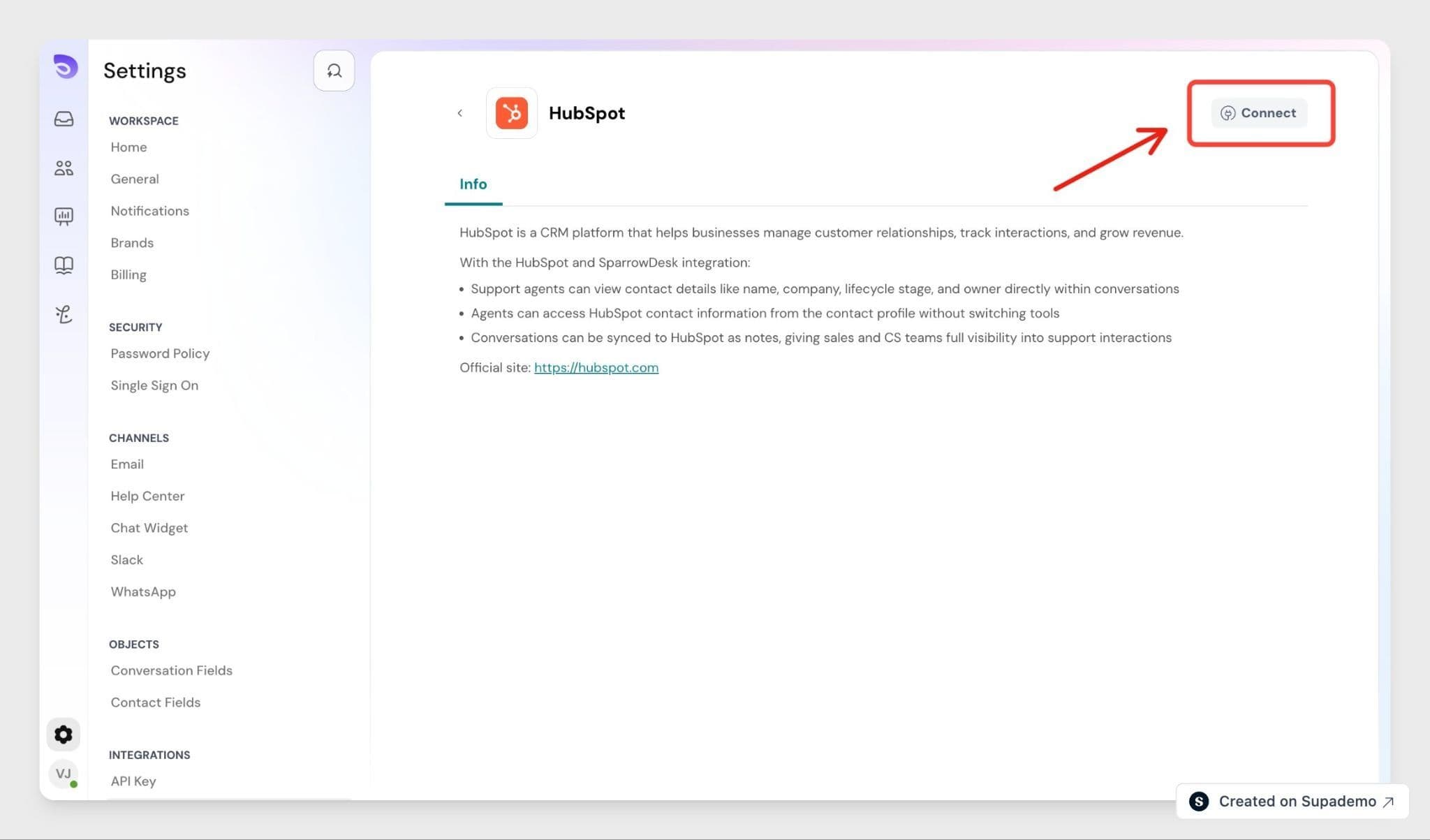
- Click App store
- Find HubSpot in the list of integrations
- Click Connect HubSpot
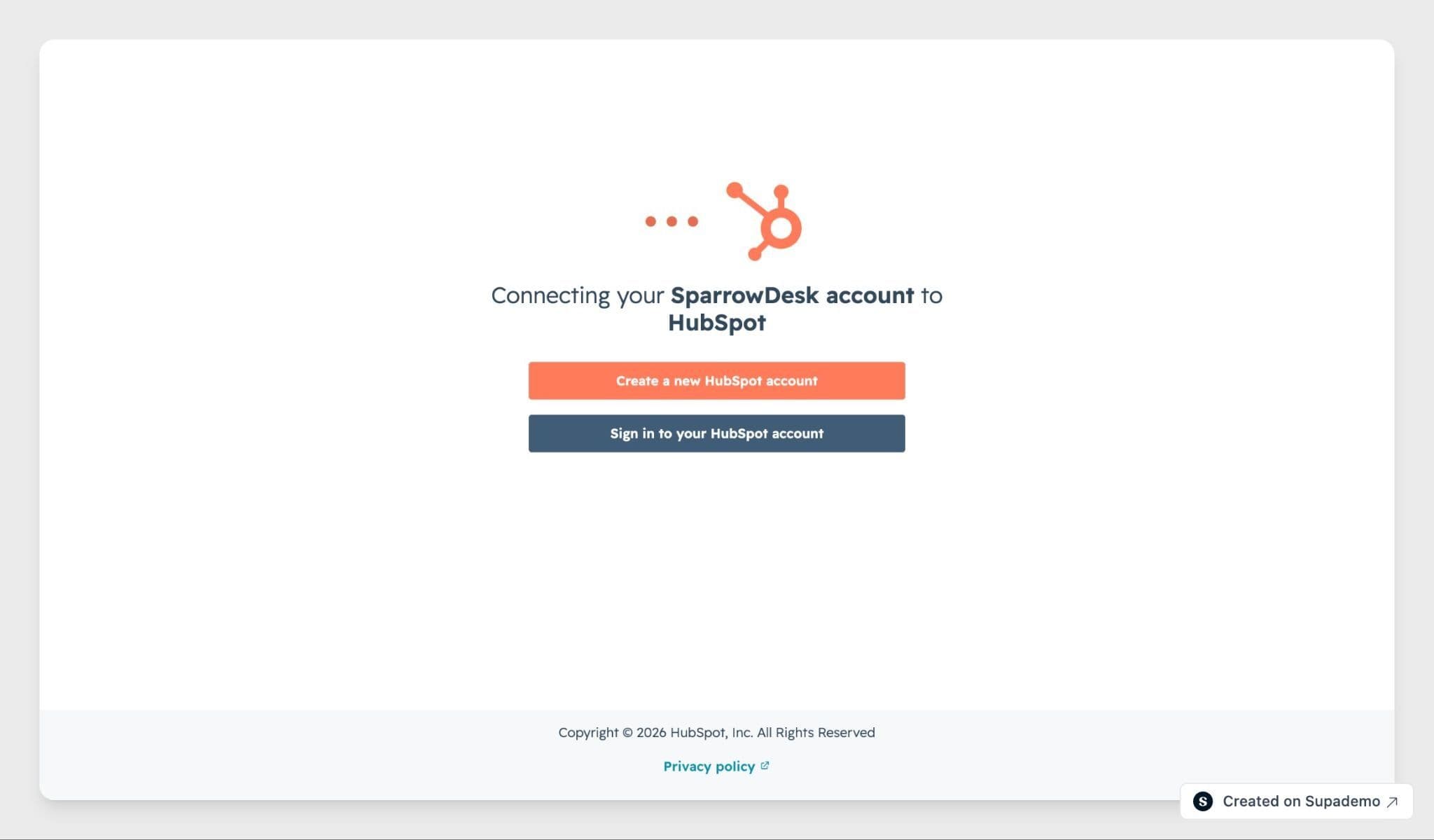
- Sign in with your HubSpot account when prompted
- Authorise SparrowDesk to access your HubSpot account
Syncing contacts to HubSpot
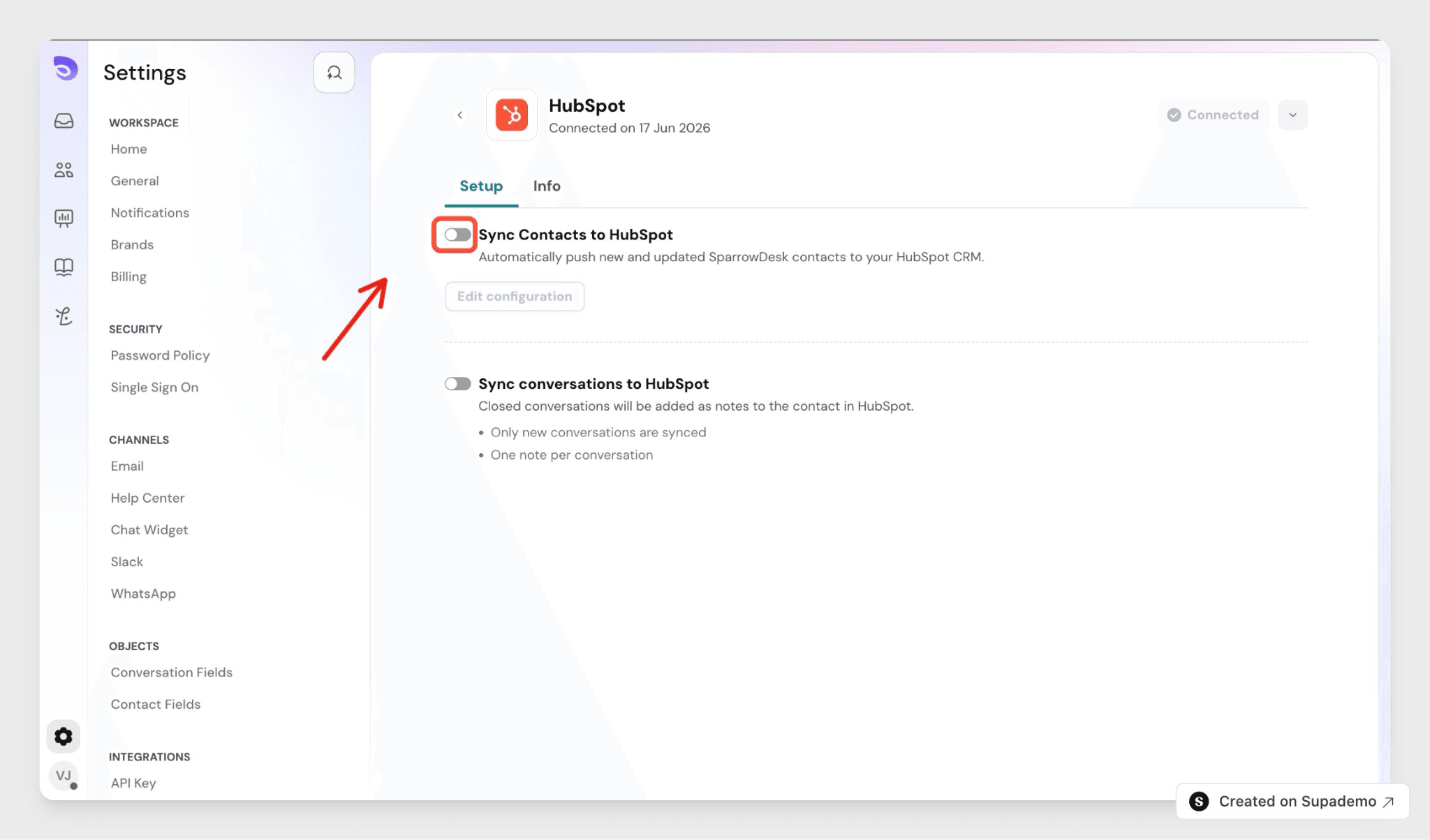
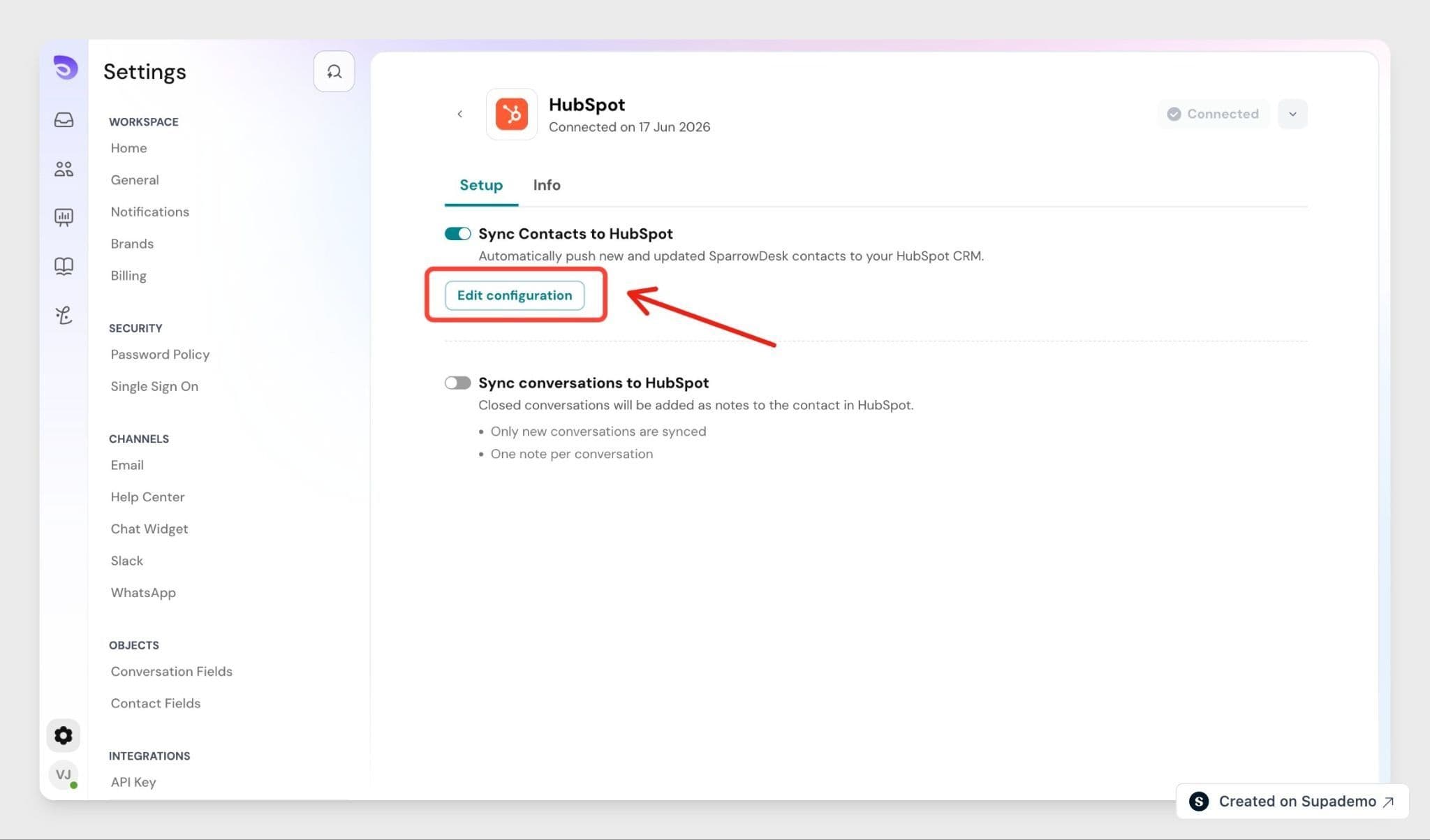
Turn on Sync Contacts to HubSpot on the Setup tab to automatically push new and updated SparrowDesk contacts to your HubSpot CRM.
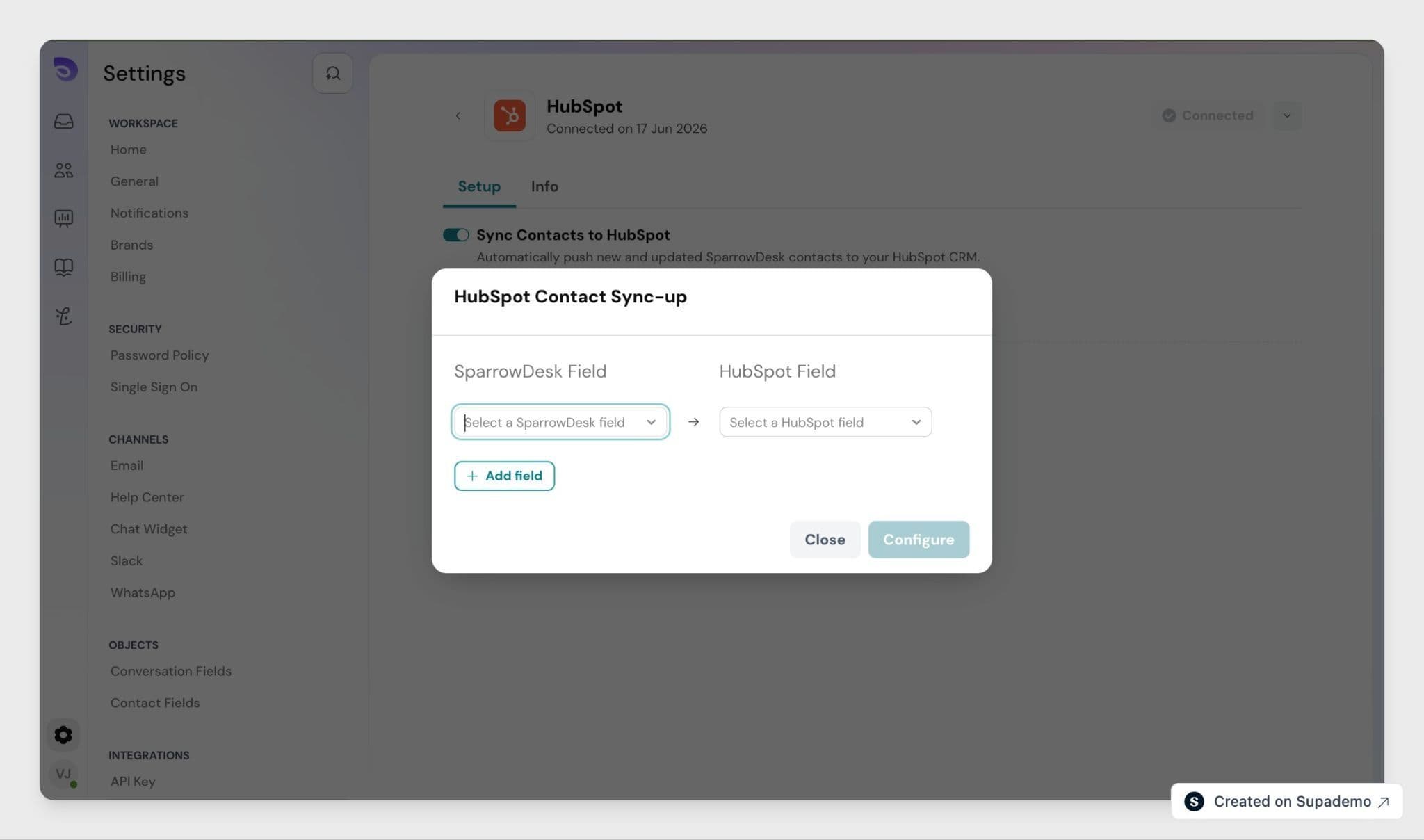
Turning on the toggle opens the HubSpot Contact Sync-up modal. Map each SparrowDesk field to its corresponding HubSpot field, then click Configure to save.
- Click Select a SparrowDesk field and choose the field you want to sync
- Click Select a HubSpot field and choose its matching field
- Click Add field to map additional fields
- Click Configure once all fields are mapped
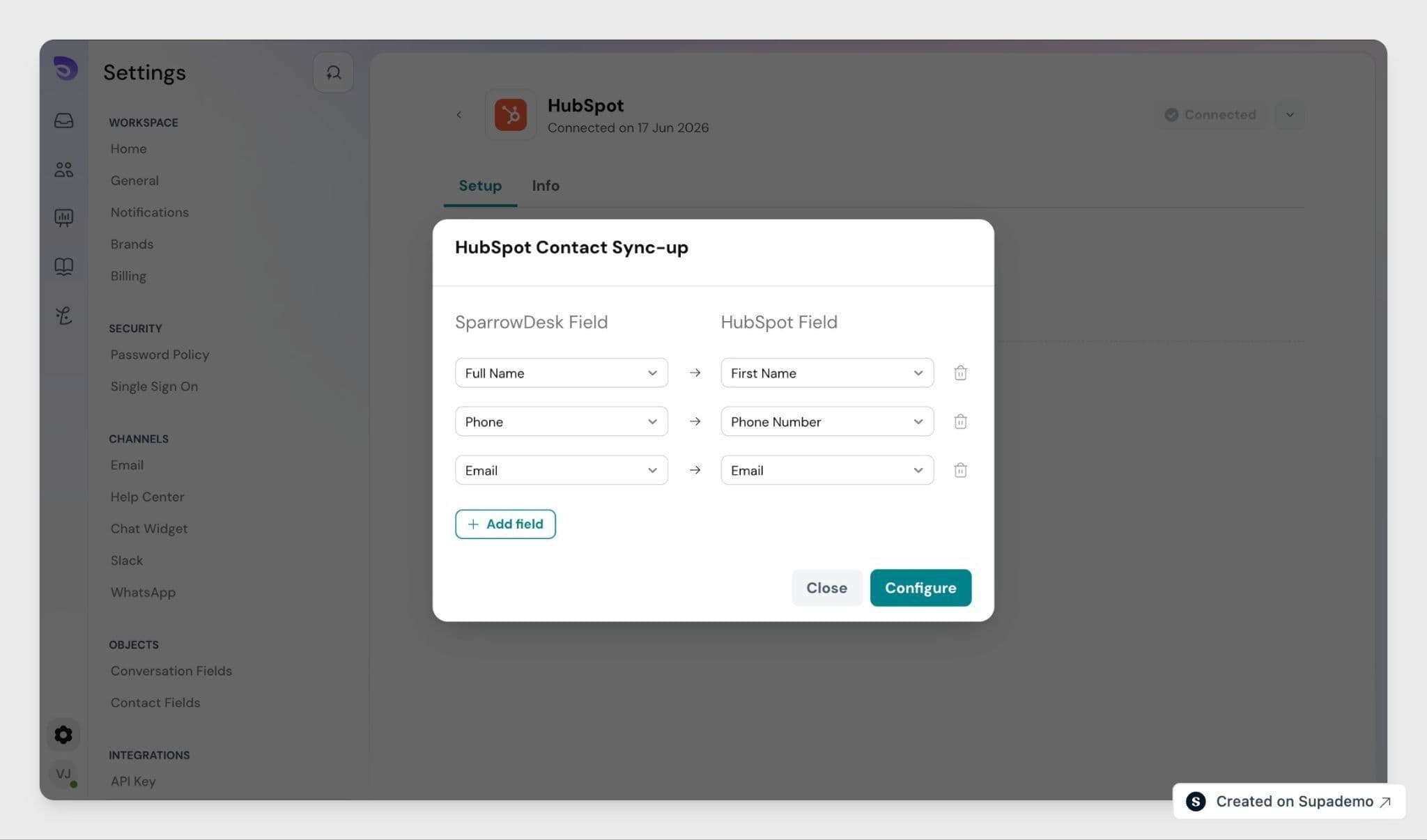
At minimum, map Email, since SparrowDesk uses it to match contacts with HubSpot records elsewhere in the integration. Most teams also map Full Name and Phone for basic contact details.
If your team tracks where leads come from, map SparrowDesk's utm_campaign, utm_content, and utm_medium fields to their matching HubSpot fields. This gives your sales team lead source context on the HubSpot contact record without anyone manually copying it over.
Once saved, contact sync is active. You can return to this mapping anytime by clicking Edit configuration on the Setup tab.
Syncing conversations to HubSpot
Turn on Sync conversations to HubSpot on the same Setup tab so closed conversations are added to the matching HubSpot contact as a note.
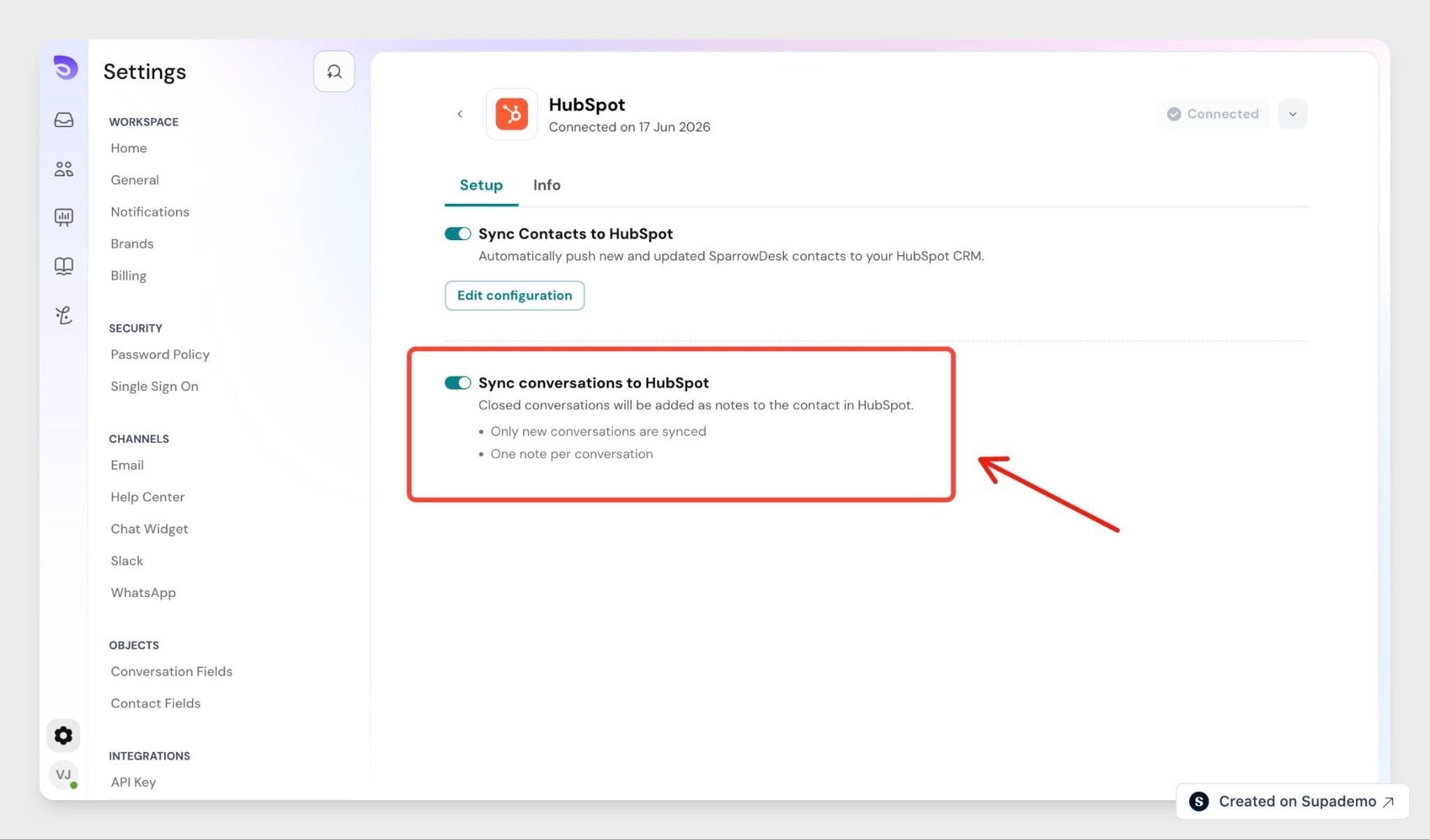
Once enabled, only conversations started after this point are synced. Earlier conversations are not synced retroactively, even if a contact replies after sync is turned on.
How conversation sync works
- When a conversation is closed, SparrowDesk adds a note to the matching HubSpot contact with the full transcript and a link back to the conversation in SparrowDesk
- Each conversation gets one note in HubSpot
- If the conversation is reopened and closed again, SparrowDesk updates the same note with the full, updated transcript
- If a conversation has no matching HubSpot contact when it closes, no note is created, and it isn't synced later even if a match is added afterward
Note: Turning off conversation sync only stops syncing from that point forward. Conversations already synced are not removed from HubSpot.
Viewing HubSpot details in a conversation
The HubSpot sidebar panel works independently of contact sync and conversation sync- agents see CRM context in conversations whether or not either toggle is turned on.
- Open a conversation in your Inbox
- SparrowDesk looks up the contact in HubSpot using the HubSpot contact ID, or the contact's email if no ID is available
- The sidebar shows the contact's name, company, lifecycle stage, and owner
- Click View in HubSpot to open the full contact record in a new tab
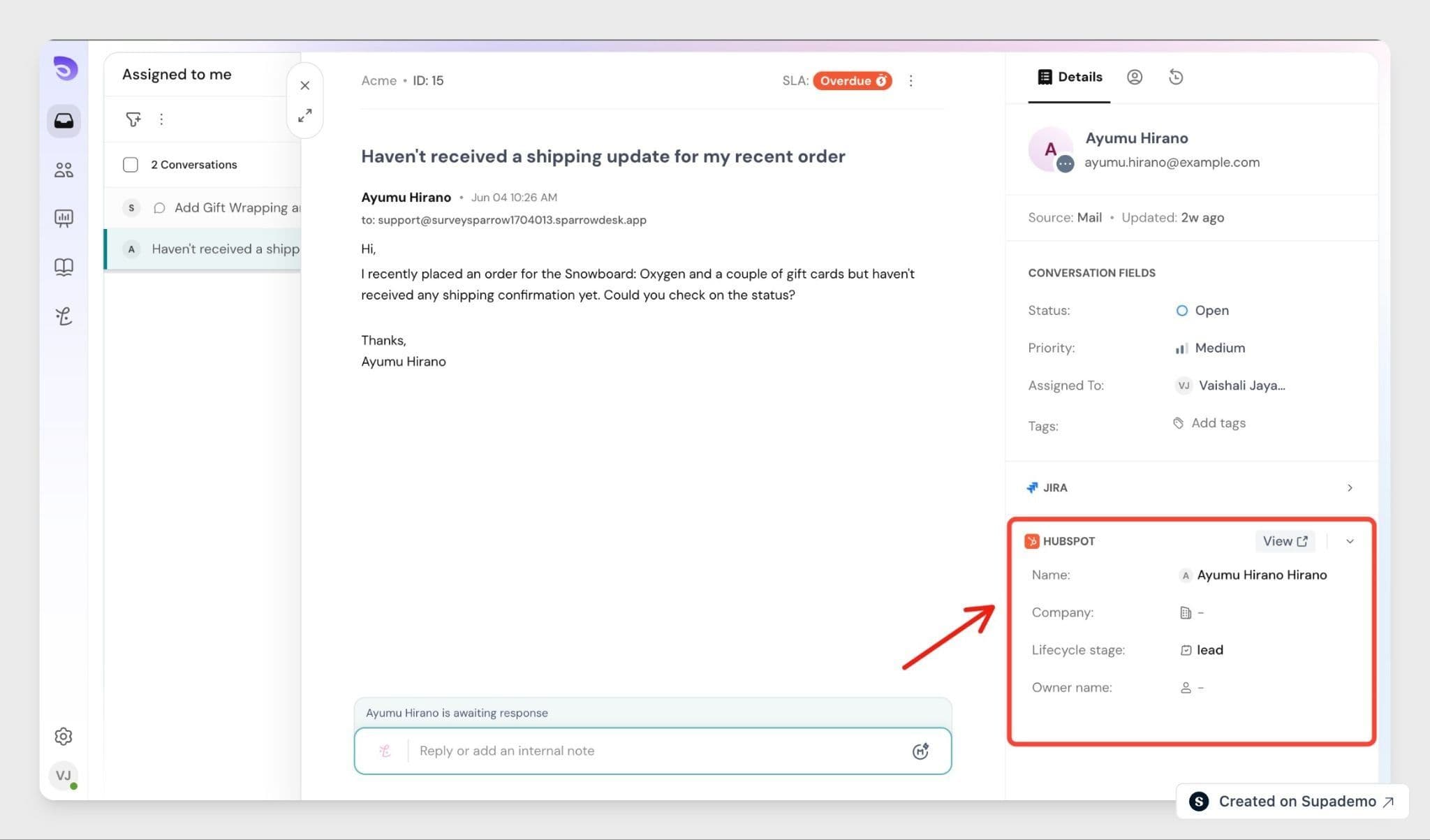
The same panel appears on the contact's profile page and in the contact side panel, so agents see the same HubSpot details no matter where they're viewing the contact.
Creating a HubSpot contact from SparrowDesk
If no matching HubSpot record is found, the sidebar shows an empty state instead.
- Open the conversation or contact profile
- In the HubSpot panel, click Create contact in HubSpot
The contact is created in HubSpot immediately using the contact's name and email, and the sidebar refreshes automatically to show the new record.
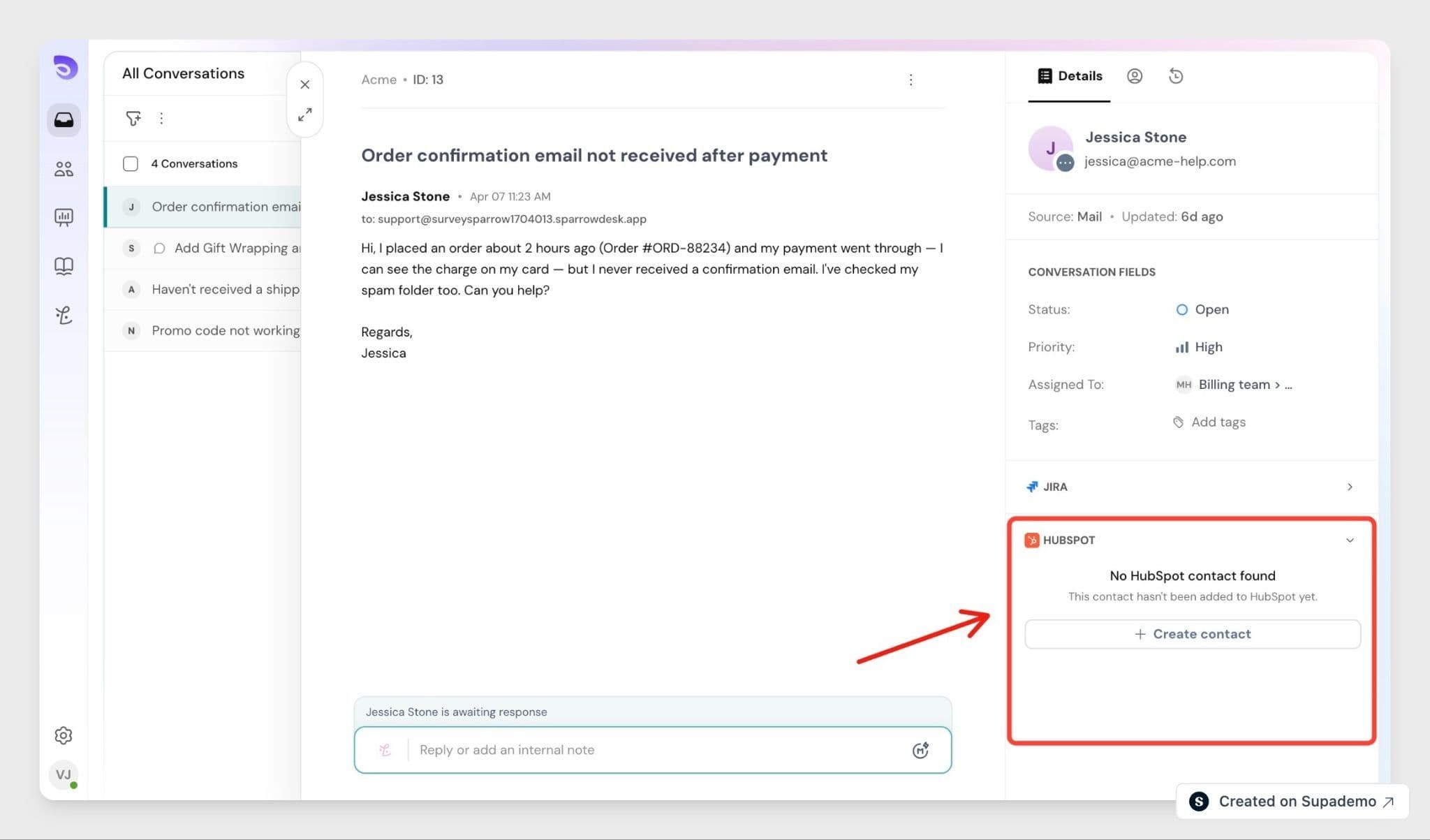
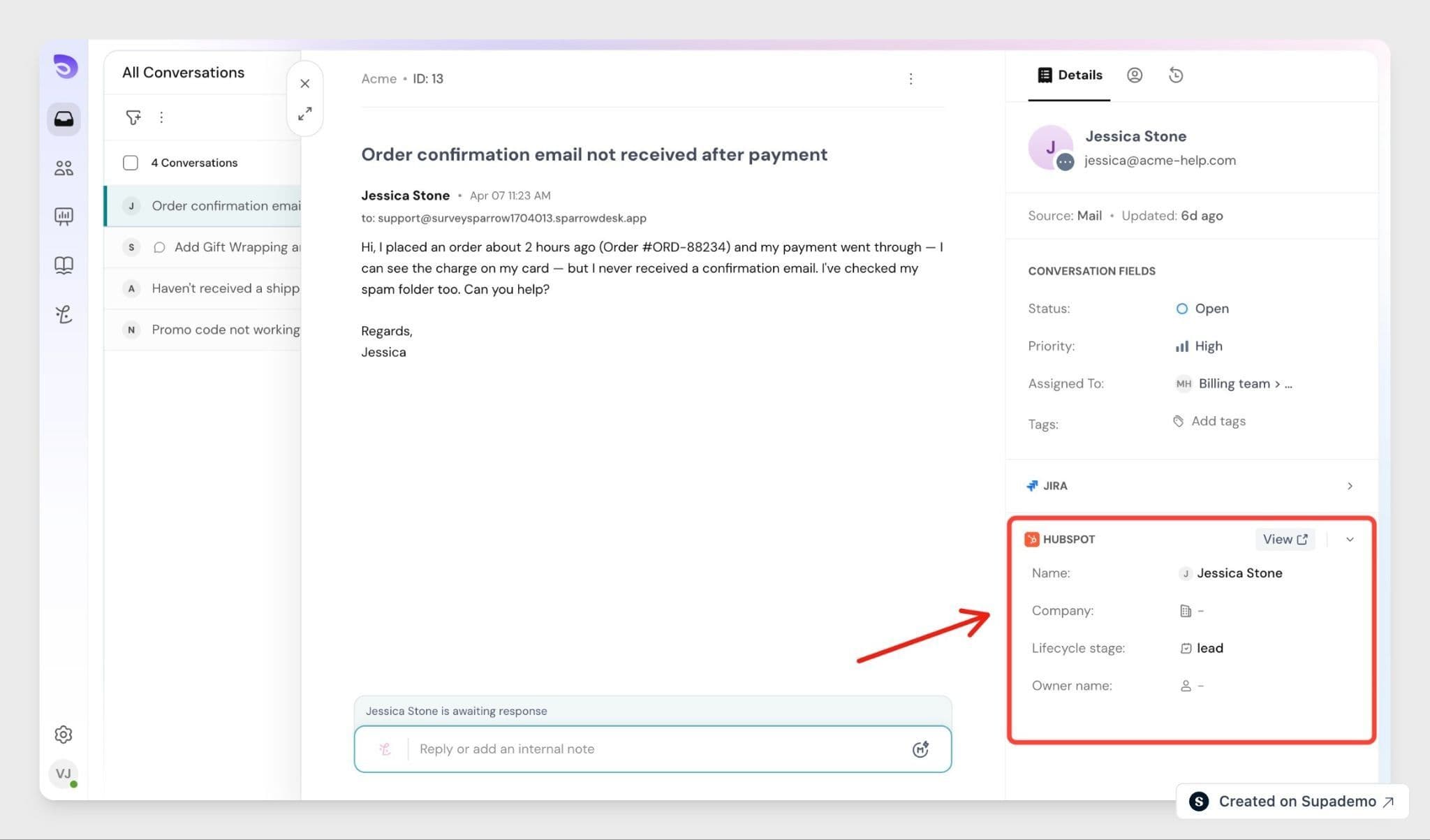
The contact is created in HubSpot, and the sidebar refreshes automatically to show the new record.
What syncs
- HubSpot contact details shown in the SparrowDesk sidebar (name, company, lifecycle stage, owner)
- Contacts created in HubSpot from SparrowDesk
- New and updated SparrowDesk contacts, when contact sync is turned on
- Closed conversation transcripts, when conversation sync is turned on
What doesn't sync
- Conversations started before HubSpot was connected or before conversation sync was turned on
- Real-time updates to a HubSpot note after it's created, outside of a reopen-and-reclose
- Conversations with no matching HubSpot contact at the time they're closed
SparrowDesk remains the source of truth for support conversations. HubSpot remains the source of truth for contact and CRM data.
Disconnecting HubSpot
If you no longer want to use the integration, you can disconnect it from SparrowDesk Settings at any time.
- Go to Settings
- Open App store
- Select HubSpot
- Click the dropdown next to Connected and select Disconnect
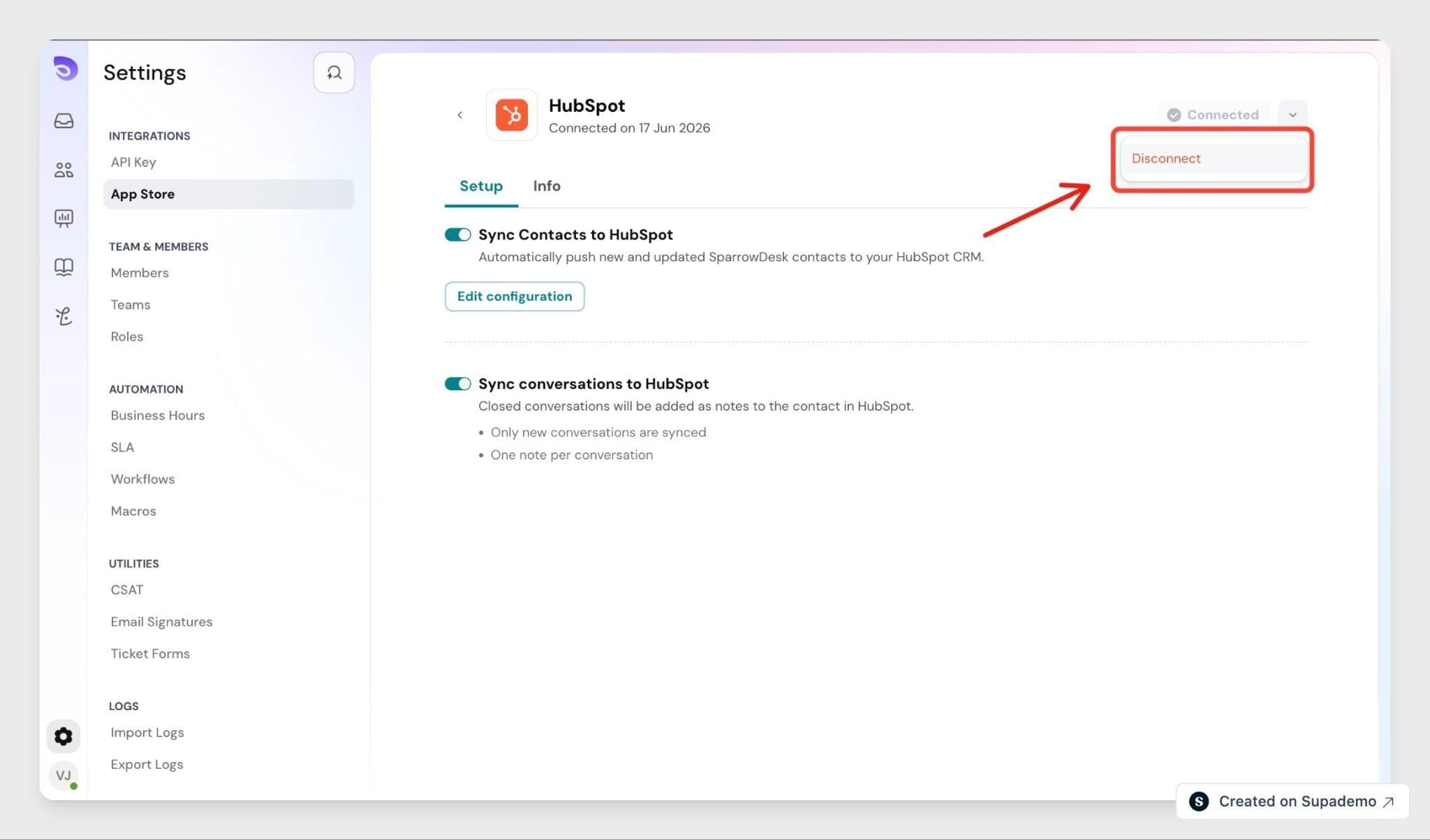
Once disconnected, SparrowDesk stops looking up HubSpot contact details and stops syncing contacts and conversations. Notes and contacts already created in HubSpot are not removed.
Summary
The HubSpot–SparrowDesk integration keeps support and CRM context connected:
- Connect HubSpot from SparrowDesk → Settings → App store
- Map contact fields and turn on contact sync and conversation sync from the Setup tab
- View contact details inline in conversations and contact profiles
- Create missing contacts in HubSpot without leaving SparrowDesk
Once connected, agents get CRM context without switching tools, and sales and CS teams see support history on the contact record.
FAQ
- Does the HubSpot panel show up for every agent, or only admins?
No- the HubSpot panel is only visible to members with App store access. The Agent role doesn't have this by default, so regular agents won't see it. - What's the difference between contact sync and conversation sync?
Contact sync pushes new and updated SparrowDesk contacts into HubSpot. Conversation sync adds closed conversations to HubSpot contacts as notes. You can turn either one on independently. - Can I sync conversations that happened before I turned on conversation sync?
No. Only conversations started after conversation sync is turned on are synced. Earlier conversations are never synced retroactively. - Will a conversation sync if the contact doesn't have a HubSpot match yet?
No. If there's no matching HubSpot contact when the conversation closes, no note is created, and it won't sync later even if a match is added afterward. - Does disconnecting HubSpot remove contacts or notes already created there?
No. Disconnecting stops new lookups and syncing, but contacts and notes already added to HubSpot stay in HubSpot.