
How to manage contact segments

Contact Segments in SparrowDesk let you group contacts together based on specific criteria. These segments are helpful for improving productivity, running automations, or triggering workflows. You can create segments using default or custom contact properties.
Why Contact Segments Matter
- Organization: Easily manage large contact databases by grouping them into meaningful clusters.
- Automation: Use segments in workflows to automate actions like auto-tagging, assigning, or messaging.
- Productivity: Filter out irrelevant contacts and focus only on what matters for specific tasks.
How to Create a Contact Segment
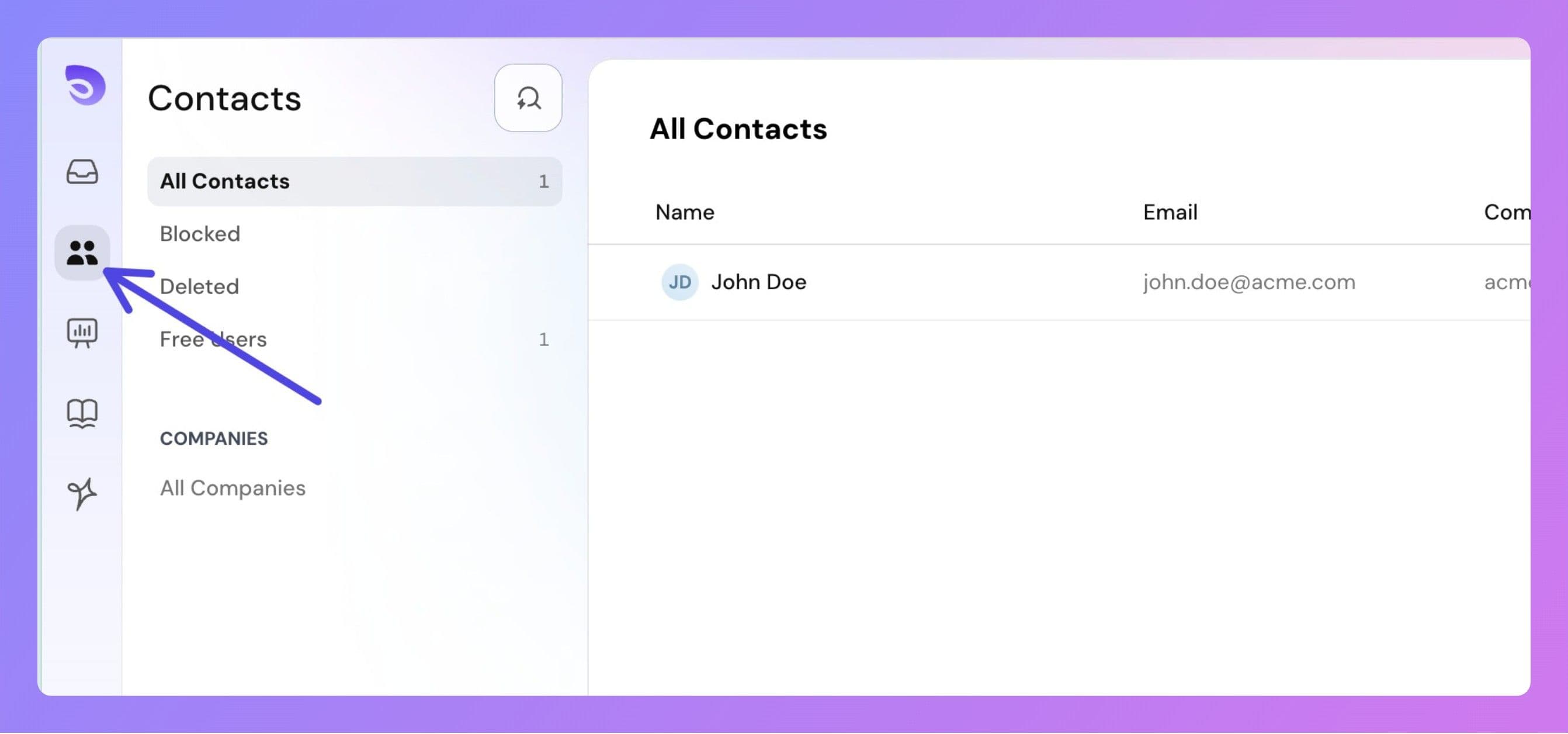
Step 1: Go to Contacts Page, access the Contacts section from the sidebar.
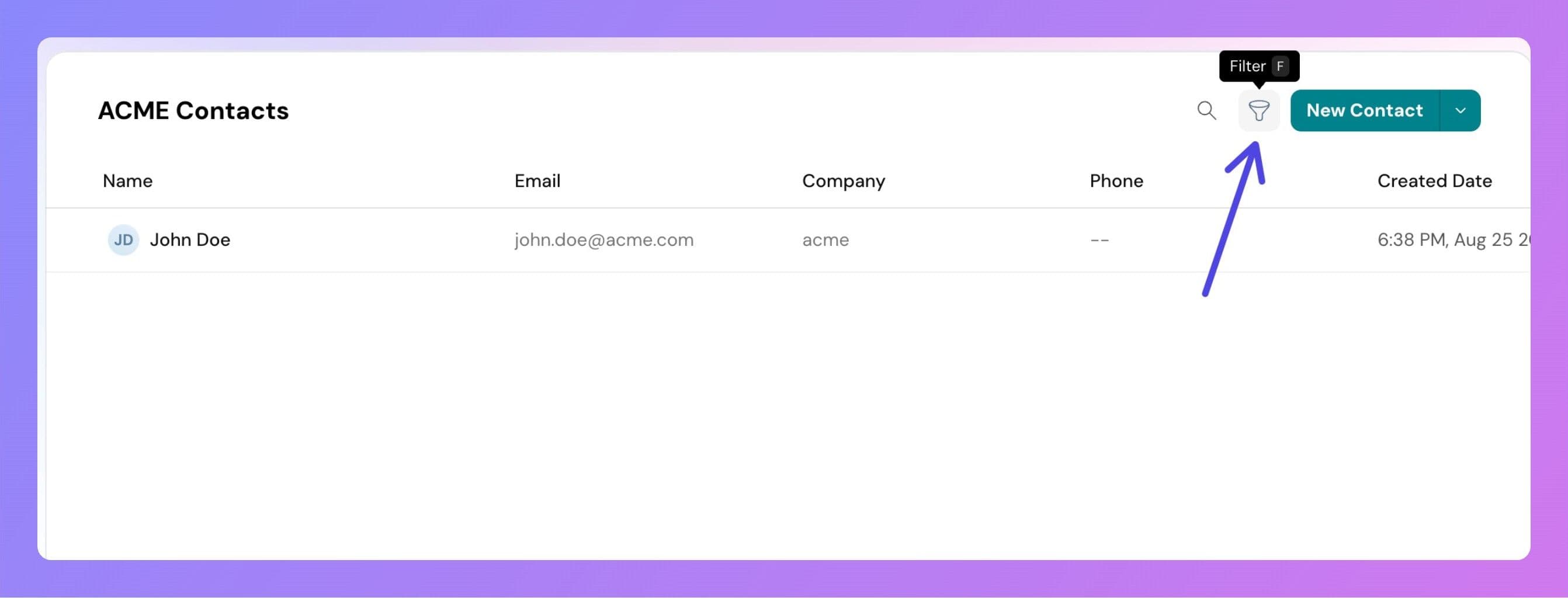
Step 2: Open Filter Panel
Click on the Filter button. Or, press F on your keyboard to quickly bring up the filter panel.
Step 3: Add Filter Conditions:
Choose from default or custom contact properties.
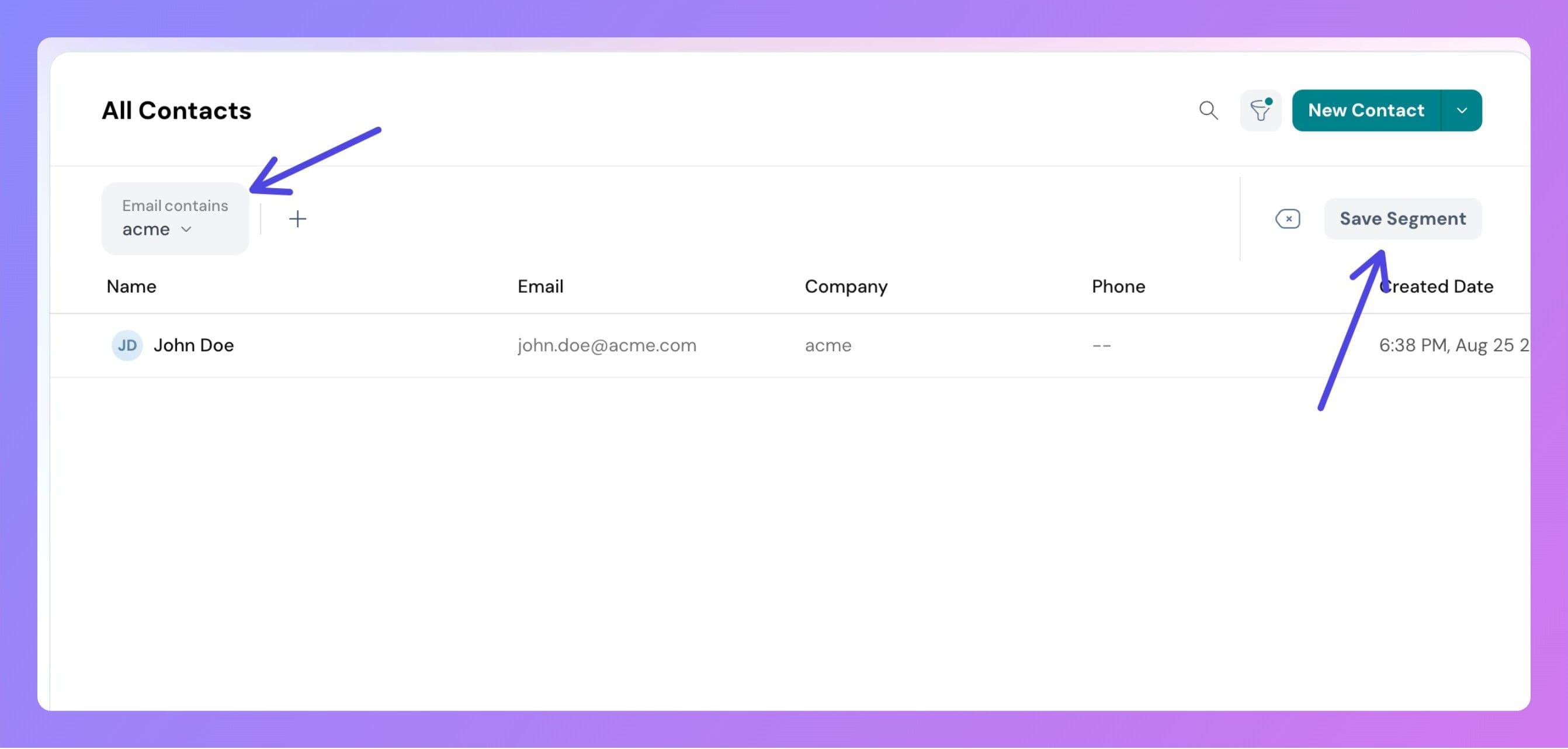
Example filters include: Email contains "@gmail.com", Status is "Active", Created date is after "1st July 2025". Currently, all filters use AND logic. We do not support OR conditions.
Step 4: Save the Segment
After applying the relevant filters, click the Save Segment button on the top-right corner.
- Give your segment a unique name.
- Click Save Segment.
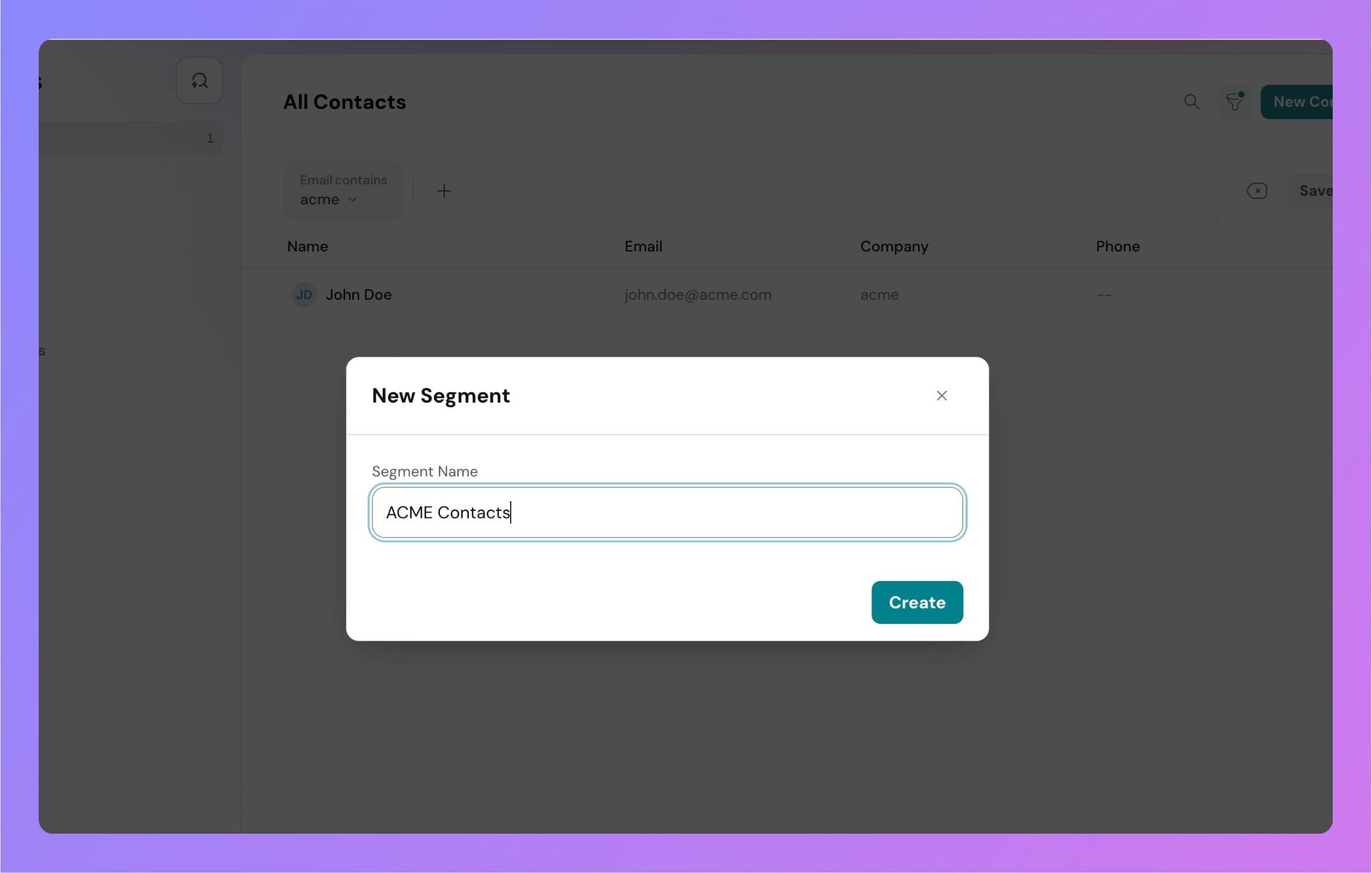
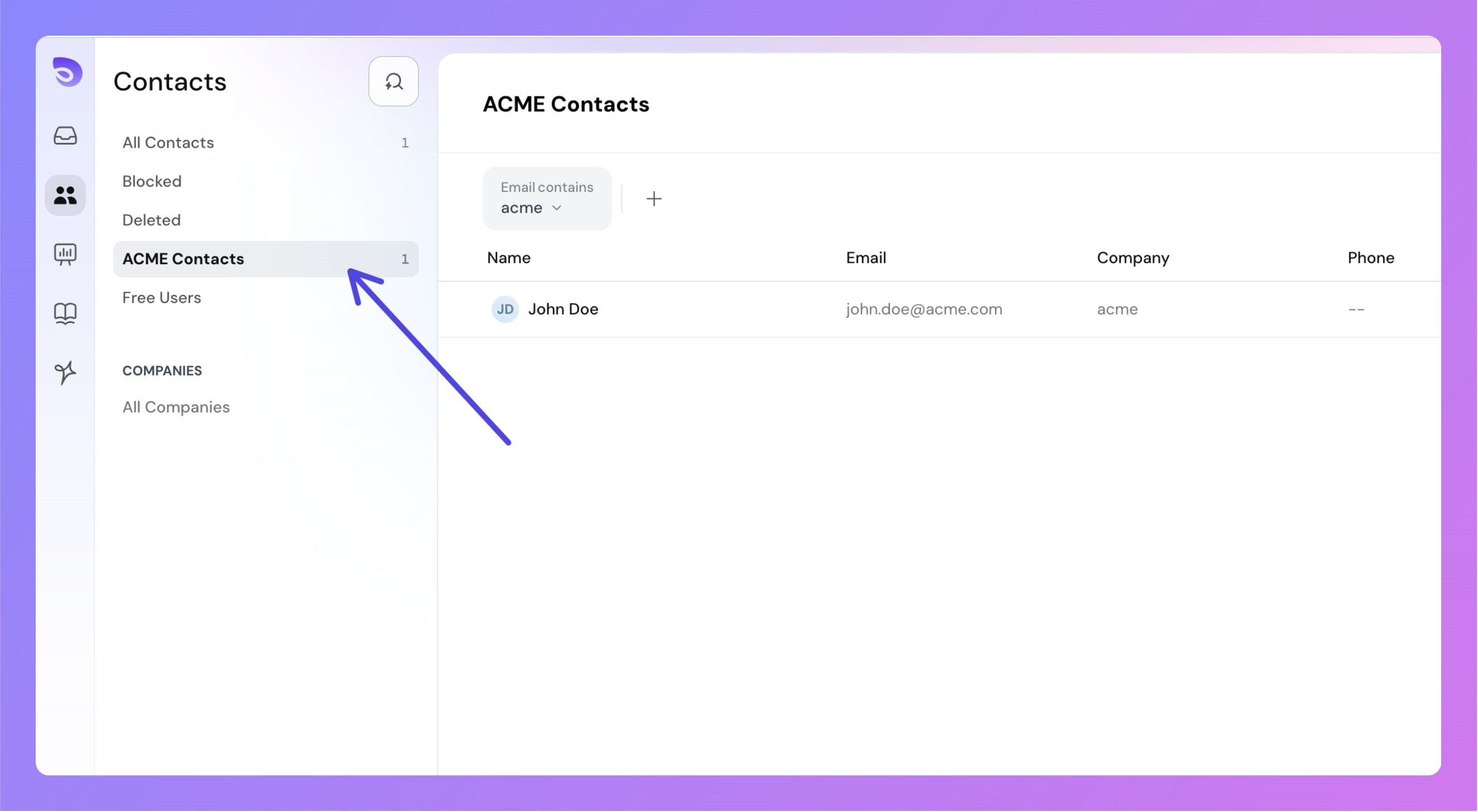
Saved segments appear in the left panel under the default views.
Editing a Segment
Step 1: Hover over the segment name in the left panel.
Step 2: Click on the More Options (three-dot) button.
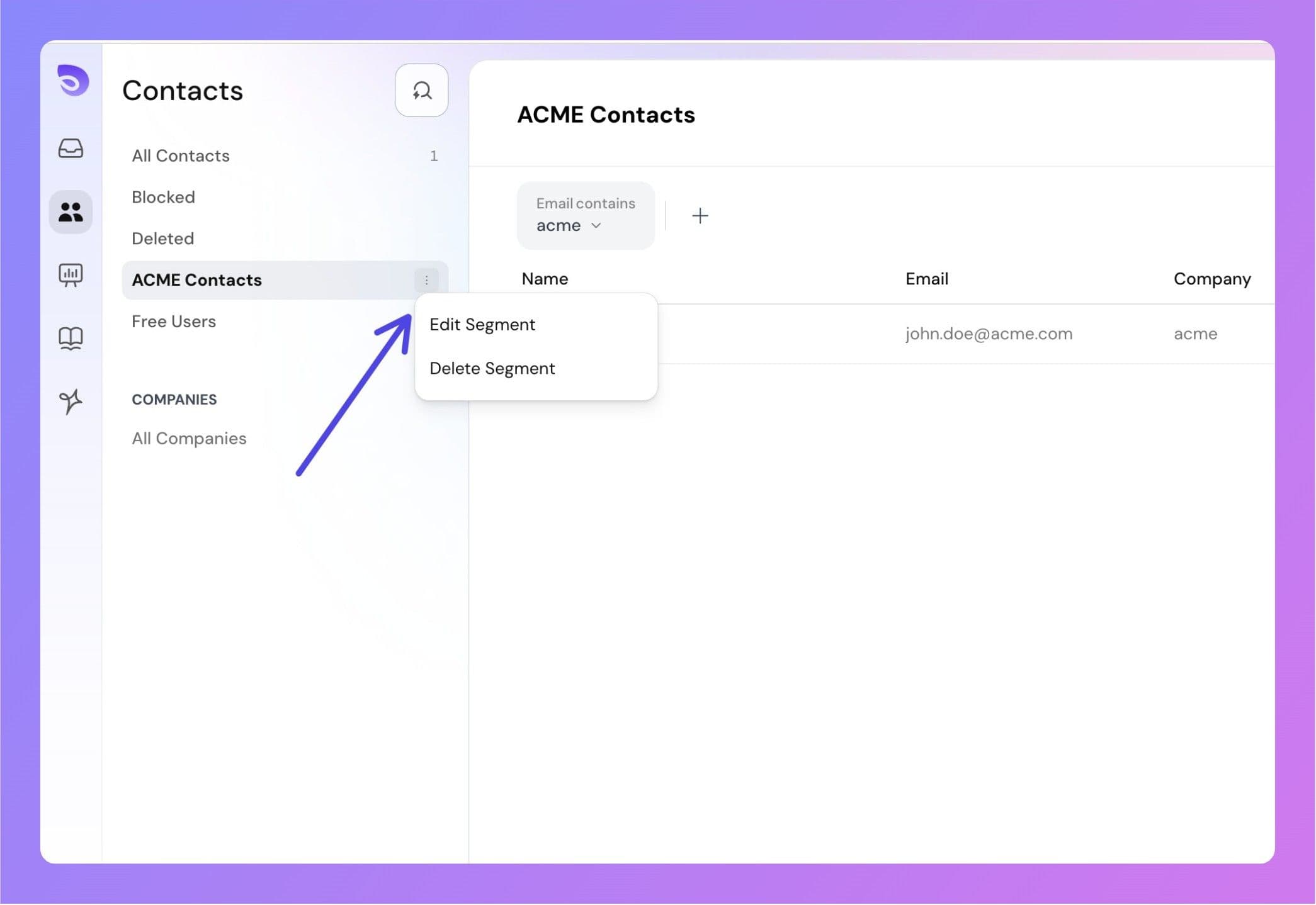
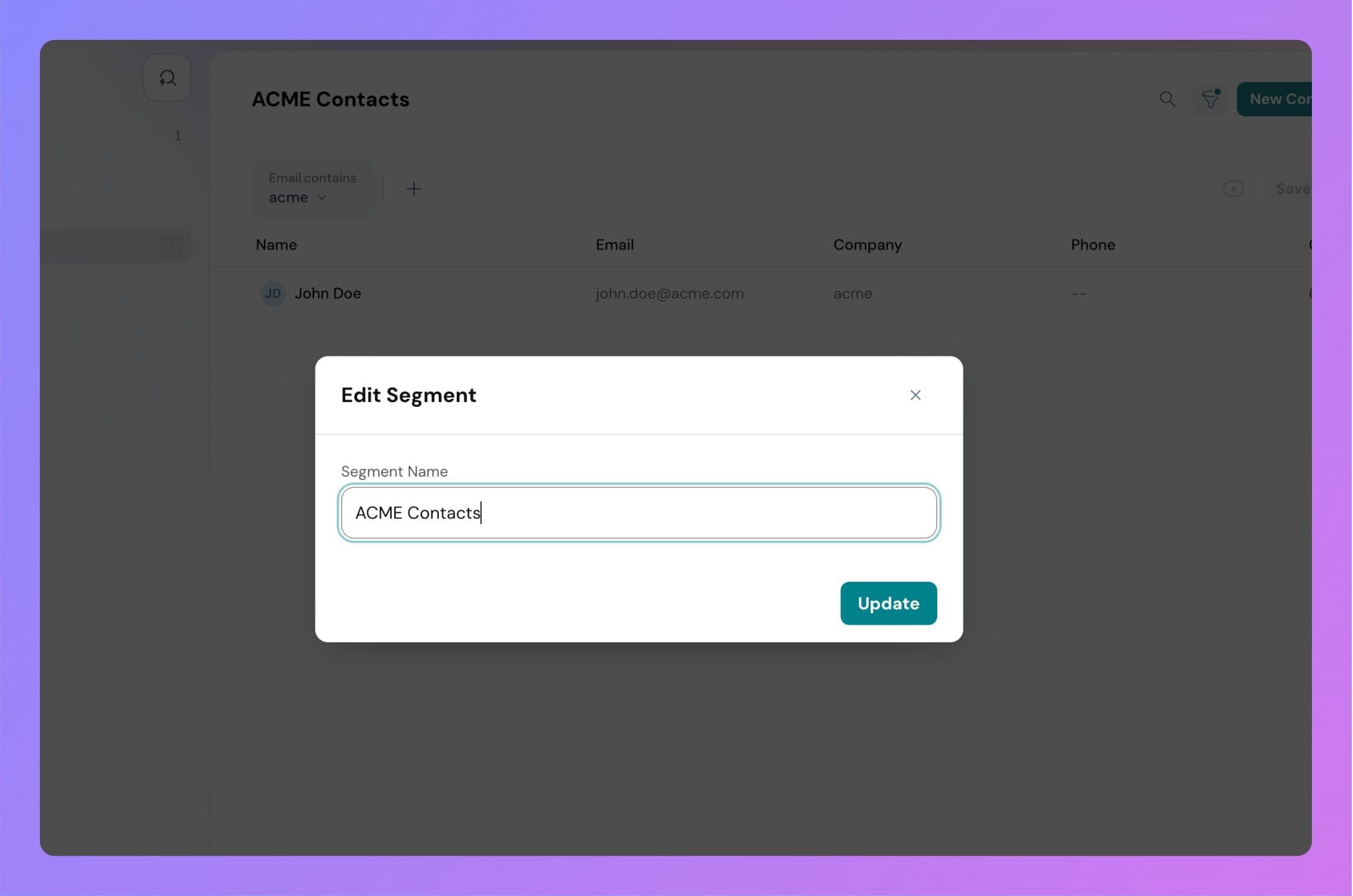
Step 4: Enter a new name and click Save.
Deleting a Segment
Step 1: Hover over the segment name.
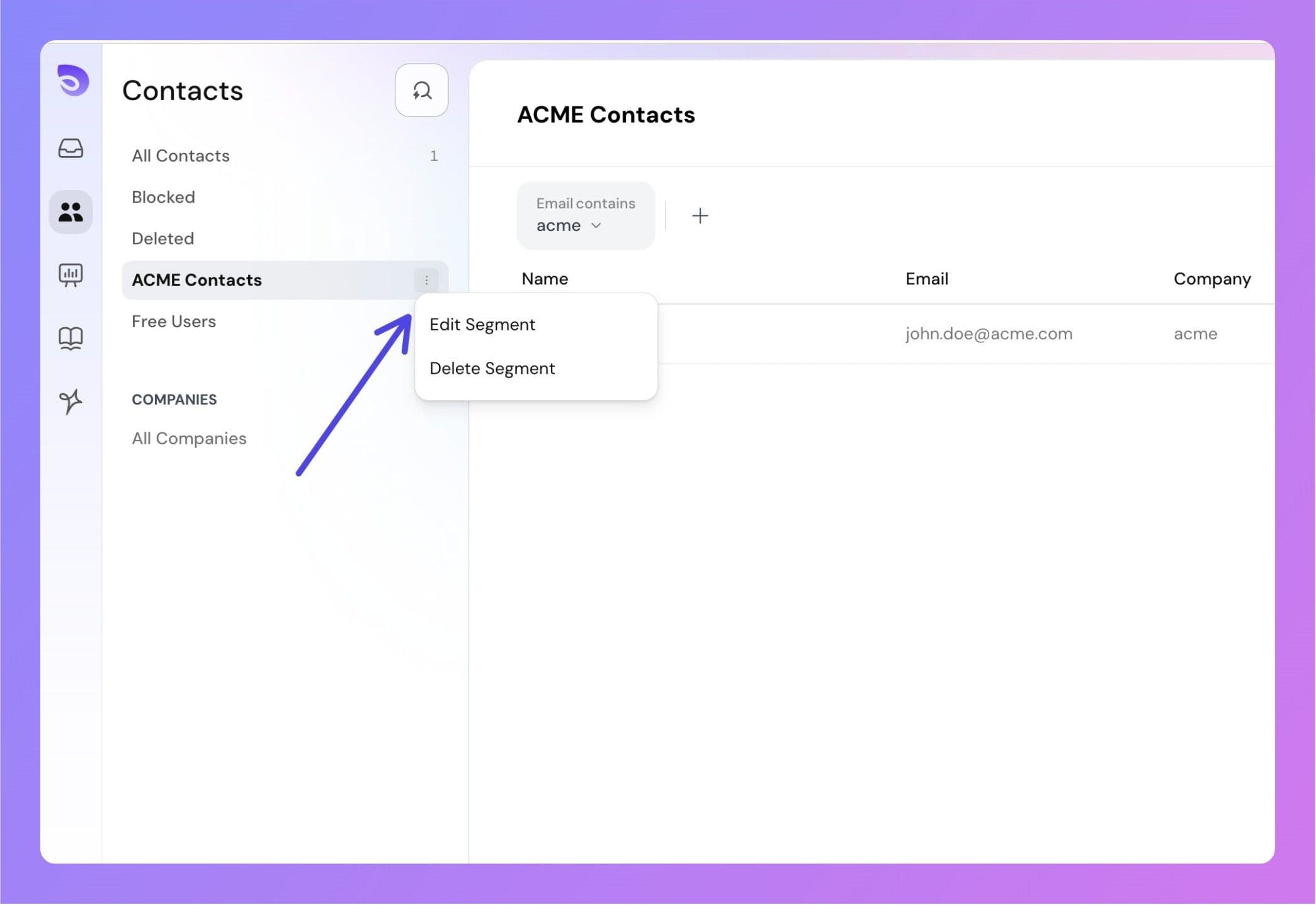
Step 2: Click on the More Options button.
Step 3: Select Delete Segment.
Step 4: Confirm deletion.
Once a segment is deleted, it cannot be recovered. However, you can always recreate the segment by applying the same filters again from the contact list.