
Contact Fields in SparrowDesk

Contact fields help you store and manage important information about your customers. They enable agents to view details about a contact and personalize support interactions. You can use both default fields and custom fields to organize this data.
Accessing Contact Fields
To view or manage contact fields in SparrowDesk:
- Click on the settings icon in the left sidebar and select Contact Fields.
- Or, use Compass (
Cmd + K) and search for Contact Fields to jump directly.
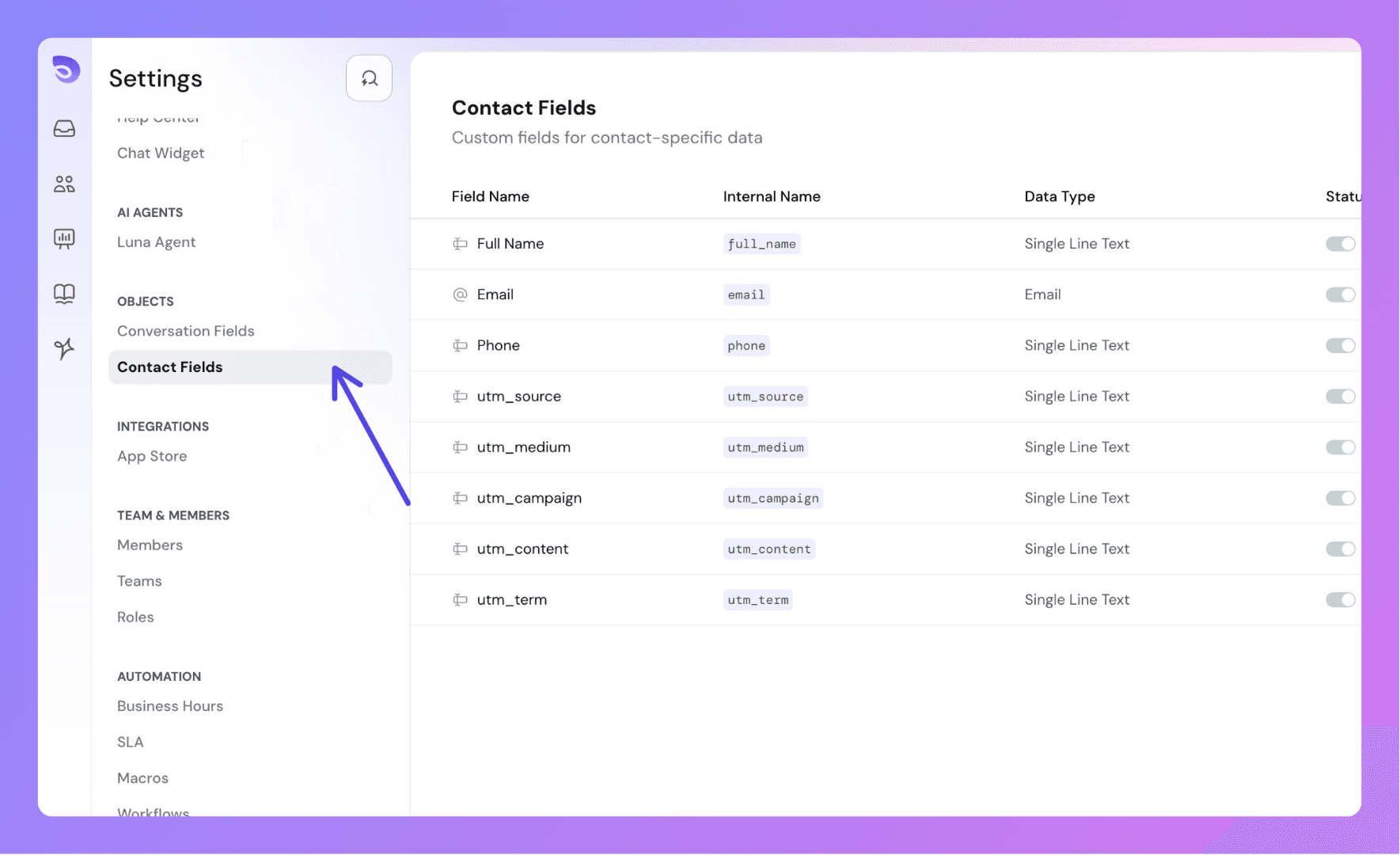
Default Contact Fields
SparrowDesk provides a set of default contact fields that are always available and cannot be deleted or disabled:
First Name: The contact's first name.
Last Name: The contact's last name.
Full Name: Built automatically from First Name and Last Name.
Email: Customer's primary email address.
Phone: Customer's phone number.
- Should start with
+(international) or0(local). - Allowed characters:
+, digits0–9,-,(,) - Length must be between 7 and 15 (excluding special characters).
Company: The company the contact belongs to. A contact is linked to a company automatically when their email domain matches, or manually. See Companies in SparrowDesk.
Country: The contact's country.
State: The contact's state or region.
City: The contact's city.
Language: The contact's language.
UTM Parameters (latest captured during chat):
utm_sourceutm_mediumutm_campaignutm_termutm_content
These fields are automatically populated when a conversation starts via the chat widget and help agents understand the user's journey and context.
Custom Contact Fields
In addition to default fields, you can create custom contact fields to capture any additional data relevant to your workflow — such as membership level, customer ID, product type, etc.
How to Create Custom Fields
Step 1: Click on the settings icon from the left panel, and click on Contact Fields. Or use Compass (cmd +k) and search for contact fields.
Step 2: Click on “New Field”.
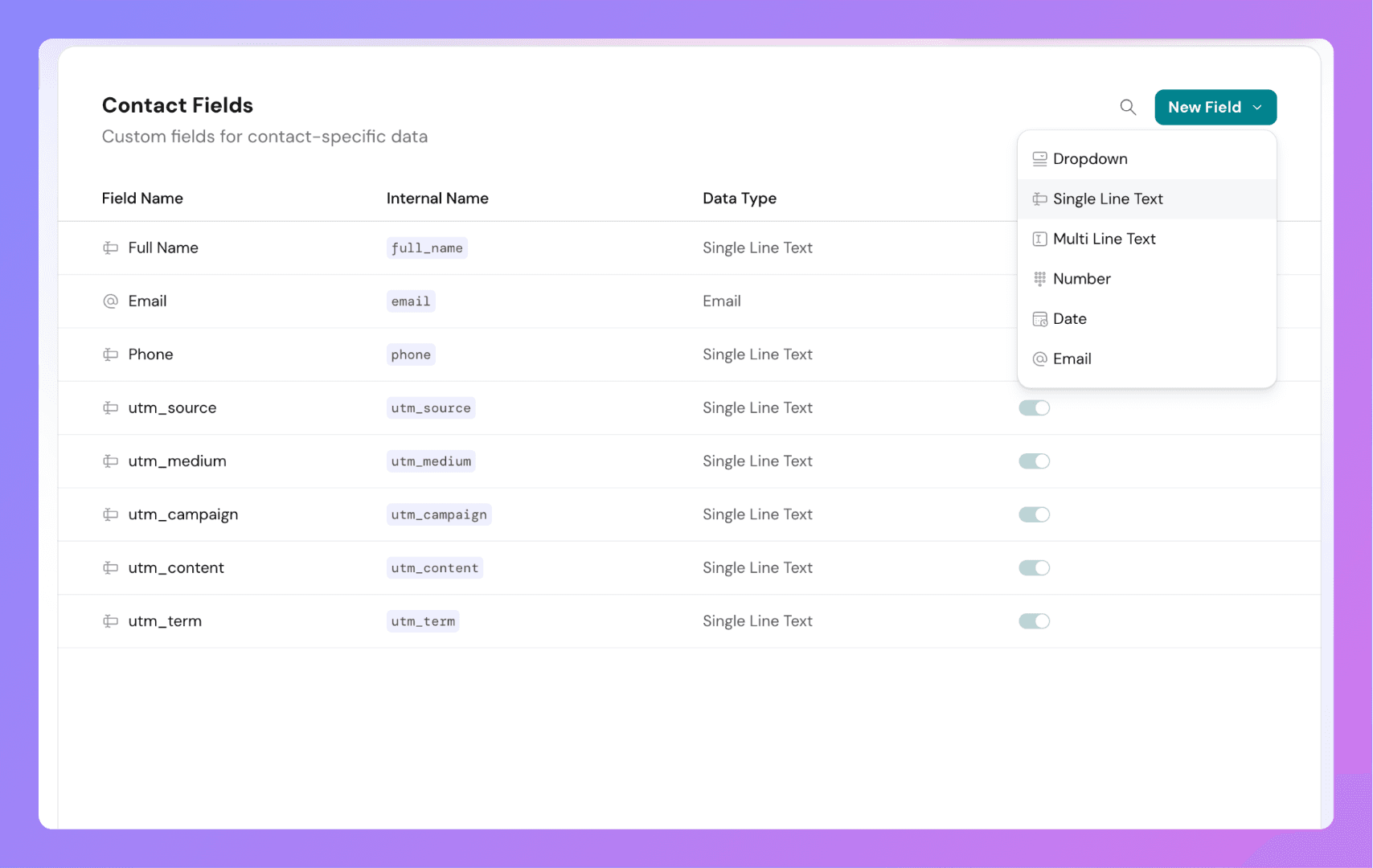
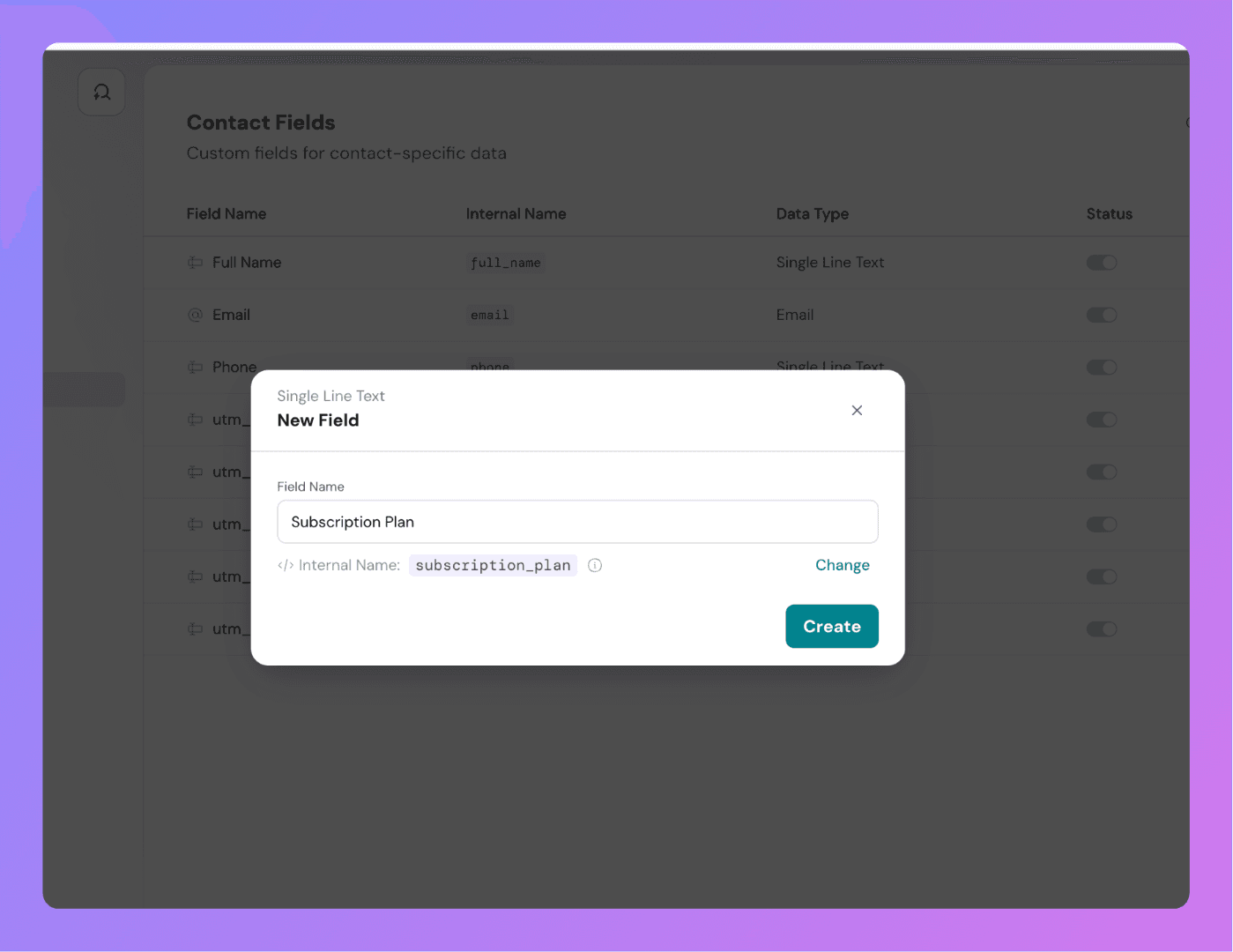
Step 4: Enter a Field Name (e.g., “Subscription Plan”).
Supported Data Types
You can choose from the following field types:
- Dropdown – Select from predefined options (up to 50).
- Single Line Text – For short text values.
- Multi Line Text – For long descriptions or notes.
- Number – For numeric input only.
- Date – Date picker for calendar-based data.
- Email – Validated email field.
Internal Names in contact fields
Each custom field has a system-assigned internal name used in APIs and integrations.
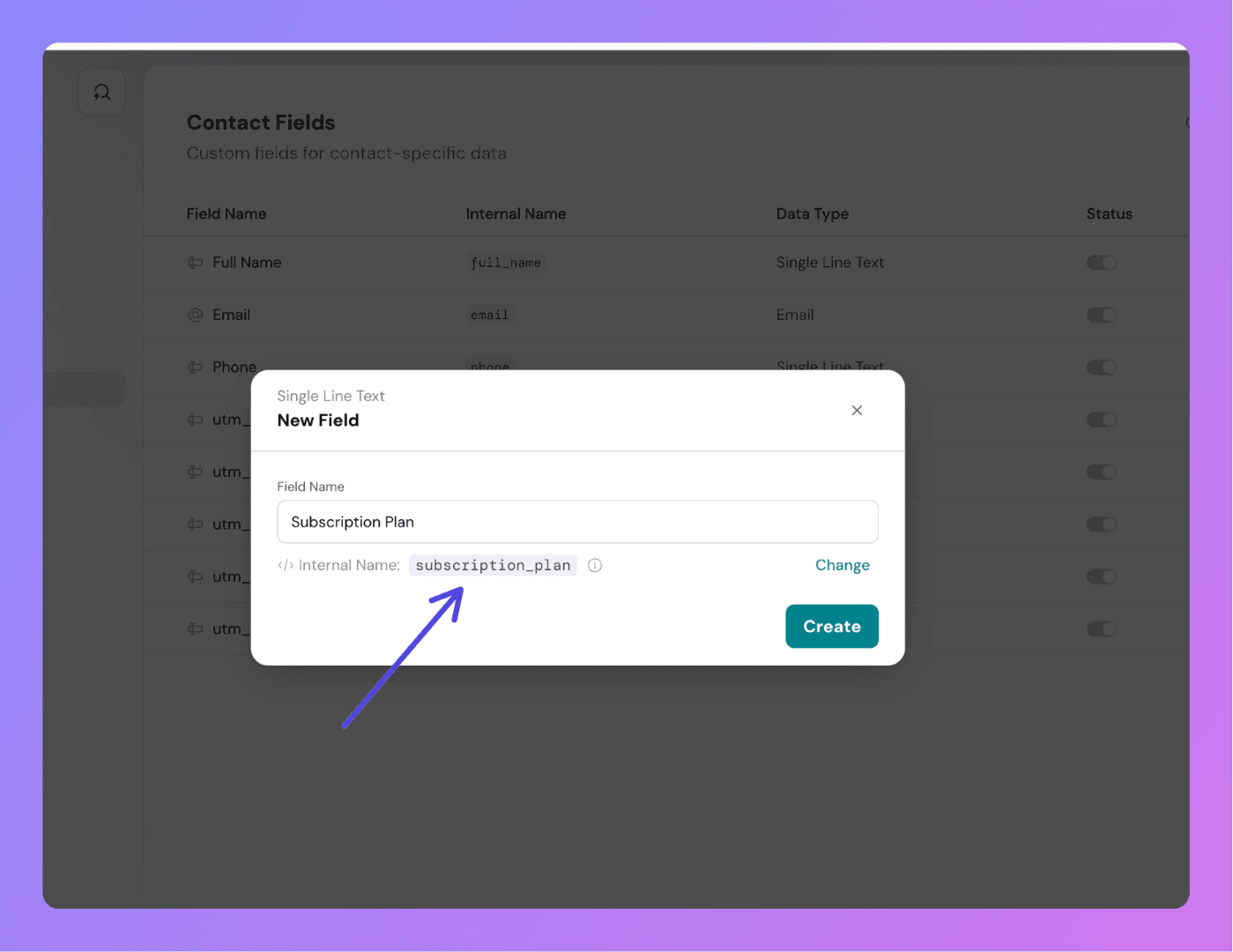
- When you create a new custom contact field, SparrowDesk automatically generates a system-level identifier called the internal name. This internal name is derived from the label you enter. For example, if your field label is "Company Size", the internal name becomes
company_size.
This internal name is important for API usage and integrations, where fields are referenced programmatically.
Editing Internal Name
You can modify the internal name only at the time of creating a custom contact field. To do this, click on the Change button that appears during field creation. This allows you to set a custom internal name before saving.
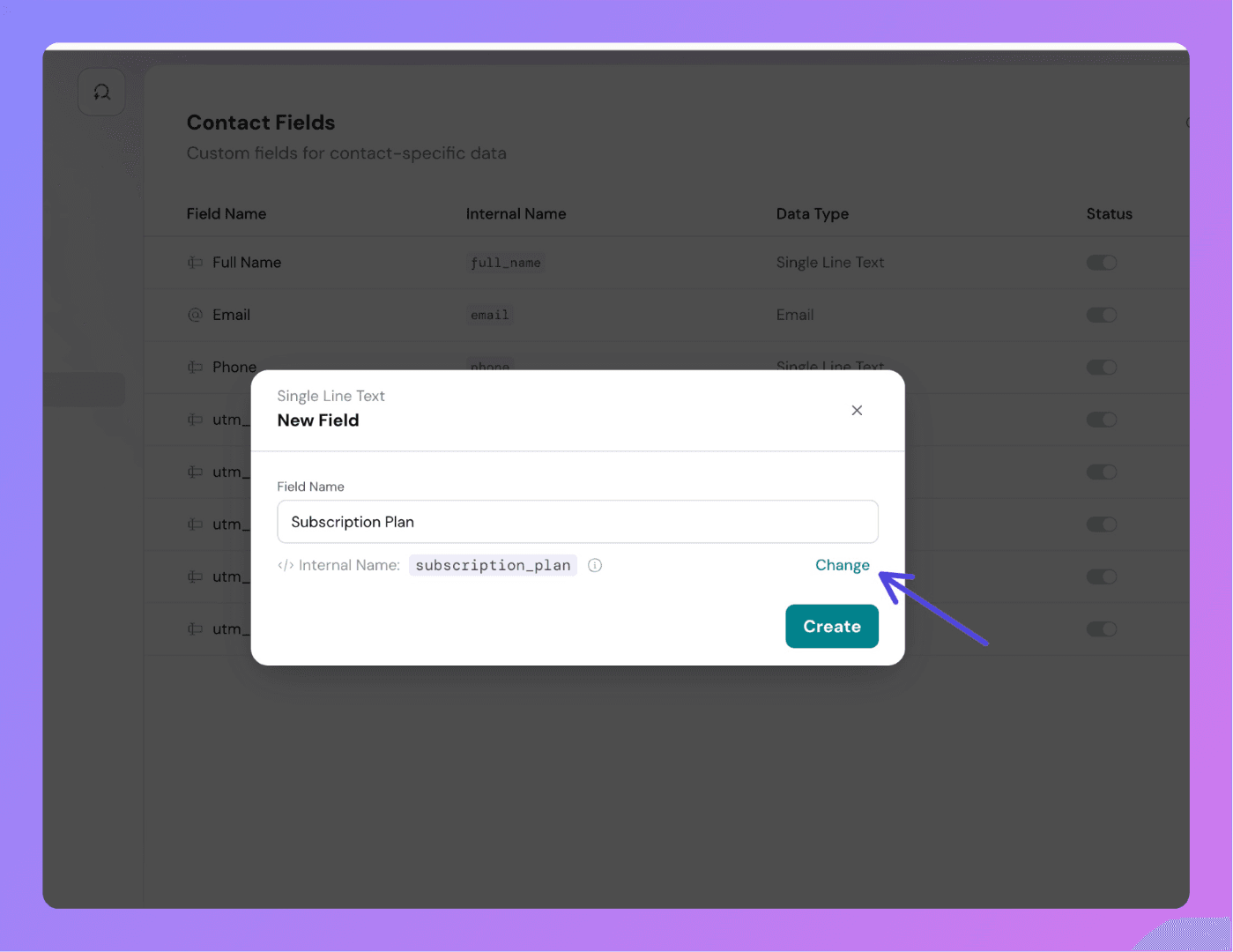
Once the field is created and saved, the internal name becomes locked. Even if you later update the field's label or dropdown options, the internal name remains unchanged.
This is done to maintain consistency across APIs and integrations that rely on this internal identifier.
Dropdown Field Options
- You can add up to 50 options per dropdown field.
- While creating the field, you can enter dropdown options into a text area — each line representing a single option.
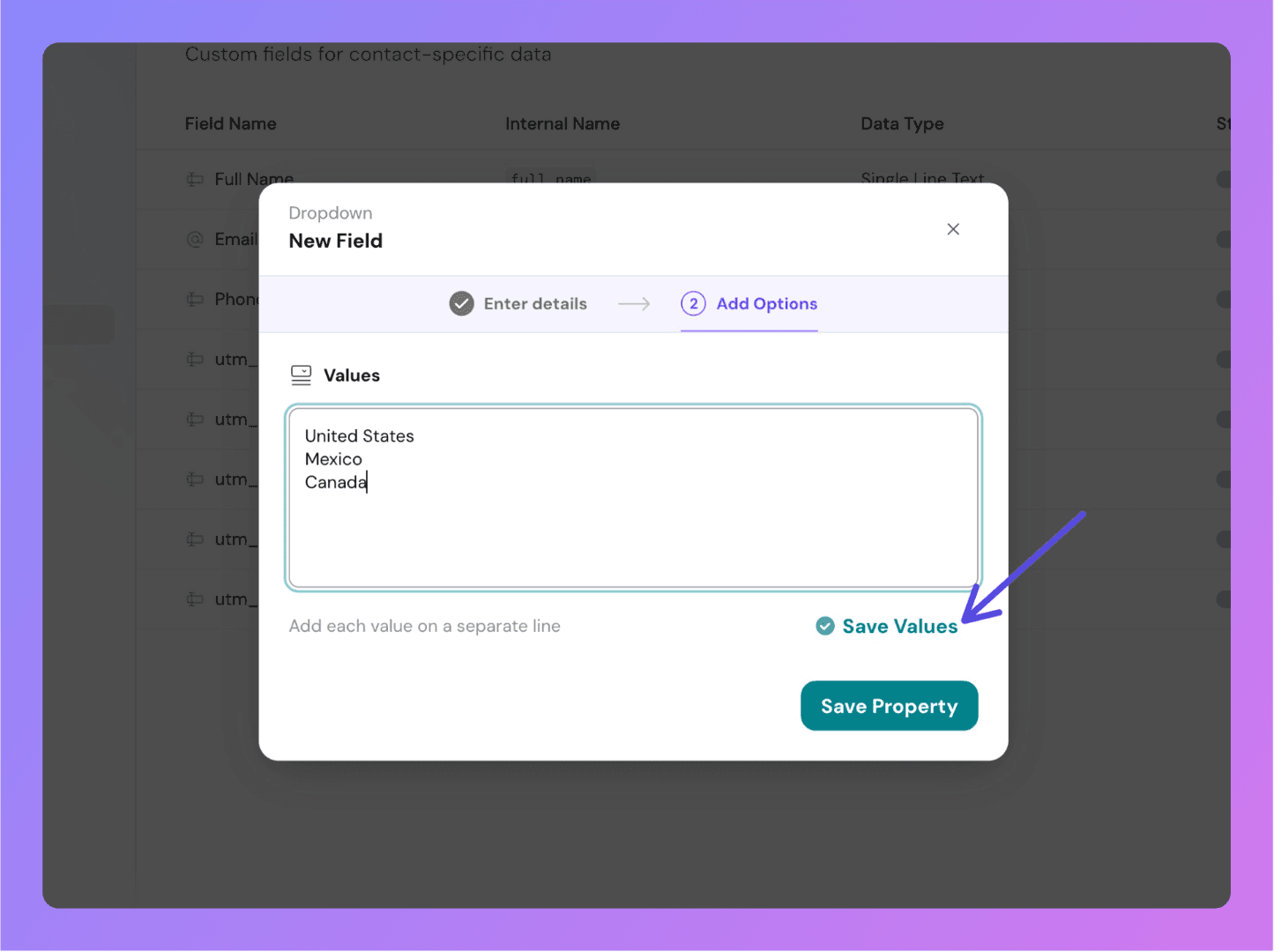
- Options can be reordered using drag-and-drop after entry.
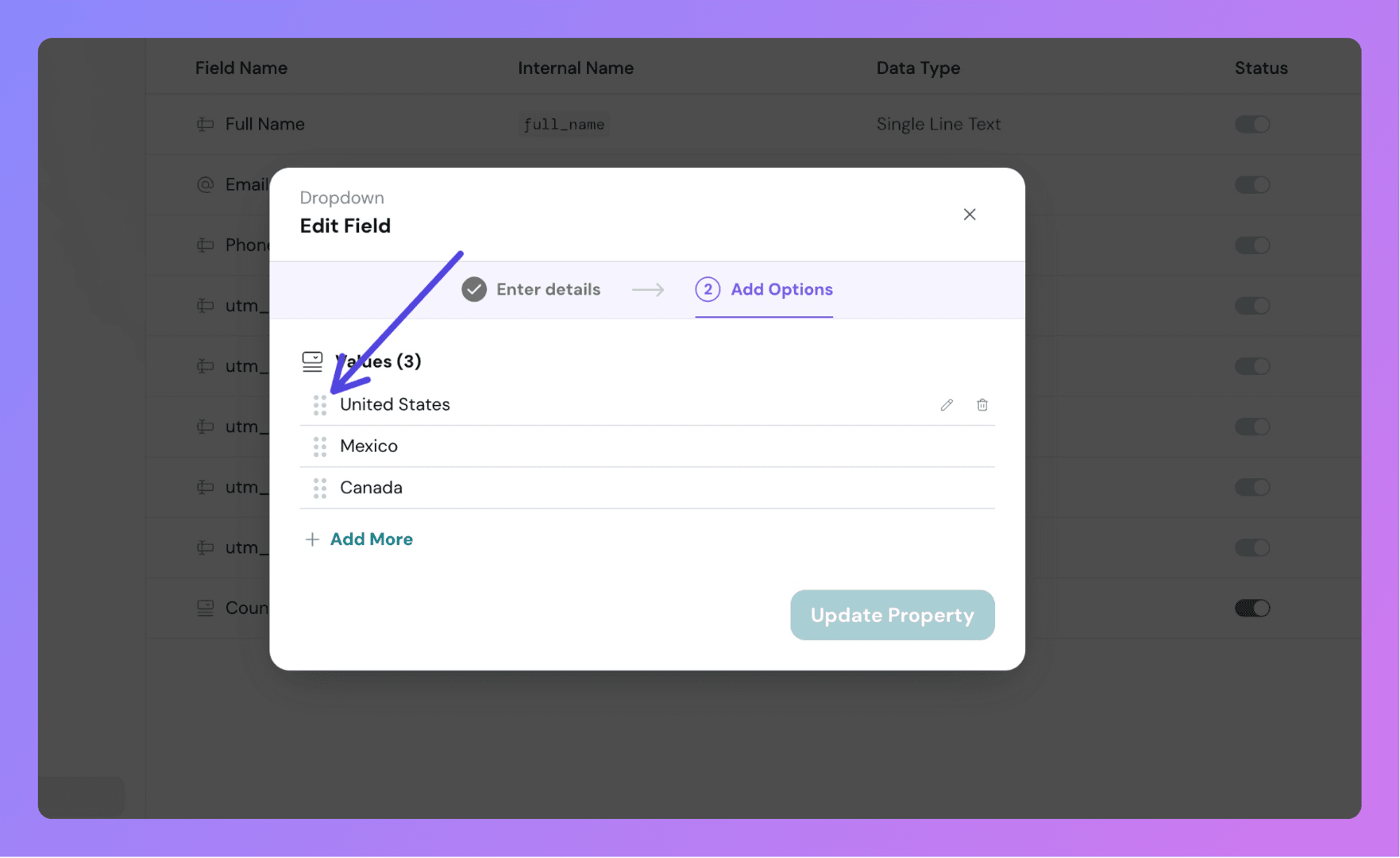
- The order you define here controls how the dropdown appears when agents edit contact data.
Managing Custom Fields
- Edit Label or Options: You can update the field label and dropdown options at any time.
- Disable a Field: Temporarily remove it from the UI without losing any stored data.
- Cannot Delete Fields: For data safety and integrity, custom fields cannot be deleted.
When a field is disabled:
- It no longer appears in the contact view or edit screens.
- All previously stored data remains intact and can be accessed if the field is re-enabled.
Reorder fields in the Contact Details panel
You control the order contact fields appear in when agents view a contact in the Inbox.
- Open Contact Fields from the settings icon, or search for it in Compass (
Cmd + K). - Drag a field by its handle to a new position in the list.
- The new order saves on drop.
Agents see fields in this order in the Contact Details panel and on the Contacts page.
Reordering fields here is separate from reordering the options inside a dropdown field. To change the order of options within a field, see Dropdown Field Options above.
Tag a Contact
Tags are free-form labels you add to a contact to group and filter them — for example, vip, trial, or churn-risk.
- Open a contact from the Contacts page, or open the Contact Details panel inside a conversation.
- Find the Tags field.
- Type a tag and press Enter, or pick an existing tag from the list.
- To remove a tag, click the × on it.
A tag you create once is available to reuse on any contact.
Where Contact Fields Appear
Once created, contact fields are visible in:
- The Inbox when viewing a conversation
- The Contacts page when viewing or editing a contact
Agents can modify these values as needed, depending on their permissions.