
Write Knowledge Articles for your Help Centre and AI Agents

Start with a Draft
Every new article begins as a draft. Drafts are private and only visible to your team.
With drafts, you can:
- Write your content from scratch.
- Add headings, images, videos, links, and other rich content.
- Save progress without making it public.
Customers cannot see draft articles in the Help Center.
Write Your Article Using the Editor
The editor in SparrowDesk helps you structure content clearly and make it easy to read.
Headings
- Use H2 and H3 to structure sections
- H1 is reserved for the article title
Text Styling
- Bold, Italic, Underline
Lists
- Bulleted and Numbered
Images & Videos
- Upload or embed content easily
Links and Dividers
- Insert hyperlinks and horizontal separators
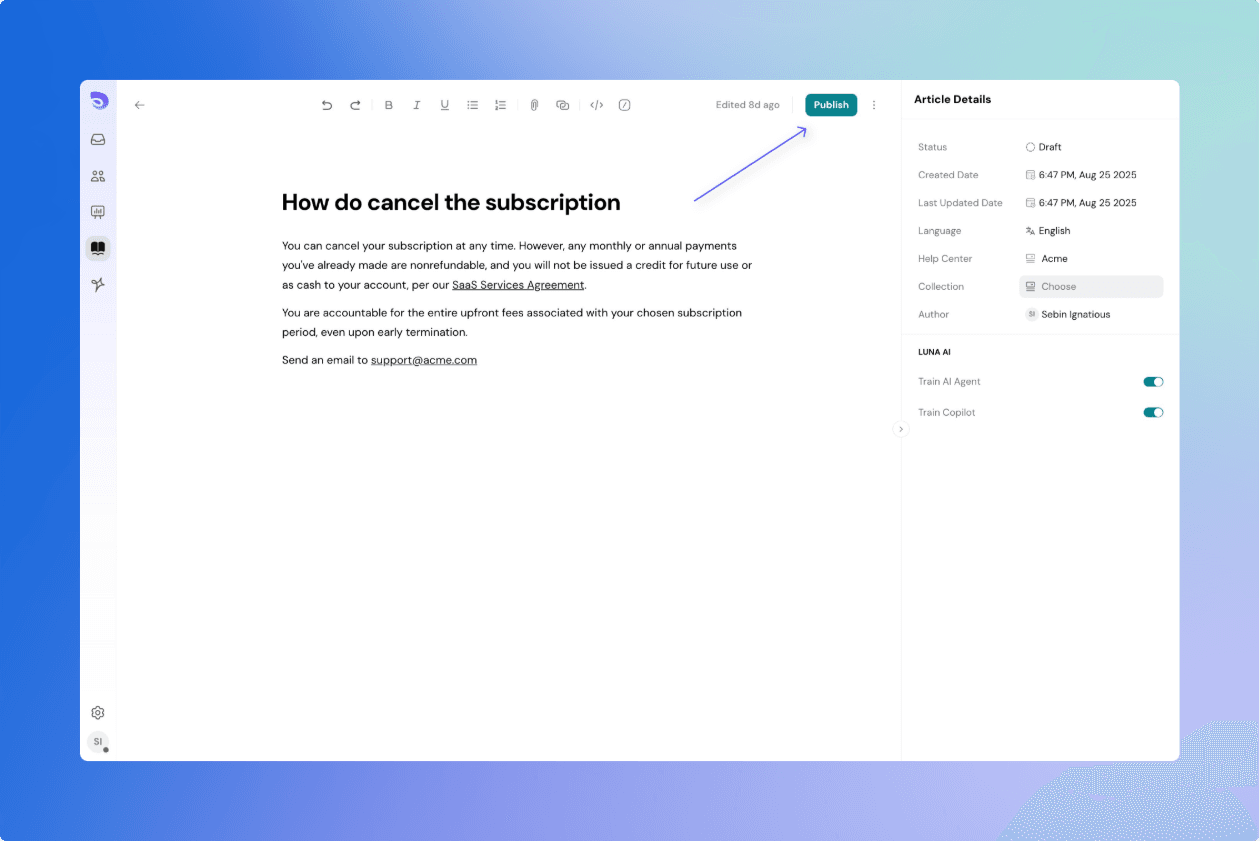
Publish an Article
Once your article is ready:
- Click Publish.
- The article becomes live.
By default, published articles are only visible to customers if they are added to a Help Center collection.
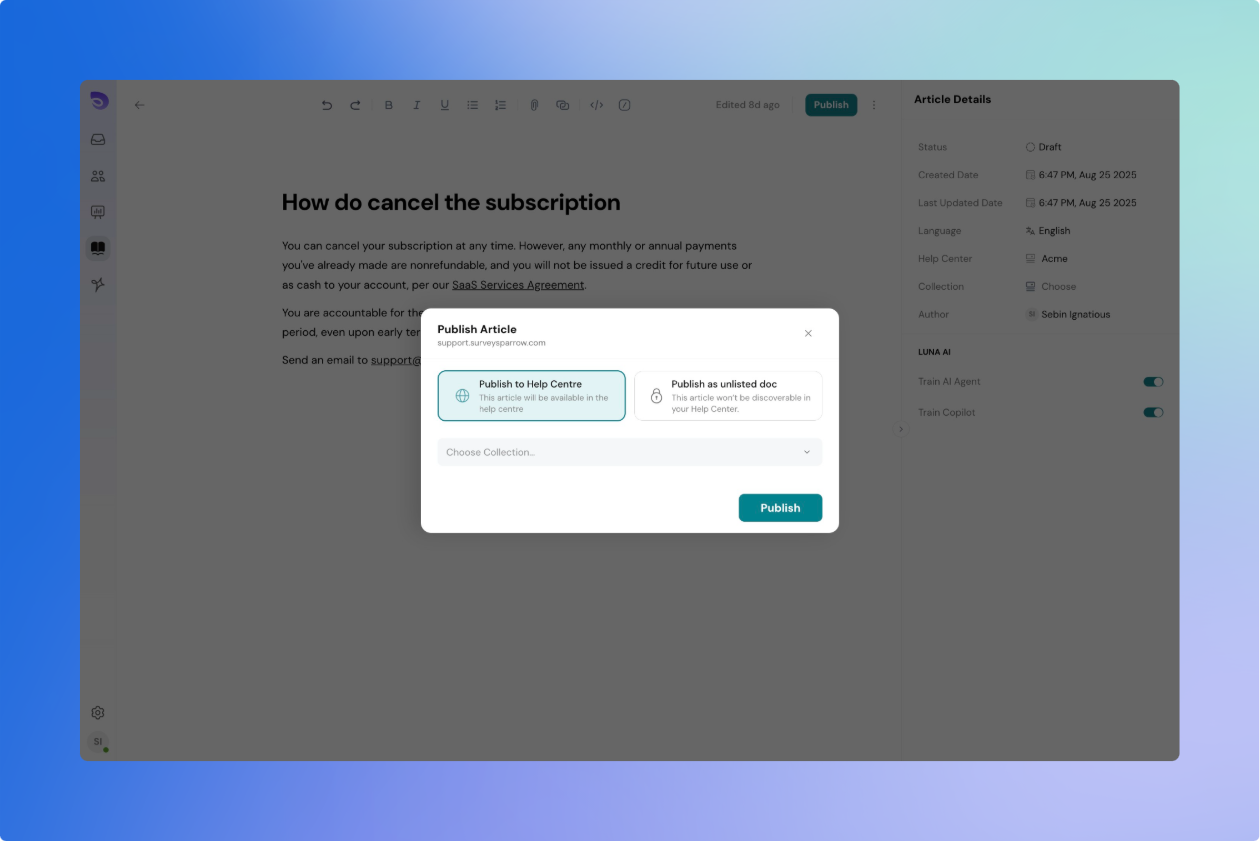
Decide How Articles Show Up while Publishing
When publishing, you can choose where and how the article appears:
- Show in Help Center
Add the article to a collection so it is publicly visible.Only articles that are added to the collection will be shown in the Help Centre. - Don’t Show in Help Center
Keep the article published but hidden from customers.Useful for internal guides or draft versions you want to share only via direct link.
Search engines don’t index these articles, so they don’t appear in Google results.
Control Who Sees an Article
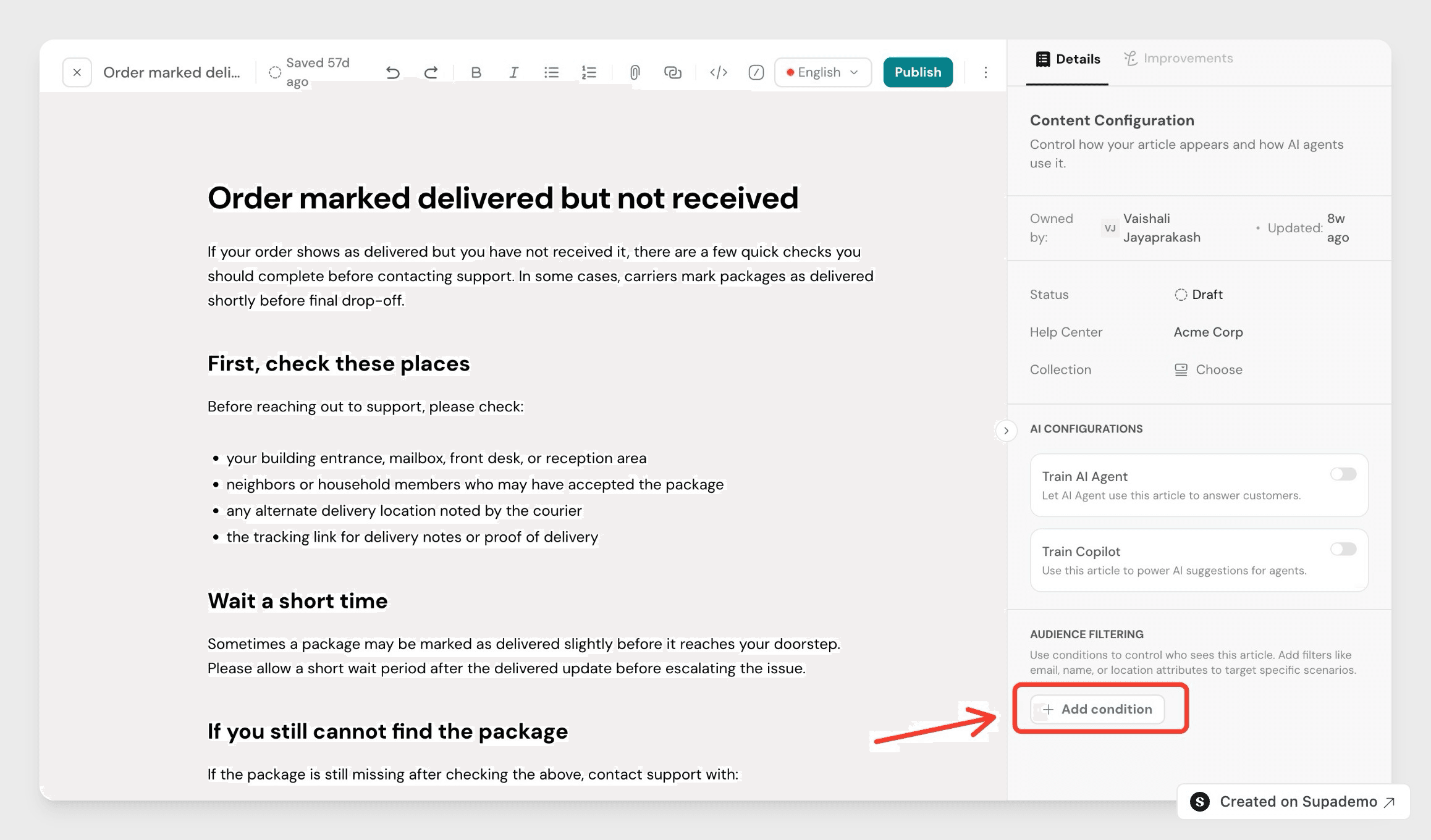
Audience filtering shows an article only to the customers it's meant for. An article with no conditions is visible to everyone.
- Open the article in the editor.
- In the right panel, go to Audience Filtering.
- Click Add condition.
- Choose what to filter by, for example Segments.
- Click Choose.
- Select one or more values.
- Click Apply. The condition applies right away, even on a live article, so you don't need to publish.
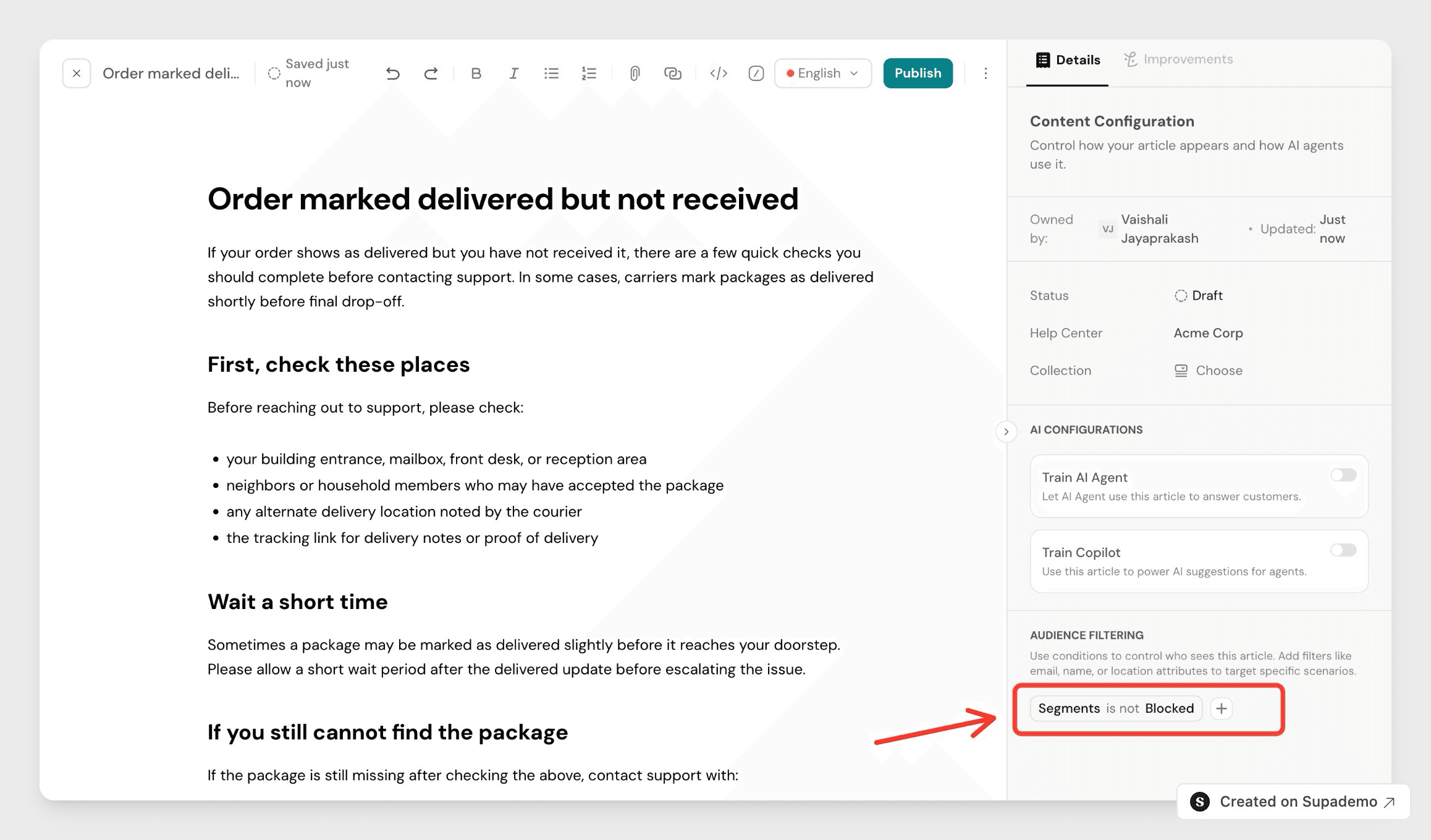
- To add another condition, click +.
How to Edit a Published Article Without Affecting the Live Version
Need to update an article that’s already live?
- Any edits you make will be saved in a private draft linked to the published article
- Customers will still see the old version until you publish your changes
You now have two options:
- Publish Changes — Your updates go live and replace the old version
- Discard Changes — Cancel your edits and go back to the previous version
This allows you to update content confidently without affecting what customers see until you're ready
Unpublish an Article
If you no longer want customers to see an article:
- Use the Unpublish option.
- The article is removed from the Help Center but stays in your workspace.
- You can restore and publish it again at any time.
Publish, Unpublish, or Train Multiple Articles at Once
From the articles list, you can act on several articles at once instead of opening each one.
- Open your articles list.
- Select the checkbox next to each article you want. Use the header checkbox to select every article in the view.
- In the bulk actions bar, choose Publish, Unpublish, or Train.
- Confirm the action.
- Publish makes the selected drafts live.
- Unpublish removes the selected articles from the Help Center but keeps them in your workspace.
- Train sends the selected articles to your AI Agent so it can answer from their content.