
AI Suggested replies in your Inbox

SparrowDesk helps your team respond faster and more consistently with AI Suggested Replies.
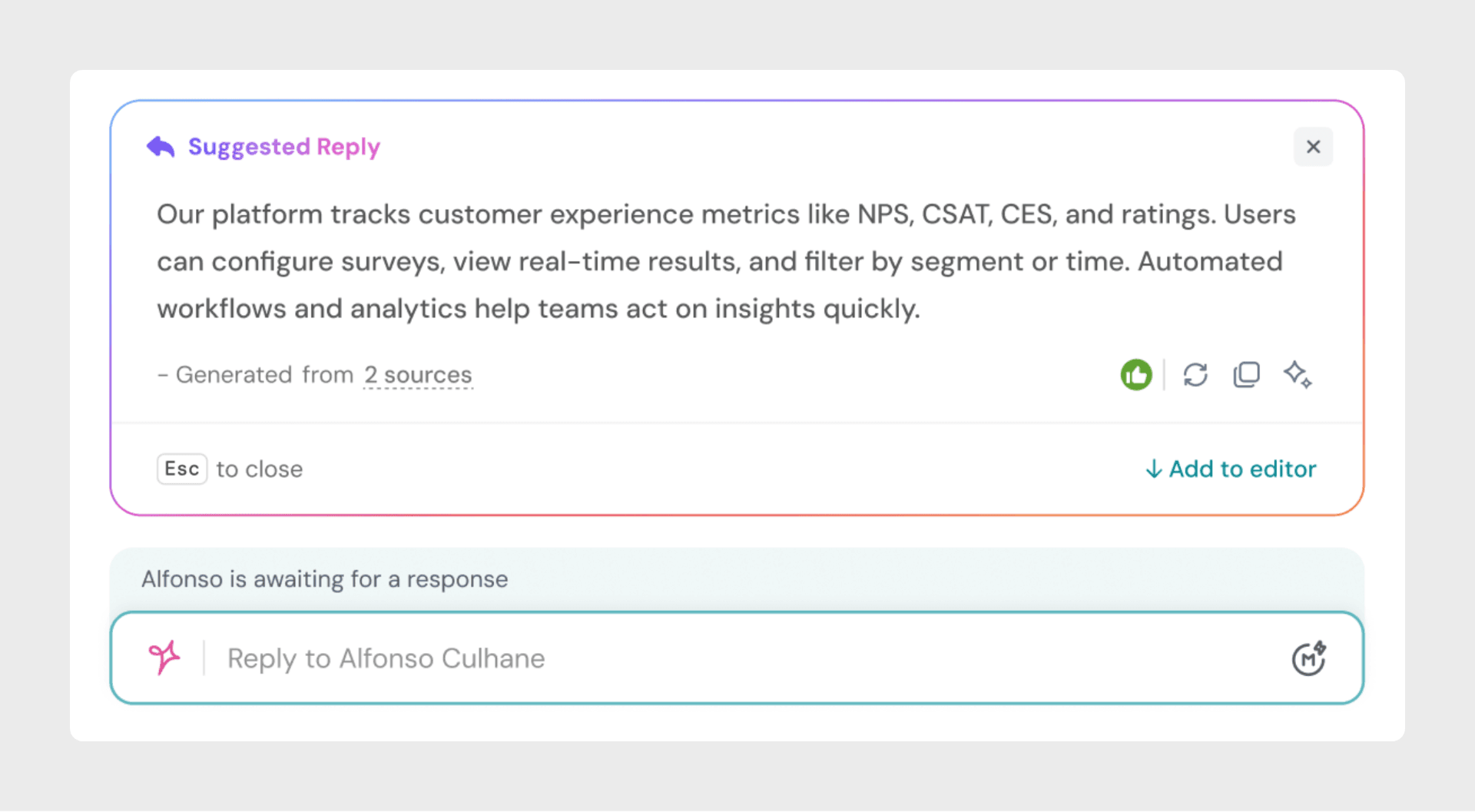
Whenever a customer sends a message, Zoona automatically suggests a relevant response right inside your message composer — helping you save time while maintaining a professional tone.
How it Works
When Zoona detects a customer message, it analyzes the content and context of the conversation to generate a reply suggestion.
You can:
- Review the suggestion before sending.
- Edit it to make it more personal.
- Dismiss it using the X icon if you prefer to type your own message.
If you start typing manually, Zoona’s suggestion collapses automatically to avoid interruptions.
When Zoona Suggests Replies
Zoona uses smart logic to decide when to show a suggestion, so it never feels intrusive.
Here’s when suggestions appear:
- First message from a customer: When a new conversation starts, Zoona will always generate an initial suggestion to help you reply quickly and set the right tone for the interaction.
- Follow-up messages: For ongoing conversations, Zoona will only suggest a reply if no agent has responded yet and both the customer and the agent have been idle for at least 60 seconds. This ensures that suggestions appear only when needed and don’t interrupt active exchanges.
- Channels supported:Zoona’s suggested replies are available across both Chat and Email channels, ensuring agents can benefit from AI assistance no matter how customers reach out.
This ensures that every suggestion you see is contextually relevant and helpful.
Zoona only generates one suggestion at a time, keeping the experience simple and focused so agents can quickly review and send the most relevant response without being overwhelmed by multiple options.
What Zoona Uses to Suggest Replies
Zoona’s reply suggestions are powered by multiple training sources that you’ve connected to your SparrowDesk account. These sources help Zoona understand your product, policies, and communication style so it can suggest accurate, on-brand replies.
The training data may come from:
- Knowledge Base Articles – providing clear, factual answers based on your help content.
- Uploaded Documents – such as guides, FAQs, or reference material you’ve added for Zoona to learn from.
- External Websites – content automatically scraped from public sources you’ve approved.
If any of these sources are enabled in your account, Zoona automatically uses them to prepare the most relevant and helpful suggestions.
When Zoona Won’t Suggest Replies
To maintain accuracy and avoid distraction, Zoona will not generate a suggestion if:
- The agent is currently typing.
- Less than 60 seconds have passed since the last message.
- Zoona determines that it doesn’t have enough reliable or relevant knowledge from its training sources to craft a meaningful and accurate response.
There’s no fixed limit on the number of suggestions per conversation — Zoona simply waits for the right time to offer the next one.
Improving Suggestions
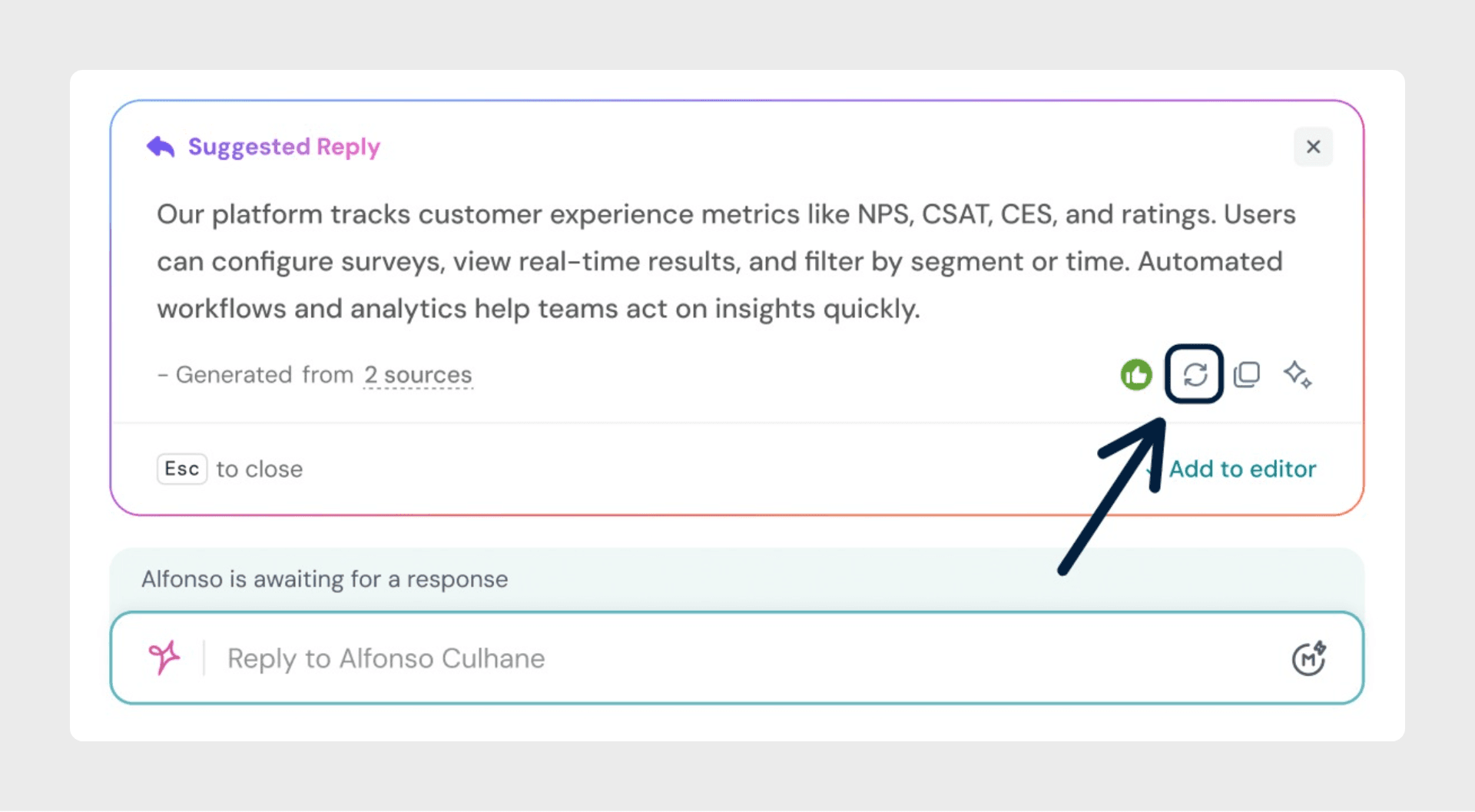
If you’re not happy with the current suggestion, you can click the Generate Again button to instantly get a new response option. This allows you to explore alternate ways of phrasing a reply without needing to write one from scratch.
Frequently Asked Questions
Can I turn off AI Suggested Replies?
Not at the moment. AI Suggested Replies are automatically available for eligible plans and cannot be disabled manually.
Do agents without Copilot access see AI Suggested Replies?
Yes. Even if an agent doesn’t have a Copilot seat, they will still see AI Suggested Replies in their composer.
Which plans include AI Suggested Replies?
AI Suggested Replies are available for all customers on the Professional Plan and above (see pricing).
Can I give feedback on generated suggestions?
Yes. You can click the thumbs up or thumbs down icons on each suggestion to let SparrowDesk know whether the response was helpful. Your feedback is used to improve Zoona’s accuracy and overall quality of suggestions over time.