

AI Agent - Configure Persona

Justin

Justin

April 10, 2026

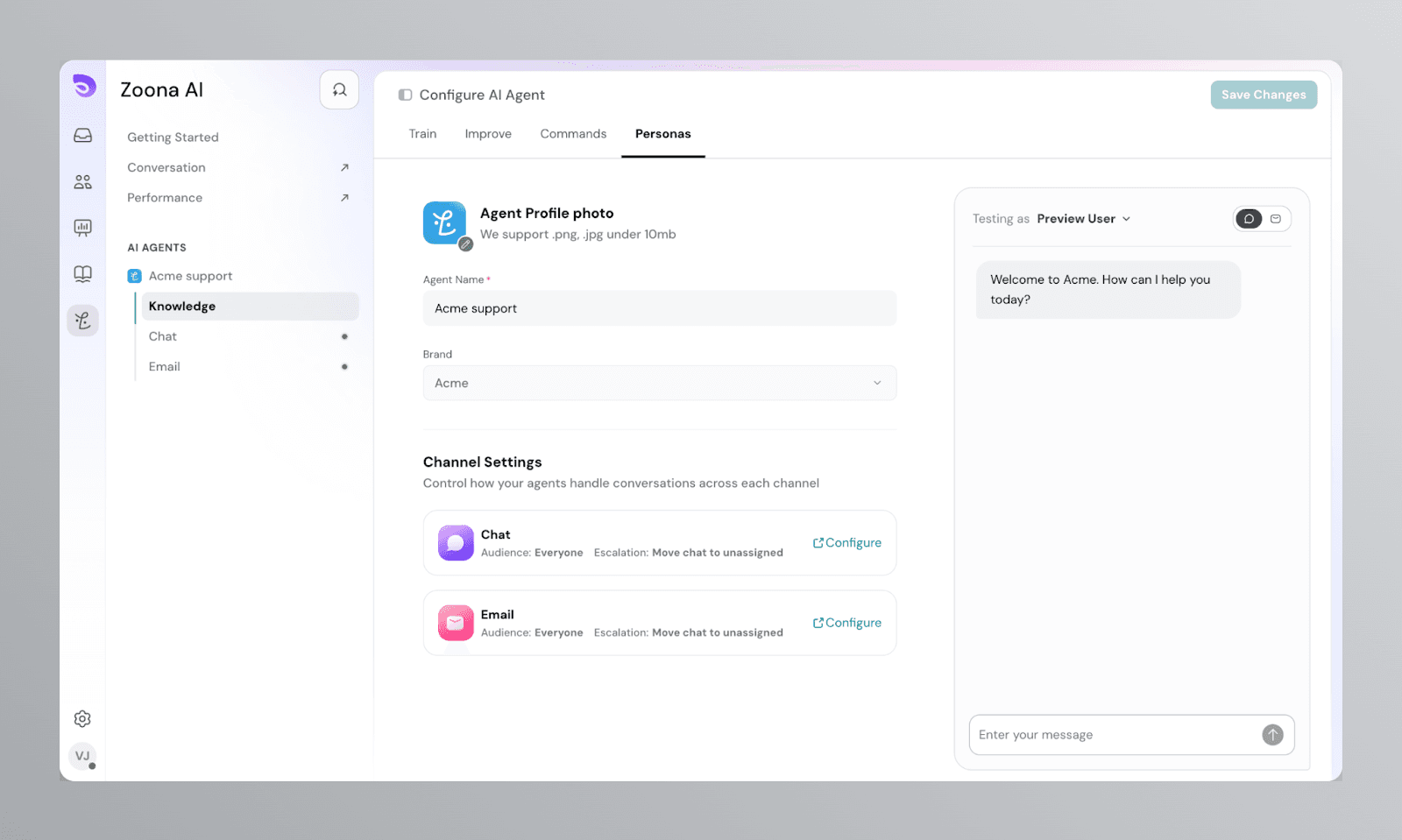
The Persona Configuration in SparrowDesk lets you define how your Zoona AI agent appears, speaks, and introduces itself to your customers. It helps you create a consistent and branded experience — ensuring your AI feels like a natural extension of your team.
Image

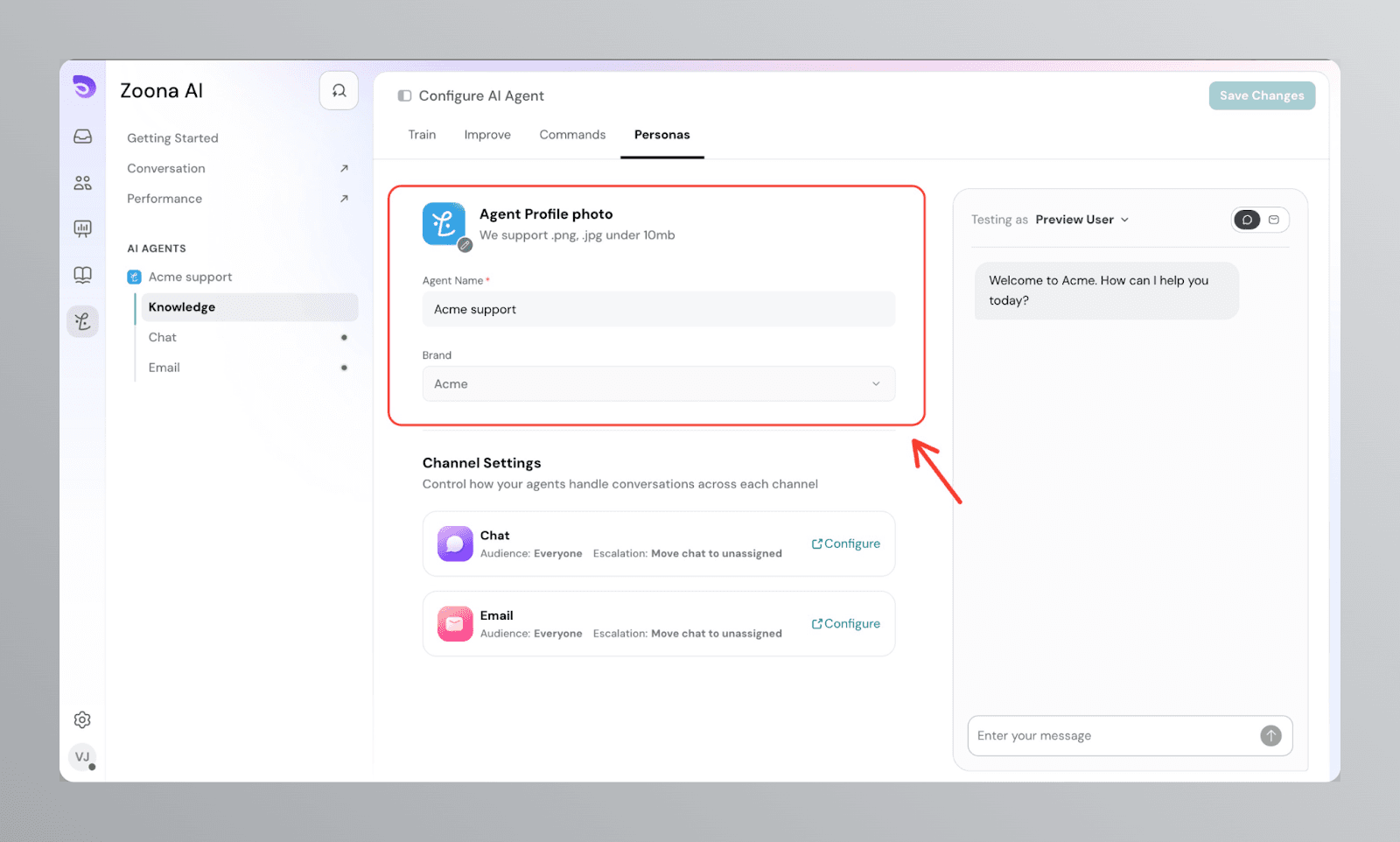
Agent Profile Photo

Upload a custom image that represents your Zoona AI agent in conversations.

  • Supported formats: .png and .jpg
  • Maximum file size: 10 MB

The avatar appears in both the Chat widget and the Inbox when your AI agent is handling a conversation. Use a logo or a friendly illustration that matches your brand.

Agent Name

Enter a name for your Zoona AI agent.

  • This name will be visible in the Inbox and Chat Widget when your AI interacts with customers.
  • Choose a name that's friendly and fits your company's personality.

Brand

The brand is automatically selected based on your account and cannot be modified. This ensures the right name, tone, and greeting appear for each brand's chat widget.
Image

Channel Settings

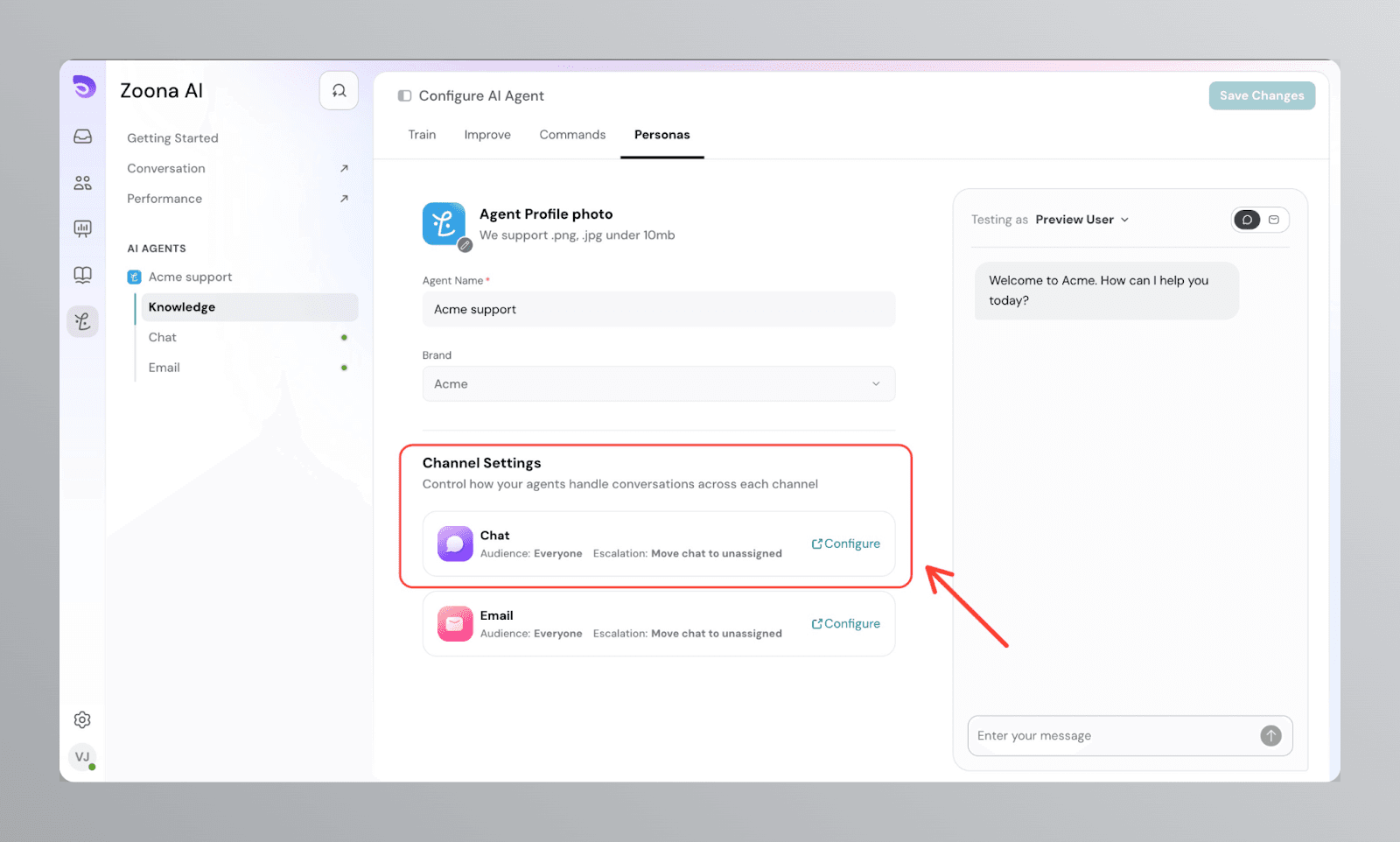
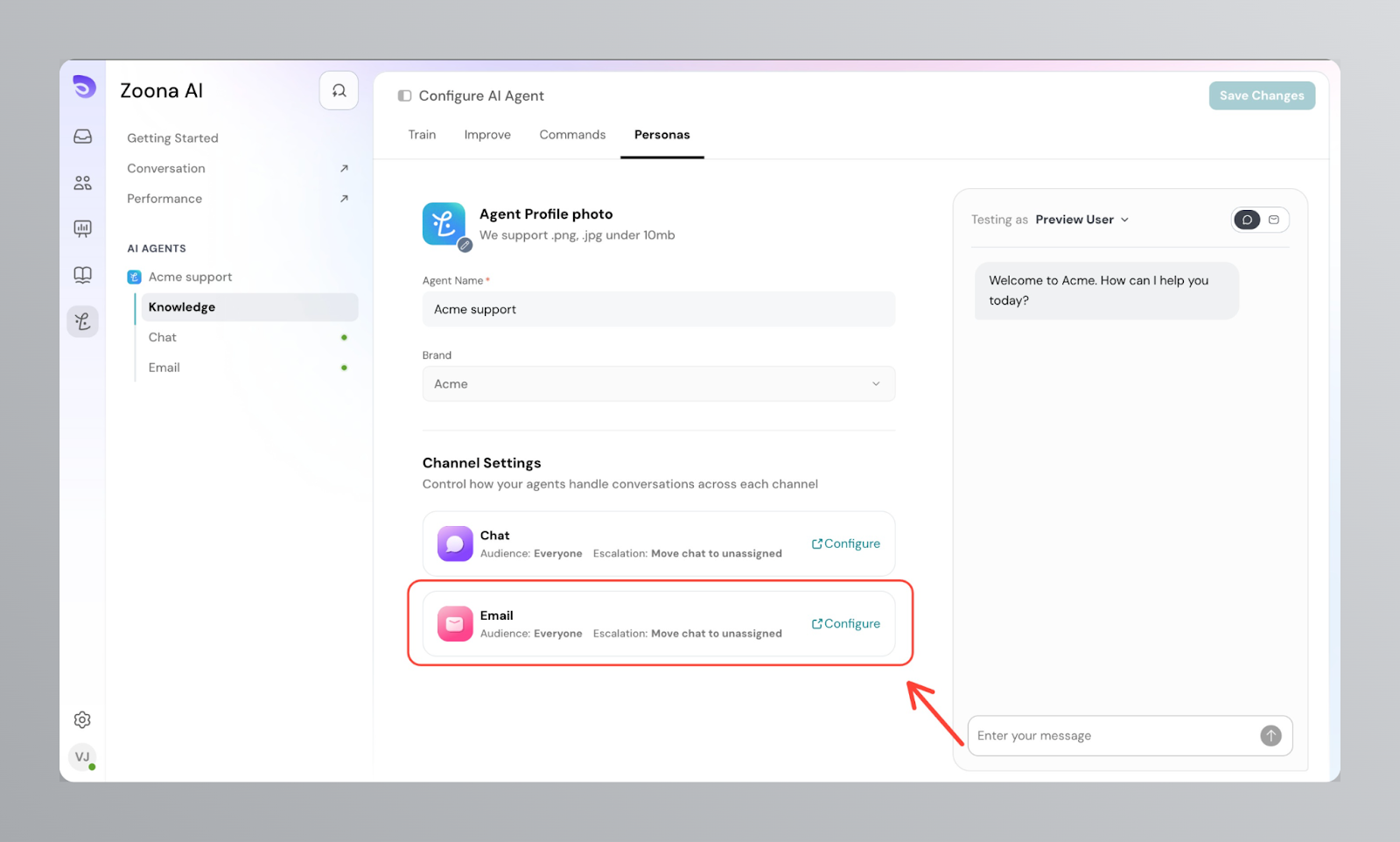
The Channel Settings section gives you a summary of how your Zoona AI agent is configured across each channel. You can see the current Audience and Escalation settings for Chat and Email at a glance, and click Configure to adjust them individually.

Chat

Clicking Configure on the Chat card takes you to the Chat configuration screen, where you can control:
  • Who the AI agent can reply to
  • What happens when a contact starts a conversation
  • What happens when the AI agent can't resolve an issue
  • Contact resolution buttons
  • Auto-close after customer inactivity

Image

Email

Clicking Configure on the Email card takes you to the Email configuration screen, where you can control:
  • Who the AI agent can reply to
  • When the AI agent replies
  • What happens when the AI agent can't resolve an issue
  • Auto-close after customer inactivity

Best Practices

  • Use a short, memorable name that feels approachable to your customers.
  • Upload a professional or brand-themed avatar to create familiarity and trust.
  • Review your Channel Settings regularly to ensure audience and escalation rules reflect your current support workflow.
  • Configure Chat and Email separately — each channel can have its own audience and escalation behavior depending on your team's needs.

Example

In the screenshot above, the Zoona AI agent is set up for Acme:

  • Agent Name: Acme support
  • Brand: Acme
  • Chat: Audience set to Everyone, Escalation set to Move chat to unassigned
  • Email: Audience set to Everyone, Escalation set to Move chat to unassigned

You can revisit and update these settings at any time as your support workflow evolves.

Powered By SparrowDesk