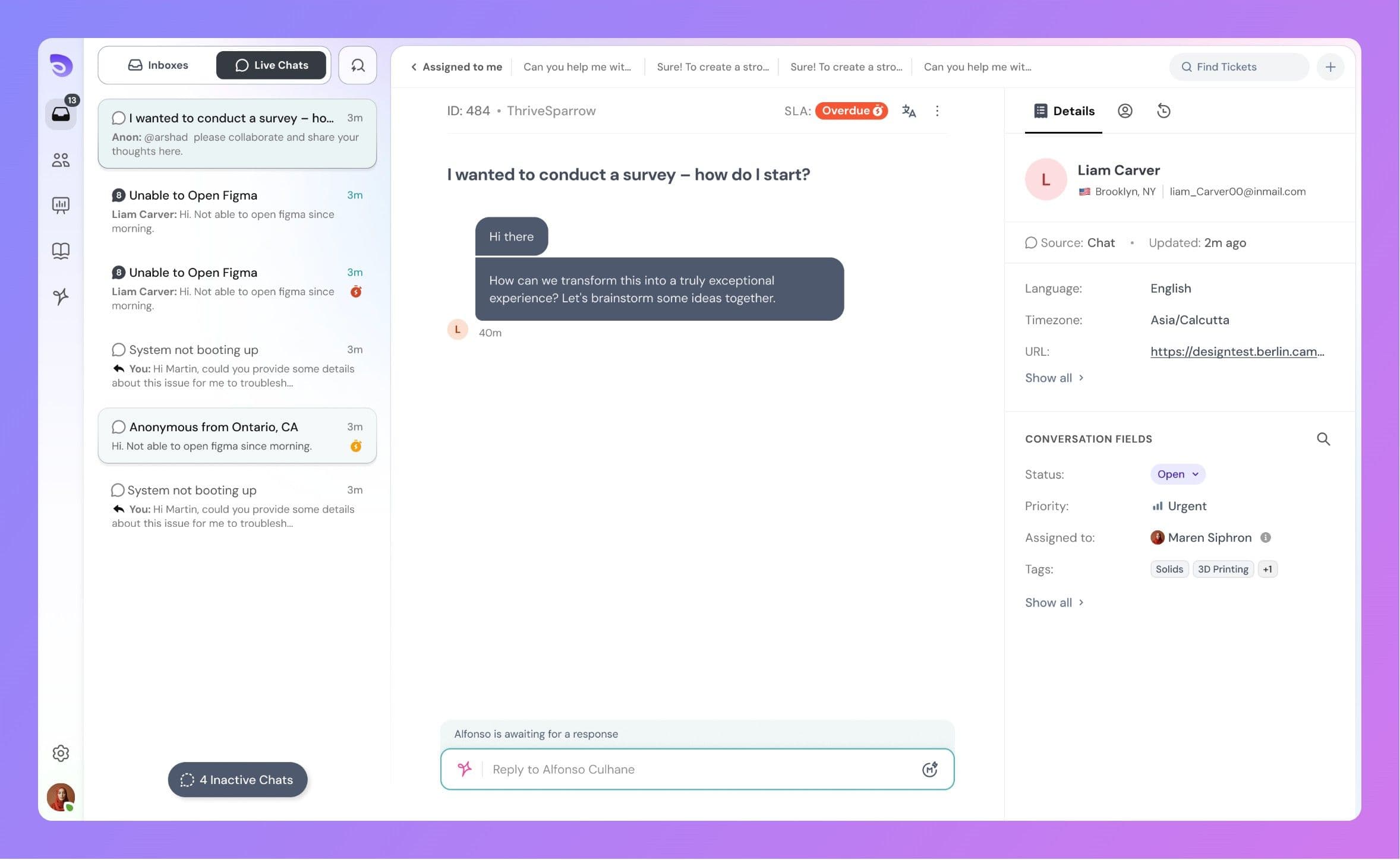
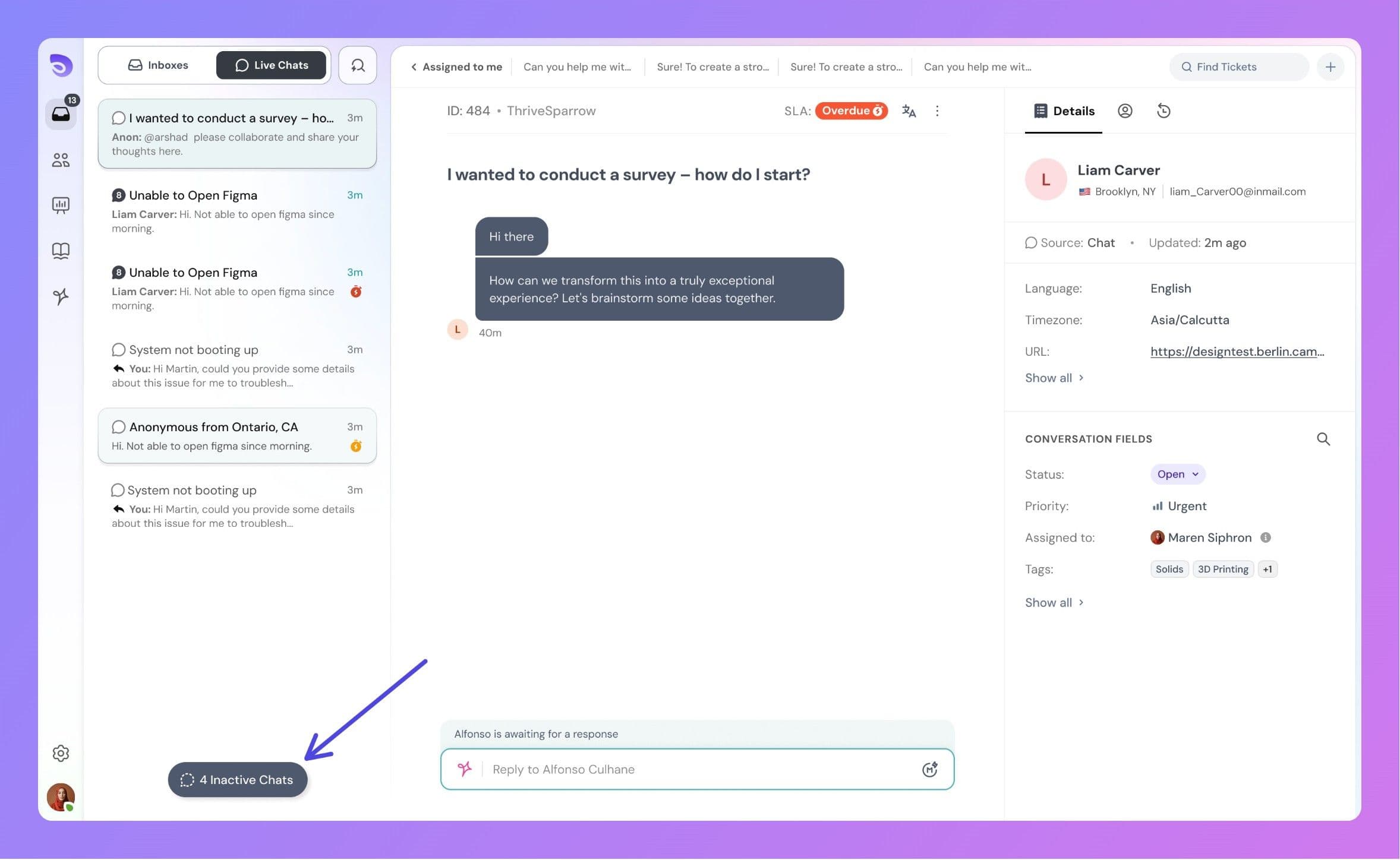
SparrowDesk offers a dedicated Live Chats section inside the Inbox to help support agents focus on real-time customer conversations without the noise of the entire conversation list.
What is the Live Chats tab?
The Live Chats tab is a focused view designed specifically for ongoing conversations happening via the chat channel. It allows agents to:
See only active chat conversations, reducing distractions.
Engage with users in real-time.
Update conversation properties (status, assignee, tags, etc.) just like in the “All Conversations” view.
How do chats appear in this tab?
Whenever a customer sends a message through the chat widget, the conversation automatically appears in the Live Chats tab. From here, agents can:
Read and respond to messages.
Perform actions like assigning, updating status, or adding notes.
Use AI Copilot (if enabled) for faster replies or summaries.
What happens when a chat becomes inactive?
To keep the tab focused on real-time activity, SparrowDesk uses inactivity logic:
If a user becomes inactive for 30 minutes, the conversation is automatically moved to the Inactive Chats filter.
Agents can easily toggle between Active and Inactive chats using filters at the top.
How long do Inactive chats stay?
Inactive chats remain visible in the Live Chats section for 7 days.
After 7 days, they are removed from the Live Chats tab.
These conversations are not deleted — they will continue to be available in the All Conversations view at any time.
Key Notes
Live Chat tab is available only for conversations via the chat channel.
Email or other channel conversations do not appear in this tab.
You can still access the same chat from the All Conversations or via search.