
Search

The Inbox is the first screen you see after logging into SparrowDesk. This is where all customer conversations land and where your team can manage, organize, and respond to them efficiently.
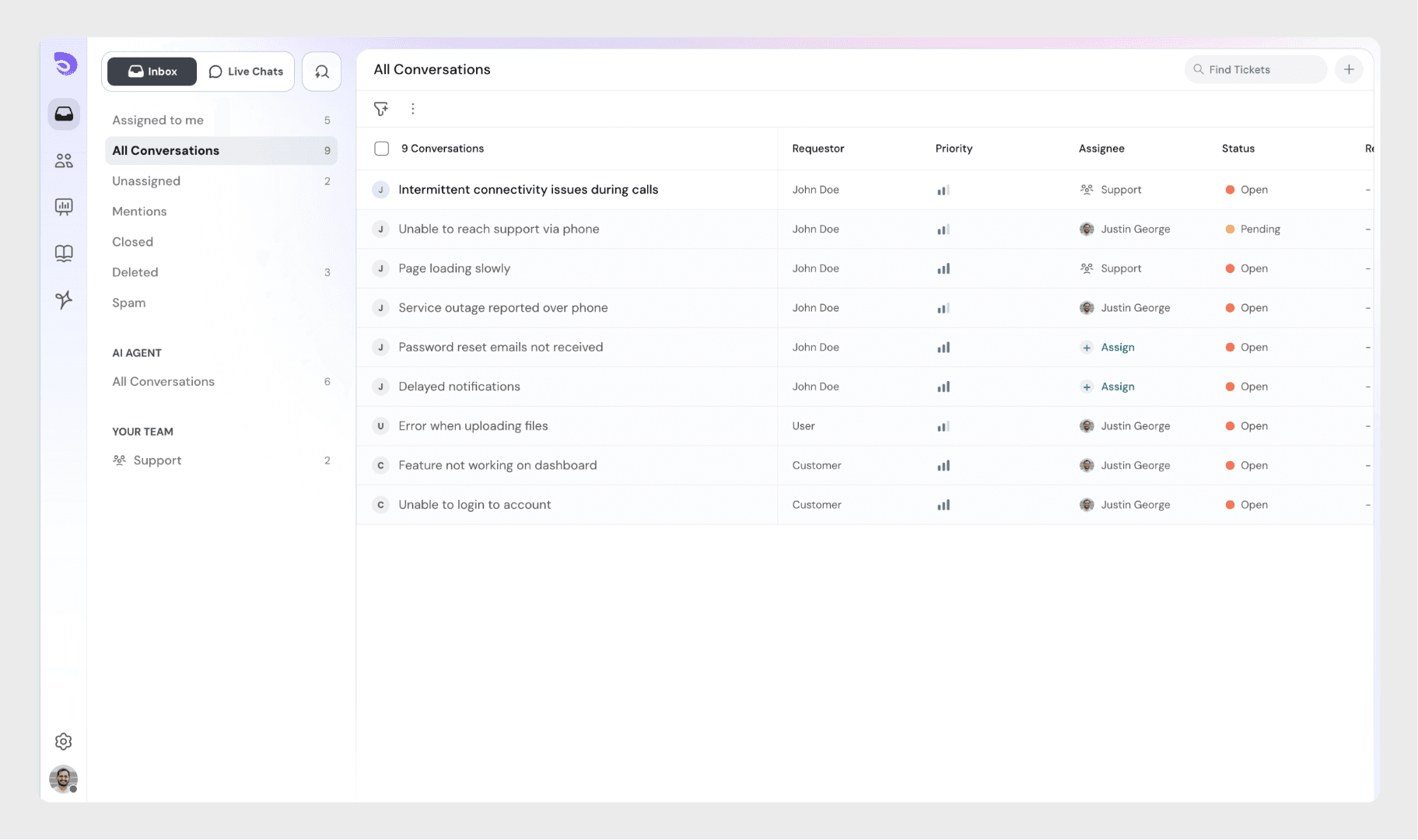
On the left sidebar, conversations are organized into different views or folders.
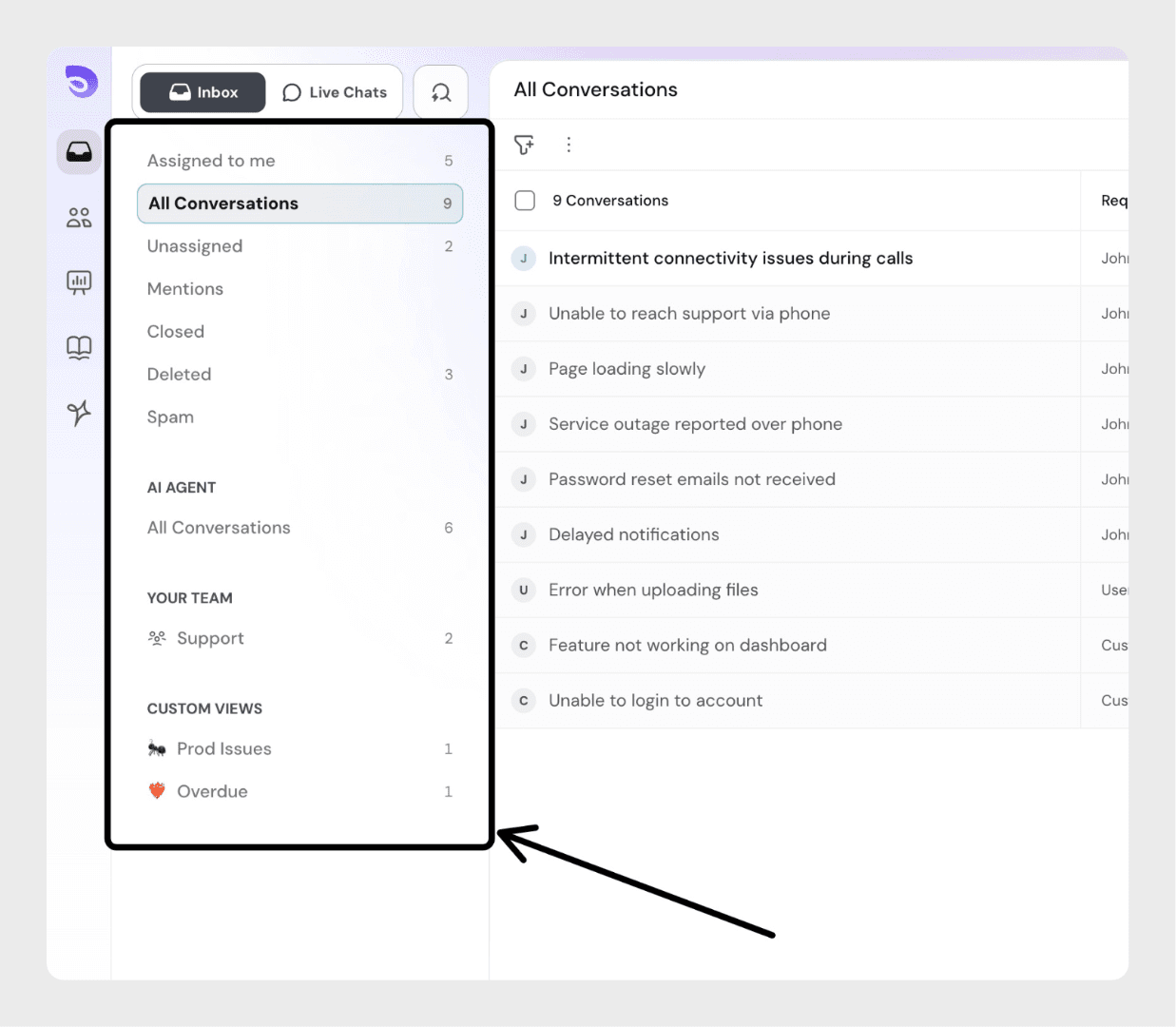
If you are part of one or more teams, each team will have its own view in the sidebar.
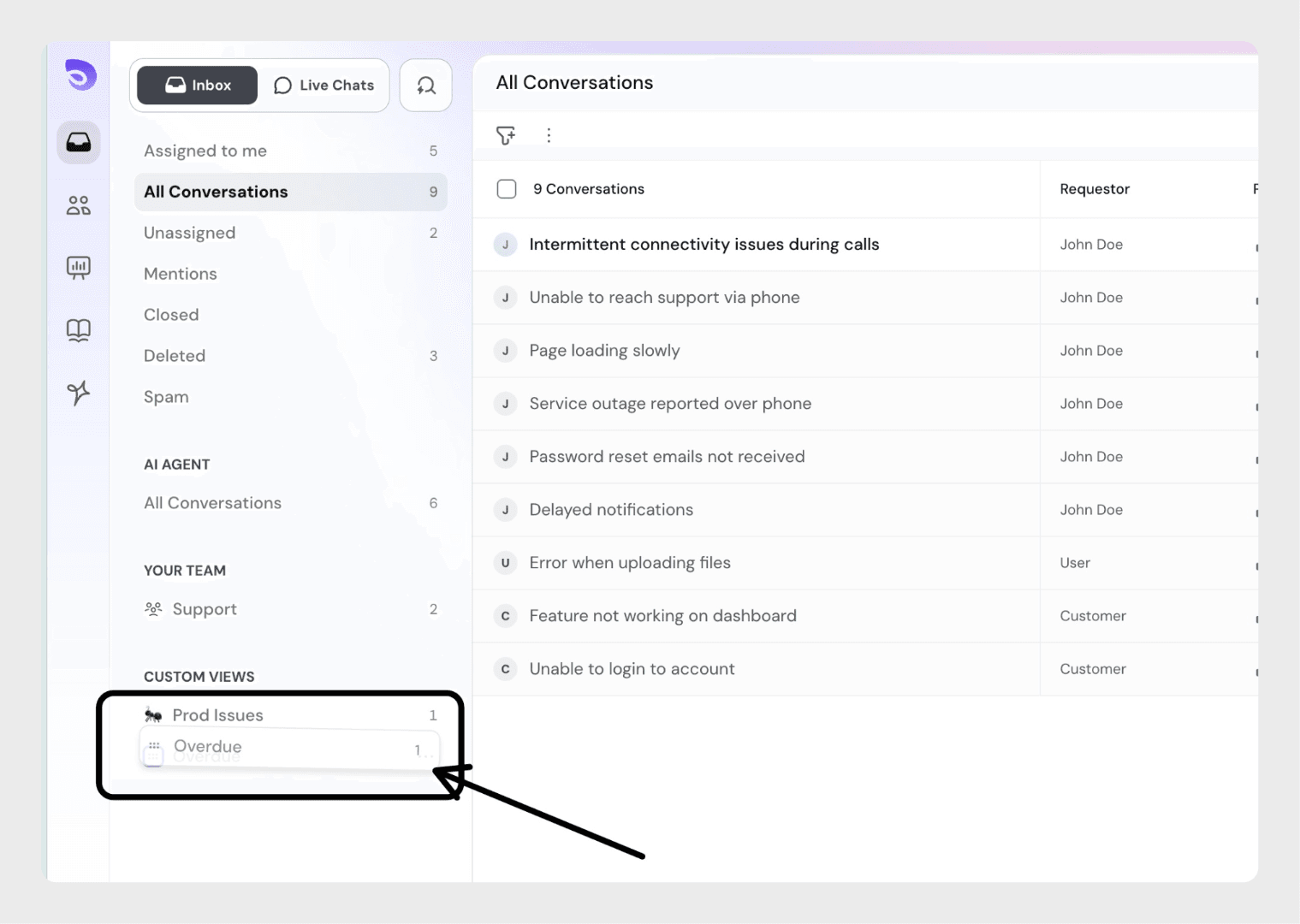
Custom Views are personalized folders you or your teammates create to group conversations based on specific conditions or filters (for example, all high-priority tickets, conversations from a certain customer, or overdue cases).
They make it easier to quickly access the conversations that matter most to you without applying filters every time.
On the right side, you will see conversations displayed in a table view. Each row represents one conversation and shows important details, such as:
Conversations are sorted by last updated by default (latest at the top).
To sort conversations in the UI, hover over the column header that supports sorting. You will see a small arrow icon appear. Click on this arrow to toggle between ascending and descending order for that column.
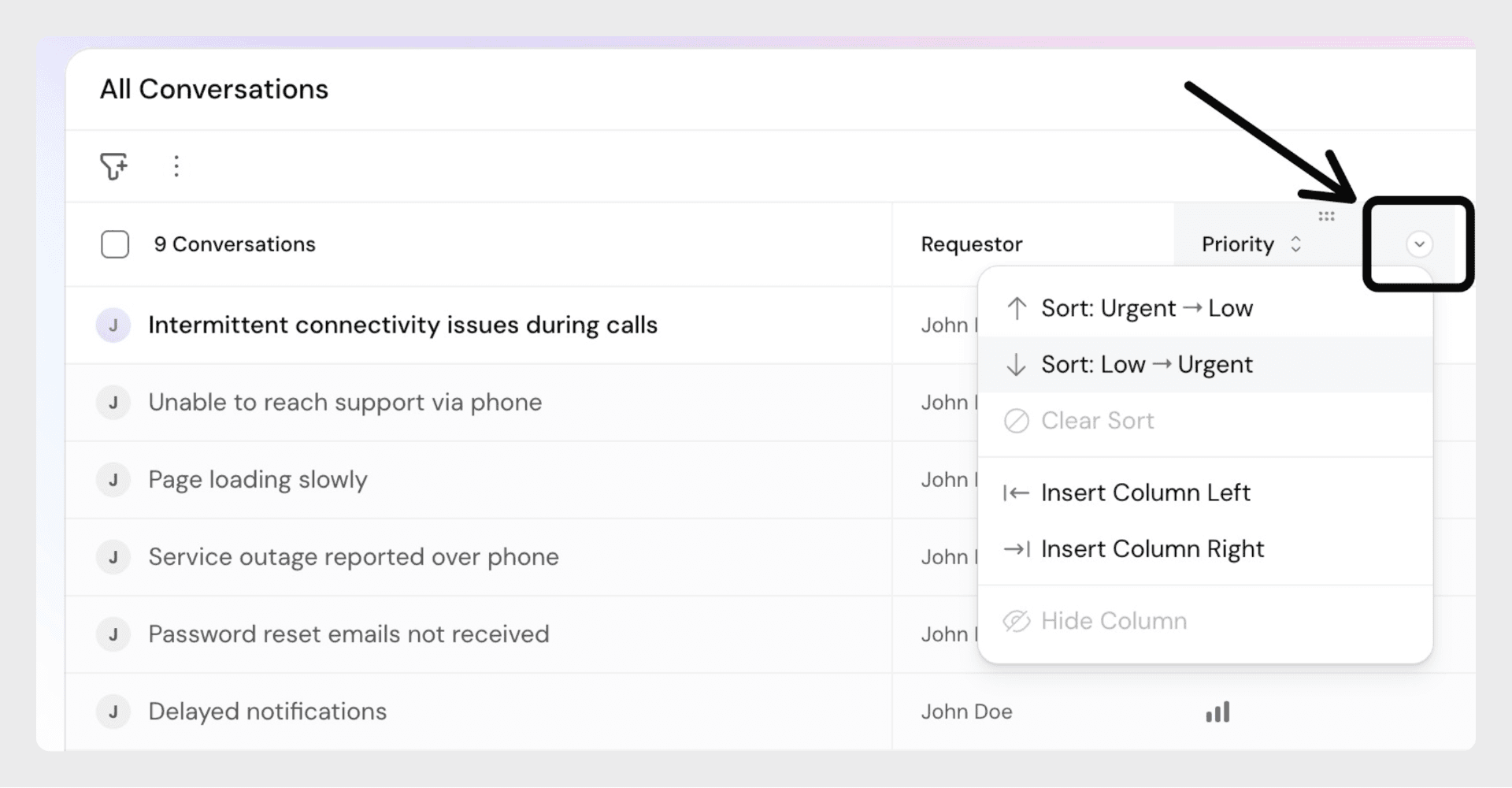
Some fields support custom sorting:
Default Fields
Custom Fields
Sorting is available for these field types:
You can customize the table columns to suit your workflow:
Rearranging Columns
Drag and Drop: Grab the column header and move it to your desired position.
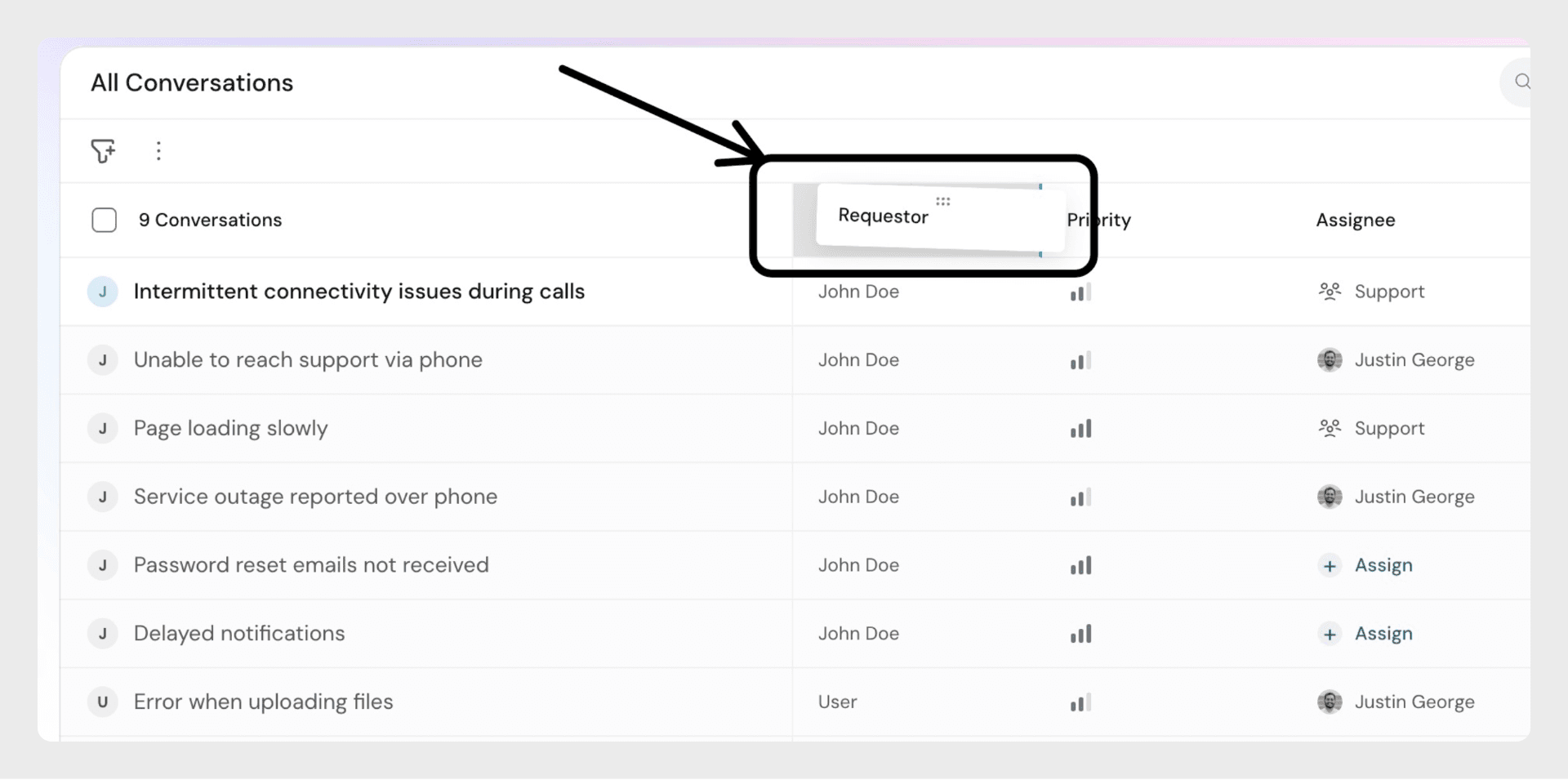
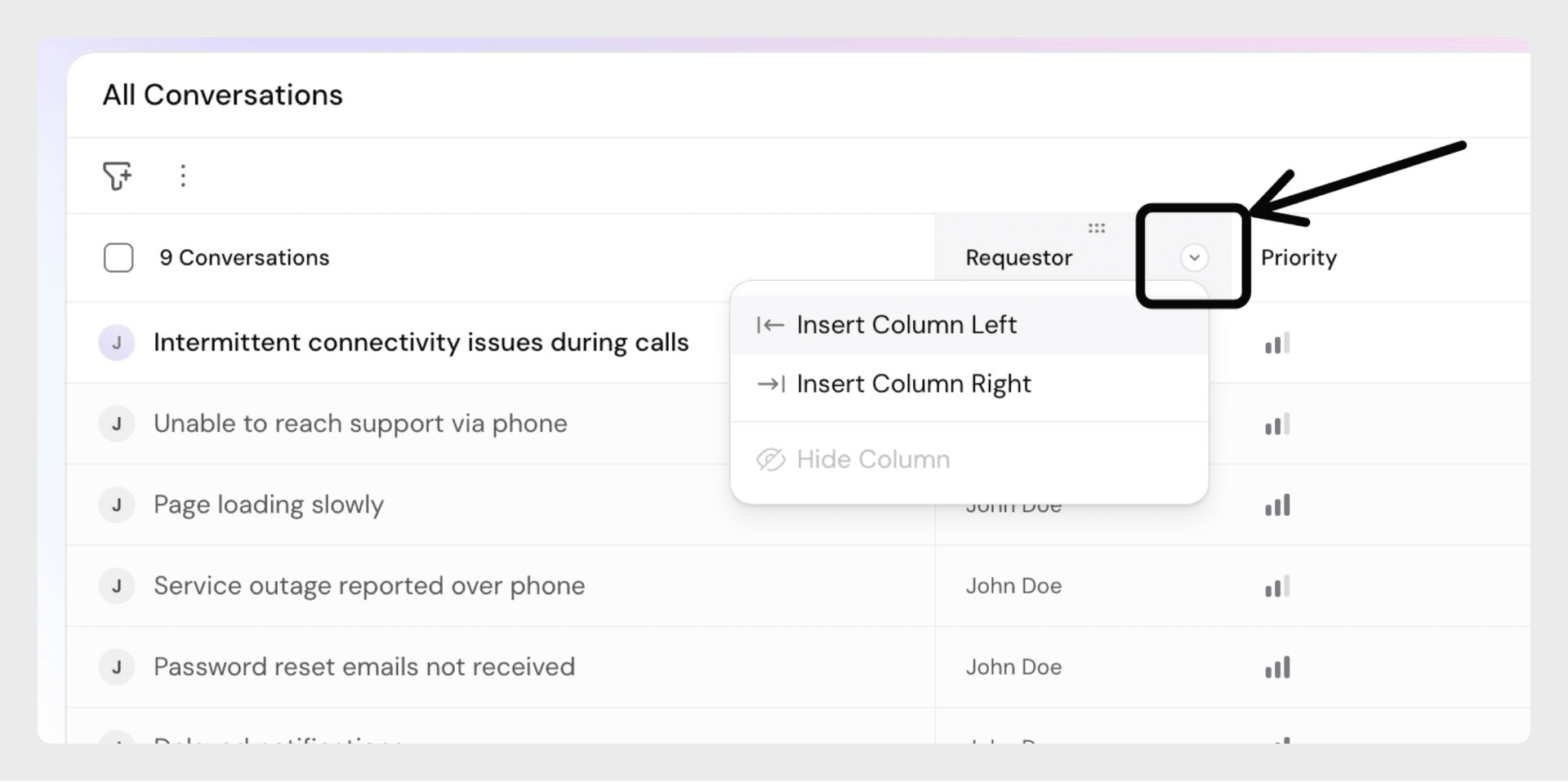
Insert Option: Hover over a column header, click the arrow button, and select Insert column left or Insert column right. Then choose the column to place.
Important Notes
When you click a conversation from the inbox table, SparrowDesk opens the full conversation view. This is where you read the customer’s messages, respond to them, and take action on the ticket.
The conversation history appears in the main area of the screen and includes:
Messages are shown in chronological order, with the most recent message at the bottom. Customer messages and agent messages are visually distinct, making it easy to follow the conversation and avoid sending replies by mistake.
At the bottom of the conversation, you’ll find the reply box. From here, you can choose to:
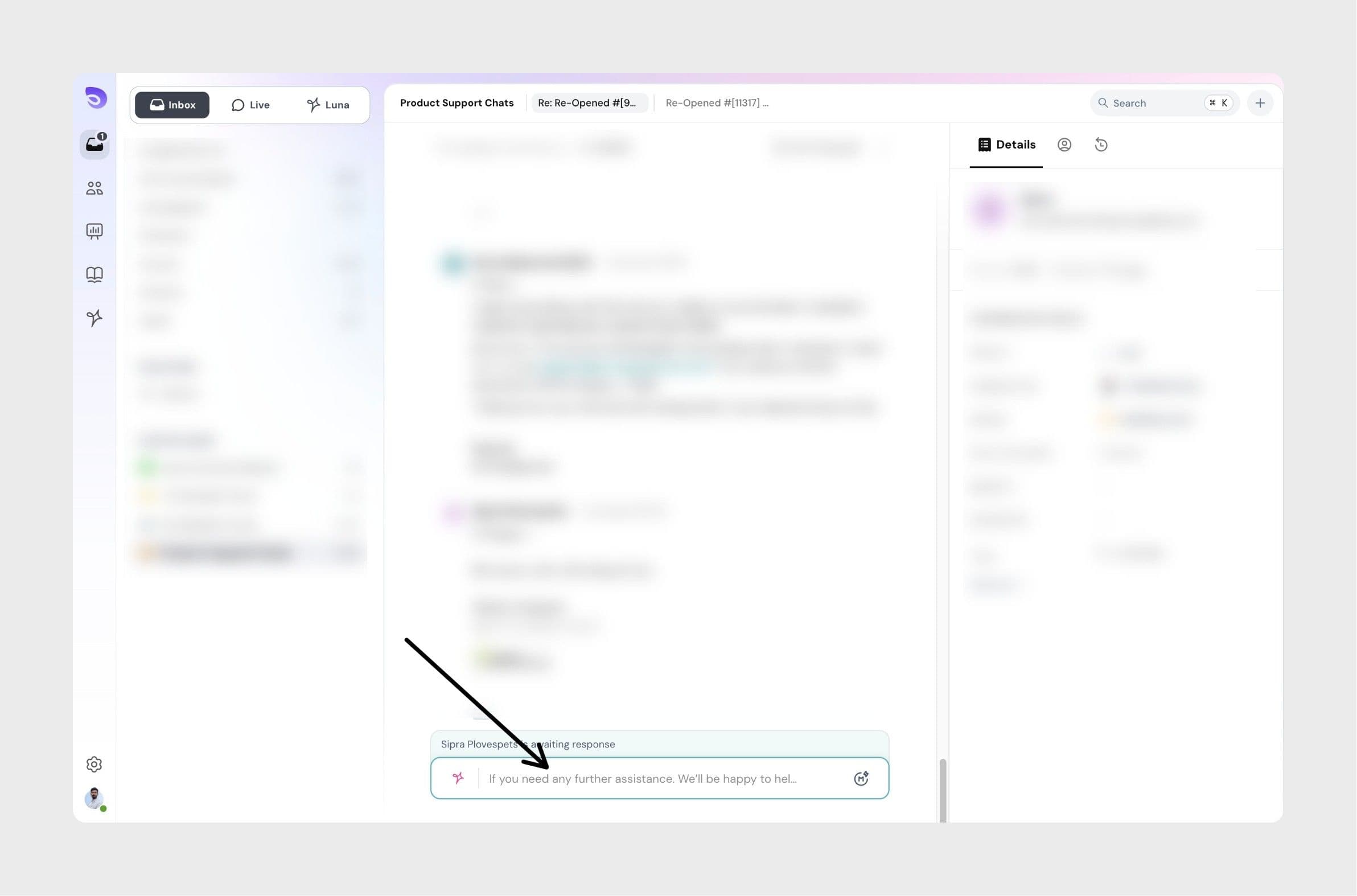
While typing a reply, SparrowDesk automatically saves your message as a draft. This helps you step away from a conversation and return to it later without losing your work.
Drafts are saved per agent. Only you can see your own draft — drafts created by one agent are not visible to other teammates. Drafts stay saved until you send the message or clear the draft yourself.
While replying to a conversation, you don’t need to leave the ticket to manage its details.
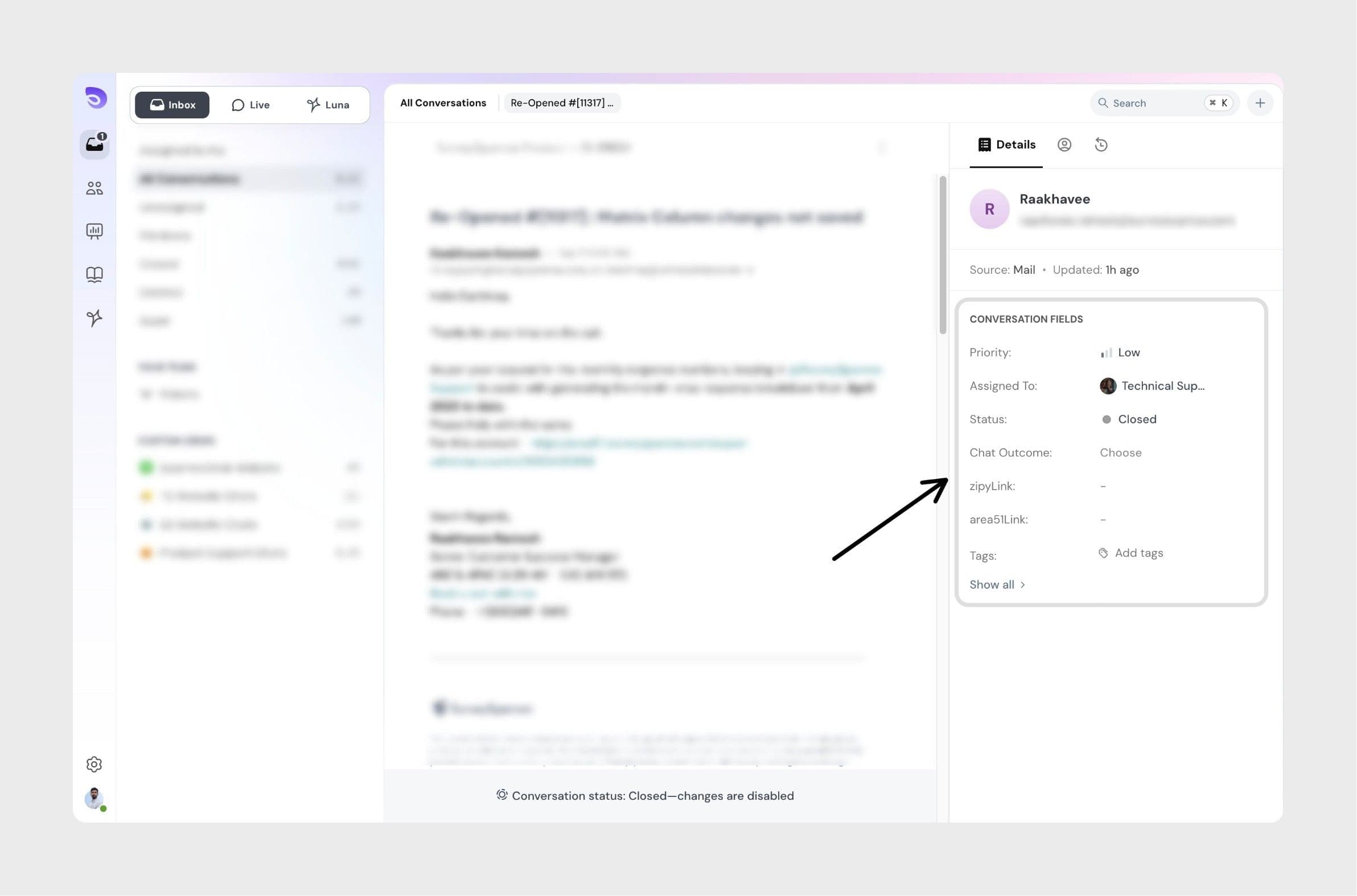
From the same conversation view, you can update key ticket information such as:
All updates happen in real time and are recorded as part of the ticket’s activity.
Every conversation in SparrowDesk keeps a record of what has happened over time. This activity history helps you understand the full context of the ticket, even if you’re opening it for the first time.
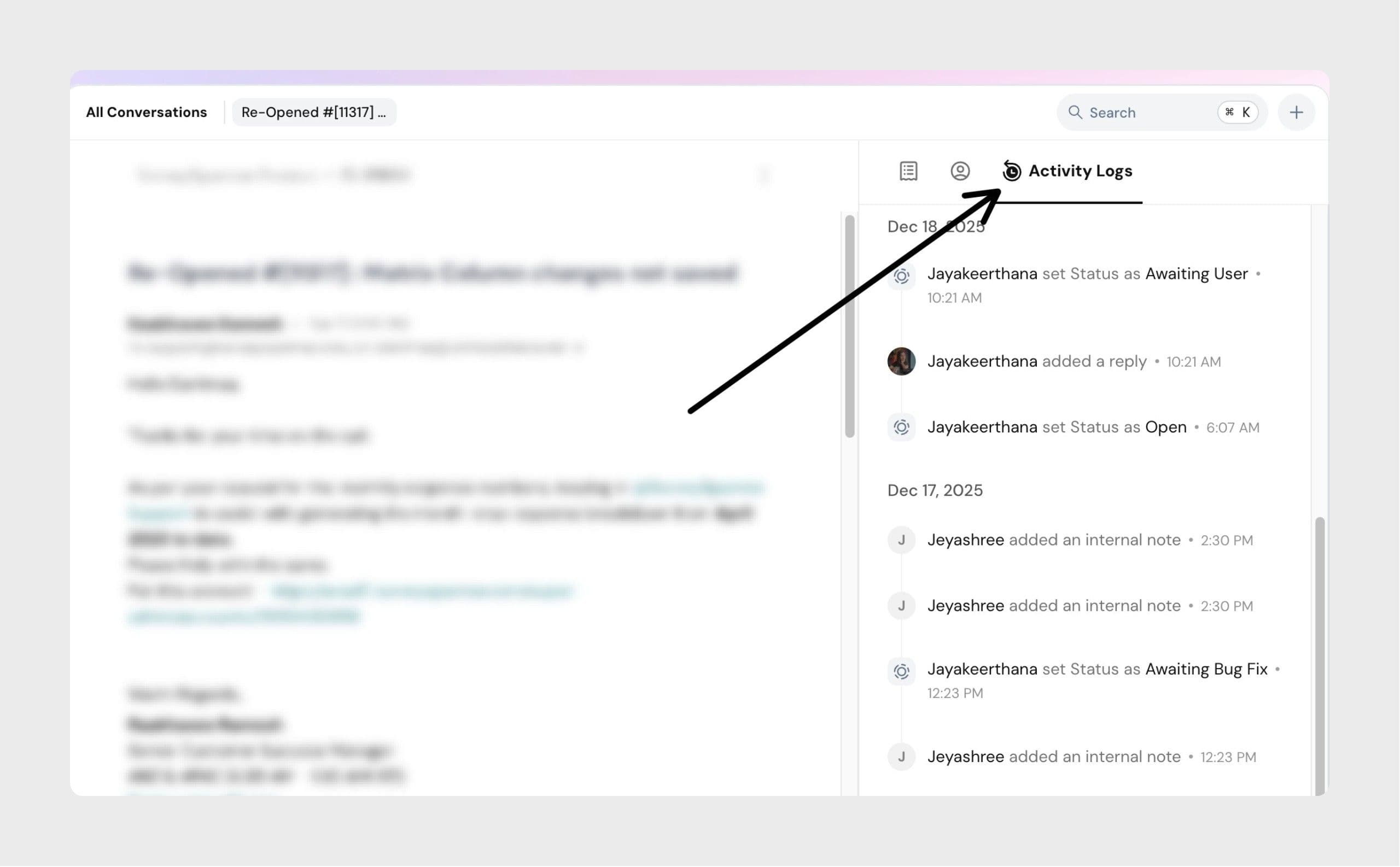
The activity history appears alongside the conversation and shows important updates such as:
This makes it easy to see how a conversation has progressed and what actions have already been taken.
Powered By SparrowDesk