
Search

This integration connects Linear with SparrowDesk, so your support and engineering teams can stay aligned without switching tools.
Once connected, support agents can create new Linear issues directly from a SparrowDesk ticket, or link existing Linear issues to a conversation. This ensures customer-reported bugs and feature requests are always tracked on the engineering side — with full context.
After connecting Linear to SparrowDesk, agents can:
SparrowDesk continues to manage support conversations. Linear tracks the engineering work tied to those conversations.
Before you start
Make sure you have the following before connecting Linear:
The integration setup begins inside SparrowDesk Settings.
From your SparrowDesk account:
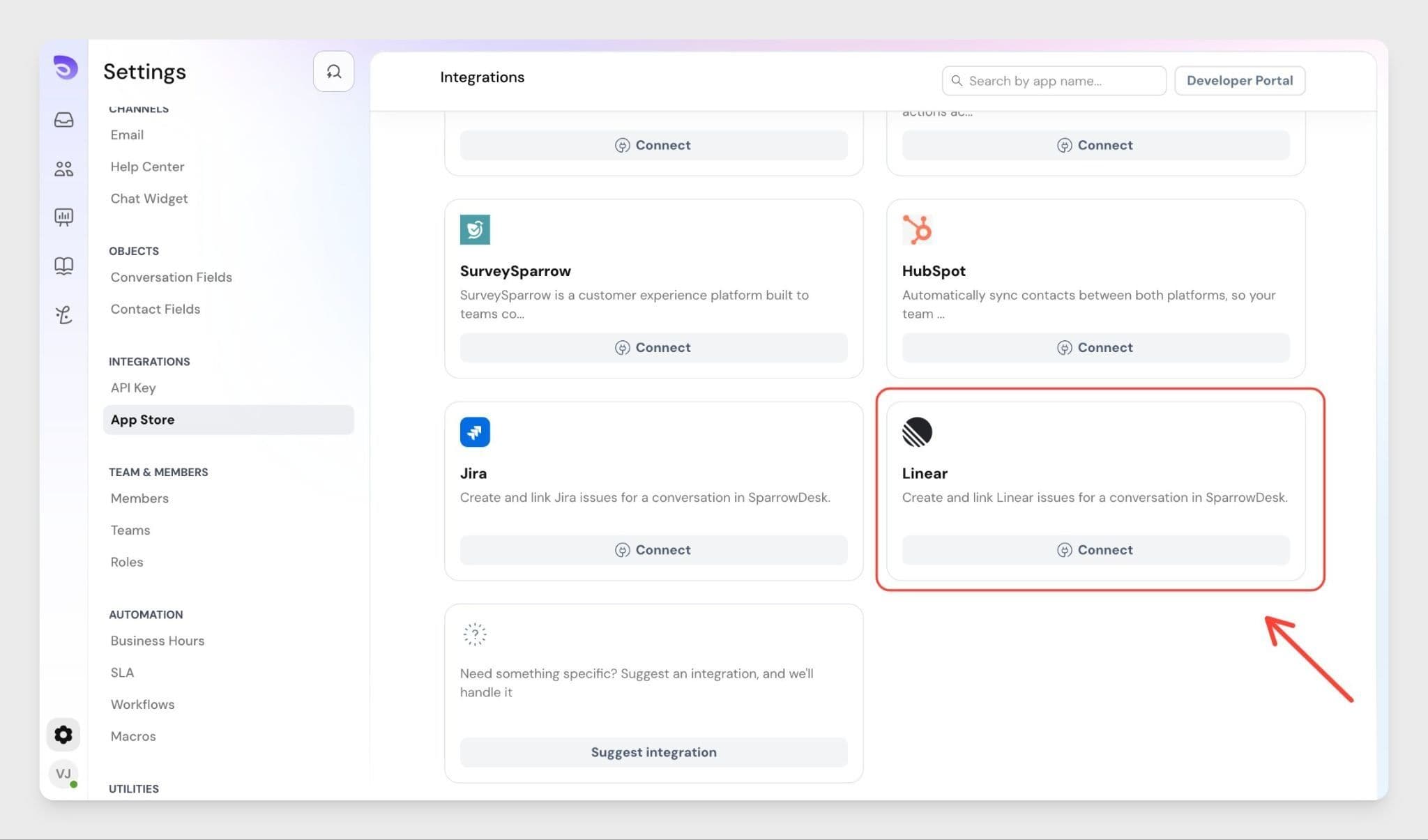
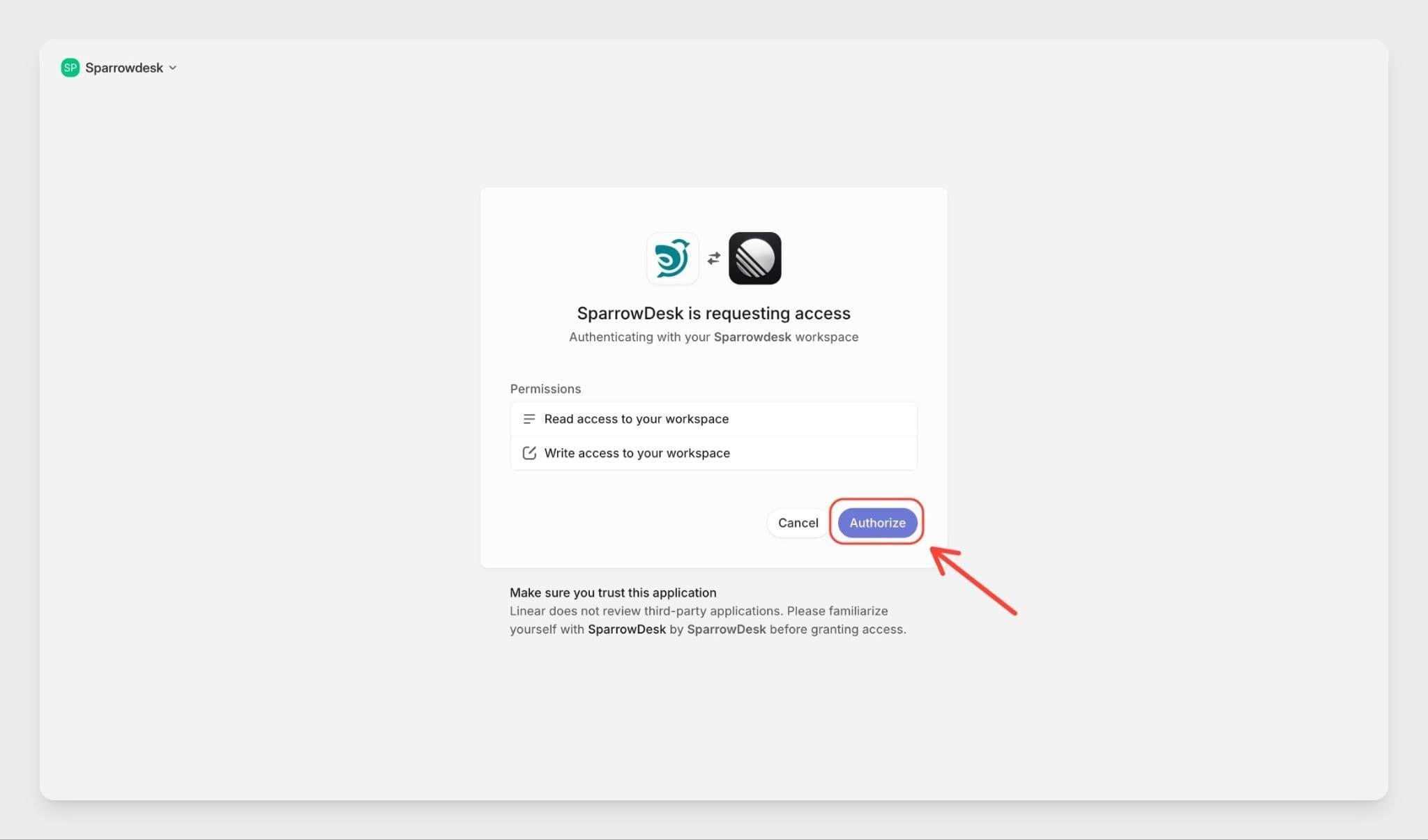
Once authorised, your Linear workspace is connected. Agents can immediately start creating and linking issues from tickets.
Once the workspace is connected:
From here on, agents work from SparrowDesk as usual — Linear is accessible directly from the ticket panel.
Creating a Linear issue from a ticket
When a customer reports a bug or a product issue, agents can create a Linear issue without leaving the ticket.
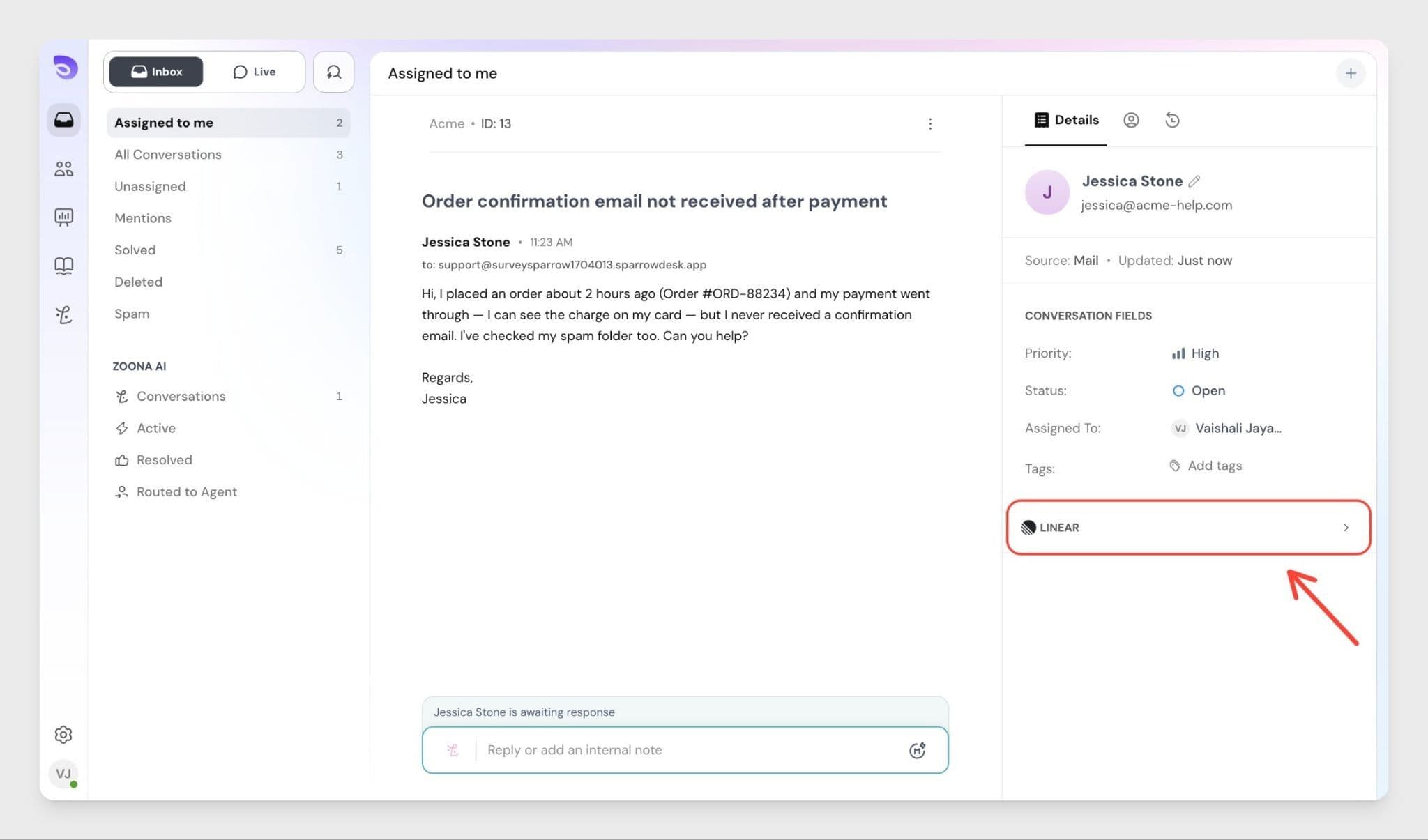
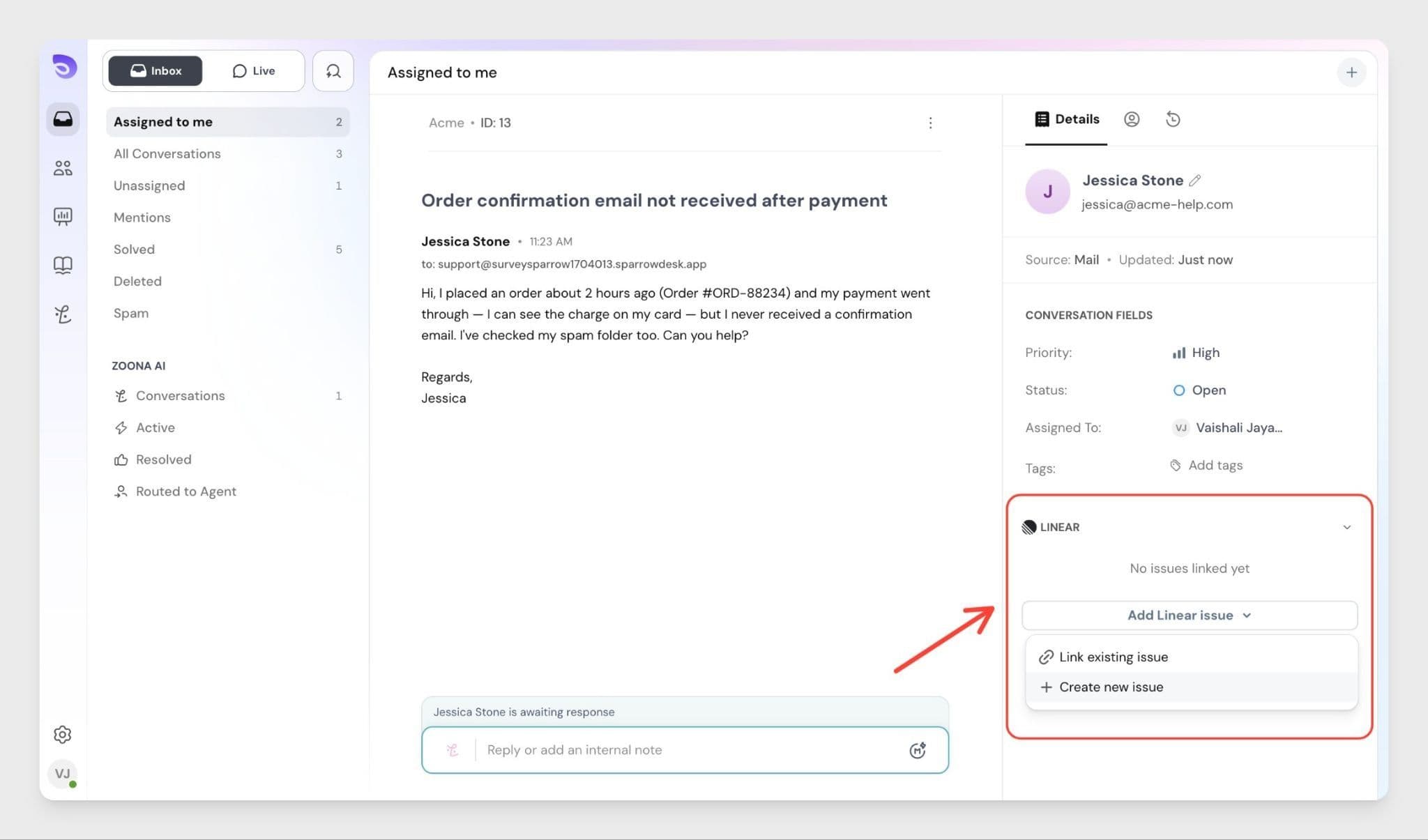
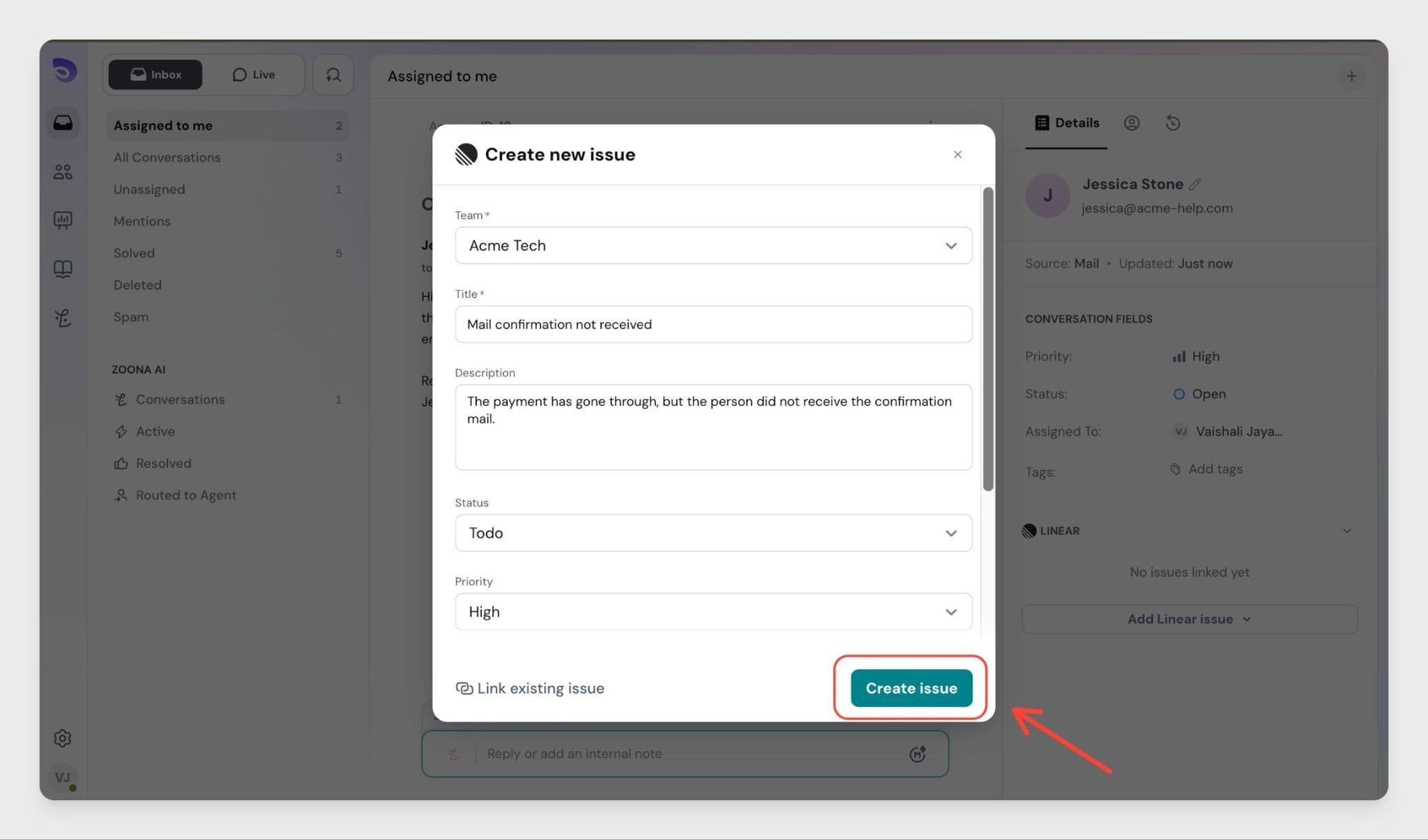
The issue is instantly created in Linear and linked to the ticket. Both teams can now track the same request from their own tool.
If a Linear issue already exists for the problem a customer reported, you can link it instead of creating a new one.
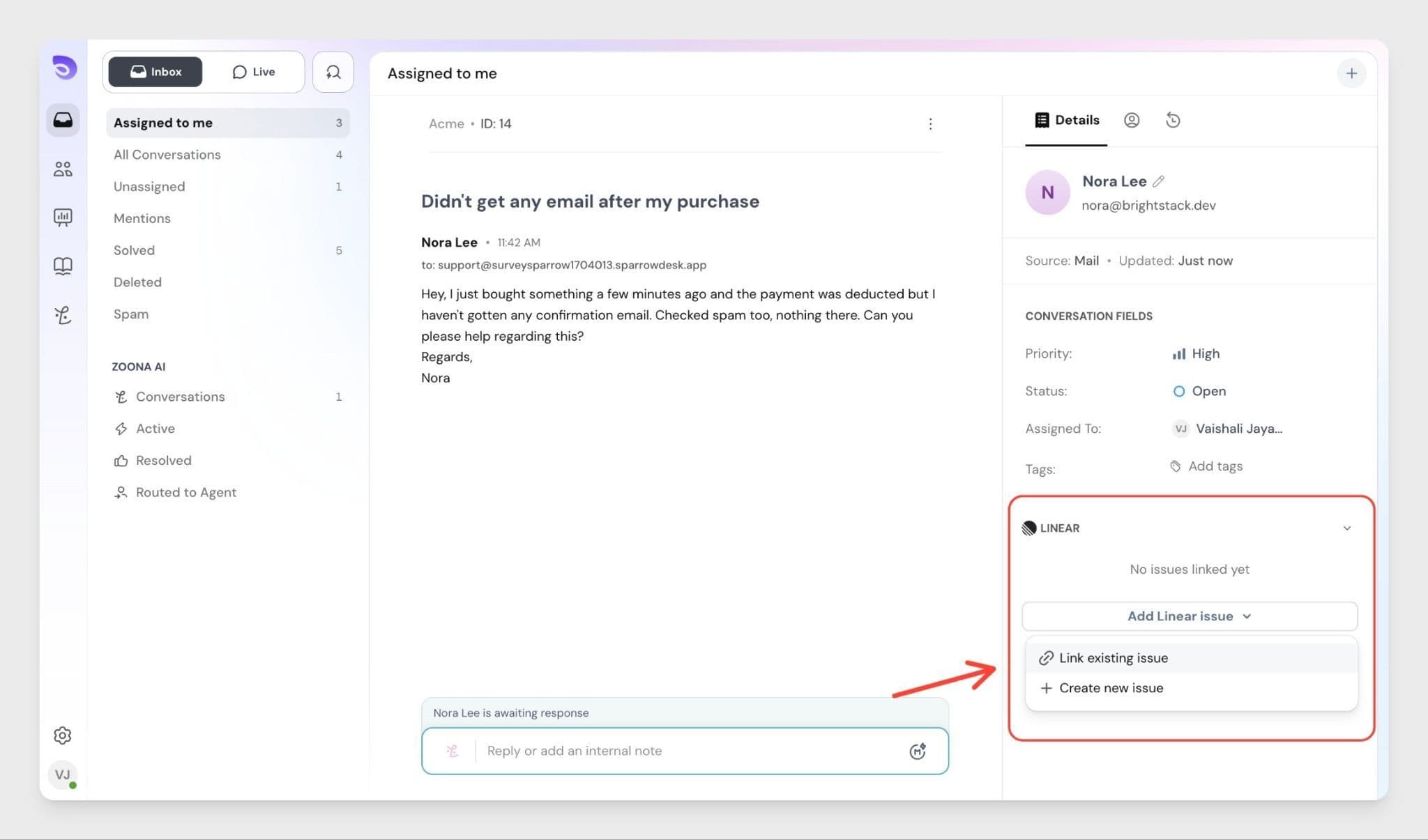
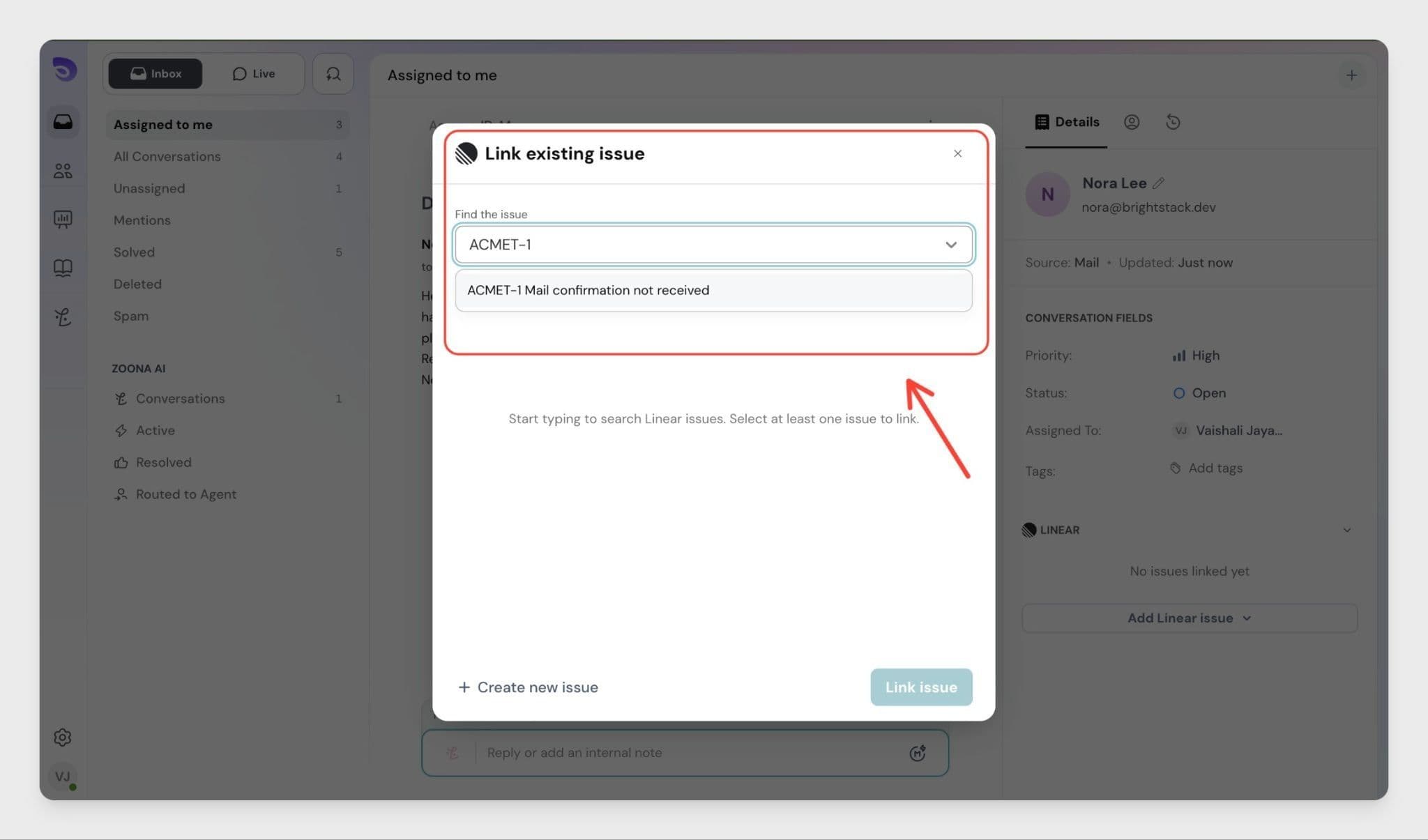
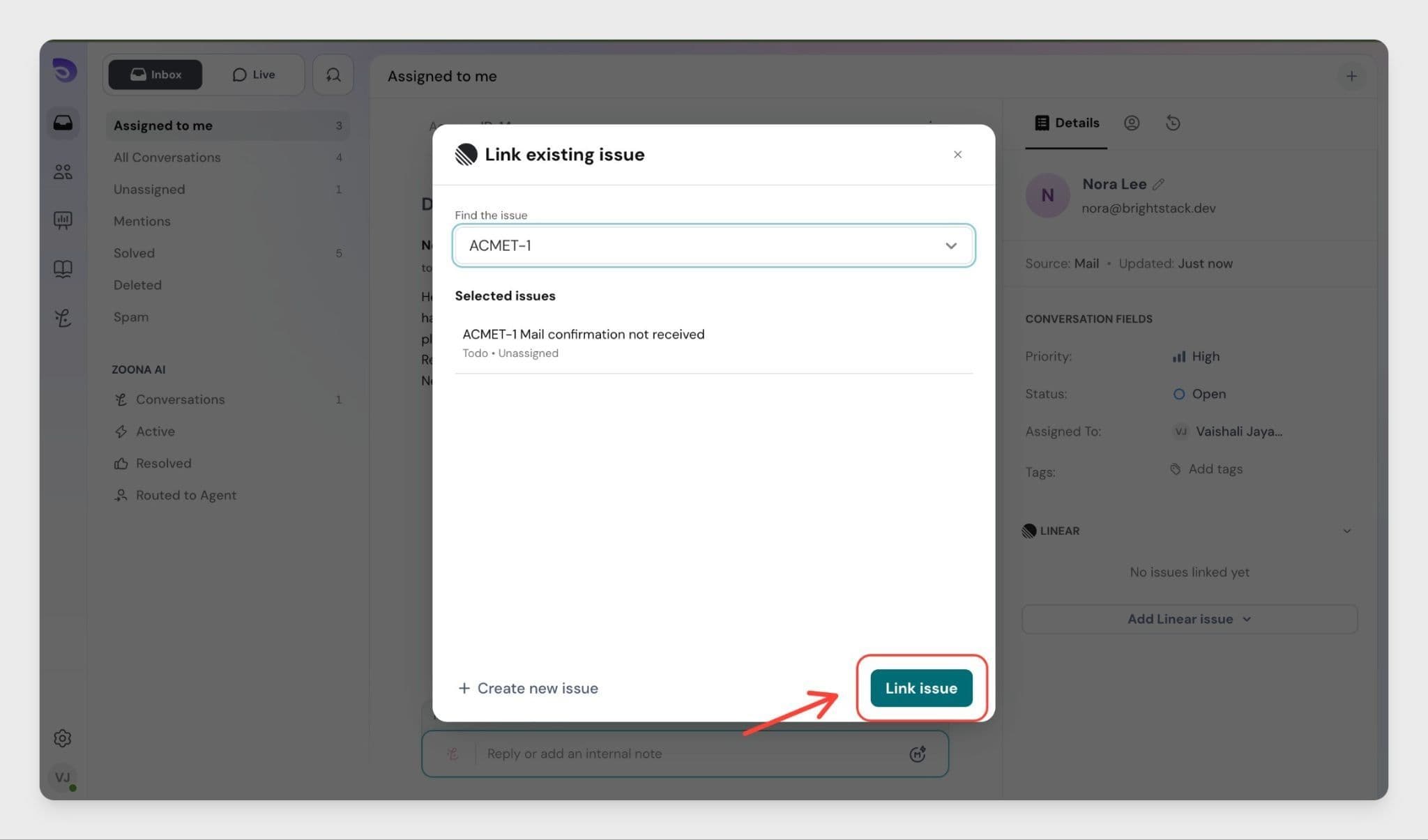
Once linked, the issue appears in the ticket panel. You can link multiple Linear issues to the same ticket if needed.
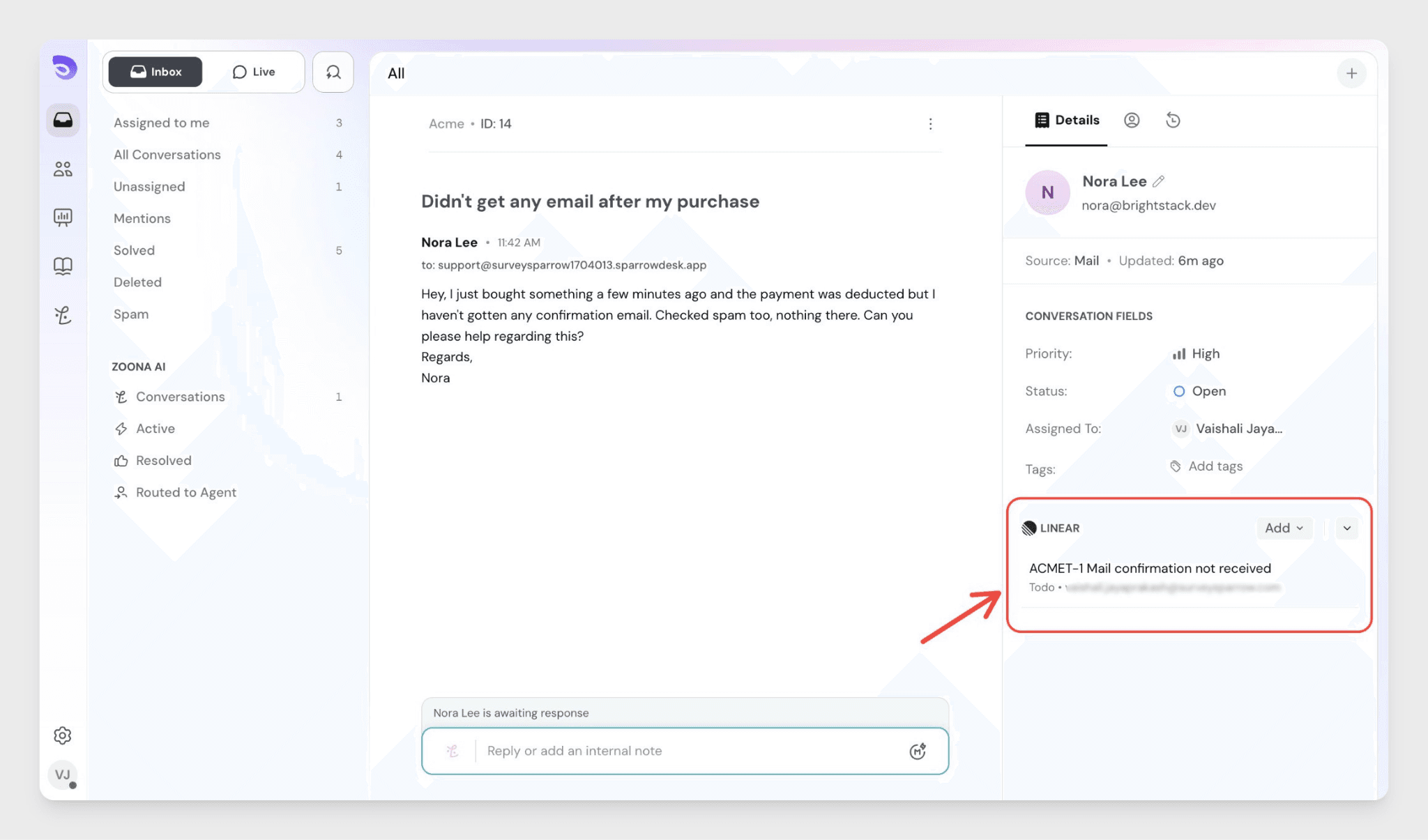
Once a Linear issue is linked to a ticket, it appears in the Linear panel inside the ticket view.
For each linked issue, agents can see:
Multiple issues can be linked to the same ticket. This helps support teams share clear context with engineering without duplicating information.
What syncs
What doesn't sync
Real-time status sync between Linear and SparrowDesk is not yet available. To keep support and engineering aligned on issue progress, teams are encouraged to check linked issues directly in Linear or update ticket statuses manually. |
SparrowDesk remains the source of truth for support conversations.
Linear remains the source of truth for engineering issue tracking.
If you no longer want to use the integration, you can disconnect it from SparrowDesk Settings at any time.
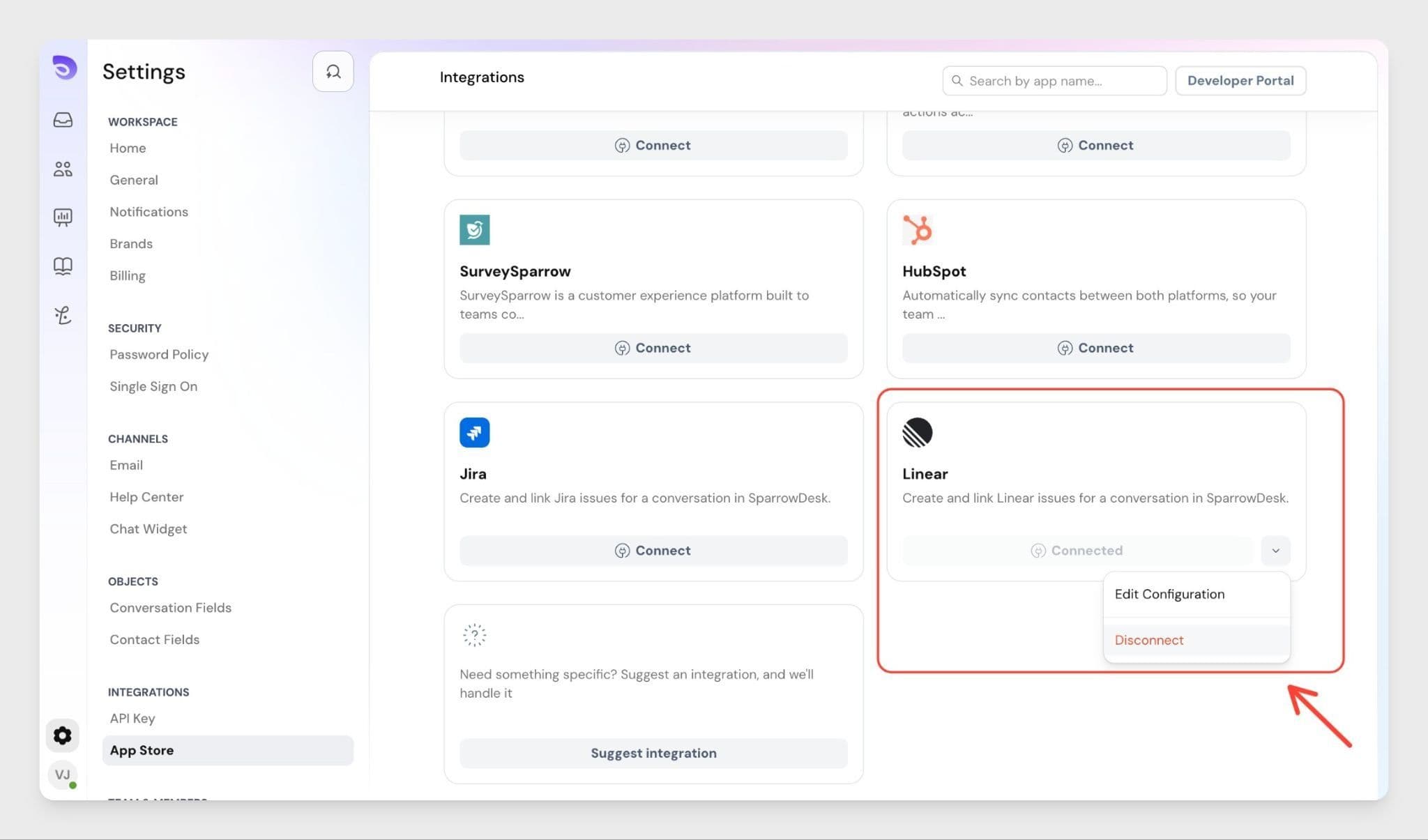
Once disconnected, SparrowDesk will no longer be able to create or link issues to your Linear workspace.
Note: Once disconnected, existing links between tickets and Linear issues will be removed. If you reconnect Linear later, earlier links are not restored automatically — tickets will need to be linked again manually.
Summary
The Linear–SparrowDesk integration is designed to keep your support and engineering teams working in sync:
Once connected, both teams have the context they need — in the tool they already use.
1. Can multiple agents use the Linear integration once it is connected?
Yes. Once an admin connects the Linear workspace, all agents in SparrowDesk can create and link Linear issues from their tickets. No individual setup is required per agent.
2. Can I link more than one Linear issue to the same ticket?
Yes. You can link as many Linear issues as needed to a single support ticket. All linked issues appear in the Linear panel inside the ticket.
3. Will Linear issue status changes appear in SparrowDesk automatically?
Not yet. Real-time status sync is not currently available. Agents can click the linked issue to check the latest status directly in Linear.
4. Which Linear hosting types are supported? The integration currently supports Linear Cloud workspaces only.
5. What happens to previously linked issues if I disconnect Linear?
Once disconnected, existing links between tickets and Linear issues will be removed. If you reconnect Linear later, earlier links are not restored automatically — tickets will need to be linked again manually.
6. Does this integration create contacts or records inside Linear?
No. The integration only creates or links Linear issues. It does not create contacts, members, or any other records inside your Linear workspace.
Powered By SparrowDesk