
Search

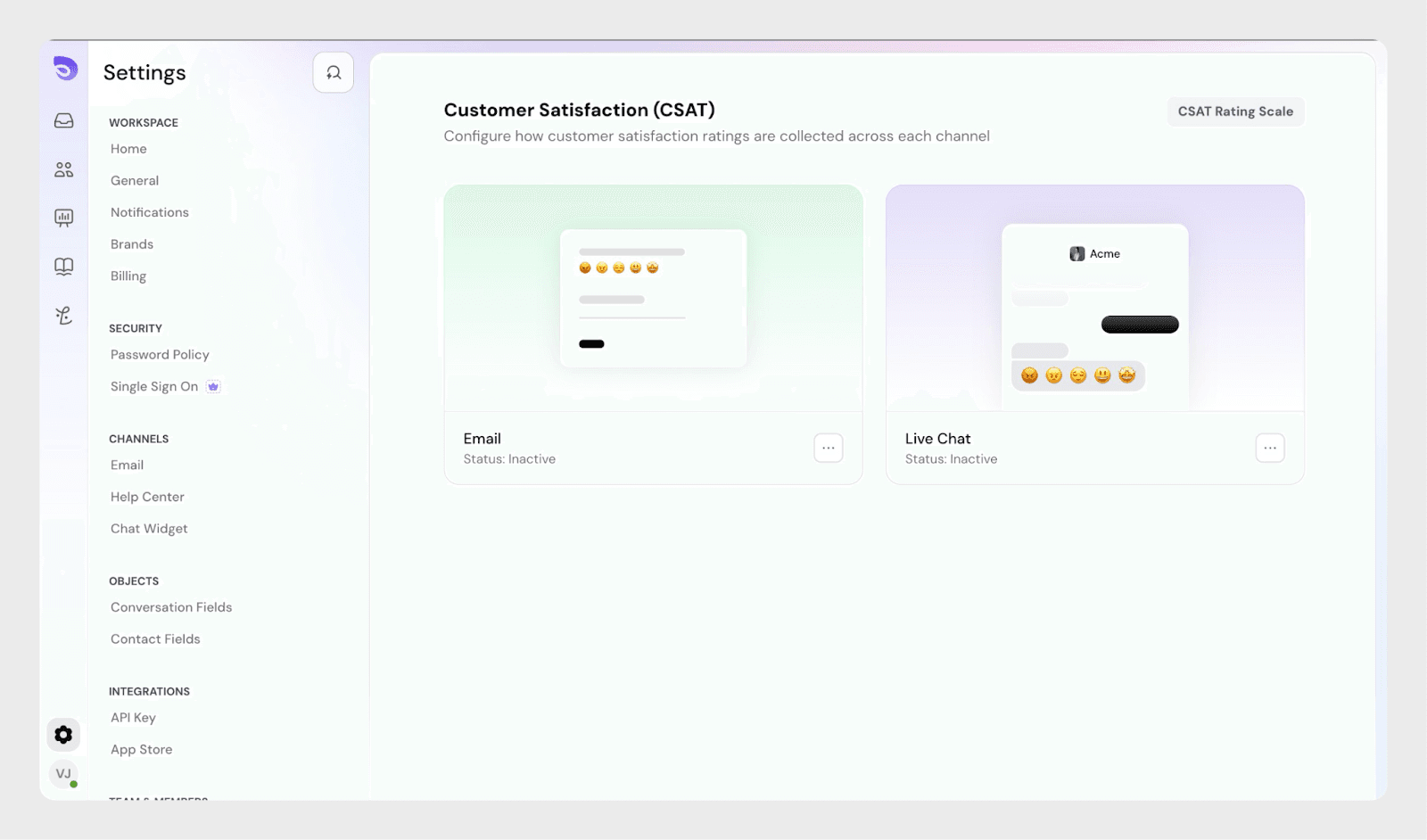
CSAT lets you collect quick feedback from customers after a support conversation is completed. In SparrowDesk, CSAT can be configured separately for Email and Live Chat, giving you full control over when and how feedback is collected.
This article walks you through how to enable and configure CSAT in SparrowDesk.
Only users with admin access or users granted CSAT permissions through the custom role builder can configure CSAT settings.
To get started:
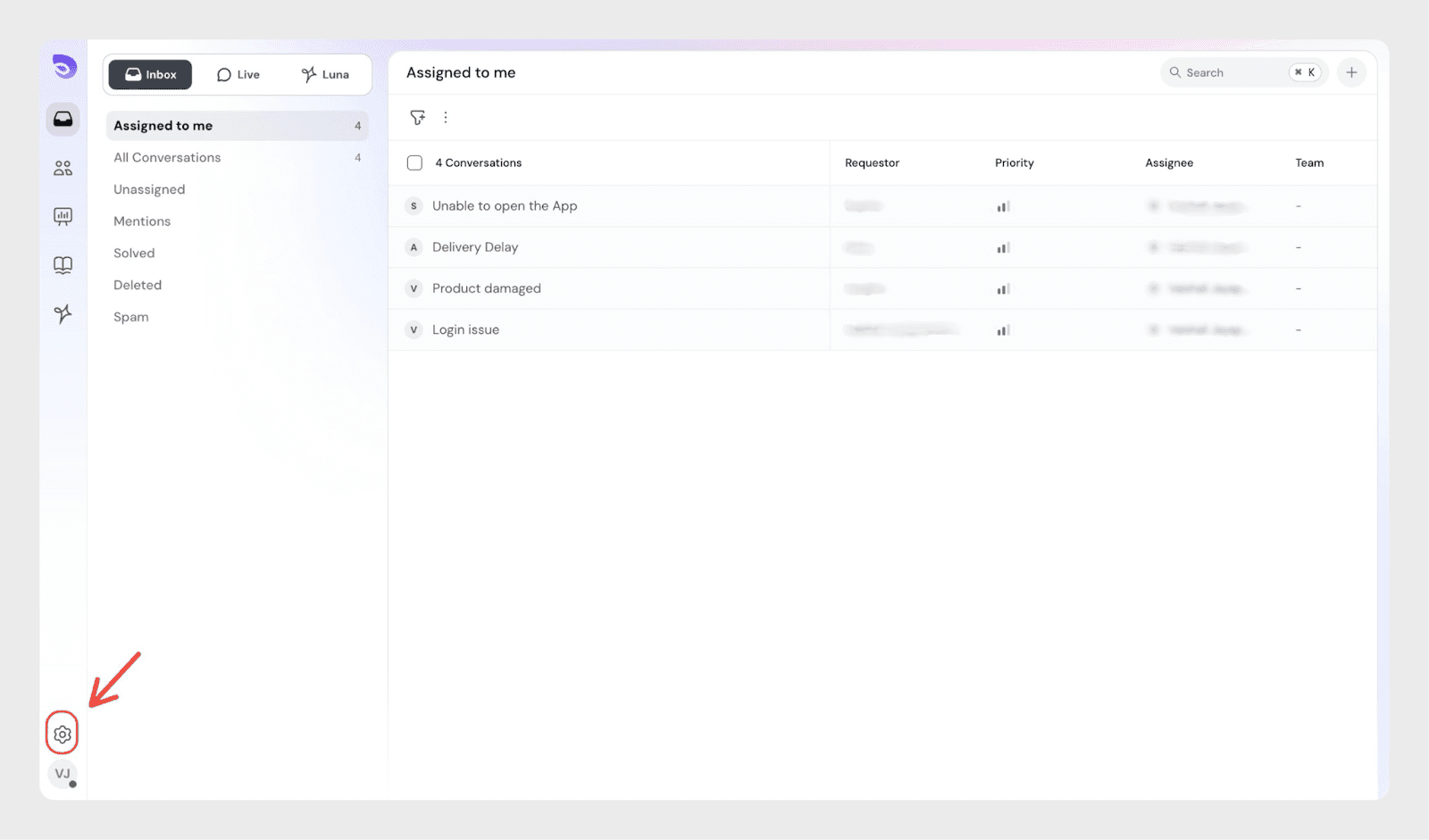
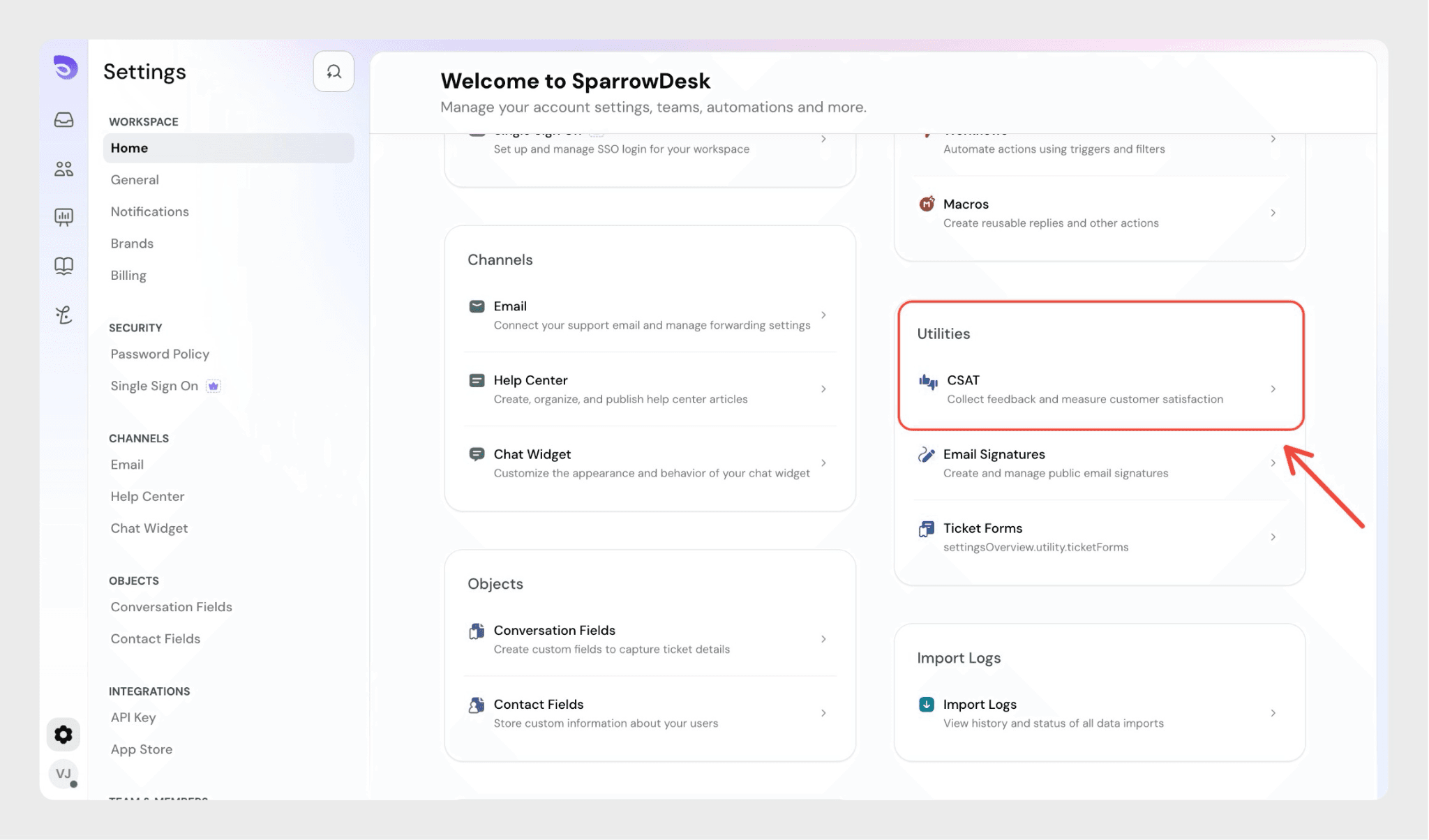
This opens the CSAT configuration page, where you can manage CSAT for different channels.
SparrowDesk lets you control how customers rate their support experience.
Click CSAT Rating Scale on the CSAT settings page to customize the scale used for both Email and Live Chat.
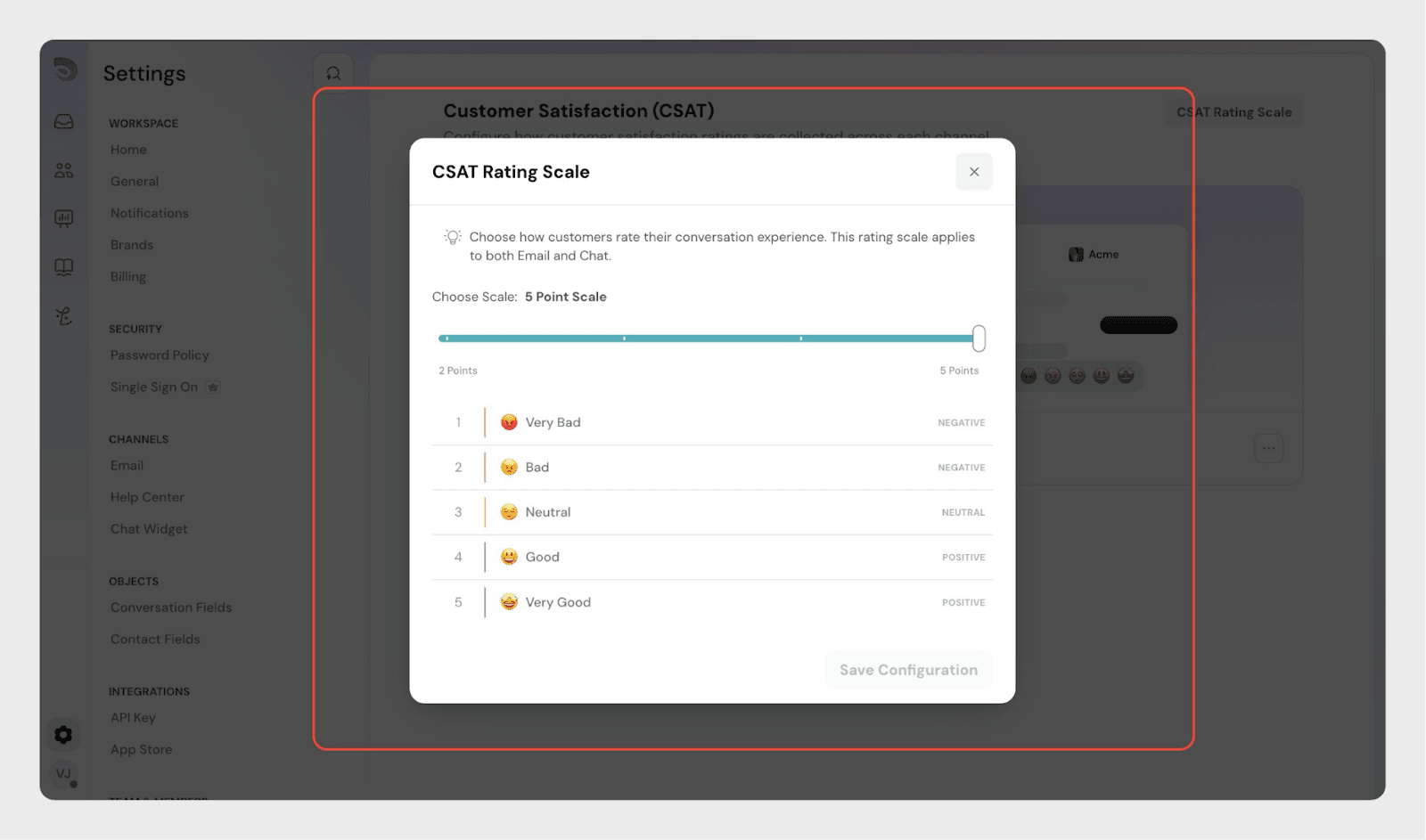
You can:
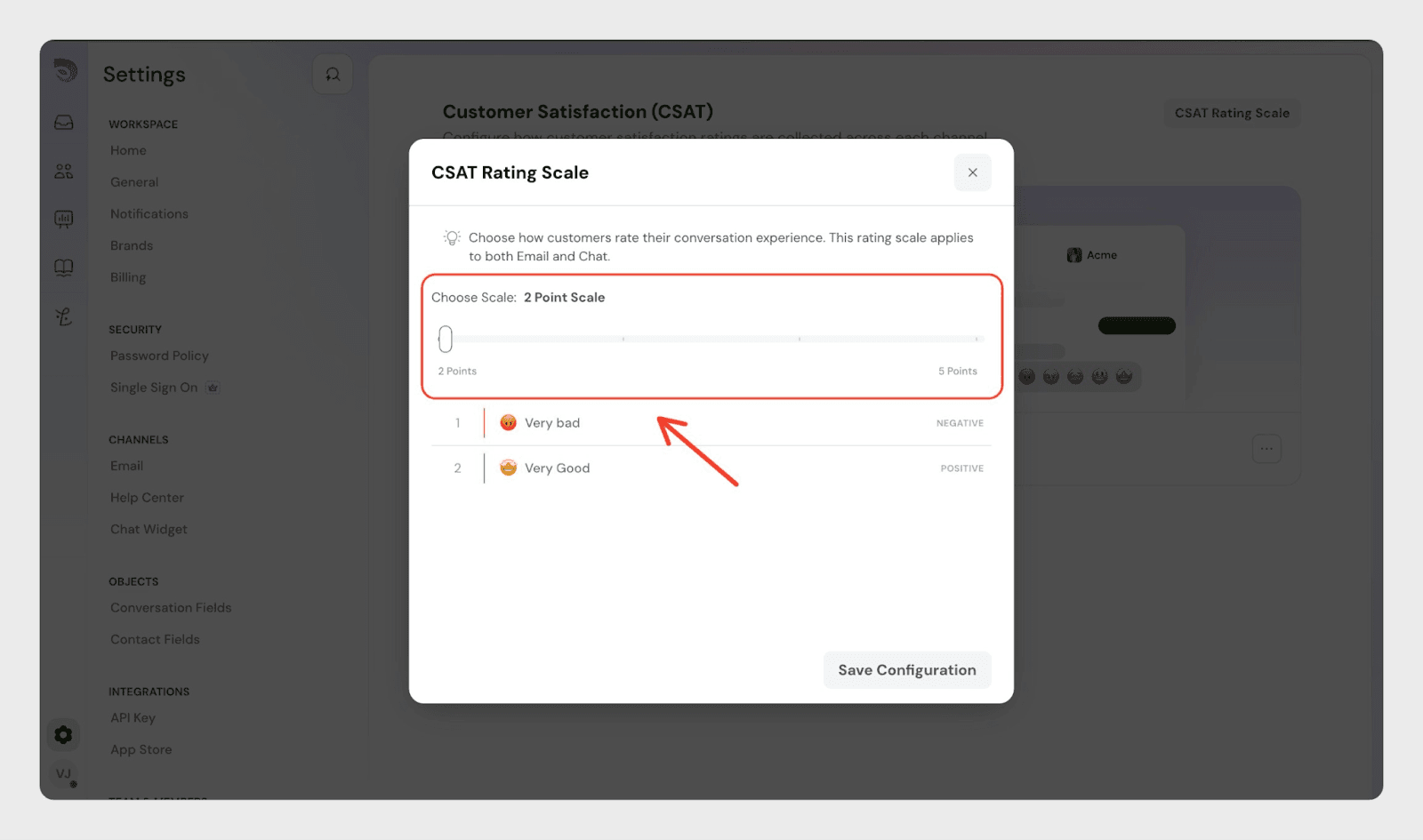
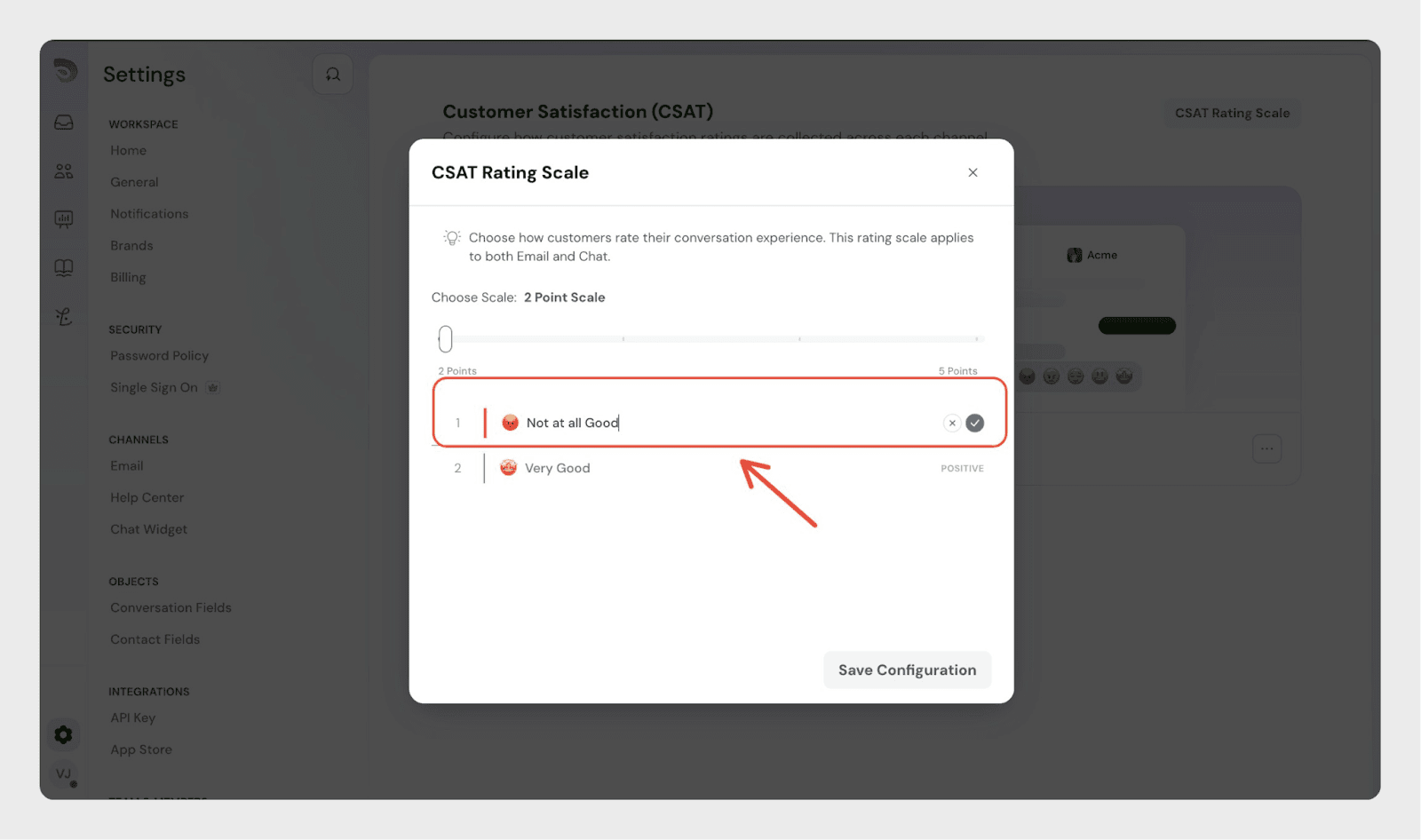
Save configuration.
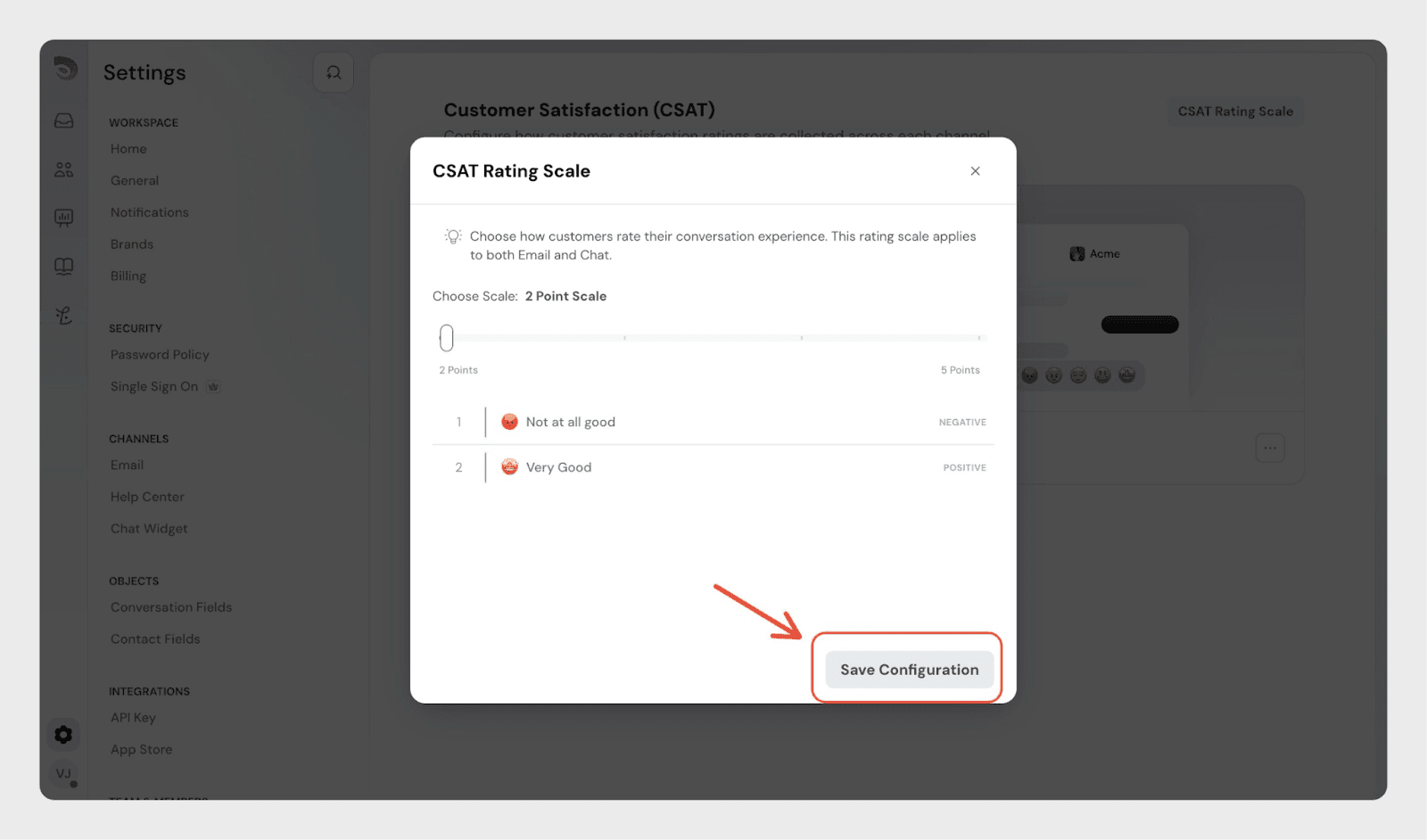
Any changes made here apply across all CSAT surveys.
Each rating in the scale is grouped as:
When editing the survey page:
This allows you to ask different questions based on how customers rate their experience.
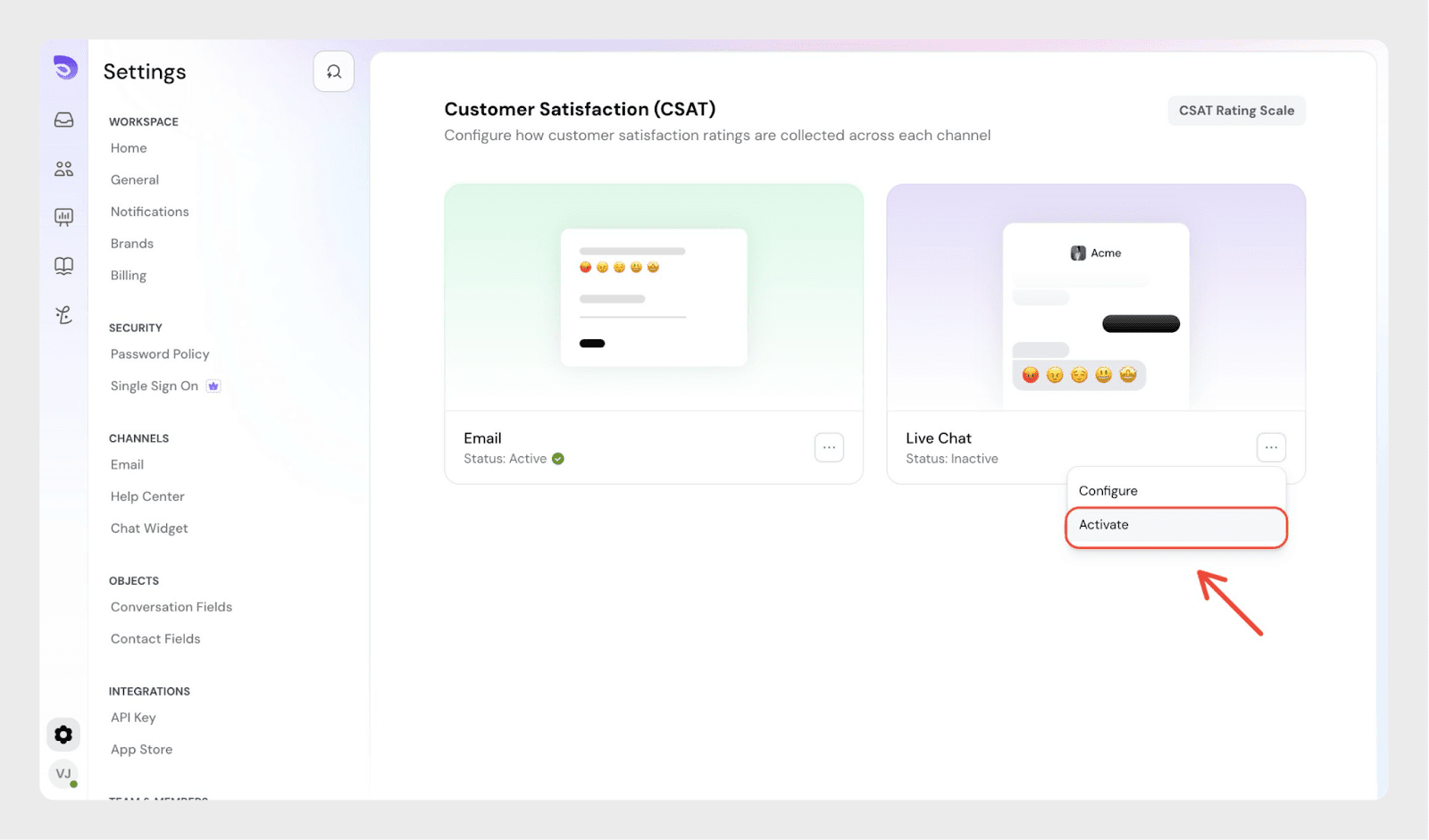
On the CSAT page, you’ll see separate cards for:
Each card shows:
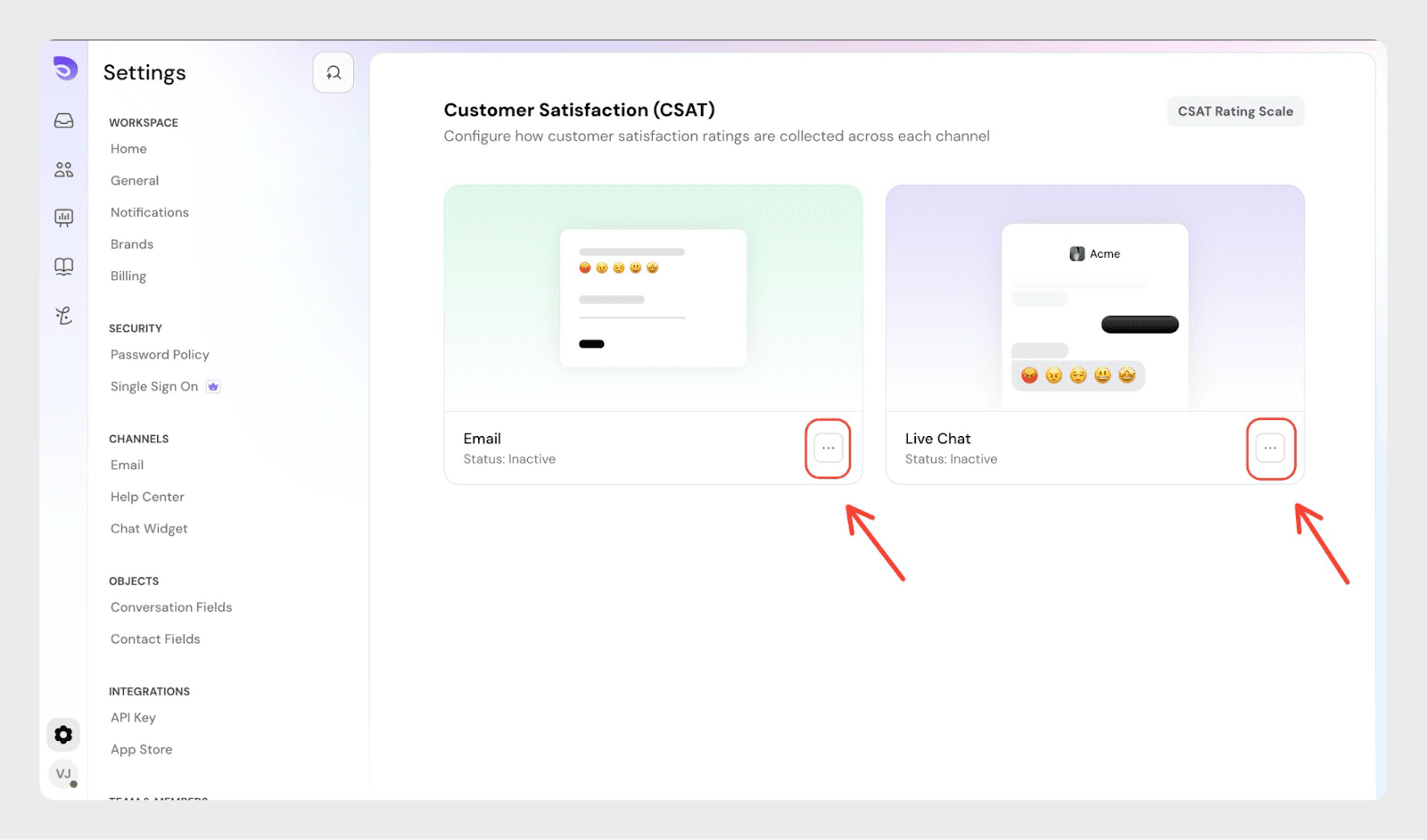
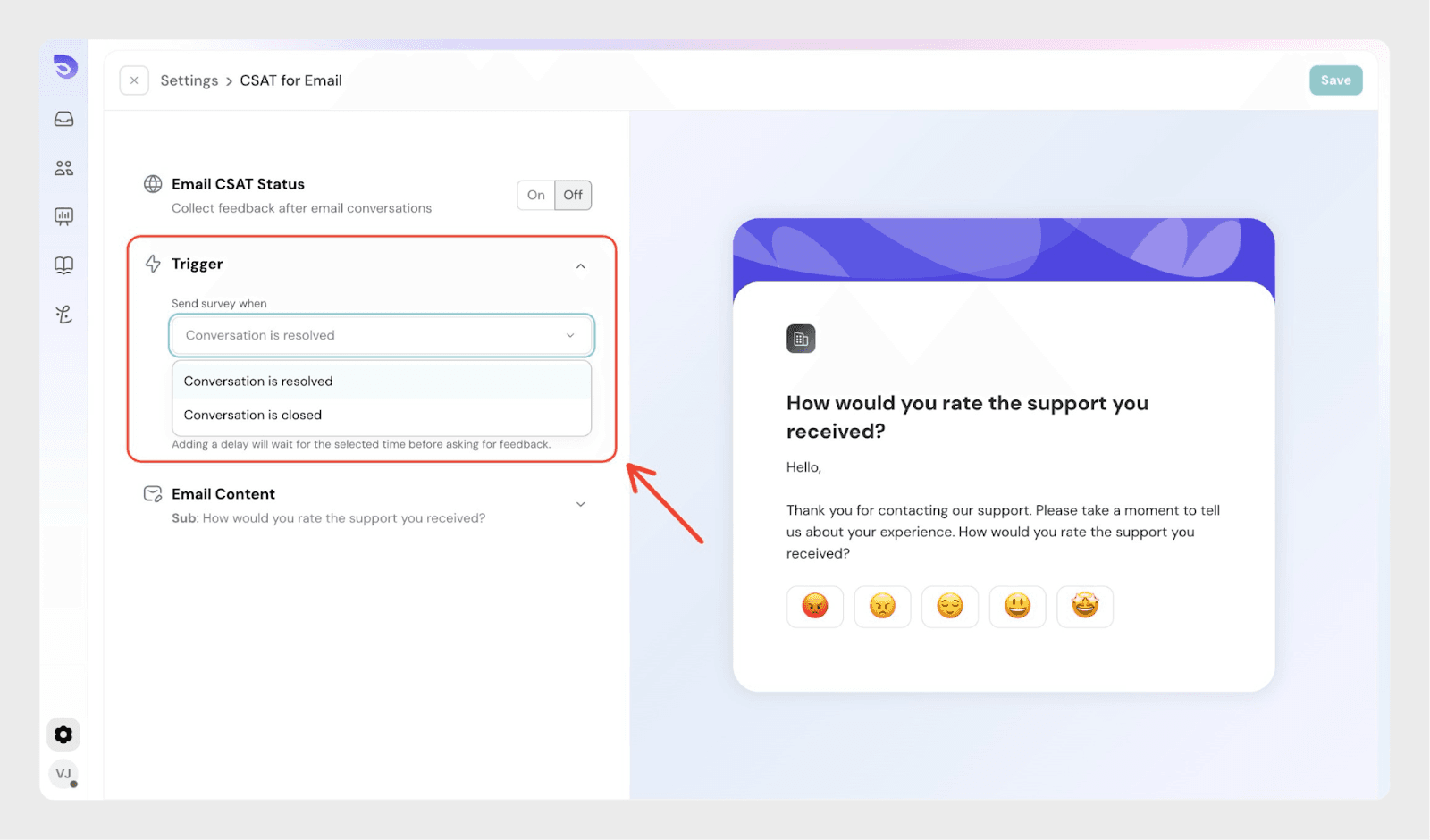
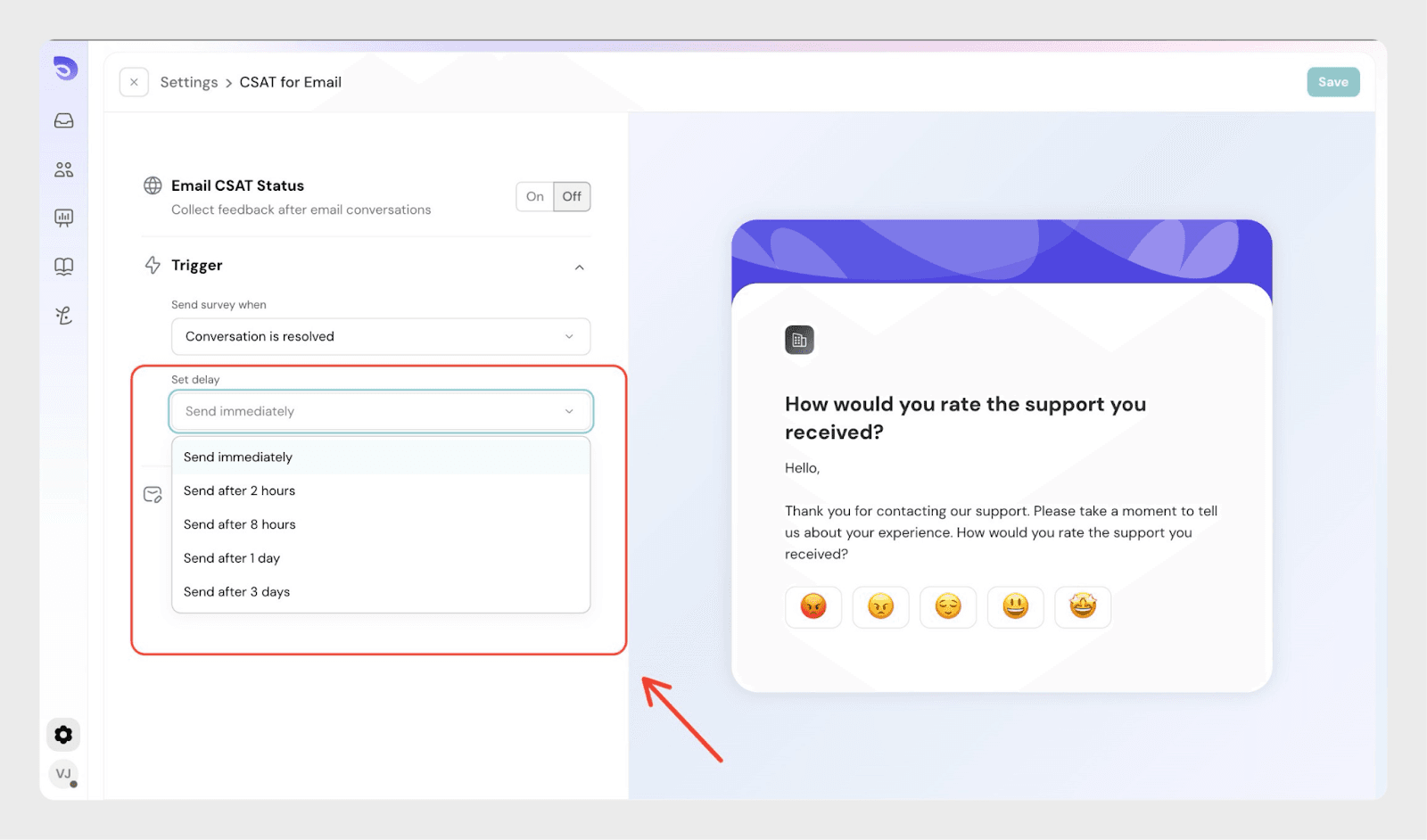
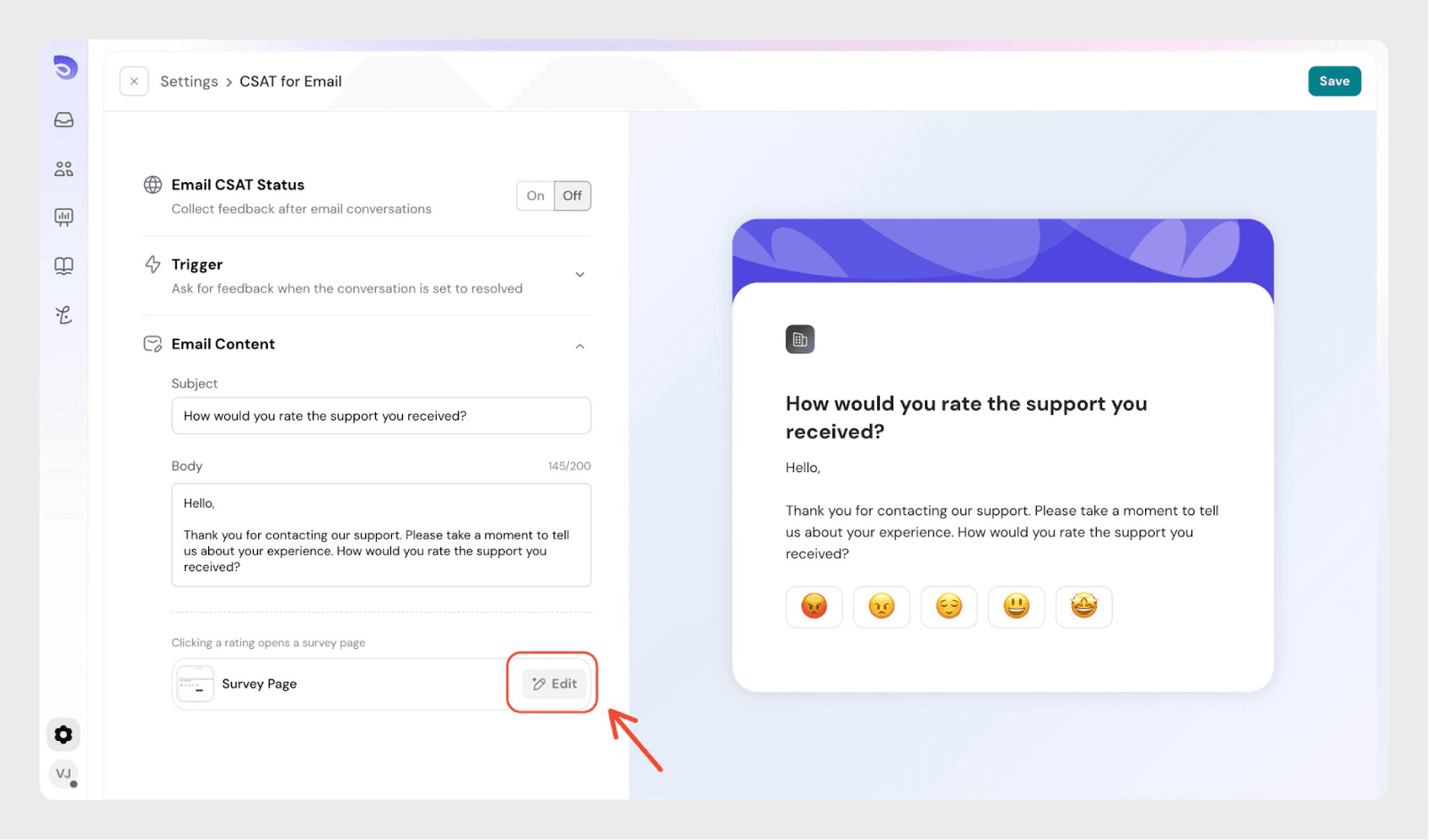
In the Email CSAT settings:
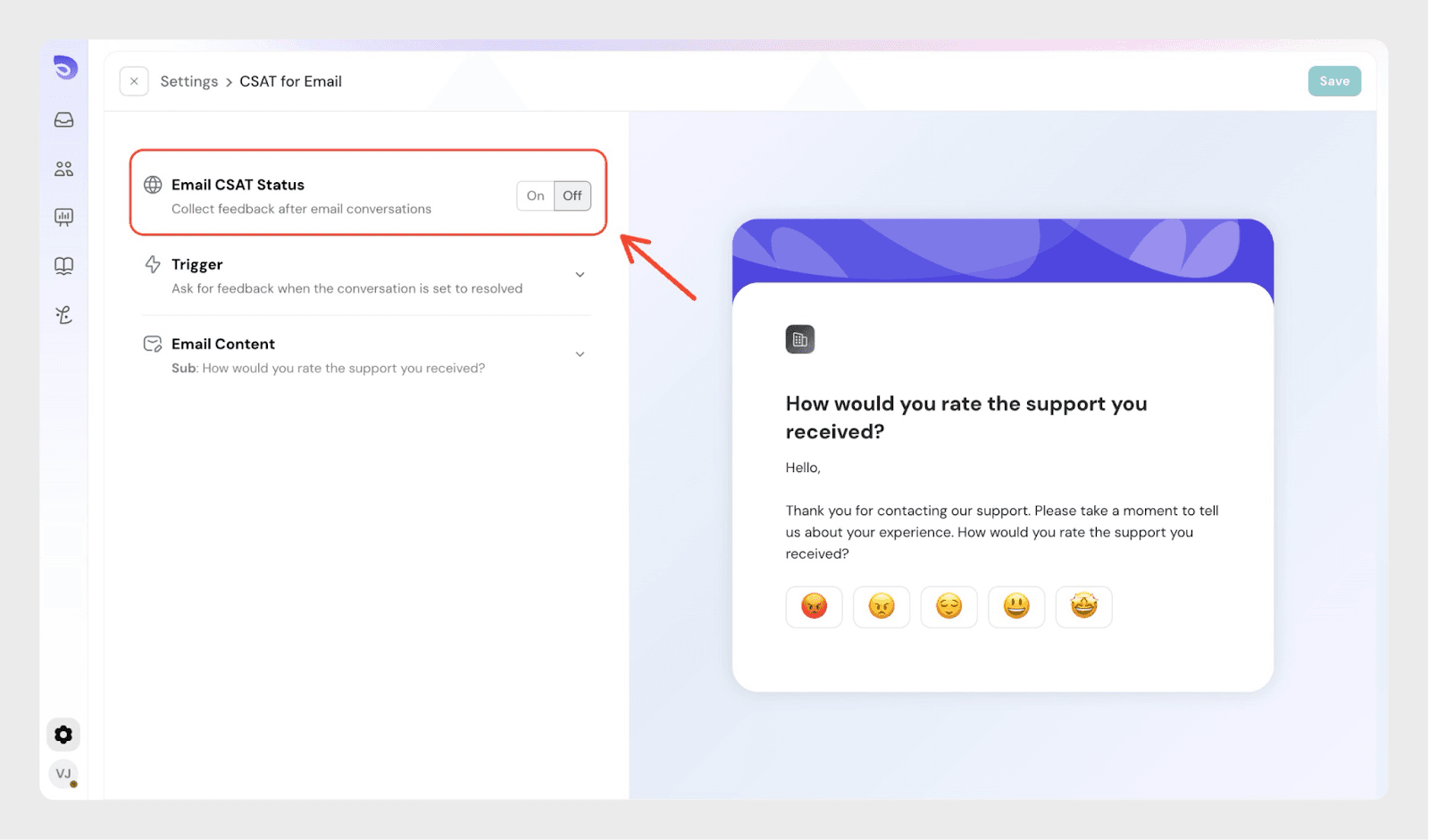
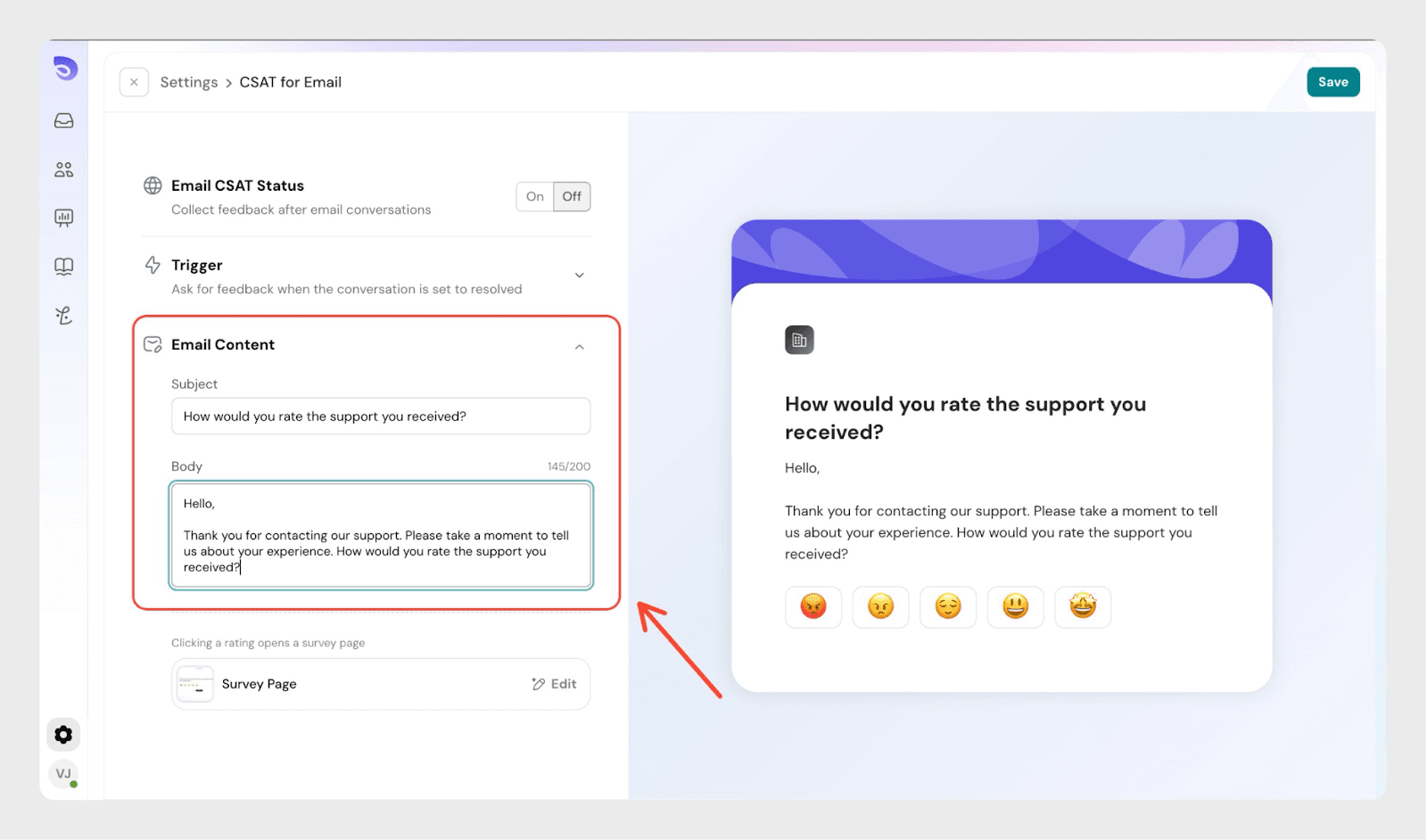
When a customer clicks a rating, SparrowDesk opens a survey page to collect feedback.
You can click Edit under Survey Page to customize the questions shown on this page.
On the survey page, you can:
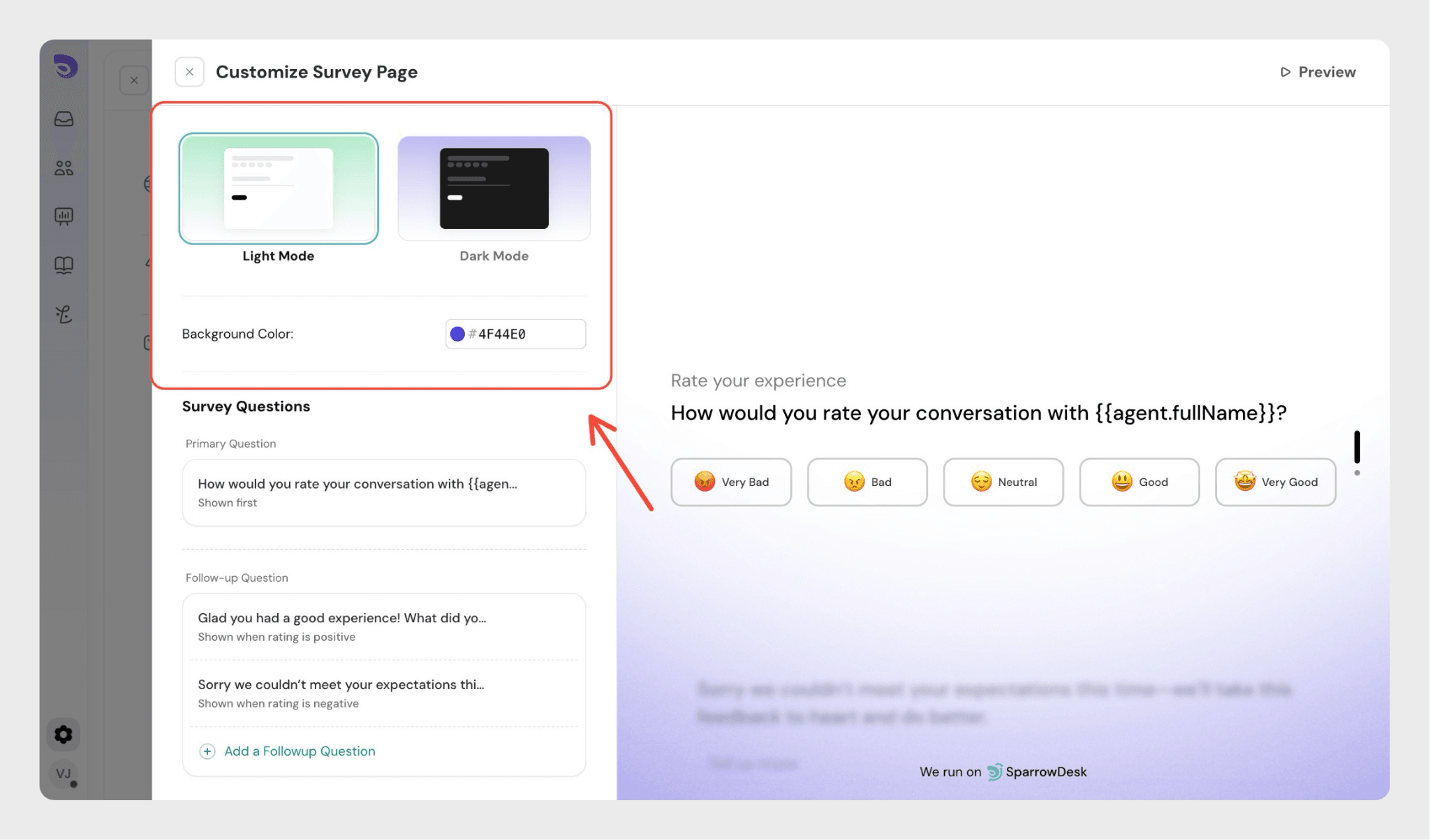
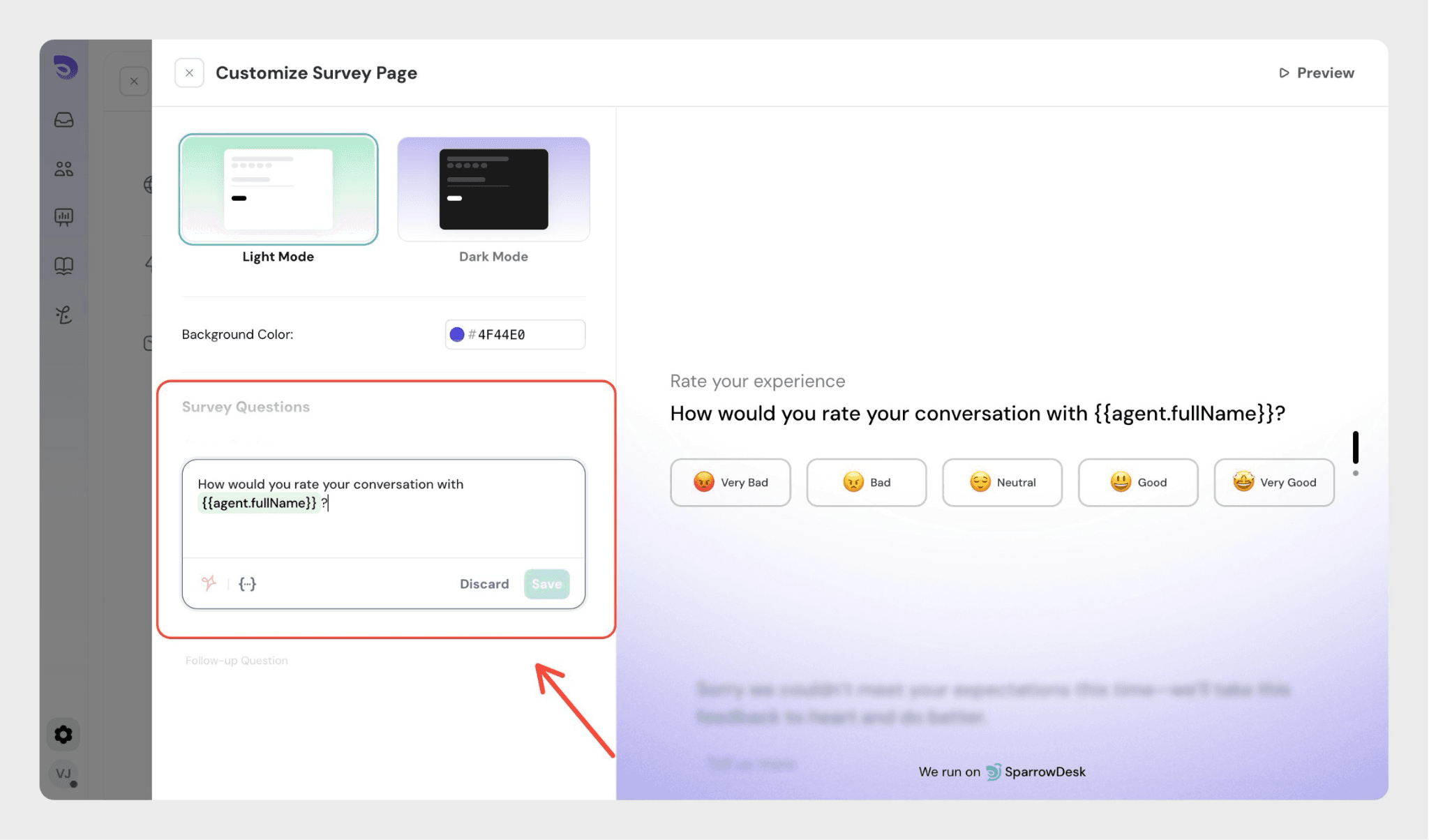
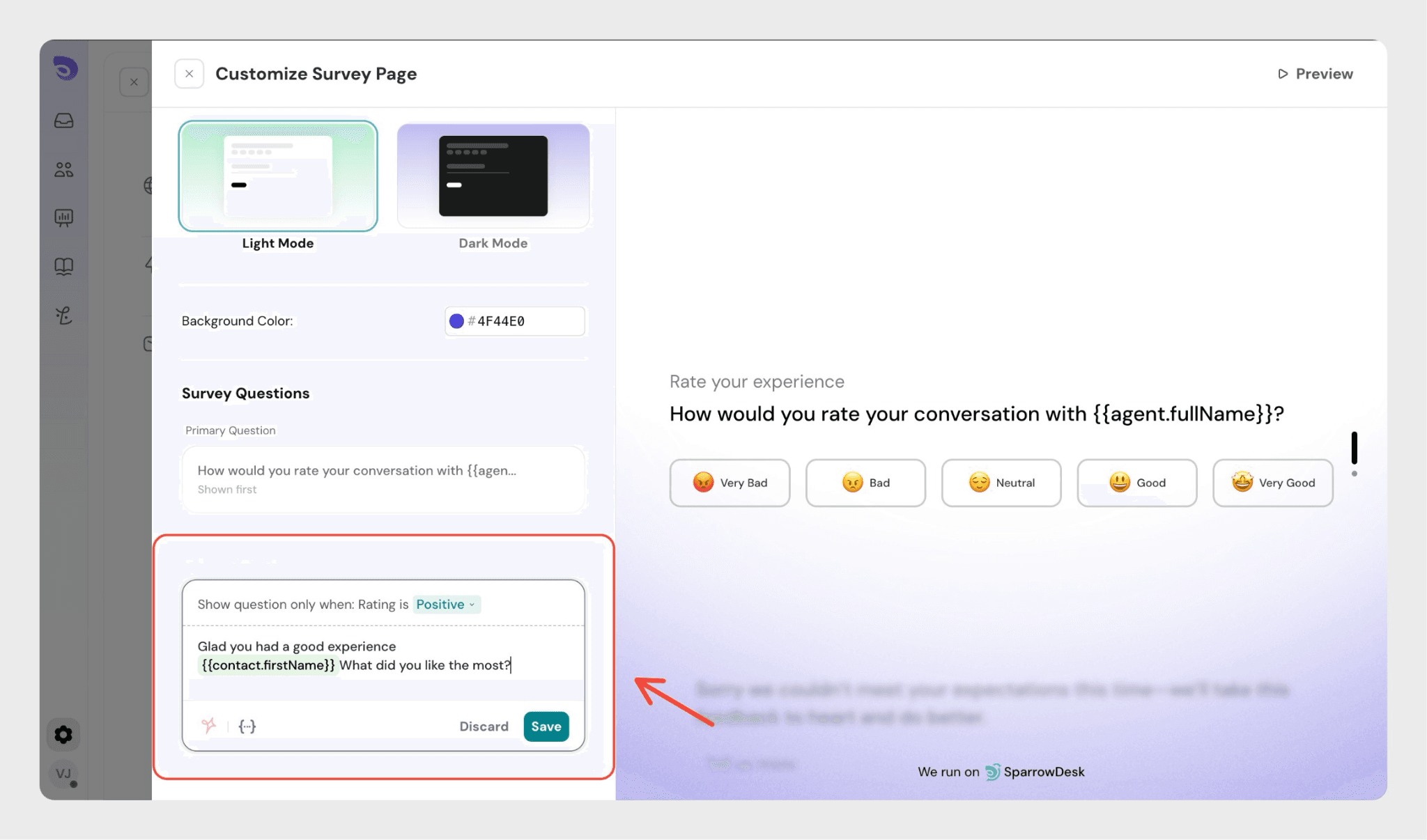
Click a positive, neutral, or negative rating to customize the follow-up question for that specific response.
When customers click an emoji rating:
You can preview the setup and save it.
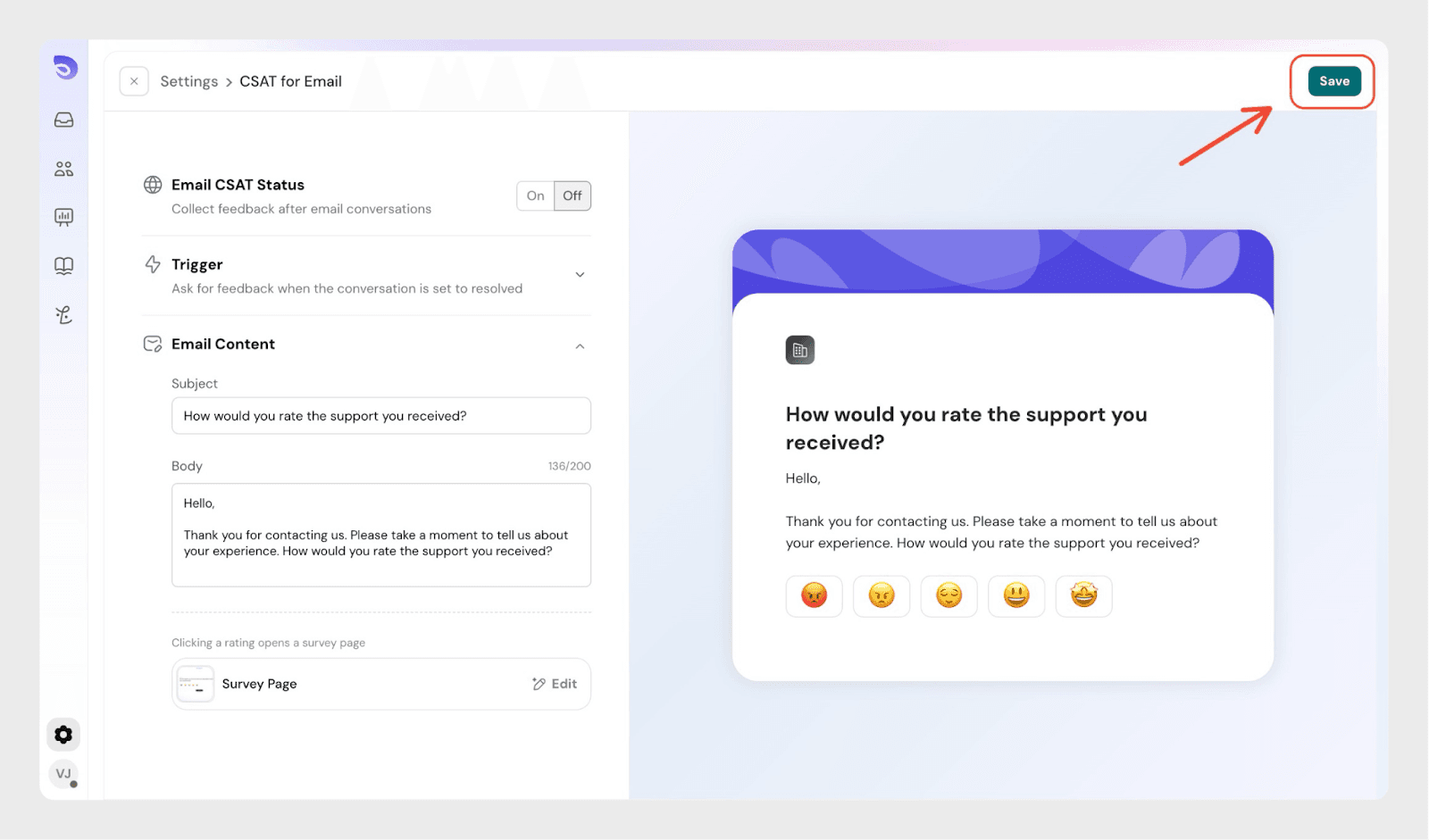
Live Chat CSAT follows the same setup flow.
In the Live Chat CSAT settings:
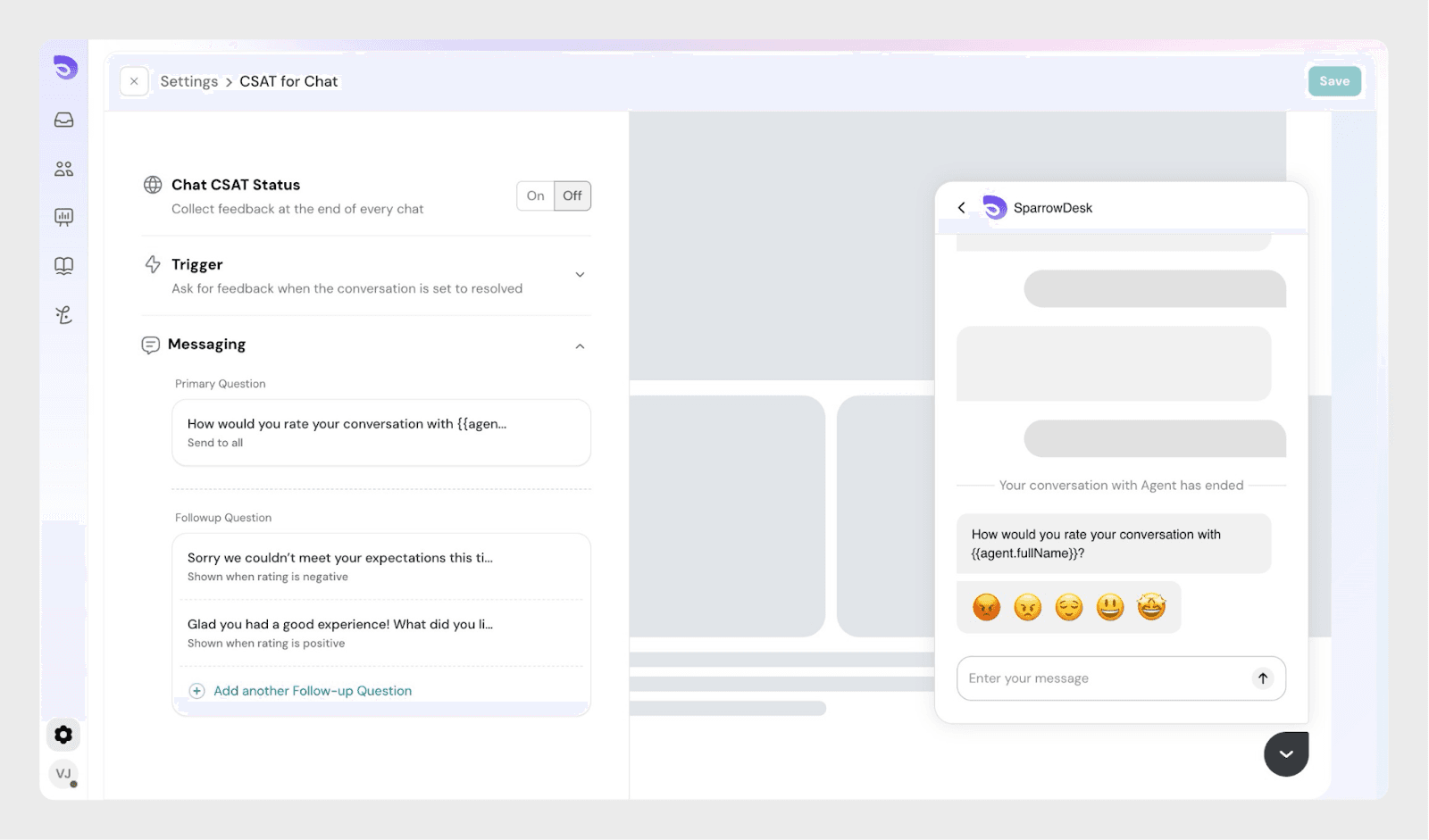
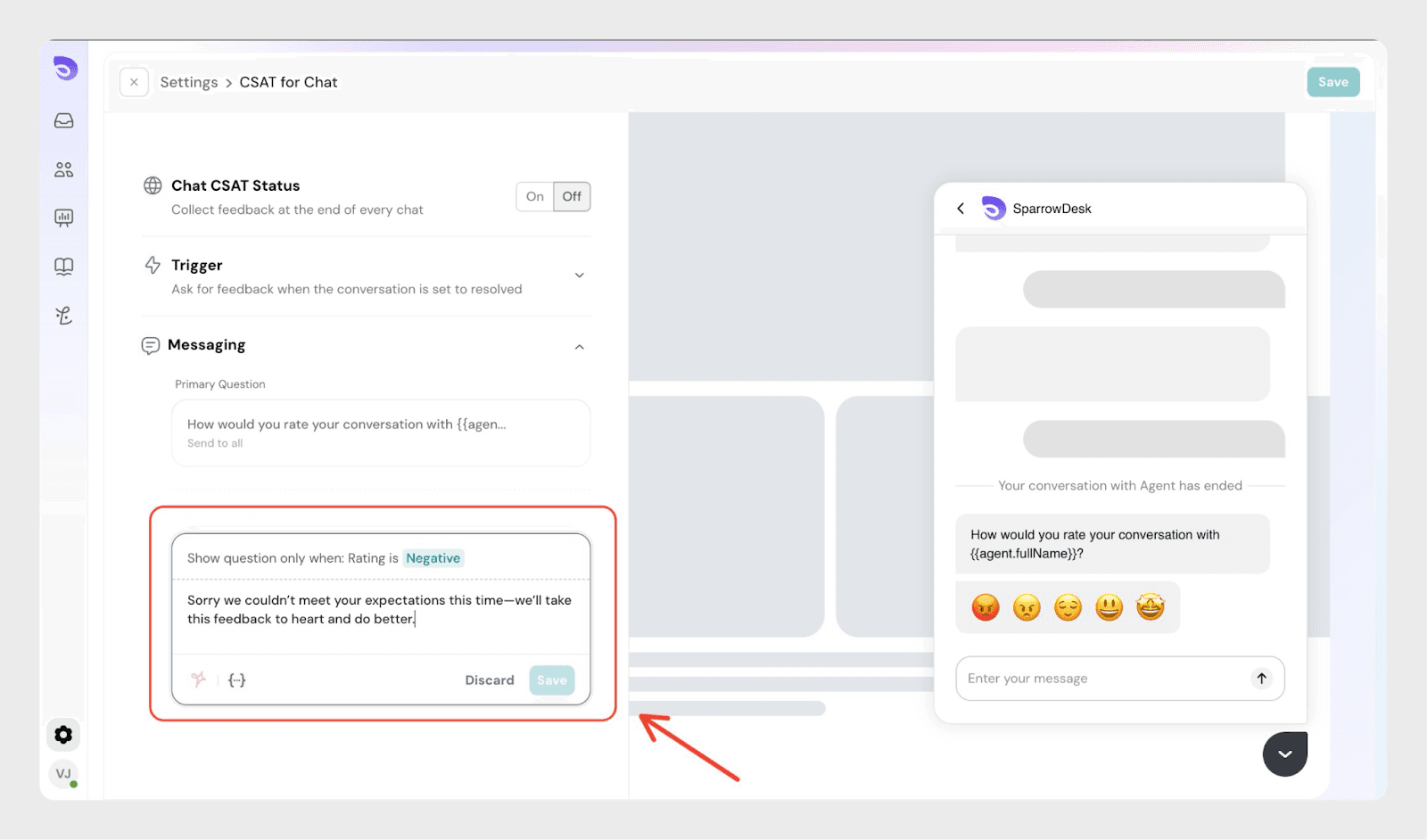
You can show different follow-up questions based on the selected rating.
For example:
These questions are optional and help you collect more meaningful feedback.
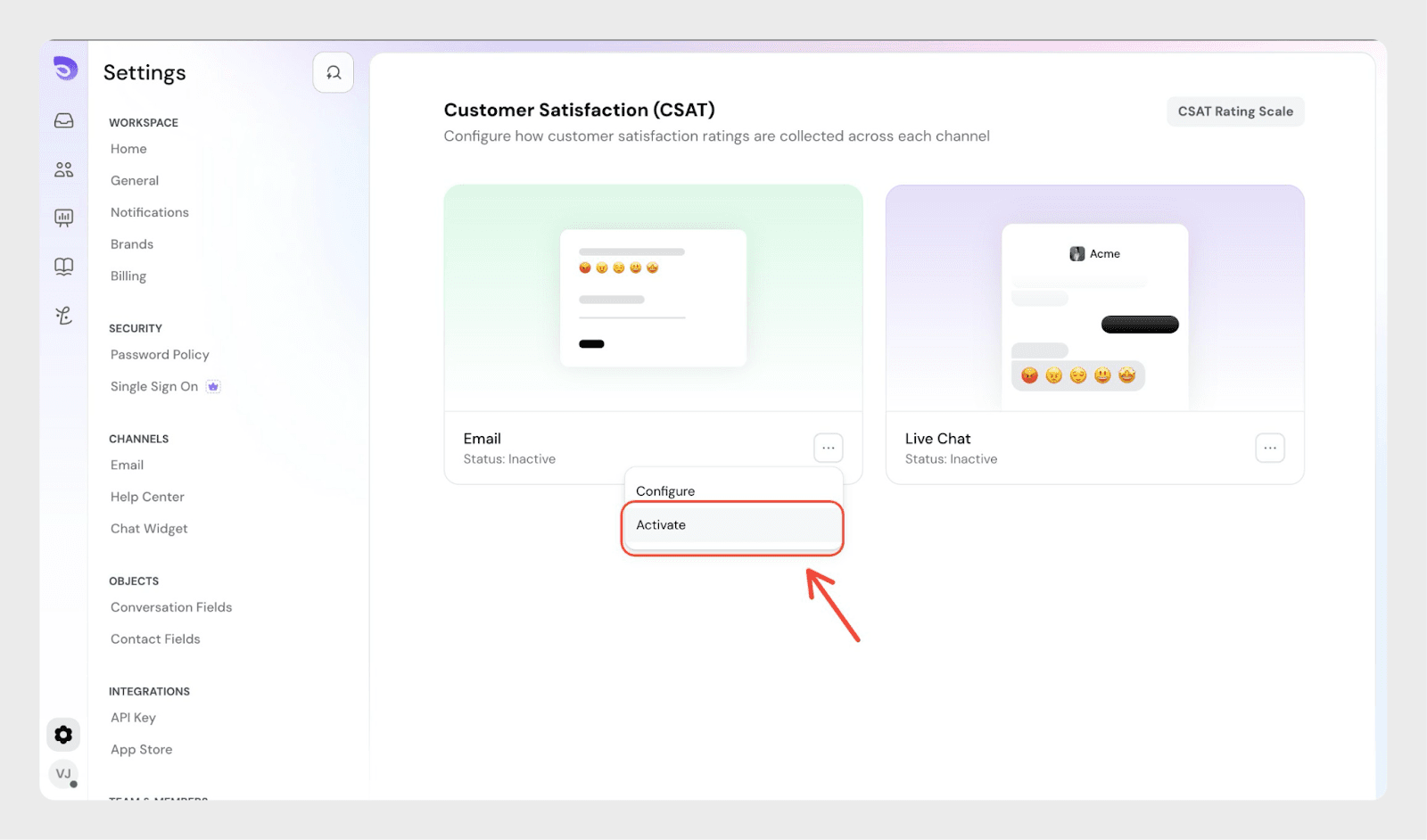
Once you’ve saved your configuration, activate CSAT from the channel menu.
Agents can view CSAT ratings directly in the Inbox for the conversations they handle. Each rating is linked to the conversation, making it easy to understand how customers felt about the support provided.
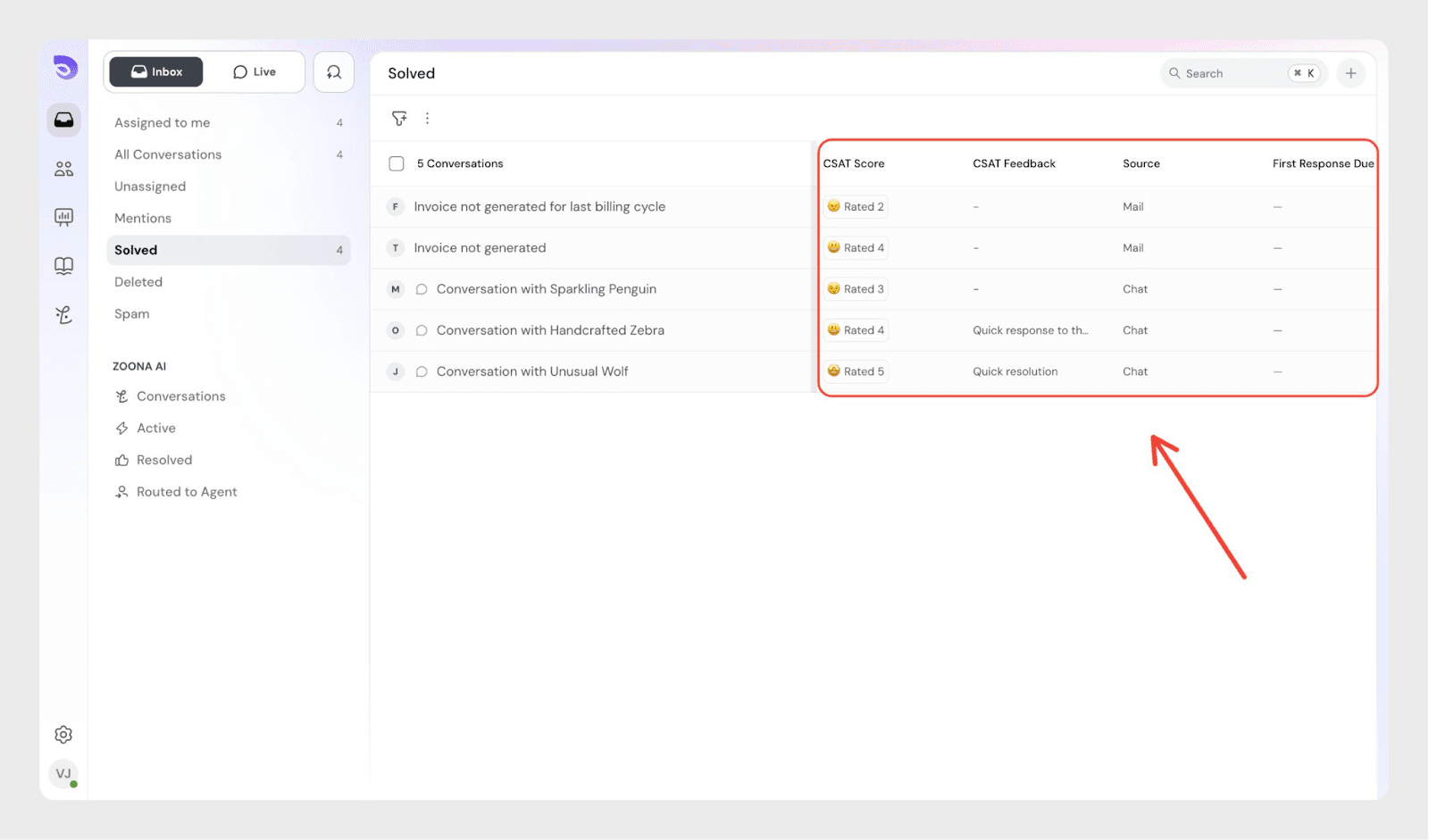
For agents:
This helps agents quickly review feedback without leaving the Inbox.
A single conversation can have more than one CSAT rating.
This happens when:
Each completed support cycle generates a separate CSAT rating.
This helps teams understand how satisfaction changes over time.
Agents can use CSAT feedback to:
Admins can also use CSAT ratings in Inbox filters and reports.
CSAT in SparrowDesk helps you collect timely and relevant feedback after support conversations.
With flexible rating scales, channel-specific settings, and customizable follow-up questions, you can understand customer sentiment without disrupting the support experience.
Once configured and activated, CSAT works quietly in the background, helping you improve support quality with every response.
Only users with admin access and custom role builder can configure and manage CSAT settings.
Yes. The CSAT rating scale is shared across both Email and Live Chat. Any changes to the scale apply to all CSAT surveys.
Yes. You can add different follow-up questions for positive, neutral, and negative ratings. These questions are optional and help collect more detailed feedback.
No. Once a CSAT rating is submitted, it cannot be edited.
Yes. For Email CSAT, you can choose:
CSAT will not be sent until it is activated from the channel’s three-dot menu. Make sure to activate CSAT after saving your configuration.
Powered By SparrowDesk