
Search

Single Sign-On (SSO) allows users to log in to SparrowDesk using their existing Identity Provider (IdP), such as Okta, OneLogin, or Azure AD. This means users do not need to create or remember a separate SparrowDesk password.
1. Go to Settings and select Single Sign-On.
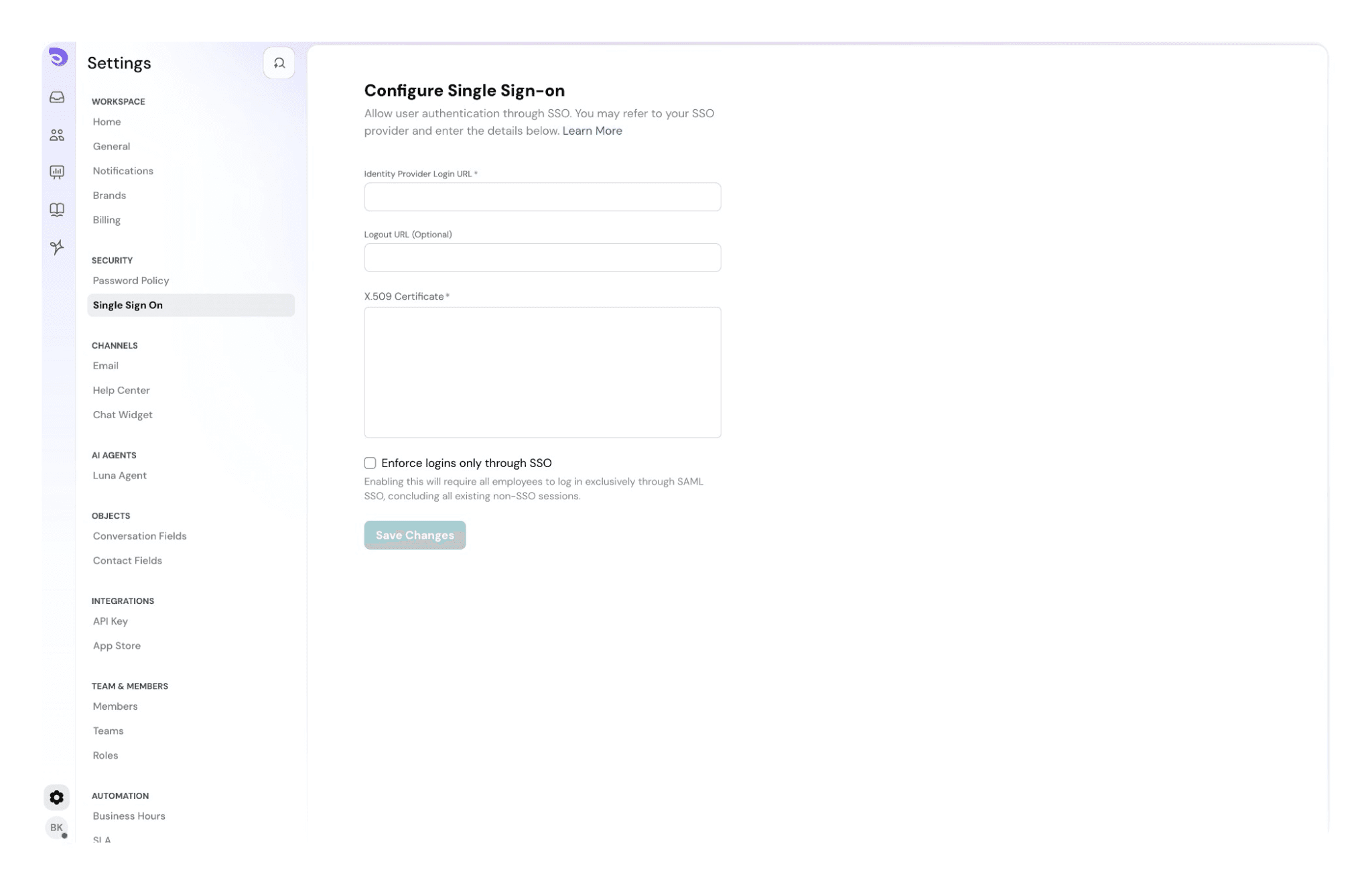
2. After filling in the fields, click on Update.
When a user attempts to log in using SSO, SparrowDesk sends an authentication request to the configured Identity Provider.
If the user is already authenticated with the Identity Provider, access to SparrowDesk is granted automatically.
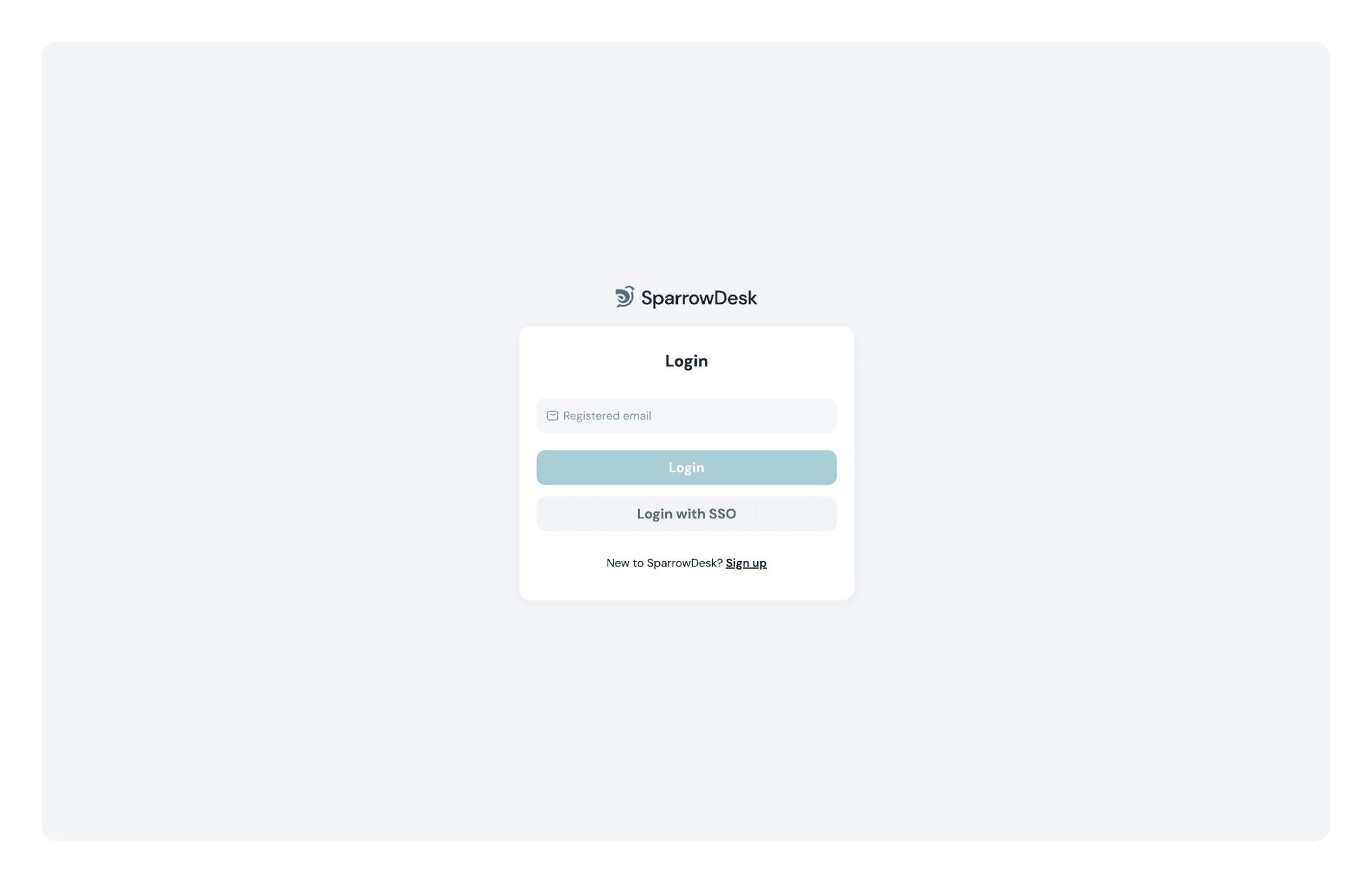
On the login page, users will see a Login with SSO option, which they can use to sign in instead of entering a SparrowDesk password.
When this option is enabled, all users in your SparrowDesk account must log in using the configured Single Sign-On (SSO) provider (SAML).
This is typically used by teams that want all access to be managed centrally through their IdP.
If the Identity Provider is unavailable, regular users will not be able to log in using SSO.
However, account admins are not locked out.
This ensures account access is always recoverable, even if the IdP is temporarily unavailable.
This setting is recommended if:
If you want to allow both SSO and email/password login, leave this option disabled.
The Logout URL is the endpoint provided by your Identity Provider (IdP) that handles user sign-out.
When a Logout URL is configured:
This is commonly referred to as Single Logout (SLO).
No. The Logout URL is optional.
If it is not configured:
You should configure a Logout URL if:
If your IdP does not support SLO, you can leave this field empty.
Powered By SparrowDesk